Configuring Guest Management Destinations
Use this guide to manage the destinations guests can select when they check in to your school.
Destinations help your front desk quickly record where a guest is going, such as the main office, nurse, counselor, library, cafeteria, or a specific meeting location.
Before you start
The Destinations section lets your school choose the locations or visit purposes available during guest check-in.
Common destinations include:
- Main Office
- Nurse
- Counselor
- Library
- Cafeteria
- Meeting or conference location
Tip: Keep destination names simple and general. You can always add specific visit details as a note on the guest record.
Step 1: Open Guest Management settings
- Log in to your district’s Circool website.
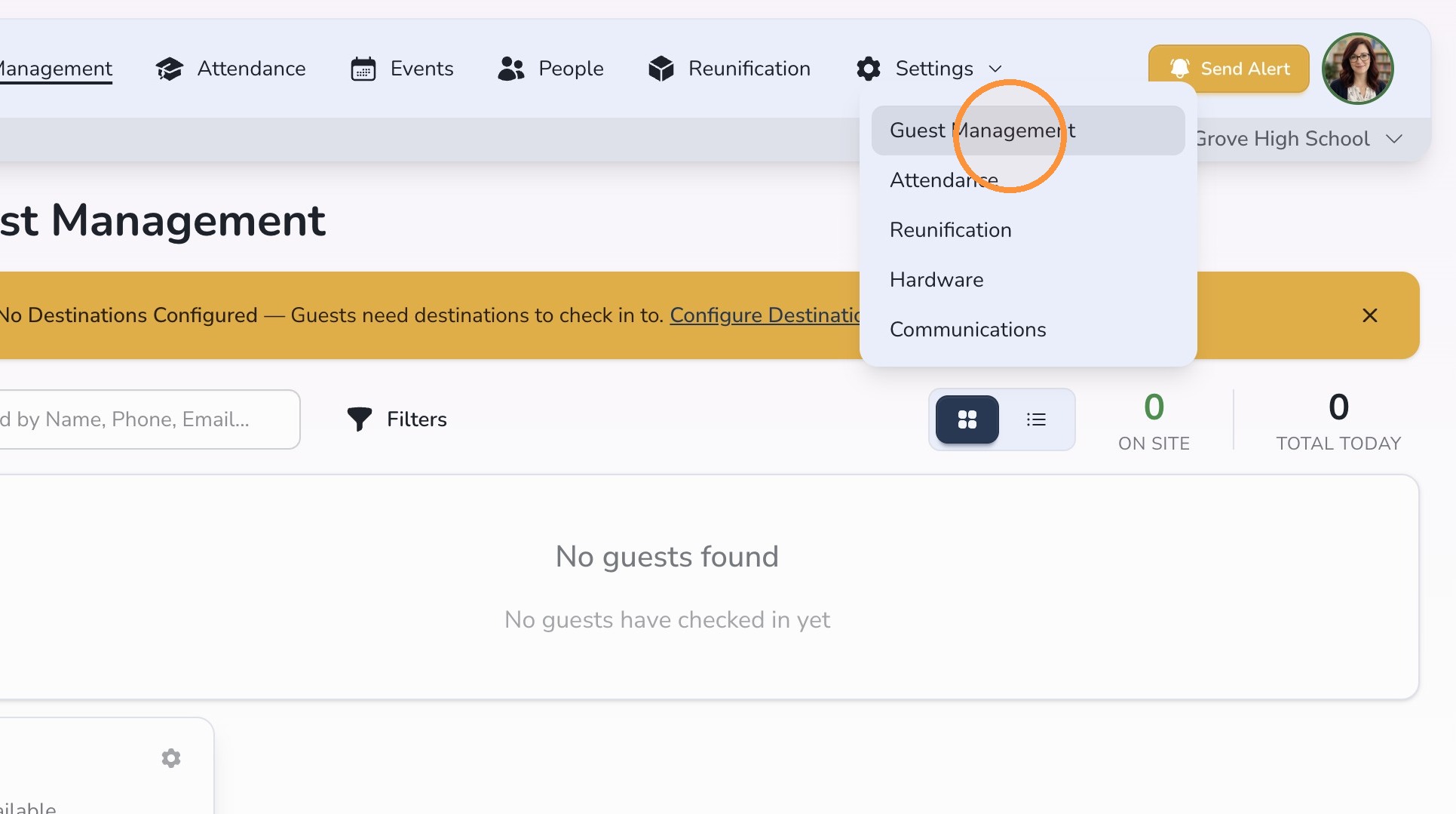
- Click Settings.
- Click Guest Management.
Step 2: Open Destinations
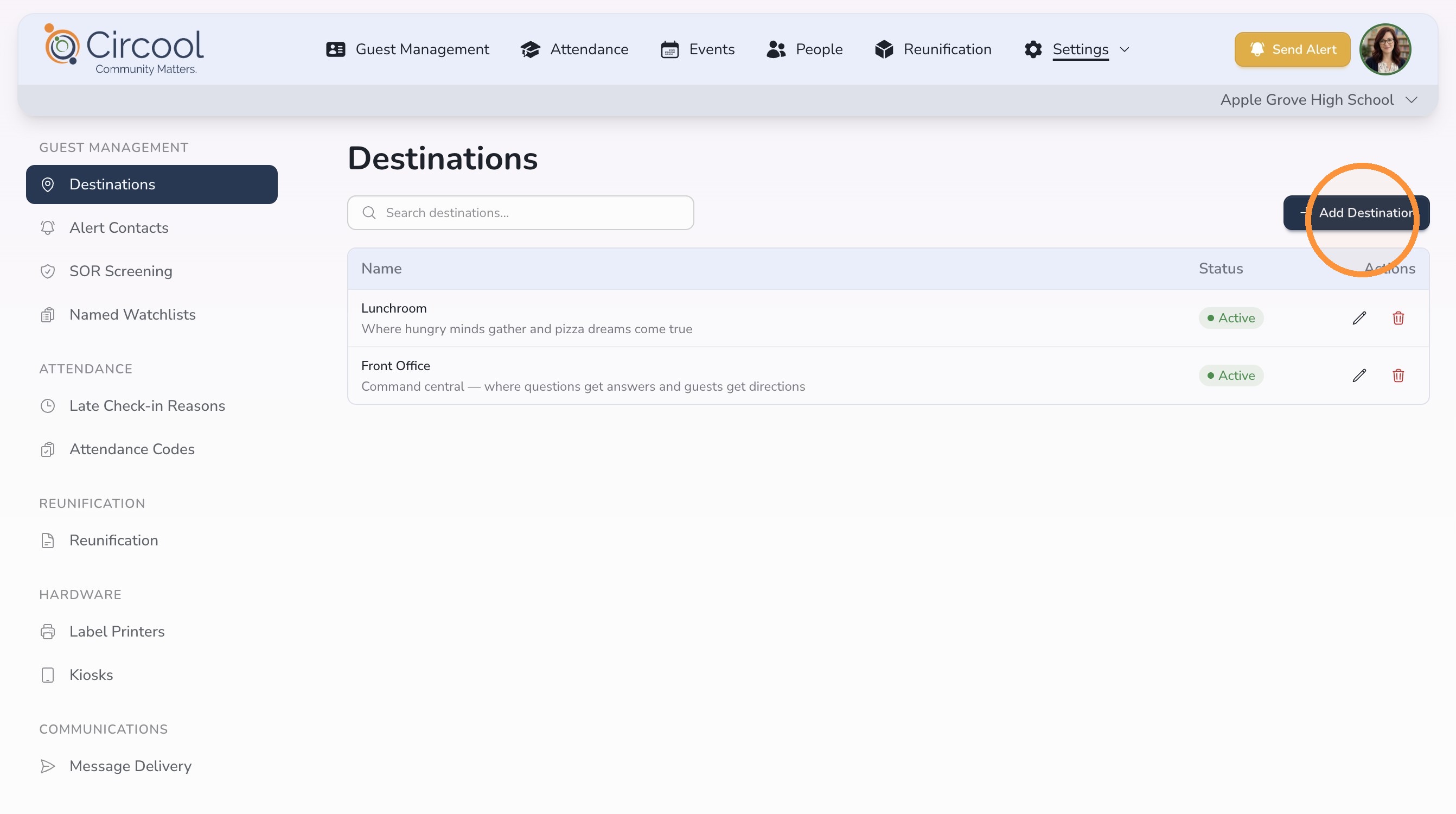
- Select Destinations from the left panel.
- Click + Add Destination or Add Default Destinations.
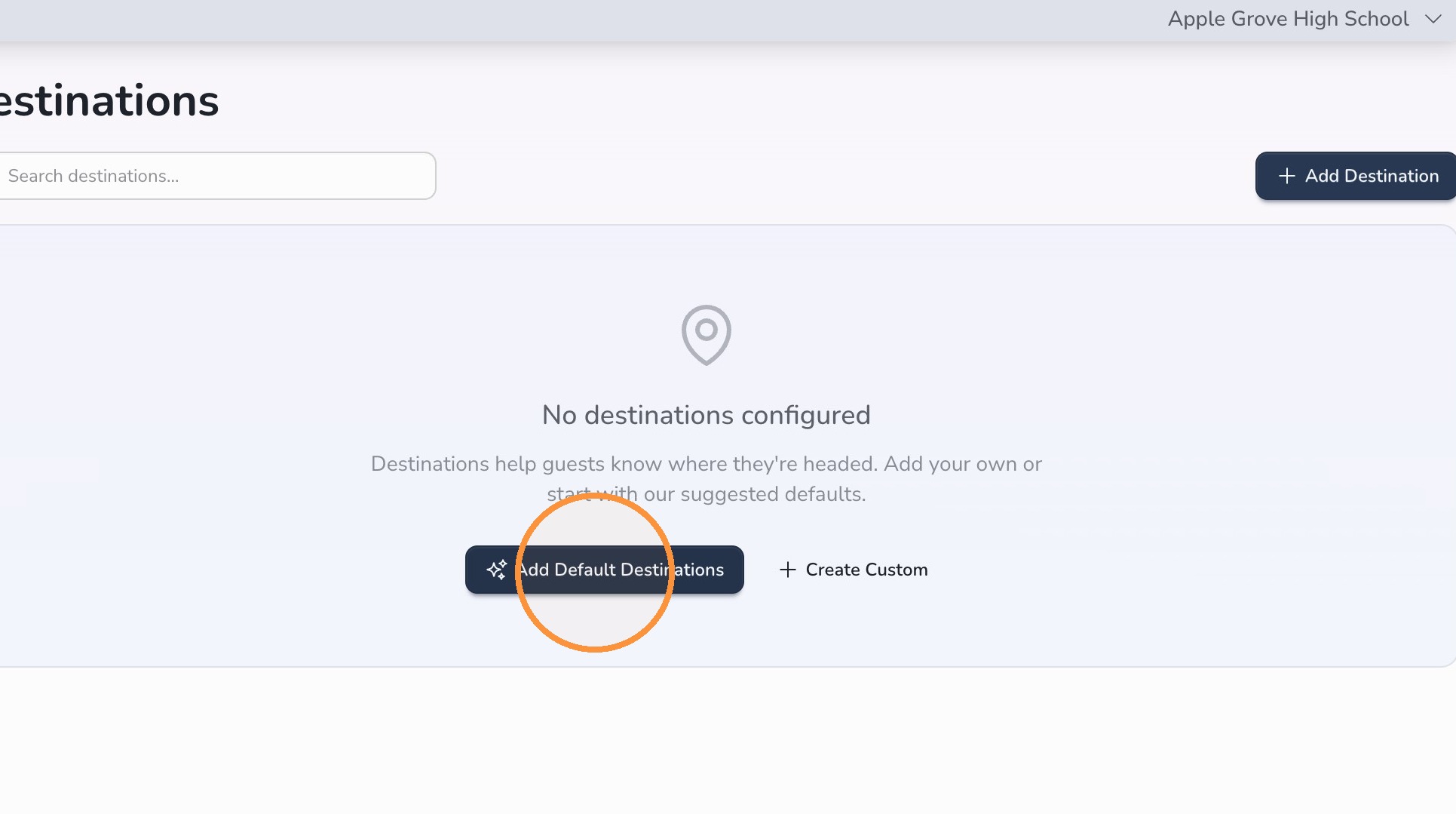
Good to know: Add Default Destinations can help you quickly start with a standard list, then adjust it for your school.
Step 3: Add a destination
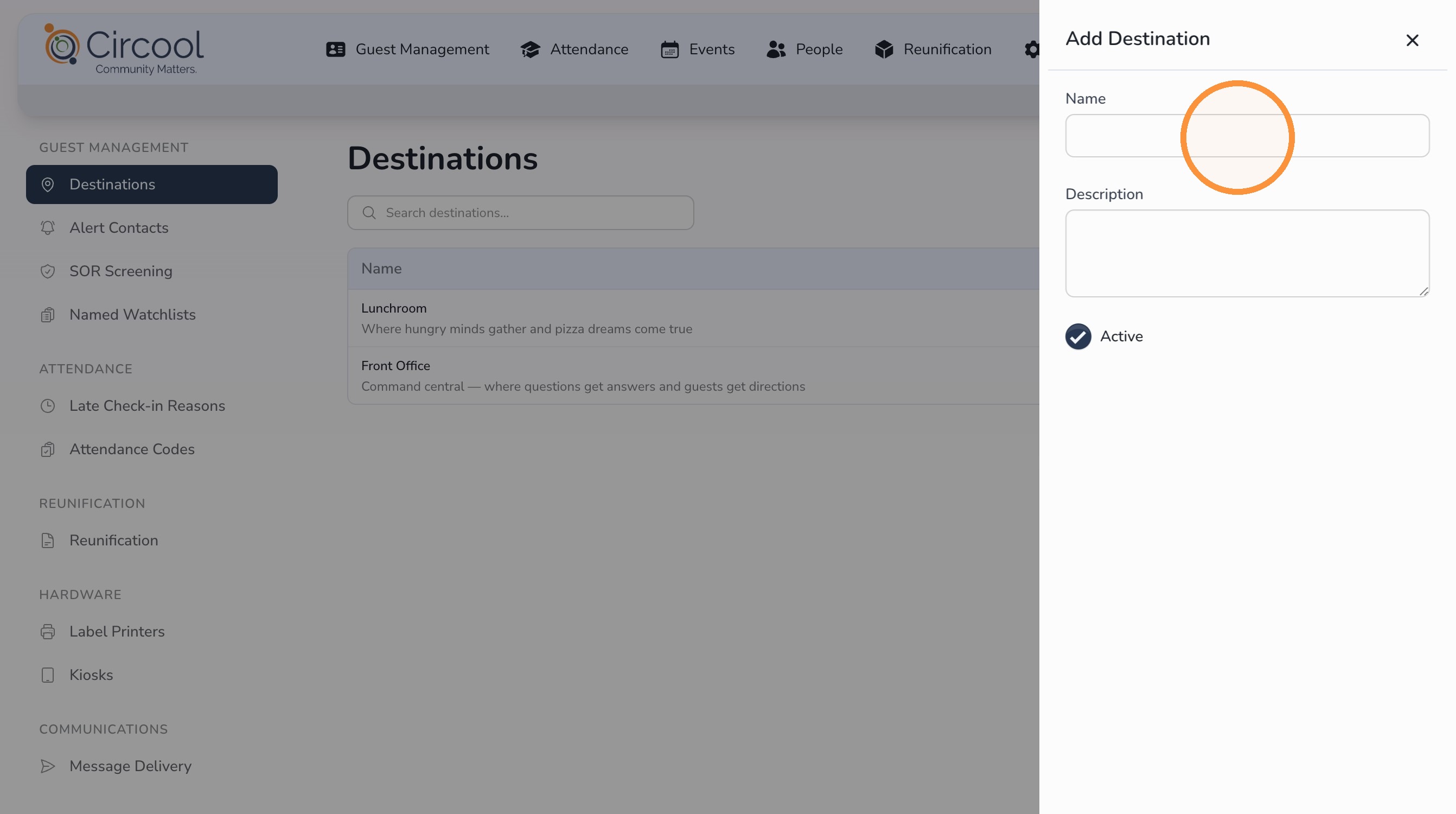
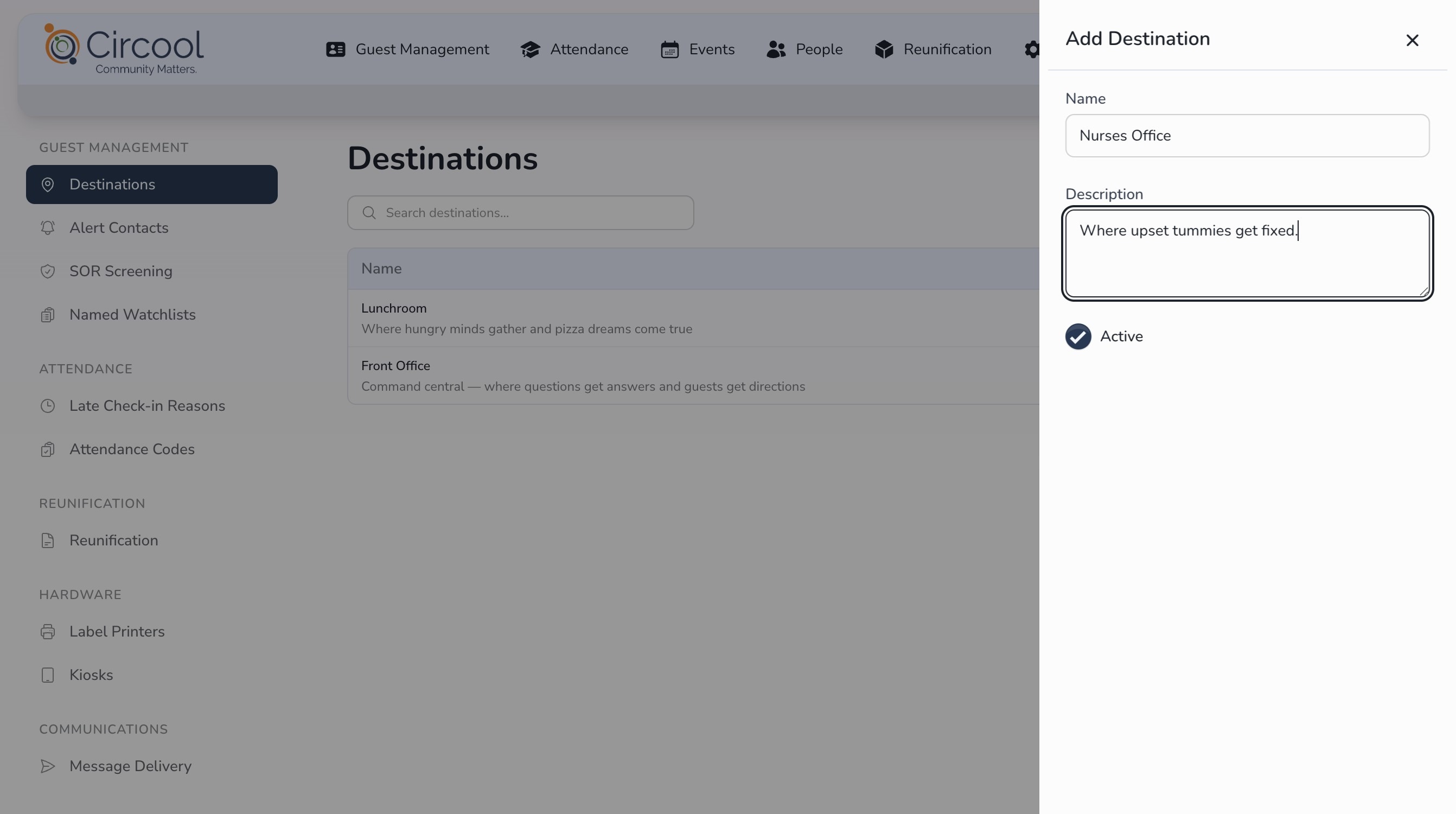
- Enter the destination Name.
- Enter a short Description.
- Click Save.
- Repeat the process for any additional destinations your school needs.
Tip: Avoid creating too many highly specific destinations. A shorter, cleaner list is easier for the front desk to use during busy check-in times.
Step 4: Edit an existing destination
Use this option when a destination name or description needs to be updated.
- Click Settings.
- Click Guest Management.
- Select Destinations from the left panel.
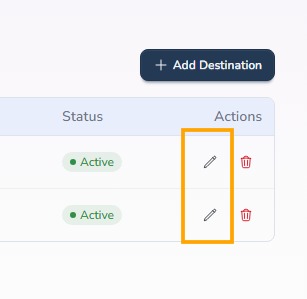
- Click the pencil icon under Actions.
- Make your changes.
- Click Save.
Step 5: Delete an existing destination
Use this option when your school no longer needs a destination.
- Click Settings.
- Click Guest Management.
- Select Destinations from the left panel.
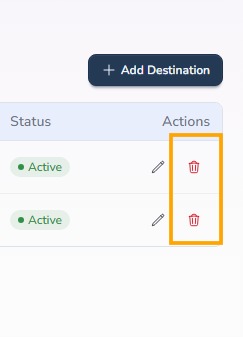
- Click the trash icon under Actions.
- Confirm or cancel the deletion.
Important: Only delete destinations your school no longer uses. If a destination may be needed again, consider renaming or updating it instead.
Helpful tips
- Keep destination names short: Use names your front desk team can quickly recognize.
- Use descriptions when helpful: Descriptions can clarify when a destination should be selected.
- Review before school starts: Destinations should match your current building layout and school procedures.
- Avoid clutter: Too many options can slow down check-in during busy times.
What happens next
Once destinations are saved, they will appear as options during guest check-in.
Front desk staff can then select the appropriate destination when checking in a guest, helping your school keep a clearer record of who is visiting and where they are going.
That’s it. A clean destination list helps guest check-in stay fast, simple, and organized.
Need help?
Circool support is here to help.
If you need help configuring Guest Management destinations, contact Circool support by phone at 205.202.1124 or email support@circool.com.
Was this article helpful?
That’s Great!
Thank you for your feedback
Sorry! We couldn't be helpful
Thank you for your feedback
Feedback sent
We appreciate your effort and will try to fix the article