Configuring Alert Contacts
Use this guide to manage the staff members who receive Circool alert notifications from the front desk.
When the Send Alert button is used, Circool sends both a text message and an email to the contacts listed in your alert settings.
Before you start
The Send Alert button is used to quickly notify the right people when the front desk needs help.
Alert contacts are usually people who need to be notified quickly, such as:
- SRO
- Principal
- Assistant Principal
- Front office lead
- Other designated school staff
Important: Keep alert contacts up to date so the right people receive the notification when an alert is sent.
Step 1: Know where the Send Alert button is located
The Send Alert button is always available in the top-right corner of Circool.
When selected, Circool gives the user an opportunity to add a message and confirm the alert before it is sent.
Alerts are sent to your alert contacts by both SMS text message and email.
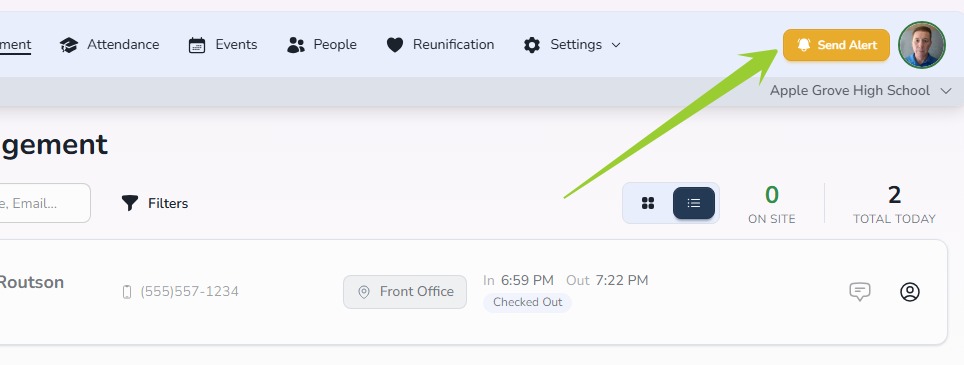
Tip: The Send Alert button should only be used when the front desk needs quick assistance from the school’s designated alert contacts.
Step 2: Open Guest Management settings
- Log in to your district’s Circool website.
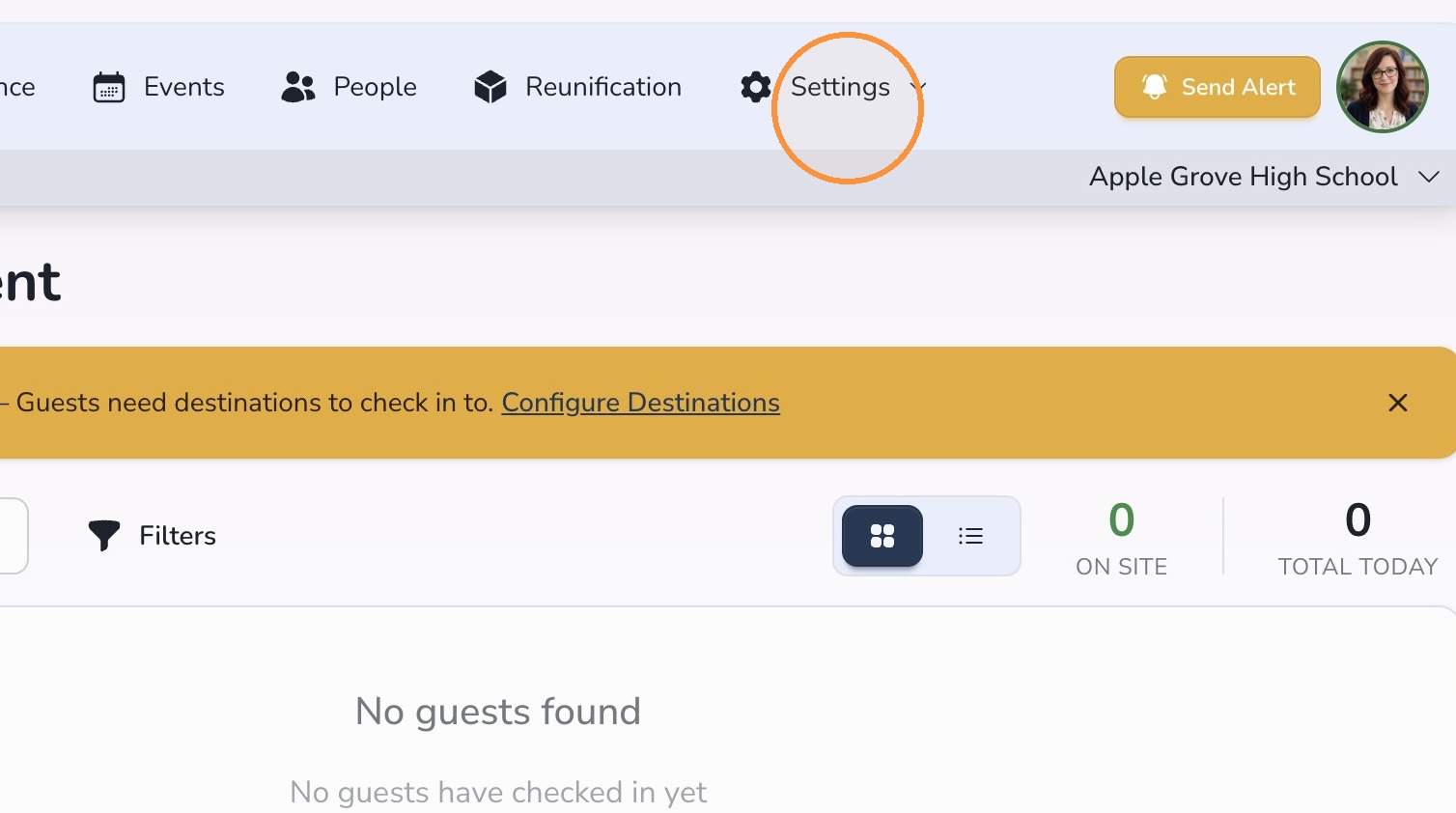
- Click Settings.
- Click Guest Management.
Step 3: Open Alert Contacts
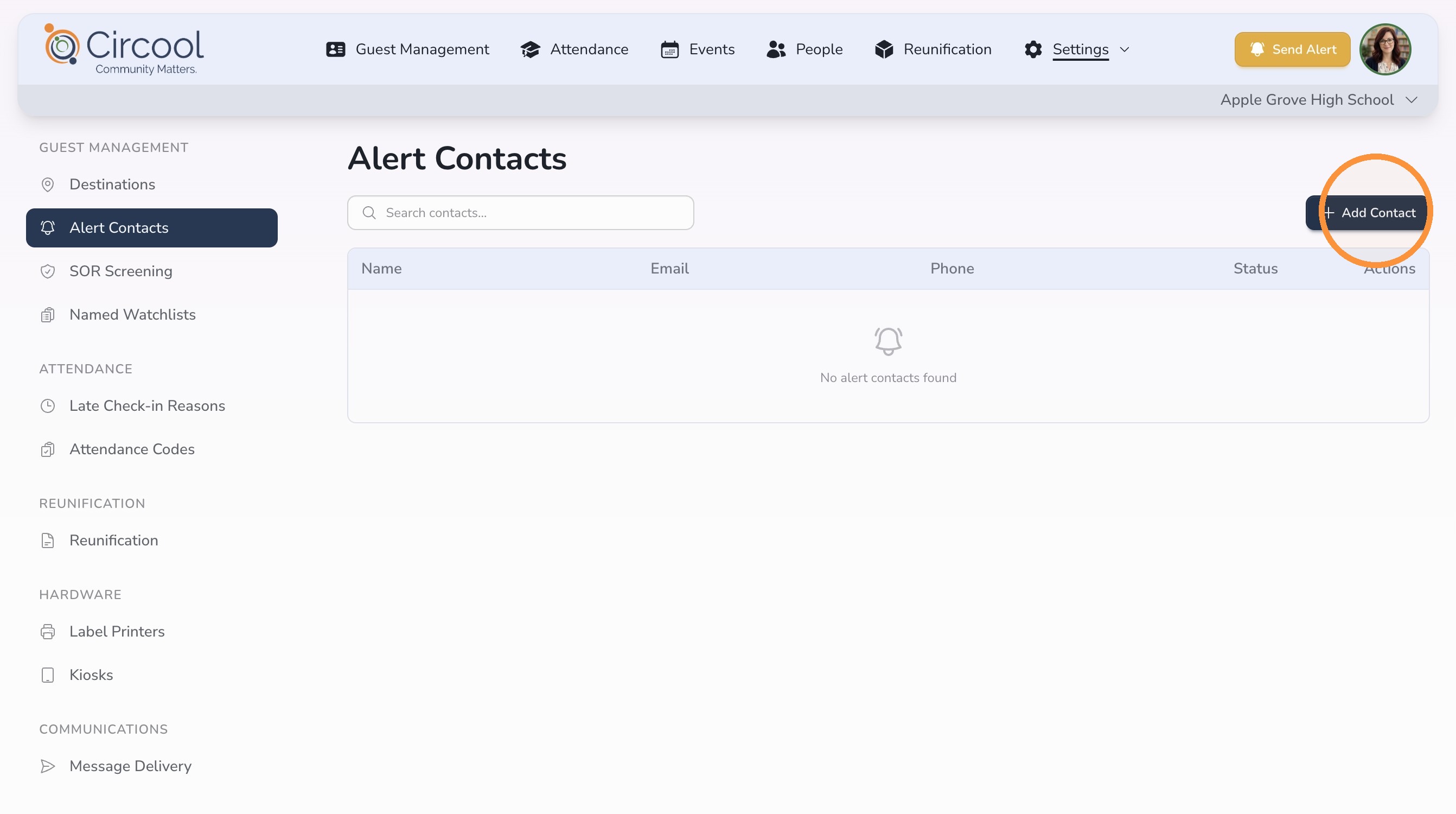
- Select Alert Contacts from the left panel.
- Click + Add Contact.
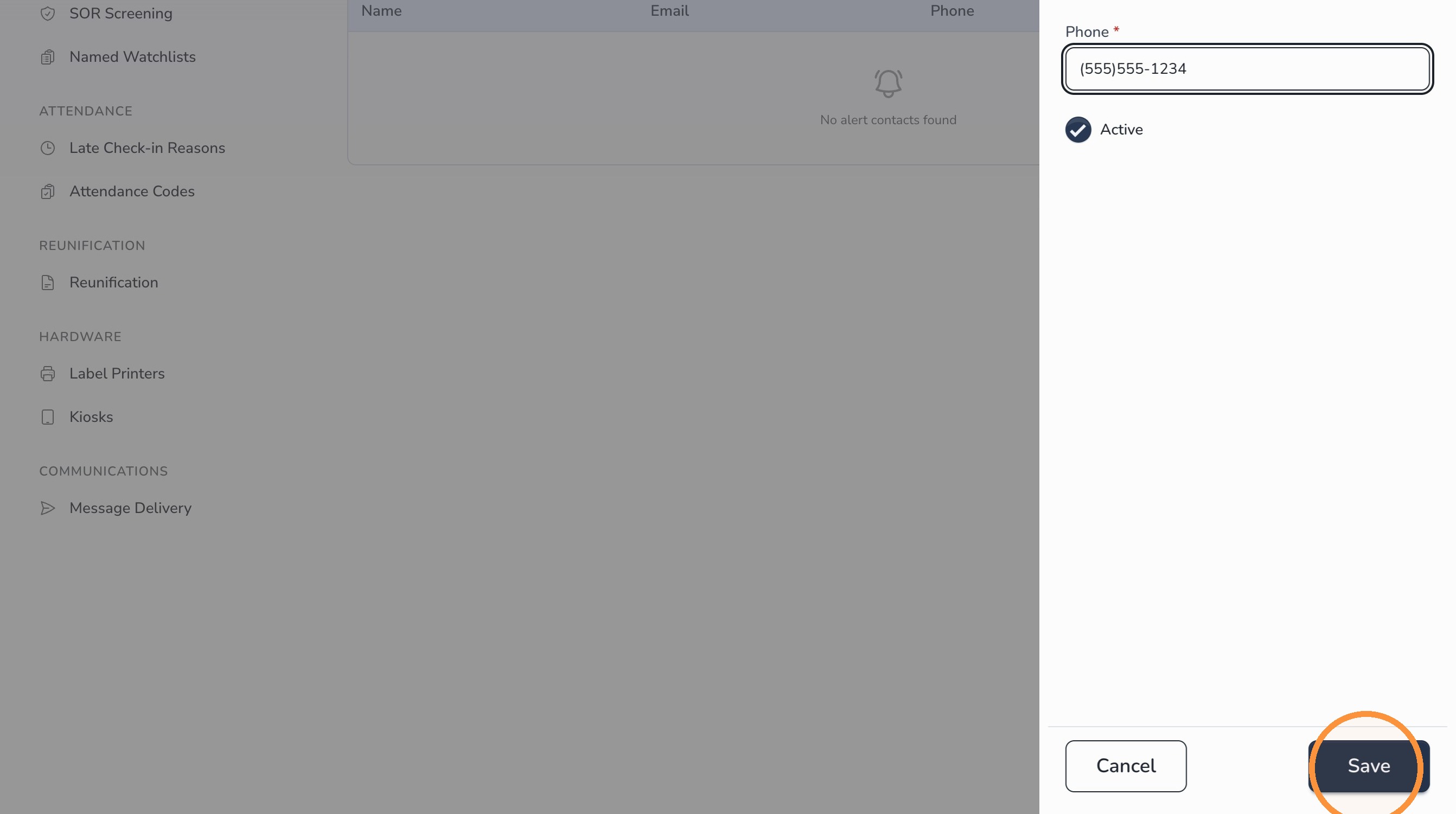
Step 4: Enter the alert contact information
Enter the information for the staff member who should receive the alert.
Make sure the contact information is accurate, especially:
- Name
- Email address
- Mobile phone number
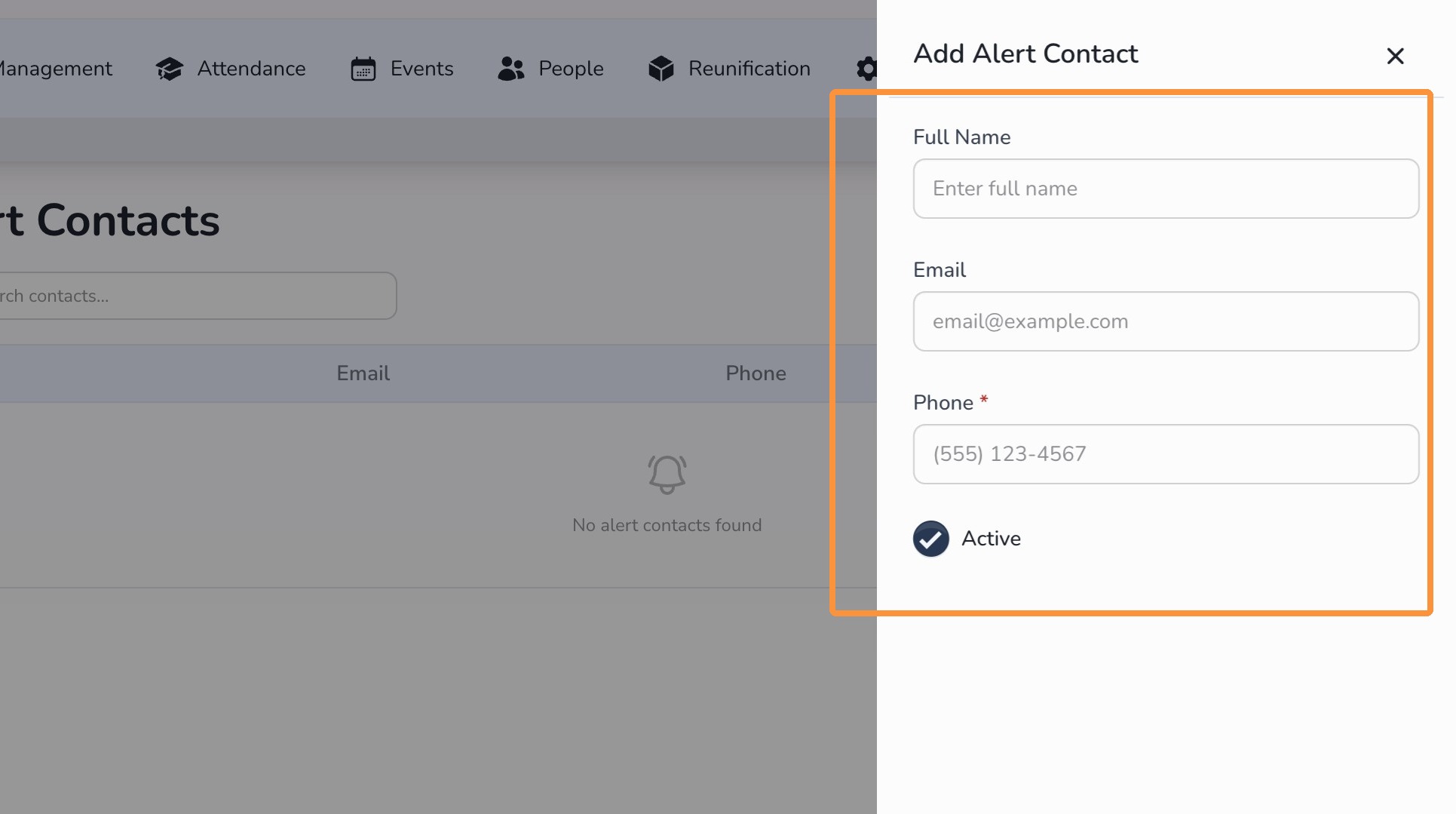
Good to know: Circool sends alerts by SMS and email, so both fields should be kept current whenever possible.
Step 5: Save the alert contact
- Click Save.
- Repeat the process for each staff member who should receive alerts.
Helpful tips
- Include more than one person: Add multiple contacts so alerts do not depend on one staff member being available.
- Review before school starts: Staff roles and phone numbers can change over the summer.
- Use school-issued or approved contact information: Follow your district’s communication expectations.
- Keep the list focused: Add the people who truly need to receive quick notifications from the front desk.
What happens next
Once alert contacts are saved, those contacts will receive a text message and email when the Send Alert button is used.
Your front desk team should continue following your school’s normal procedures when an alert is sent.
That’s it. Keeping alert contacts current helps the right people know when the front desk needs assistance.
Need help?
Circool support is here to help.
If you need help configuring alert contacts or using the Send Alert button, contact Circool support by phone at 205.202.1124 or email support@circool.com.
Was this article helpful?
That’s Great!
Thank you for your feedback
Sorry! We couldn't be helpful
Thank you for your feedback
Feedback sent
We appreciate your effort and will try to fix the article