Configuring Printers: Renaming a Printer
Use this guide to rename a label printer in Circool so it is easier for your front desk team to recognize.
Renaming printers is optional, but it is very helpful if your school has more than one printer or kiosk location.
Before you start
Printers are assigned at the district level and are already assigned to your school.
This guide only shows you how to rename a printer so it is easy to recognize in Circool.
Important: You will not be able to add a new printer on your own. If you need to add a printer, contact your district IT administrator or Circool support.
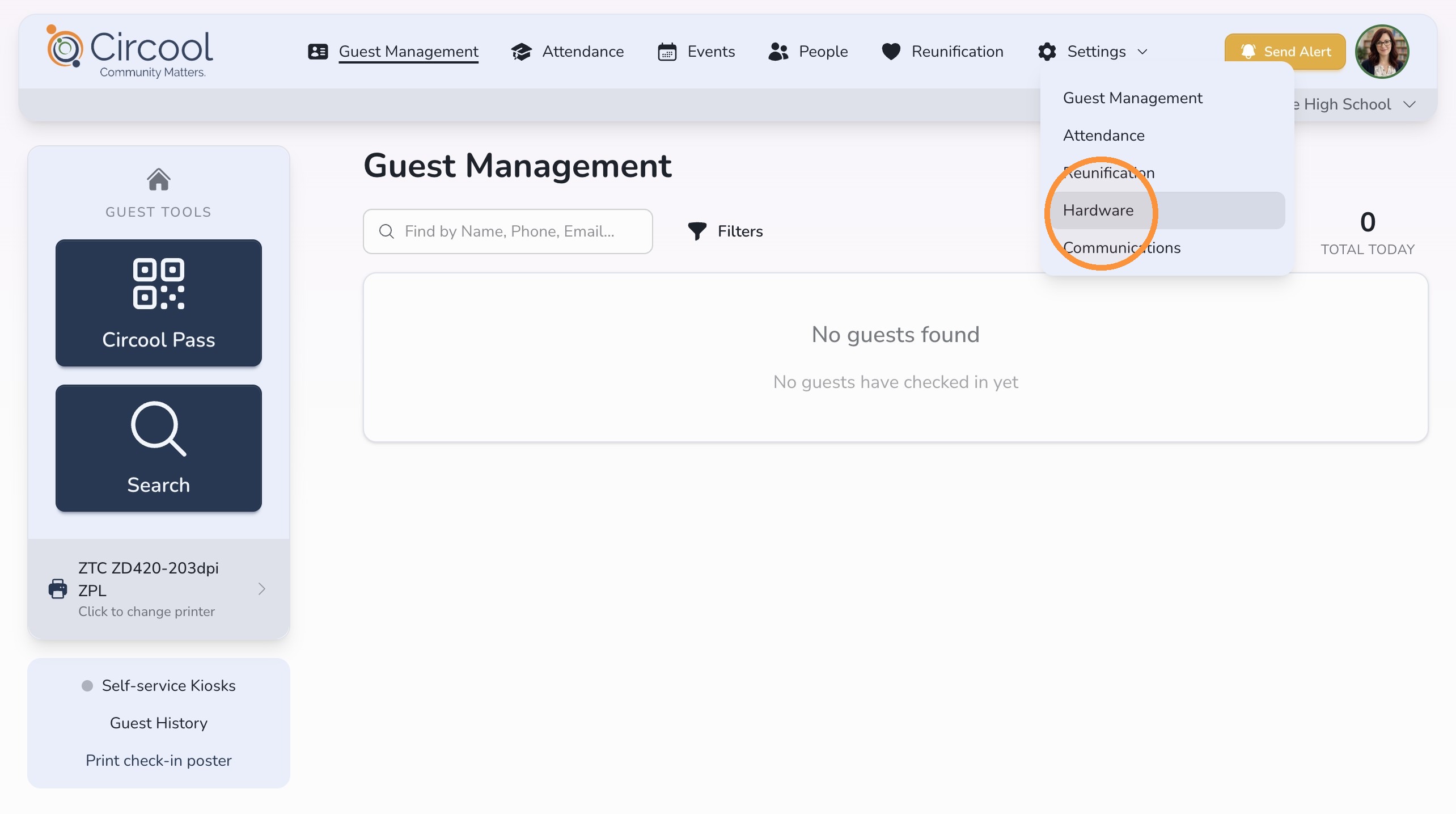
Step 1: Open Hardware settings
- Log in to Circool.
- Click Settings.
- Click Hardware.
Step 2: Find the printer you want to rename
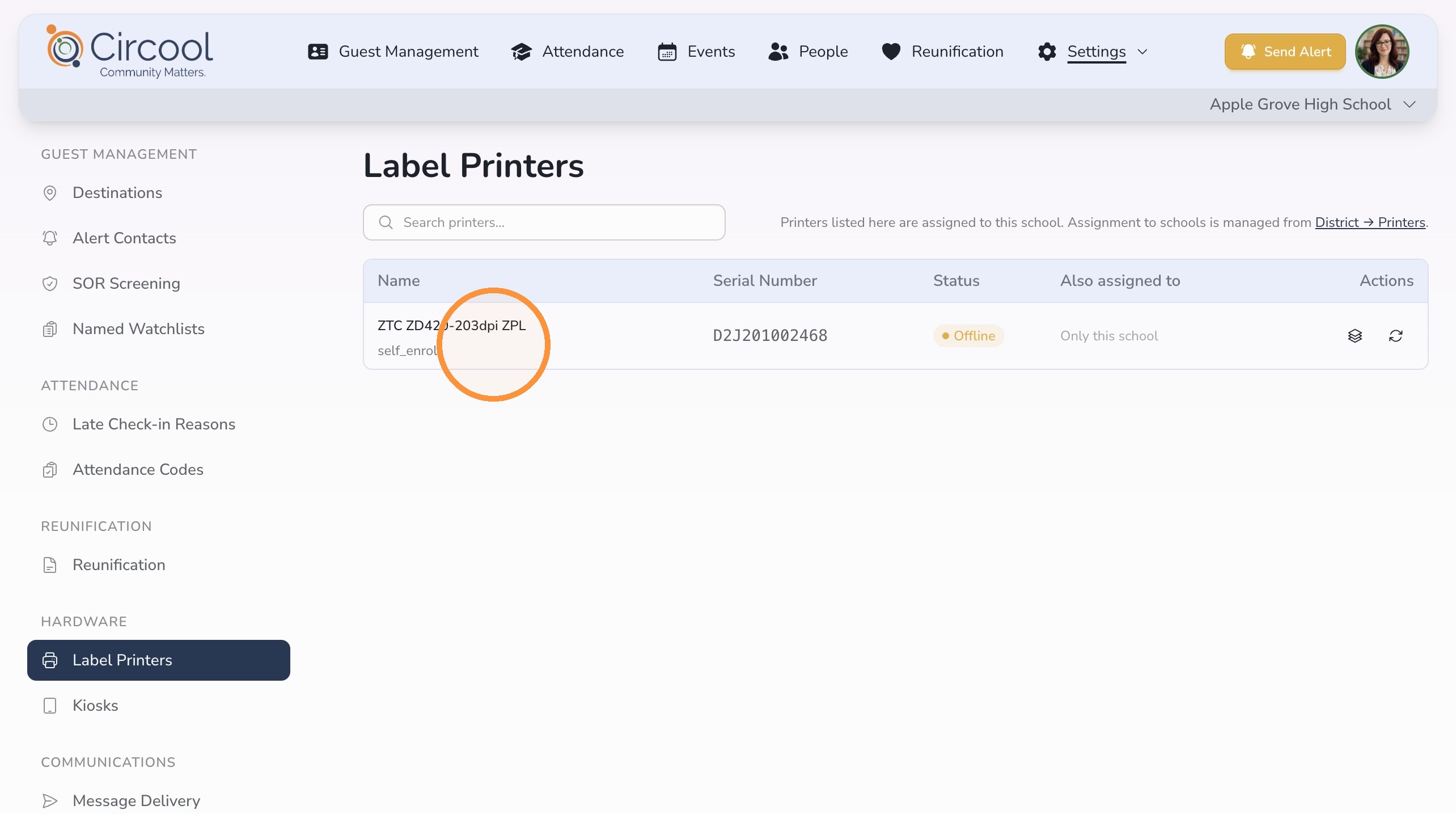
In the Label Printers list, find the printer you want to rename.
Choose a name that makes the printer easy to recognize. Good examples include:
- Front Office
- Linda’s Desk
- Main Entrance
- Hallway Kiosk
Step 3: Rename the printer
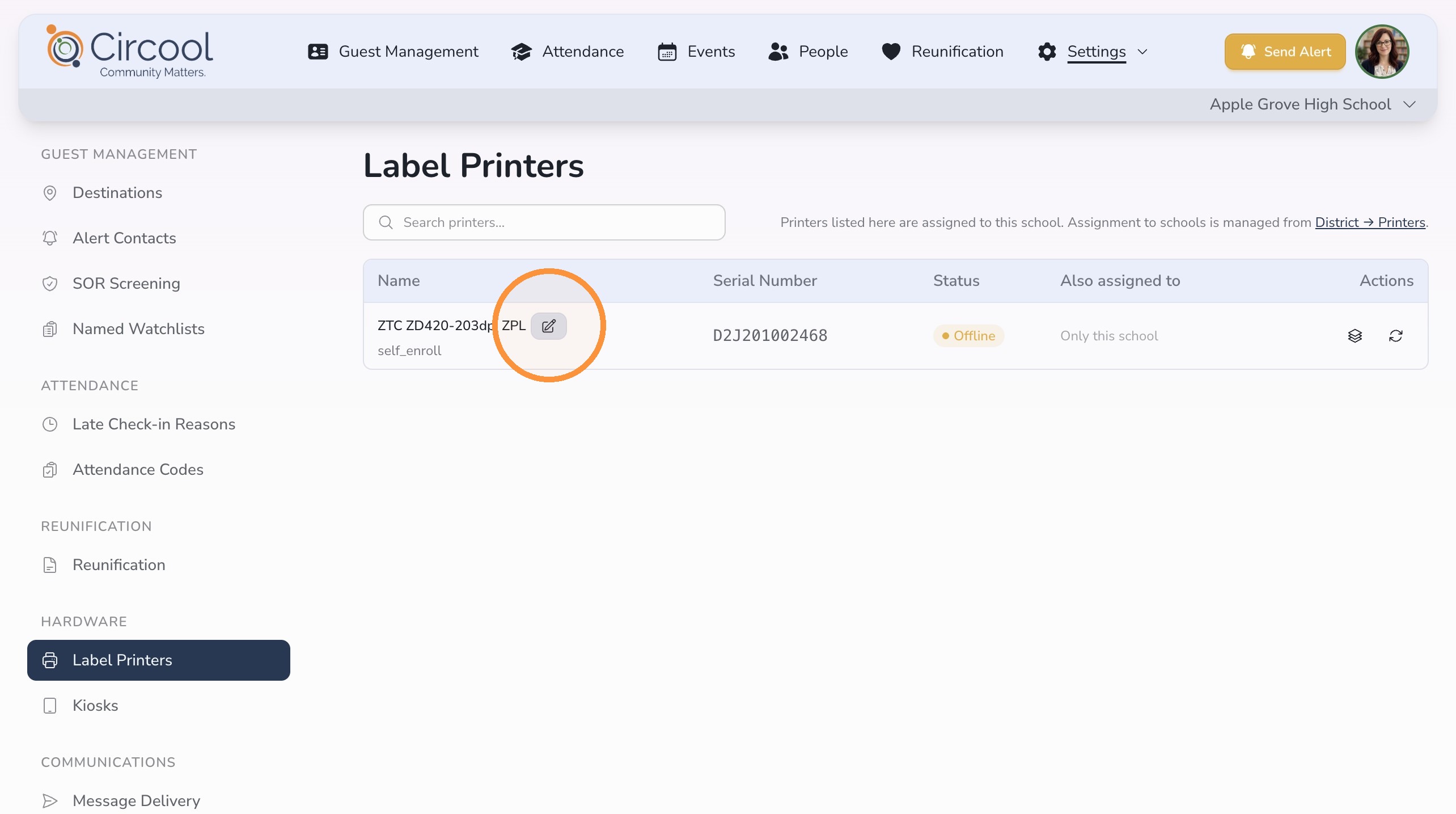
- Click into the printer name field.
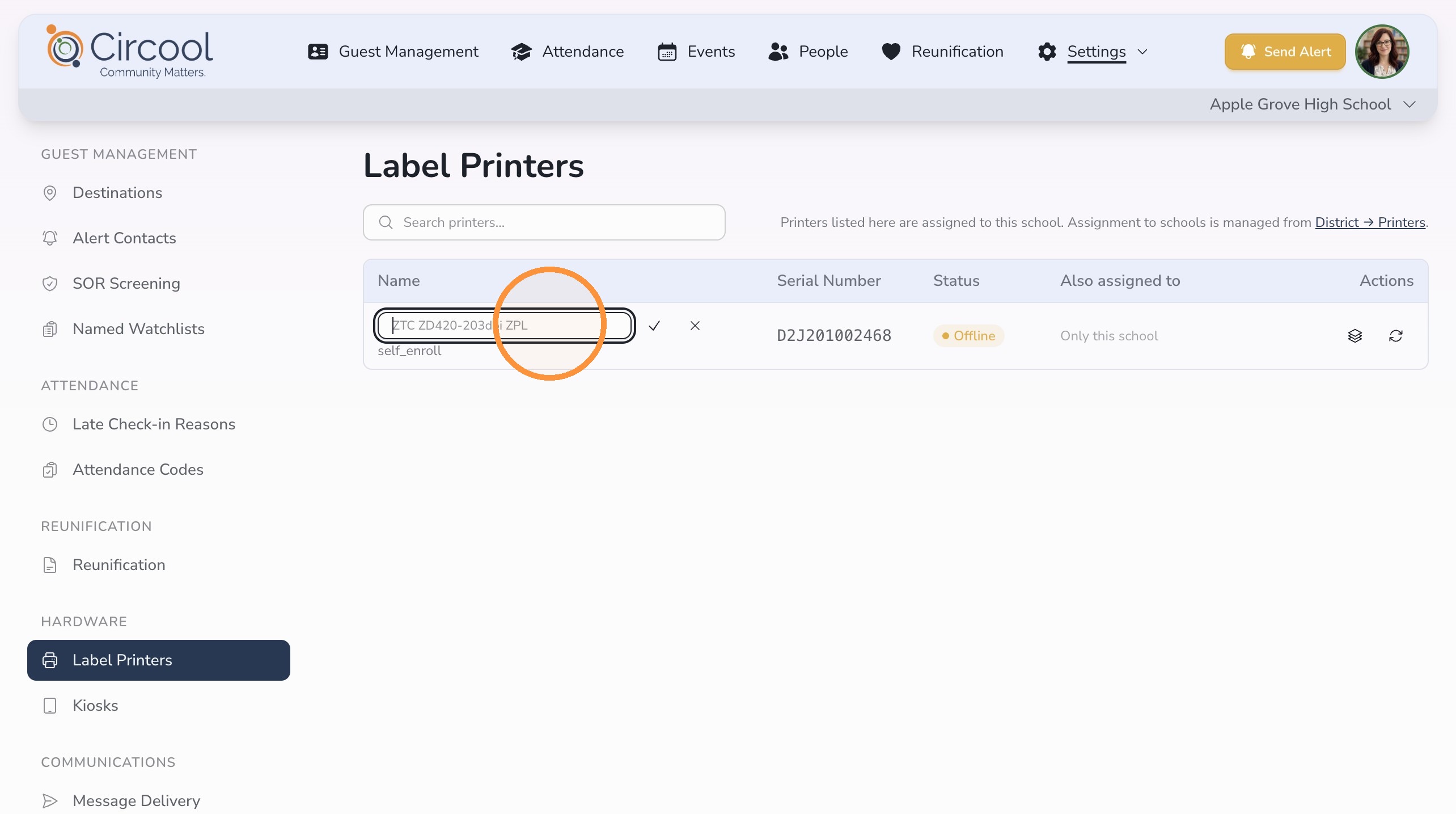
- Type the new printer name.
- Click the checkmark to save the new name.
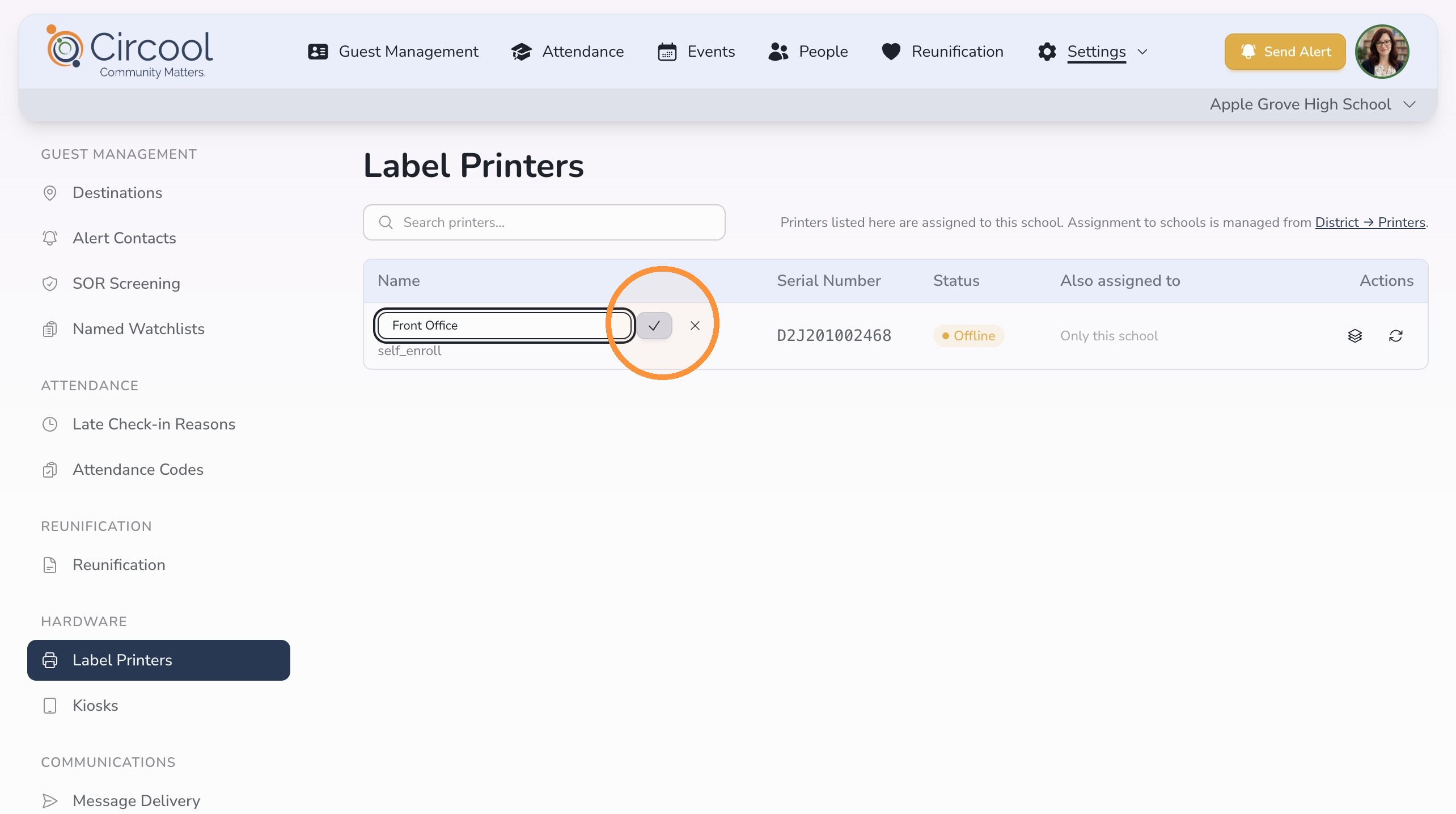
Tip: Use names based on where the printer is located or who normally uses it. This helps staff choose the correct printer during check-in.
Helpful tips
- Keep names simple: Choose names your front desk team will recognize quickly.
- Use location-based names: Names like Front Office or Hallway Kiosk are usually easiest.
- Rename printers after they move: If a printer is relocated, update the name so staff do not select the wrong one.
- Contact IT for new printers: Printer setup and assignment are handled at the district level.
What happens next
After the printer is renamed, the updated name will appear in Circool when staff select or manage printers.
This makes it easier for your team to choose the correct printer for guest badges, hall passes, or kiosk printing.
That’s it. Renaming printers keeps your hardware setup clear and easier for your school team to use.
Need help?
Circool support is here to help.
If you need help renaming a printer, checking printer settings, or adding a new printer to Circool, contact Circool support by phone at 205.202.1124 or email support@circool.com.
Was this article helpful?
That’s Great!
Thank you for your feedback
Sorry! We couldn't be helpful
Thank you for your feedback
Feedback sent
We appreciate your effort and will try to fix the article