Search by Guest Name — Webcam Version
Use this guide when a guest does not have their Circool Pass available and your front desk needs to search for them by name.
This guide covers two common situations: a guest who is already Circool Ready, and a guest who exists in Circool but still needs to complete setup before check-in.
Before you start
Use Search when the guest does not have access to their Circool Pass.
This may happen if the guest does not have their phone, cannot access their Circool account, or still needs to finish setting up their Circool profile.
Tip: Use the person’s profile photo, when available, to visually confirm you are checking in the correct guest.
Option 1: Search by name — Circool Ready
Use this option when the guest already has an active Circool account and their profile is complete.
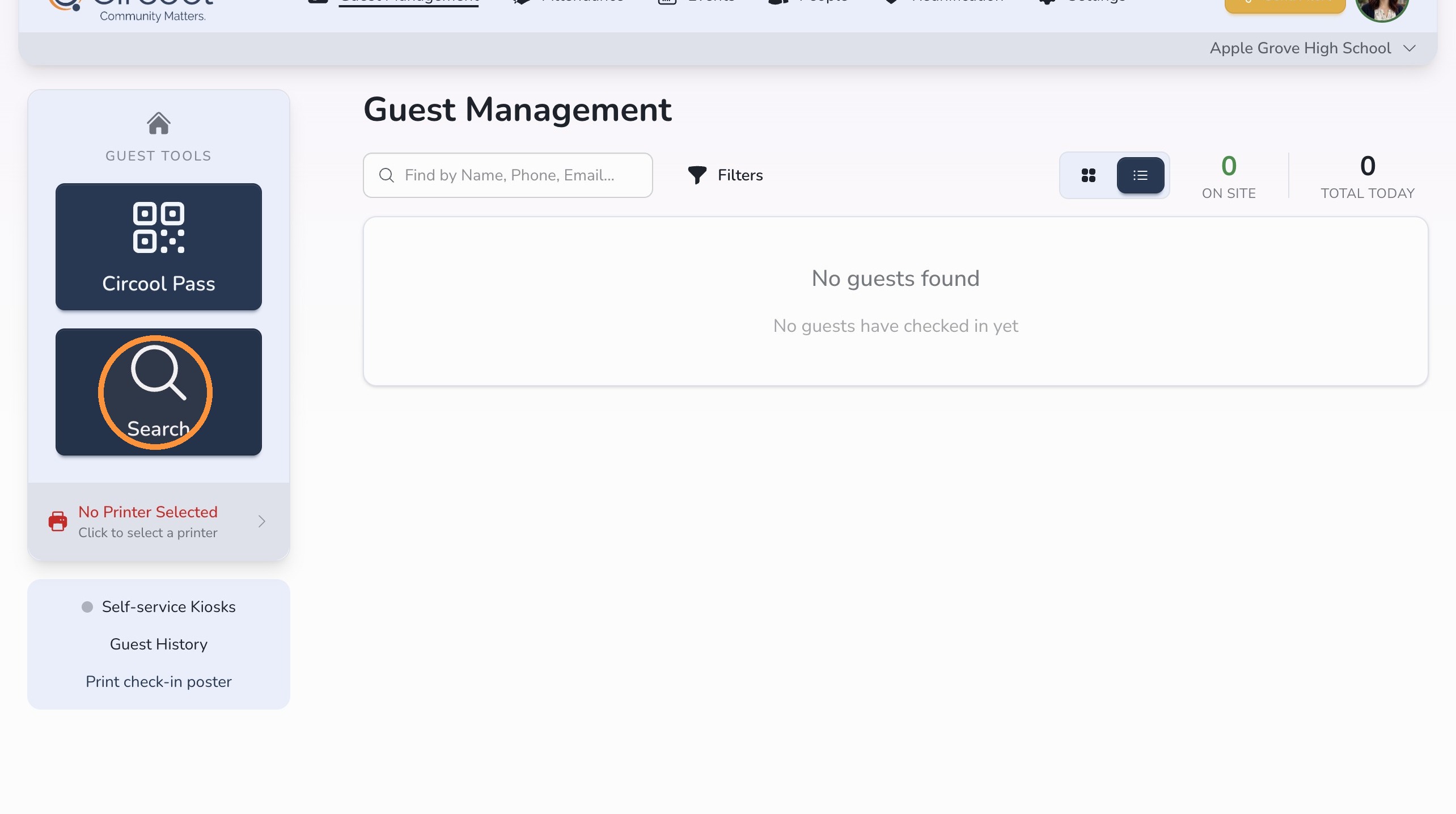
Step 1: Open Search
- From Guest Management, click Search.
Step 2: Search for the guest
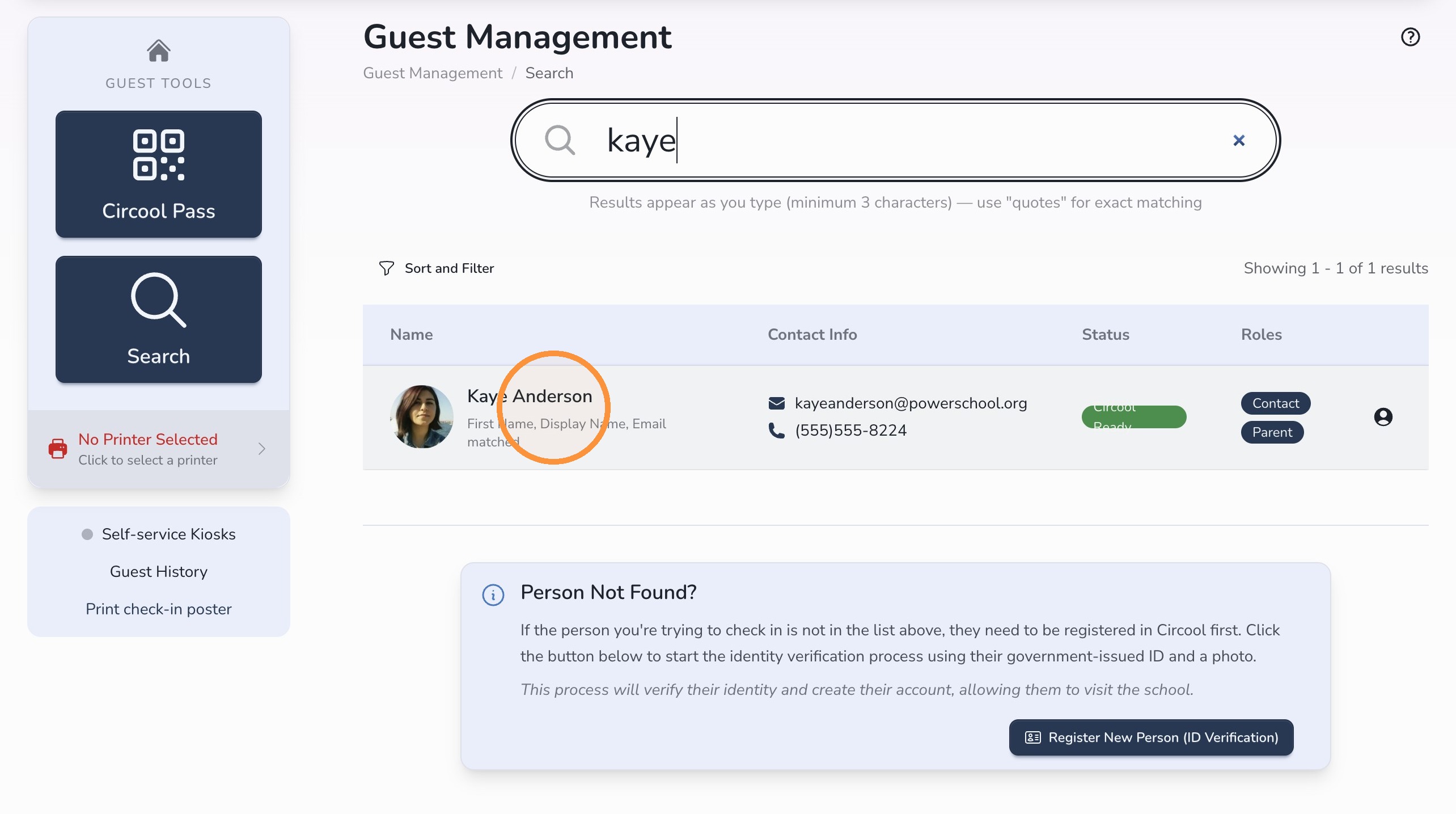
- Search by the guest’s name.
- Select the correct person from the search results.
- Use the profile photo, when available, to confirm you are checking in the right guest.
Step 3: Select a destination and check in
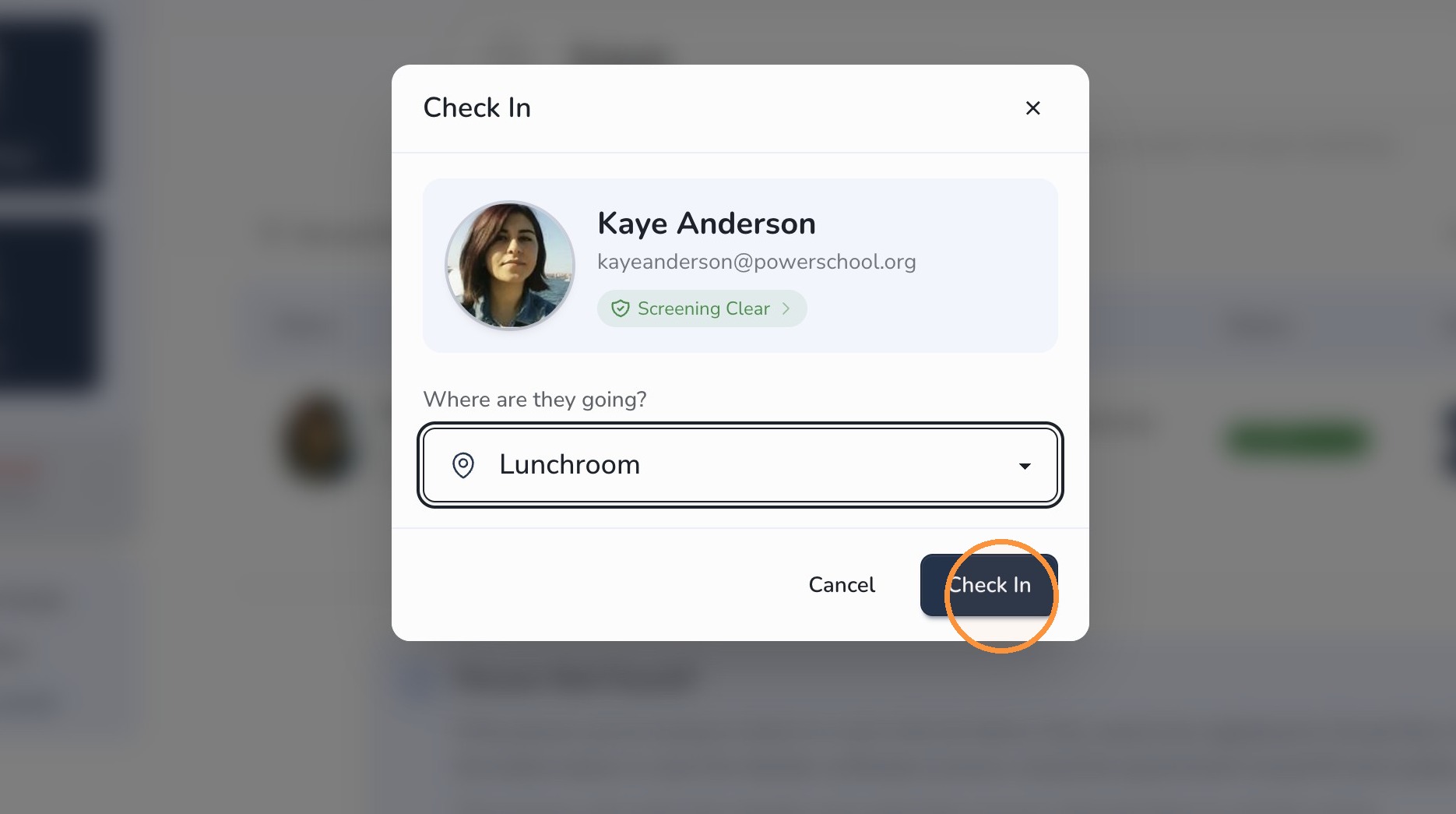
- Select the guest’s destination from the Destination dropdown.
- Click Check In.
Option 2: Search by name — Not Circool Ready
Use this option when the parent or student contact exists in Circool, but still needs to activate their Circool account.
Good to know: A guest who is not Circool Ready may still be able to complete setup while they are at the school.
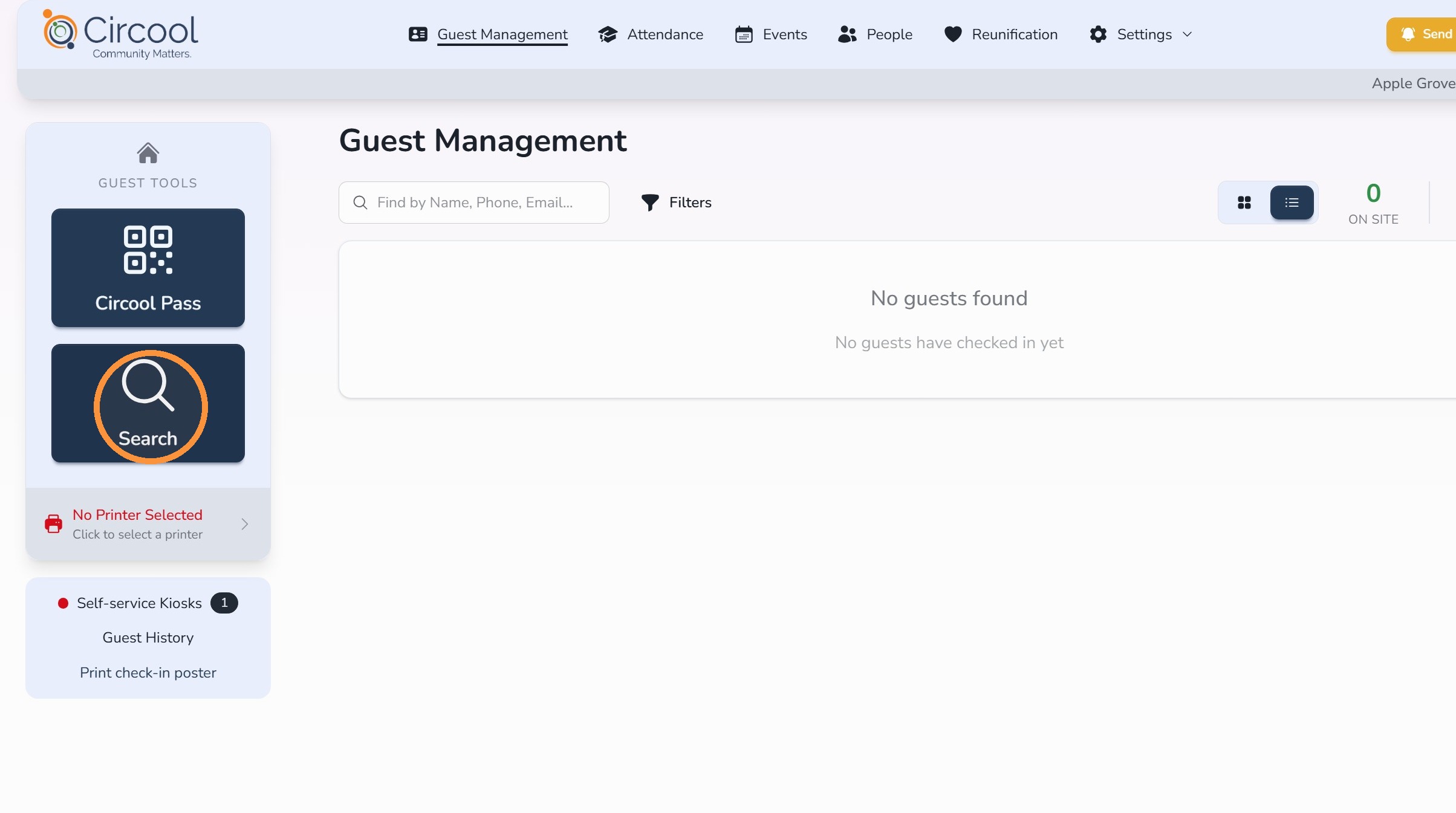
Step 4: Open Search
- From Guest Management, click Search.
Step 5: Find the guest
- Search by the person’s name.
- Once found, click the matching name and information.
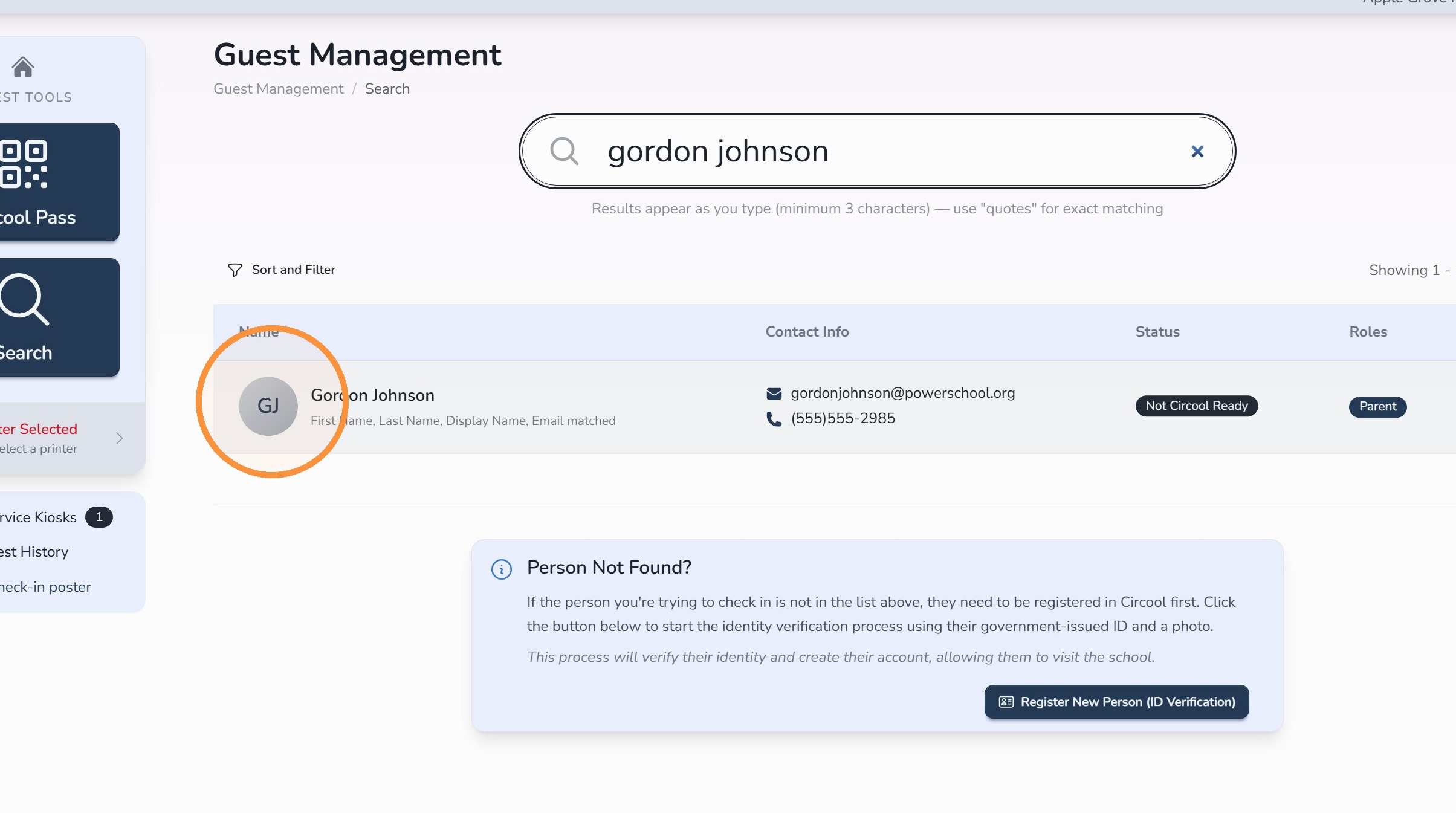
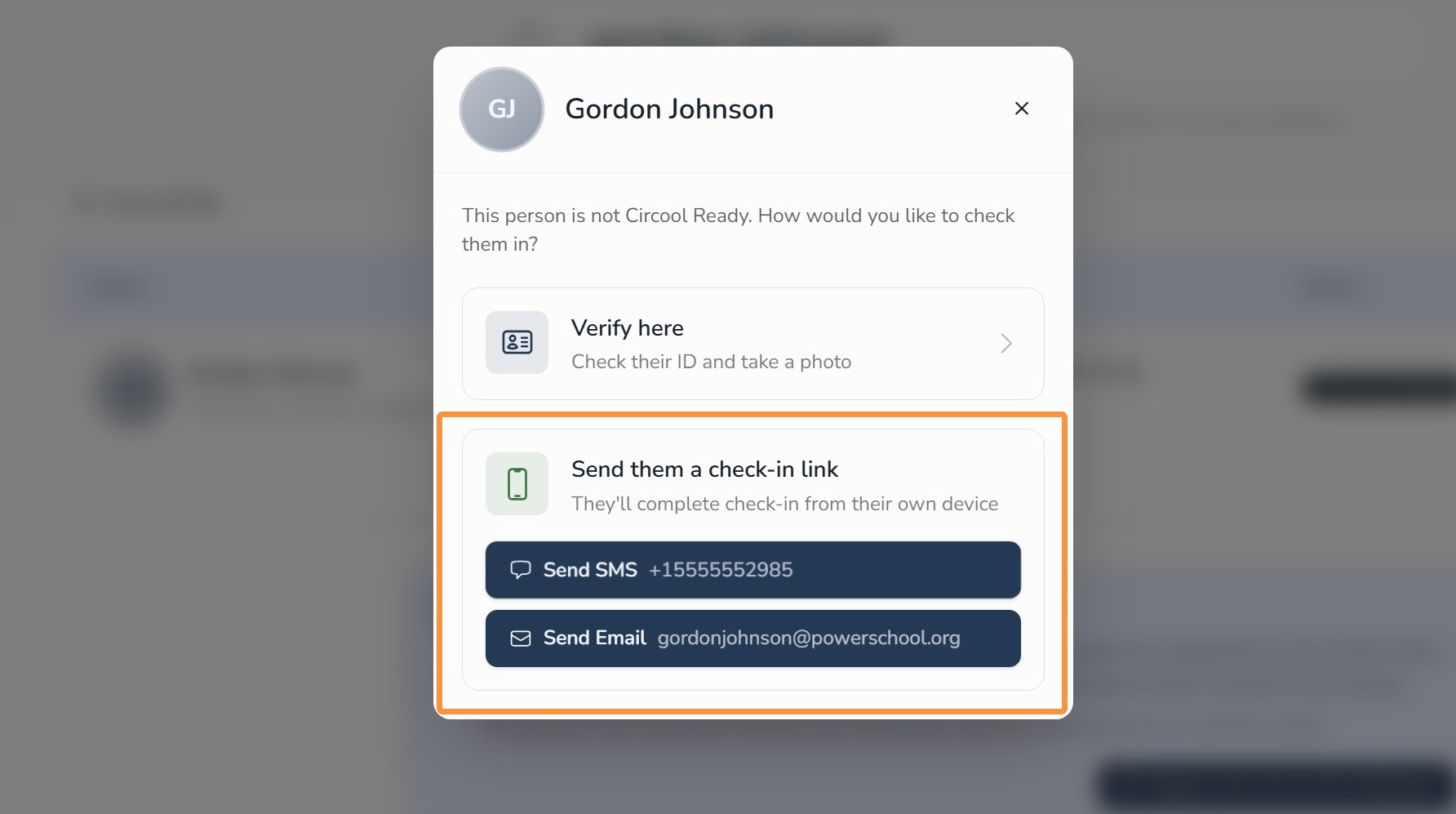
Step 6: Choose how to help the guest complete setup
Circool gives you two options to help the guest complete setup.
Option 1 — Send an activation link
This is the recommended option when the guest has access to their phone or email. Send them an SMS or email so they can activate their account and access their Circool Pass.
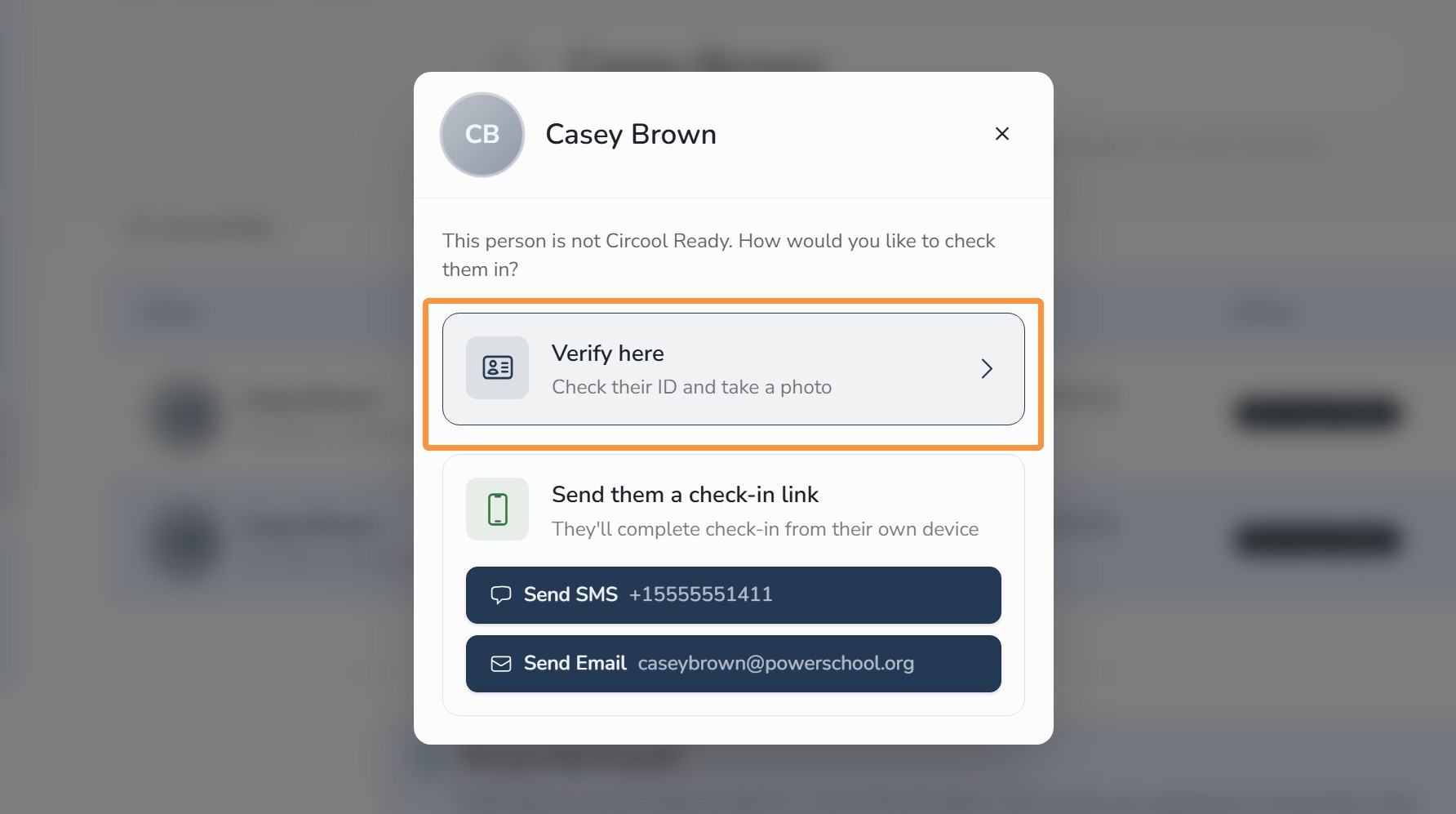
Option 2 — Verify Here
Use this when the person has their ID but does not have access to their phone. This lets your team enter their birthday and take a selfie using the webcam.
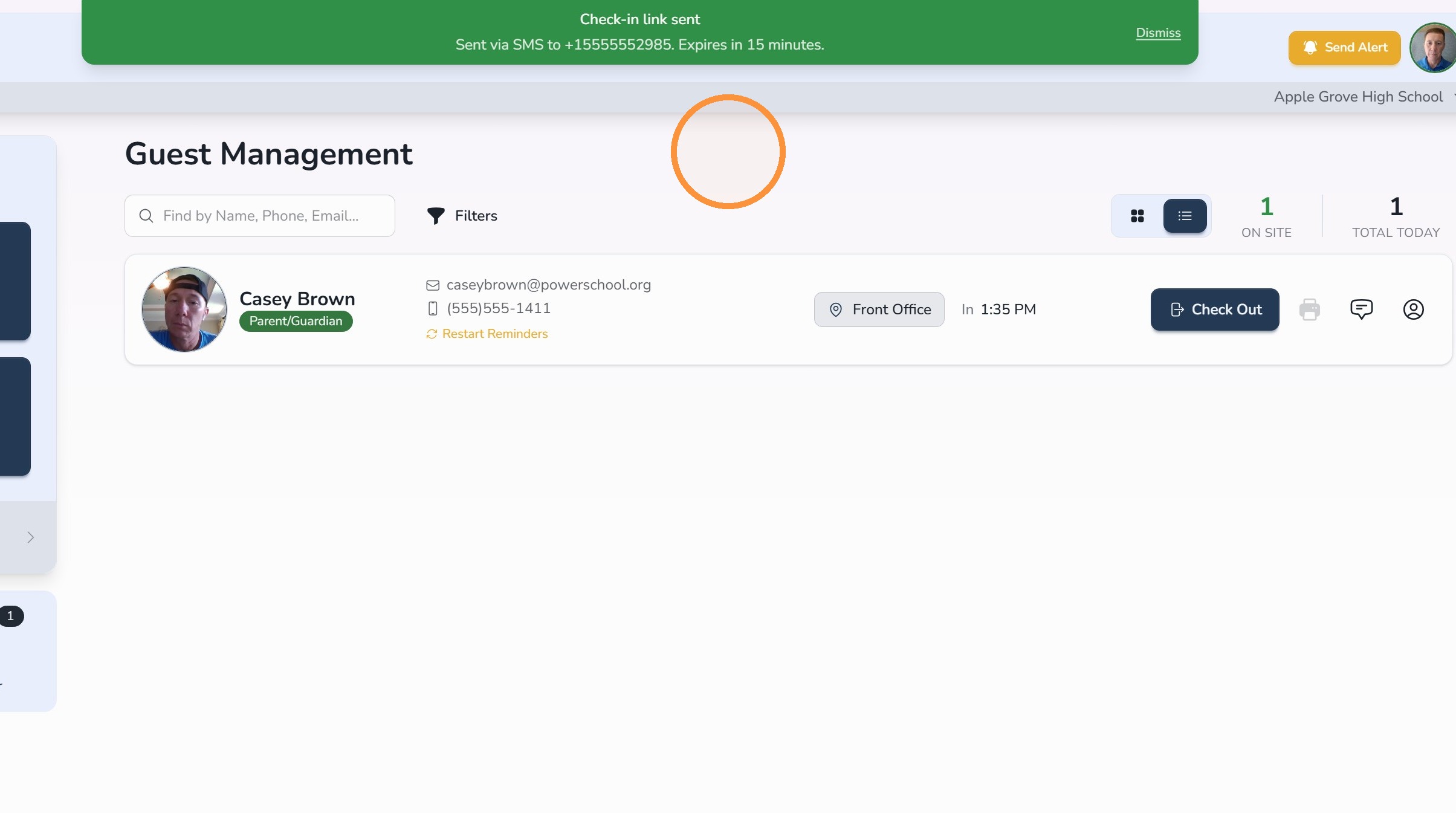
To send an activation link, click Send SMS or Send Email. The guest will receive a link to complete setup and access their Circool Pass.
Step 7: Use Verify Here, if needed
If the guest has their ID but does not have access to their phone, click Verify Here.
This allows your team to enter the guest’s birthday and take a selfie with the webcam.
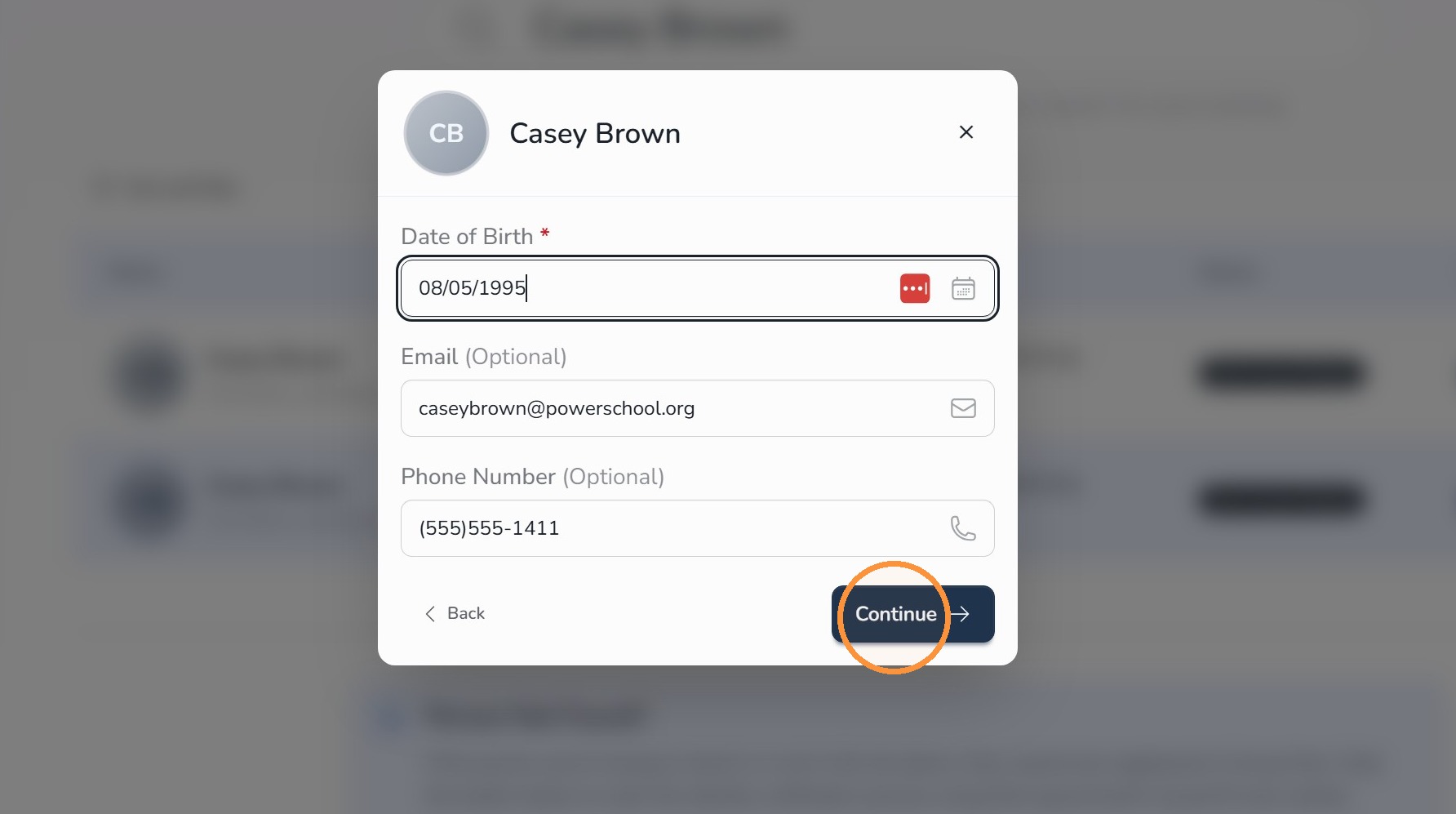
Step 8: Enter the guest’s birthday
- Enter the guest’s date of birth.
- Click Continue.
Step 9: Take the guest’s selfie
- Ask the guest to align their face with the webcam.
- The camera should auto-focus, turn green, and take the photo.
- If the photo is not captured automatically, click the camera button to take the photo.

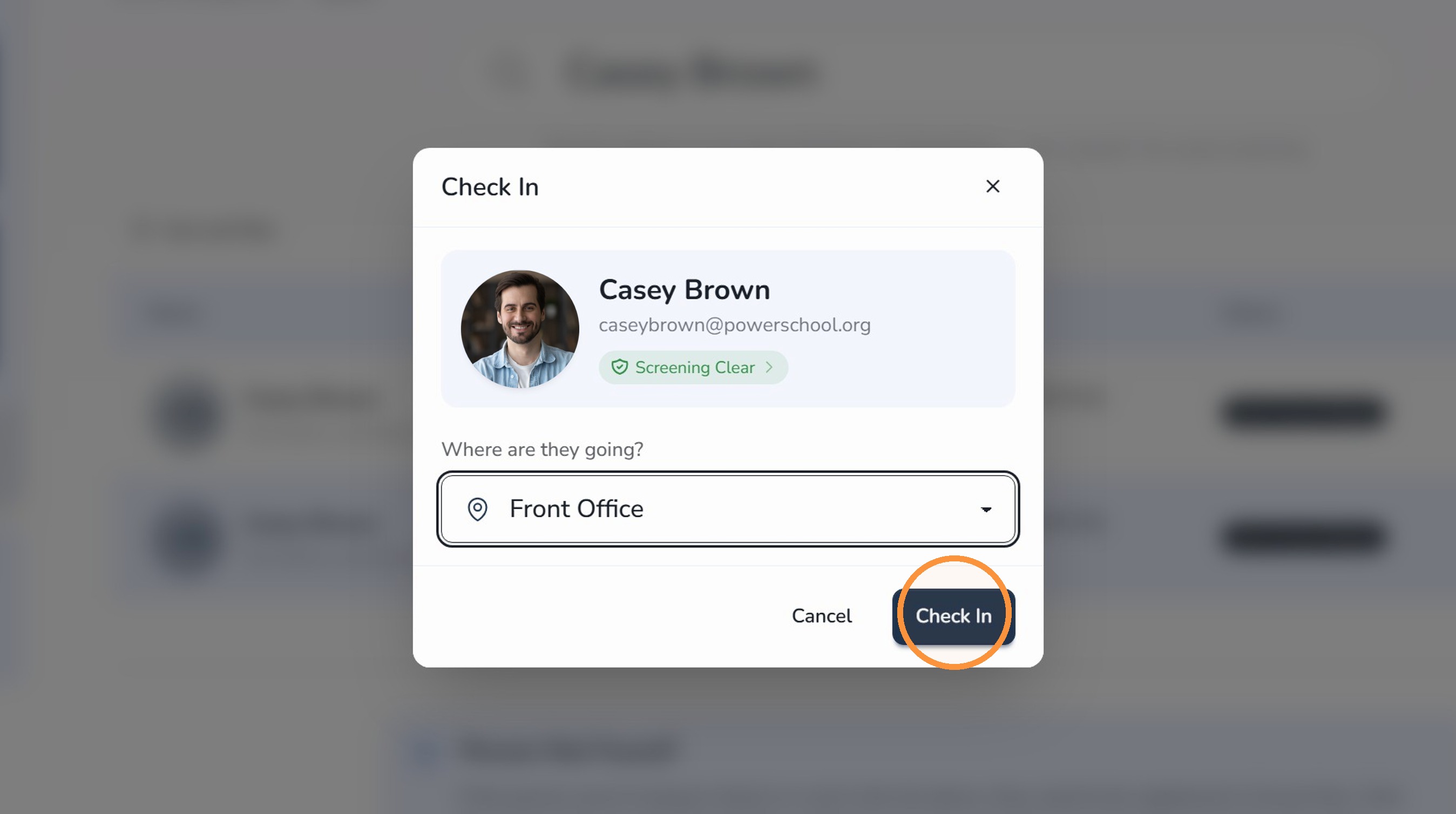
Step 10: Select a destination and check in
- Select a Destination.
- Click Check In.
Step 11: View who has checked in today
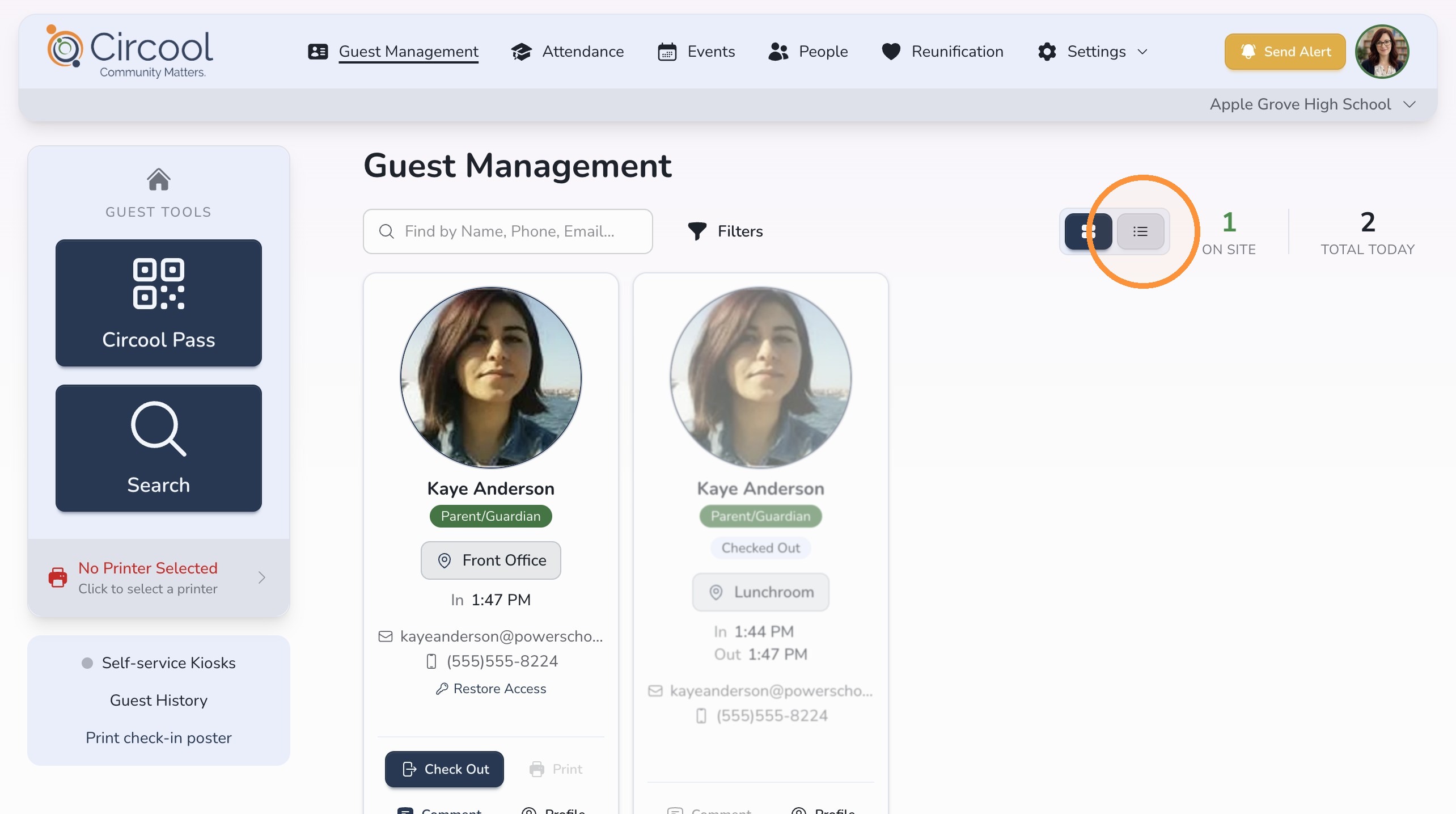
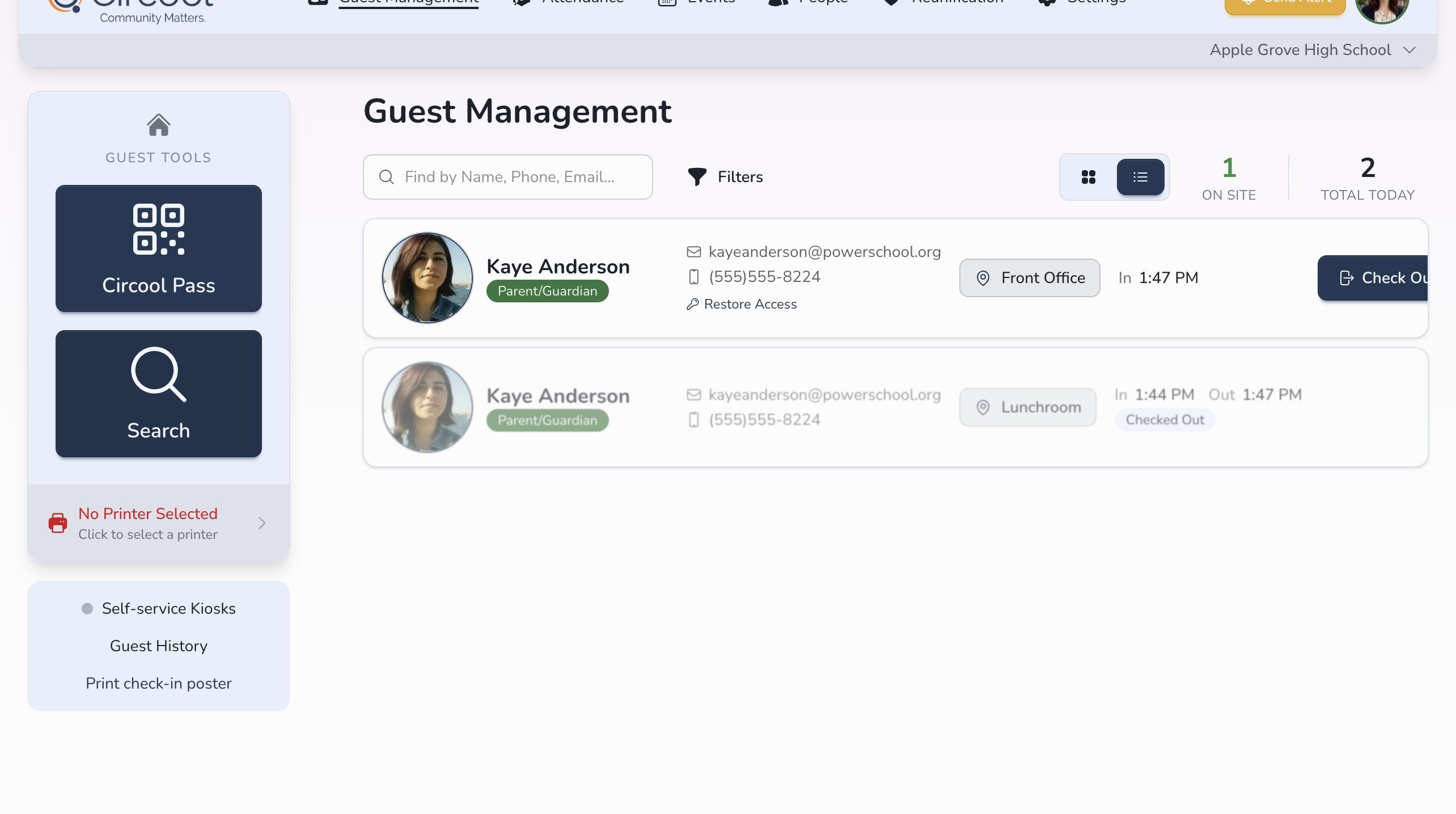
Your Dashboard shows who has checked in today.
- View guests in Card View or List View.
- Use Filters to quickly see guests who are still on site.
- To check someone out, click Check Out on their record.
- Circool saves the guest’s arrival and departure times so your school has a clear visit history.
Good to know: Once the Check Out button is no longer visible and the guest’s record appears faded, the guest has been successfully checked out.
Tip: Guests are automatically checked out at the end of the day, so your dashboard starts fresh each morning.
What happens next
After the guest is checked in, they will appear on your Guest Management dashboard for the day.
If your school prints badges, a guest badge may print based on your school setup. When the guest leaves, check them out from the dashboard to keep your visit history accurate.
That’s it. Searching by name gives your front desk a quick backup option when a guest does not have their Circool Pass ready.
Need help?
Circool support is here to help.
If you need help searching for a guest, helping someone become Circool Ready, or checking in a guest from the front desk, contact Circool support by phone at 205.202.1124 or email support@circool.com.
Was this article helpful?
That’s Great!
Thank you for your feedback
Sorry! We couldn't be helpful
Thank you for your feedback
Feedback sent
We appreciate your effort and will try to fix the article