Configuring Watchlists
Use this guide to create and manage Watchlists in Circool.
Watchlists help your school flag people who should not be allowed entry or who may need extra review from the front desk, administrators, or safety team.
Before you start
The Watchlist section helps your school flag people who should not be allowed entry or who may require extra attention from staff.
Watchlists are commonly used for:
- No-trespass alerts
- Custody concerns
- Safety warnings
- Other situations where the front office needs clear guidance before allowing someone into the building
Important: Keep Watchlists accurate and up to date so your front desk, administrators, and safety team have the information they need when it matters.
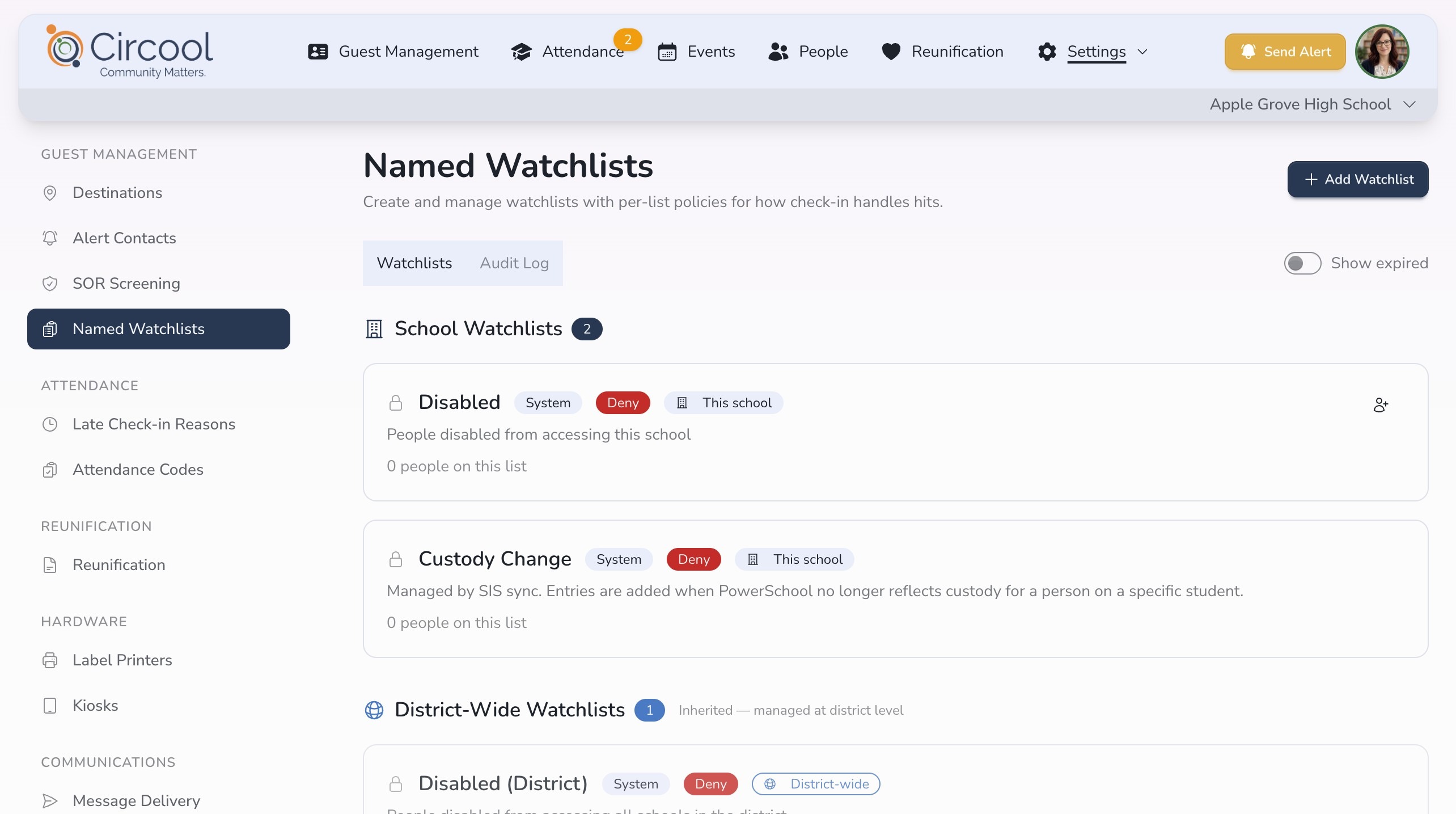
Step 1: Open Named Watchlists
- Log in to your district’s Circool website.
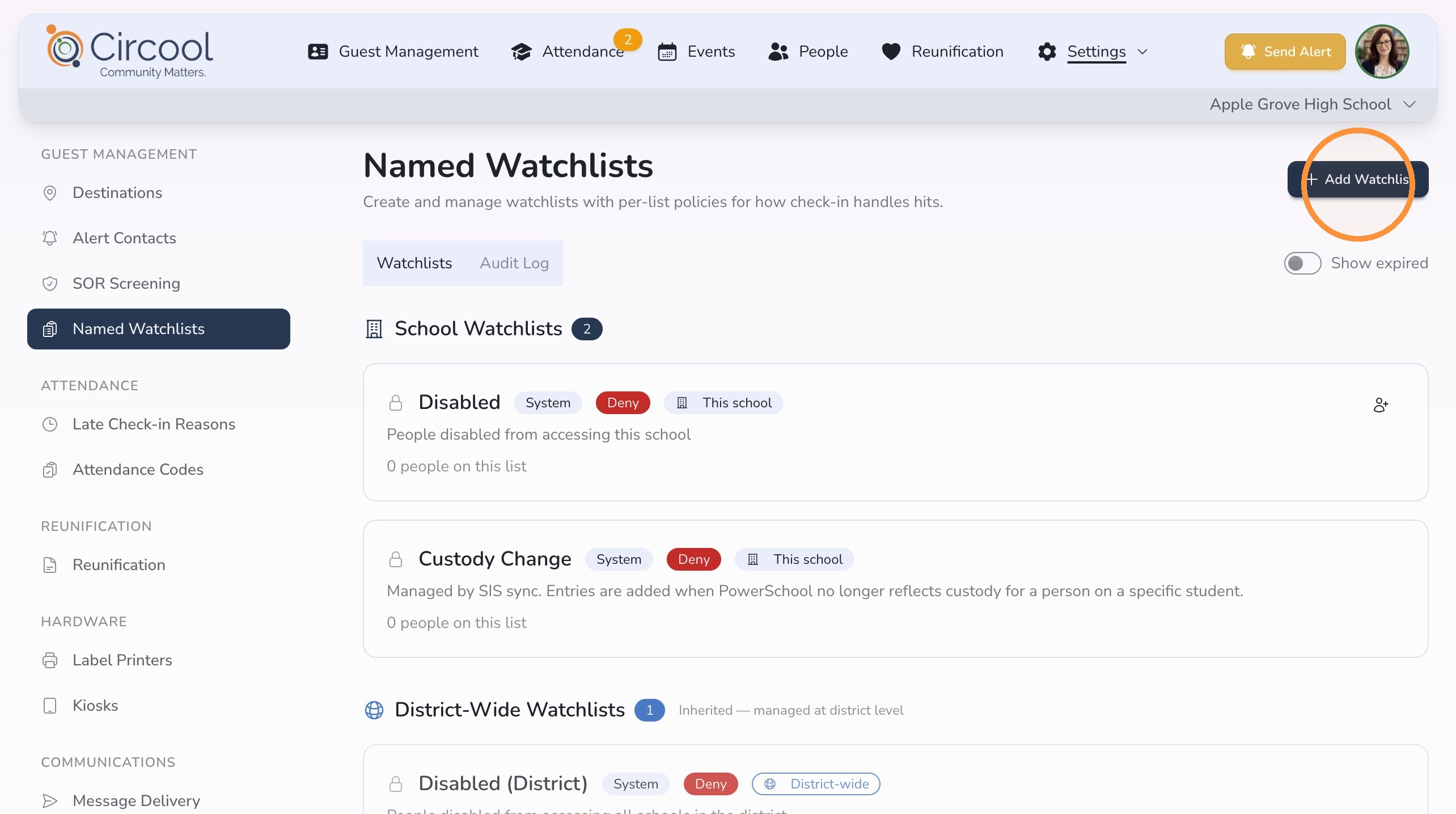
- Click Settings, then Named Watchlists.
Step 2: Review the default Watchlists
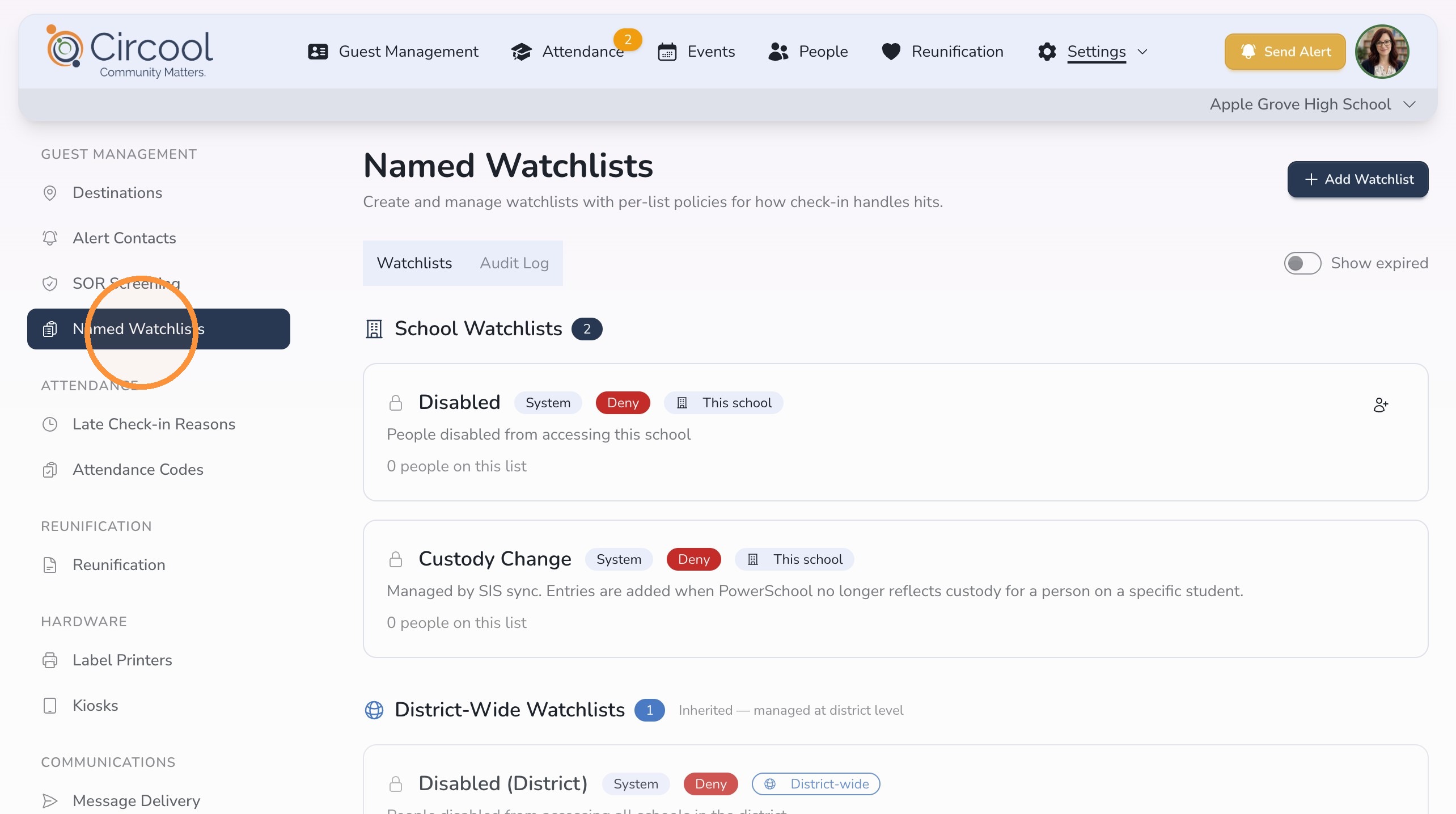
Circool includes a few default Watchlists that are created automatically.
Sex Offender Watchlist
If a person is confirmed as a registered sex offender during screening, Circool automatically creates a Sex Offender Watchlist entry for your team to review and follow your school’s procedures.
Disabled
If an account is disabled in Circool, that individual’s access to your school is denied. Going forward, they will be treated as an external guest if they attempt to check in.
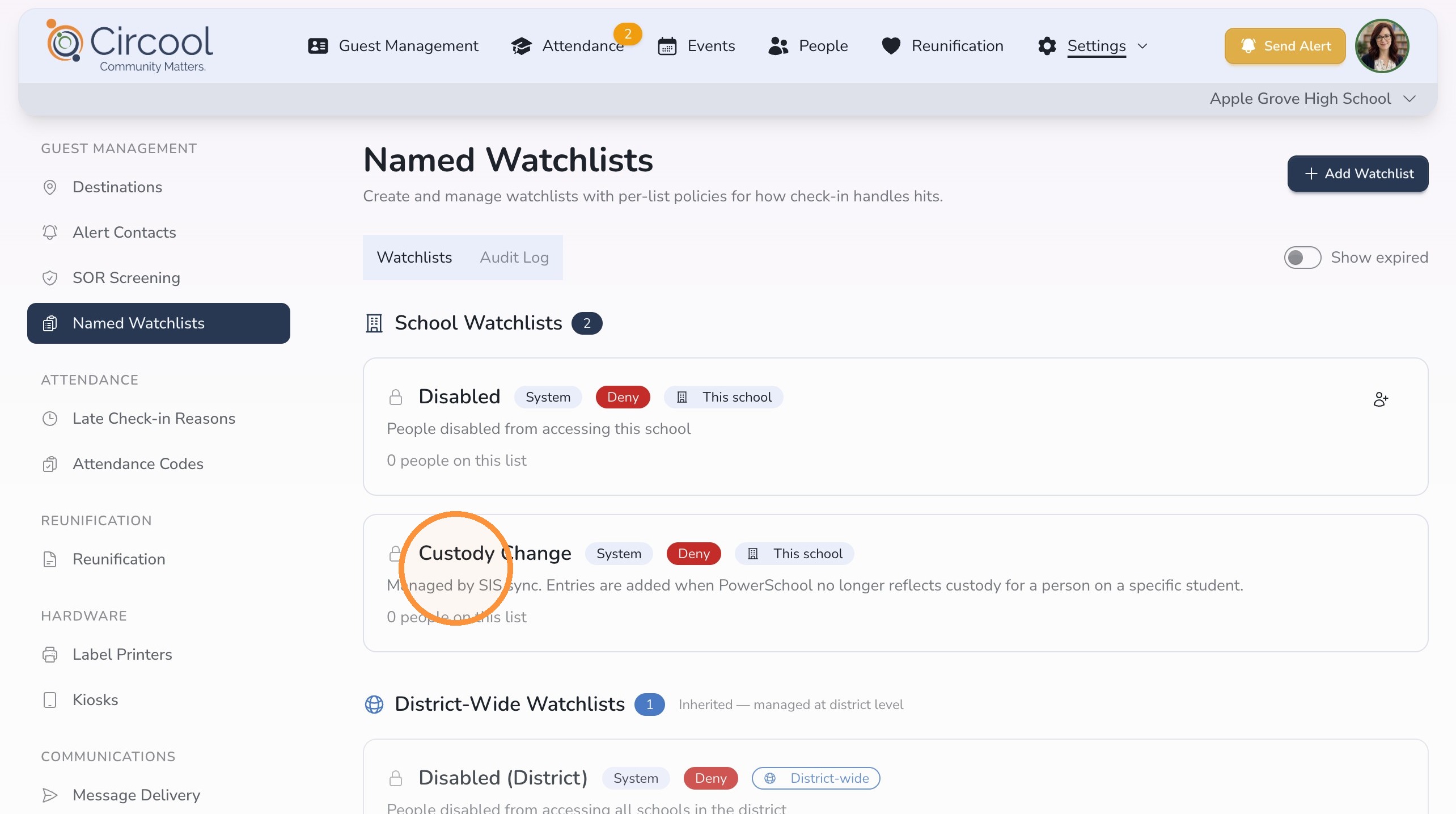
Custody Change
If custody access is revoked in the Student Information System, also called the SIS, the individual is automatically added to the Custody Change Watchlist. This will initially deny access and alert the front office that a custody change has occurred.
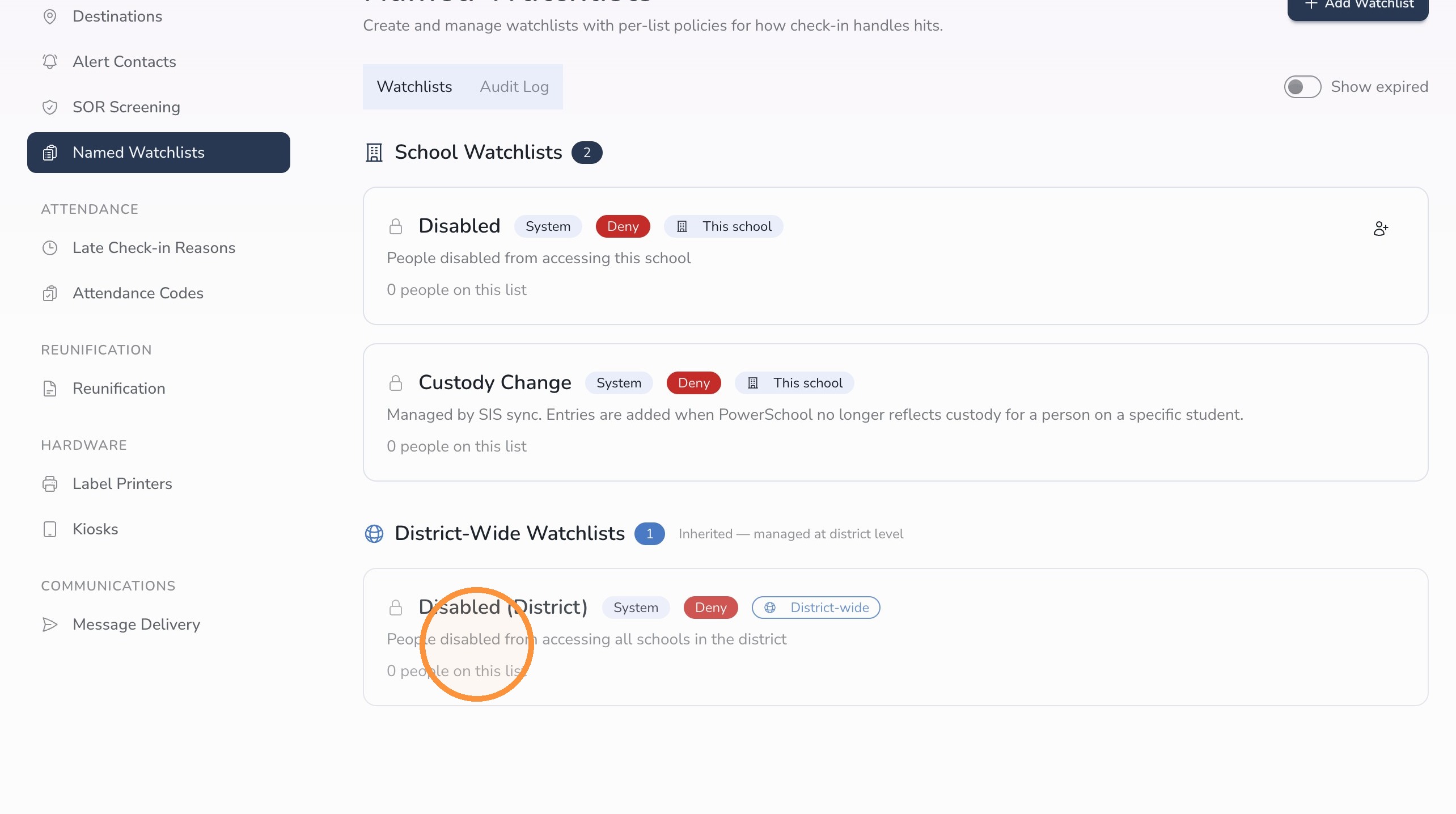
District-Wide Watchlists
District-Wide Watchlists are managed at the district level. These lists allow the district to deny access for an individual across all schools in the district.
Step 3: Create a custom Watchlist
The Add Watchlist button lets you create a custom Watchlist.
Use this when your school needs to flag an individual whose access has been restricted for a reason that is not handled automatically by Circool or the SIS.
Good to know: Custom Watchlists are created and managed by your team, so they should be reviewed regularly.
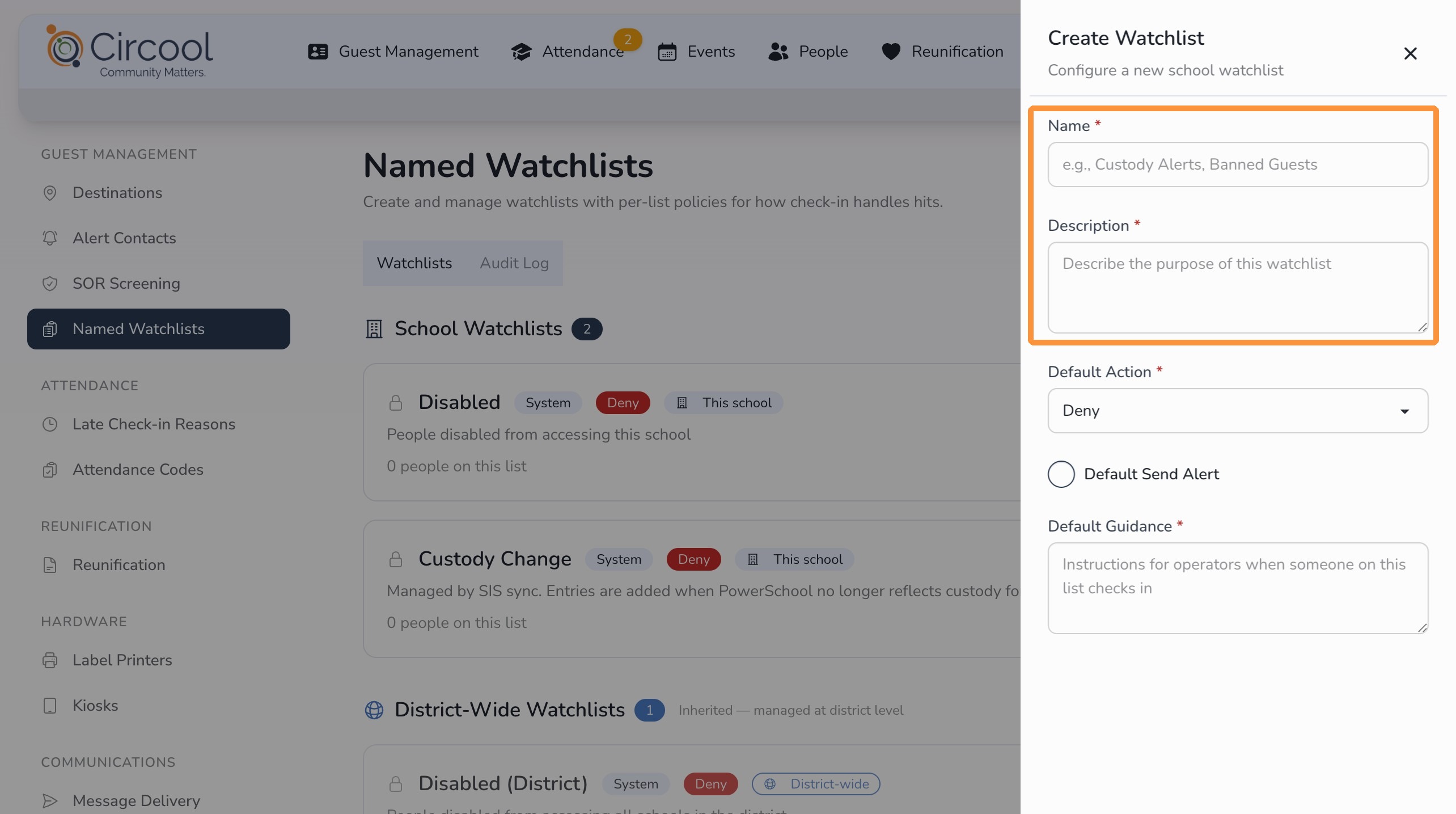
Step 4: Name the Watchlist
- Enter a clear Watchlist Name.
- Add a short Description.
Step 5: Set the default action and instructions
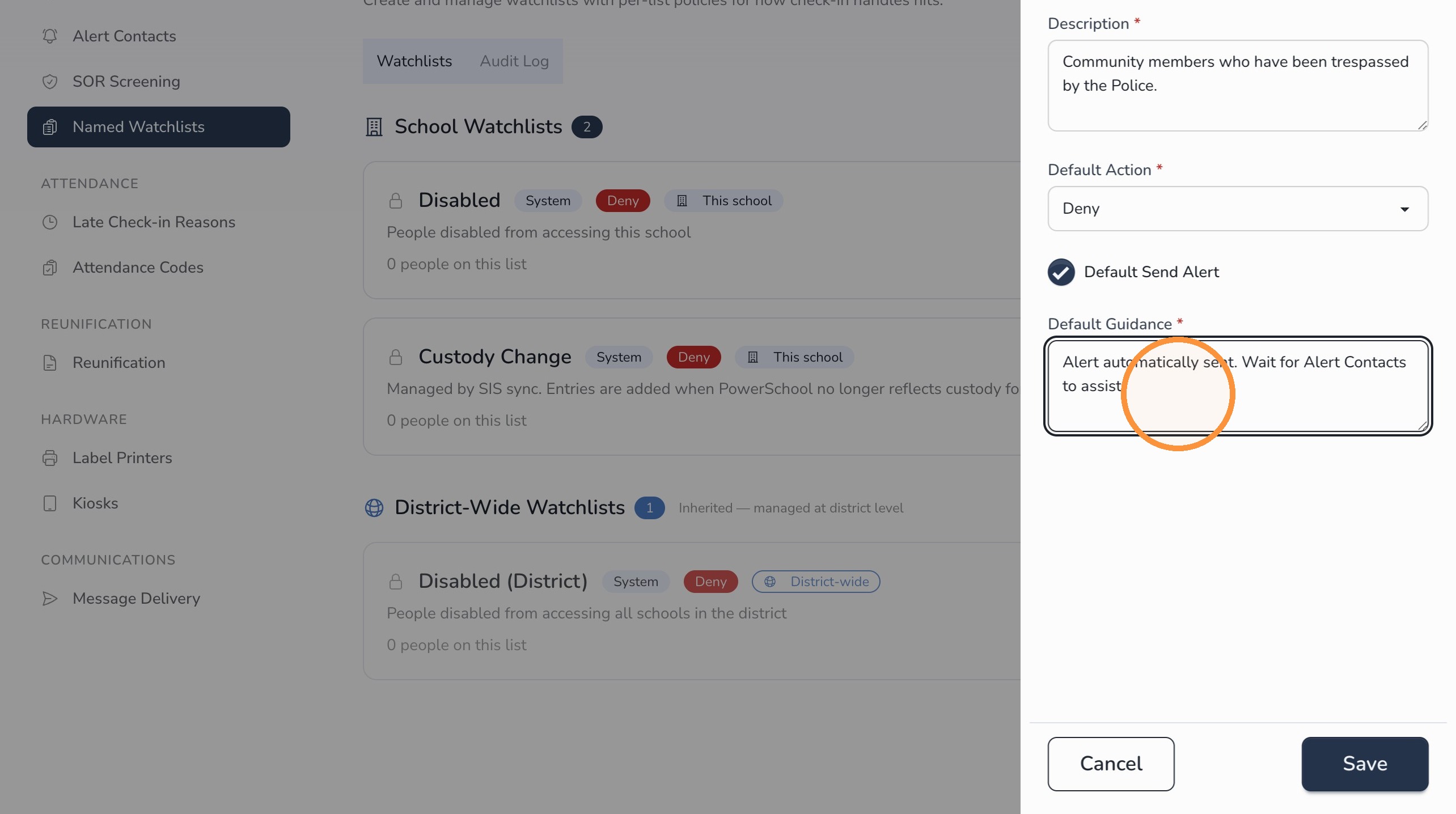
Set how Circool should handle people on this Watchlist during check-in.
- Choose the default action: Allow or Deny entry.
- To notify alert contacts when someone on this Watchlist attempts to check in, turn on Default Send Alert.
- Enter clear instructions for the front office staff.
- Click Save to finish creating the Watchlist.
Tip: Operator instructions should be specific and calm. Example: “Do not complete check-in. Notify the front office administrator immediately.”
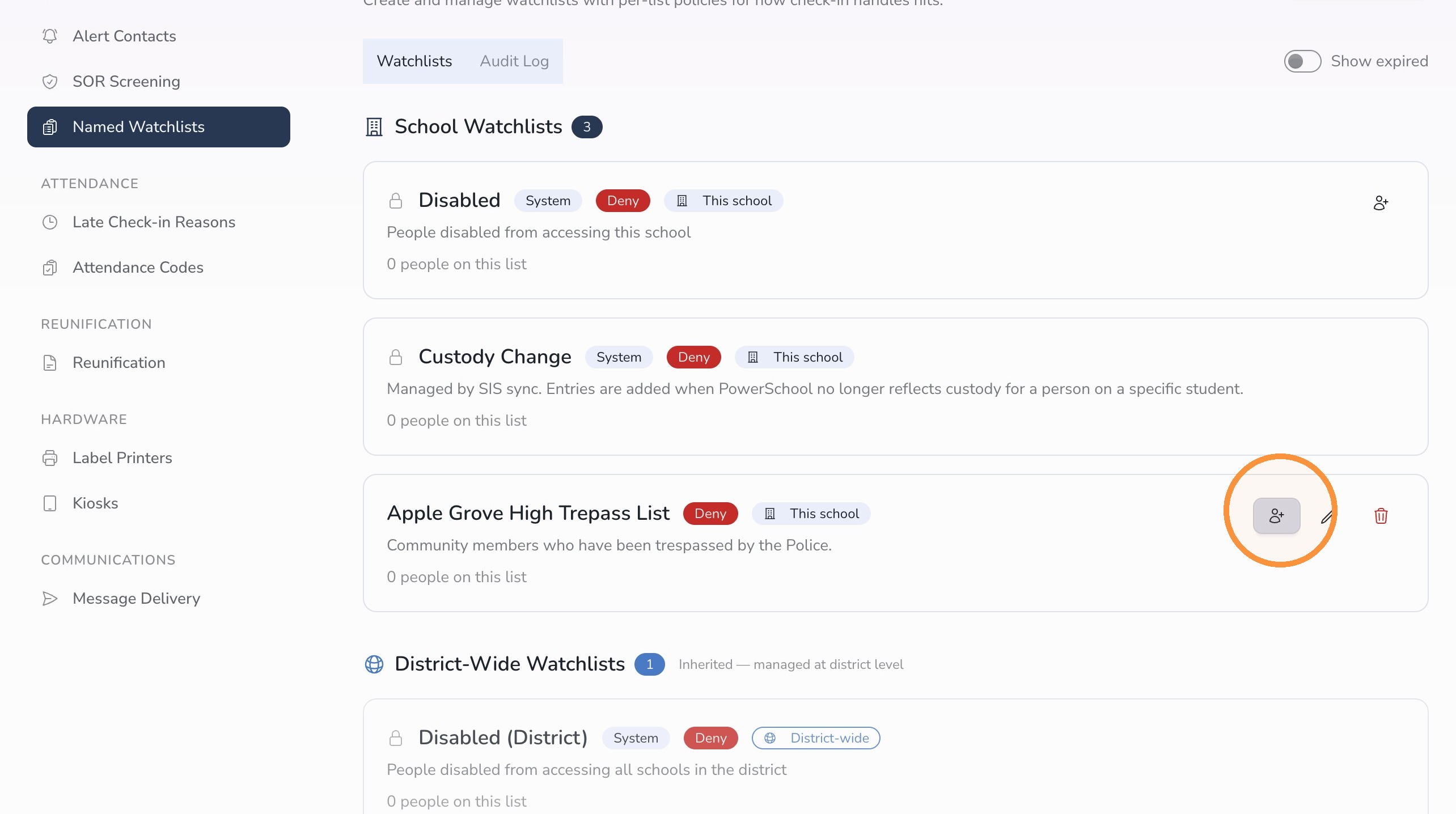
Step 6: Add a person to the Watchlist
- Click the Add Person icon next to the Watchlist.
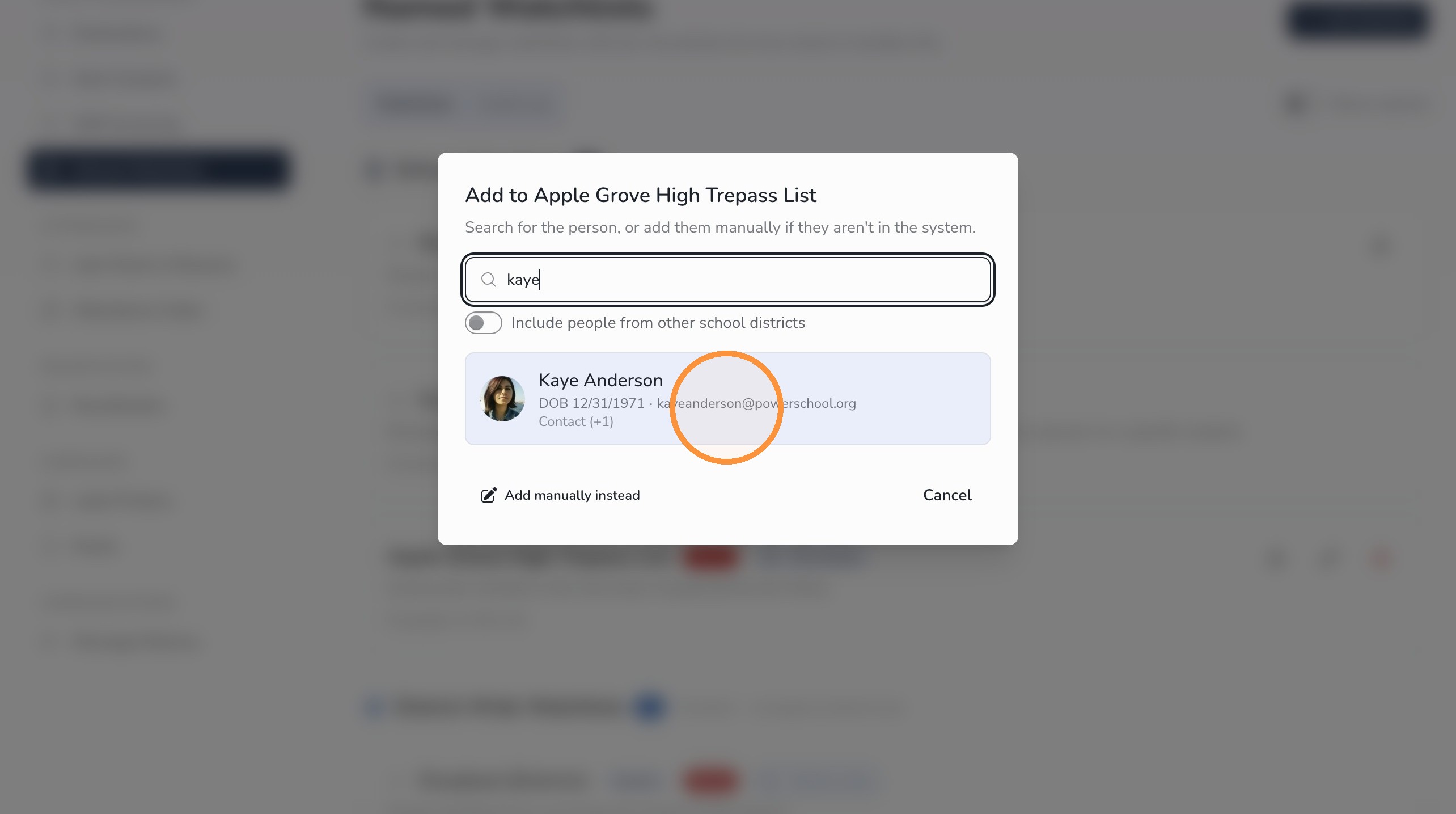
Step 7: Search for an existing Circool person
- Use the search box to find a person who already has an existing Circool account.
- Search by name.
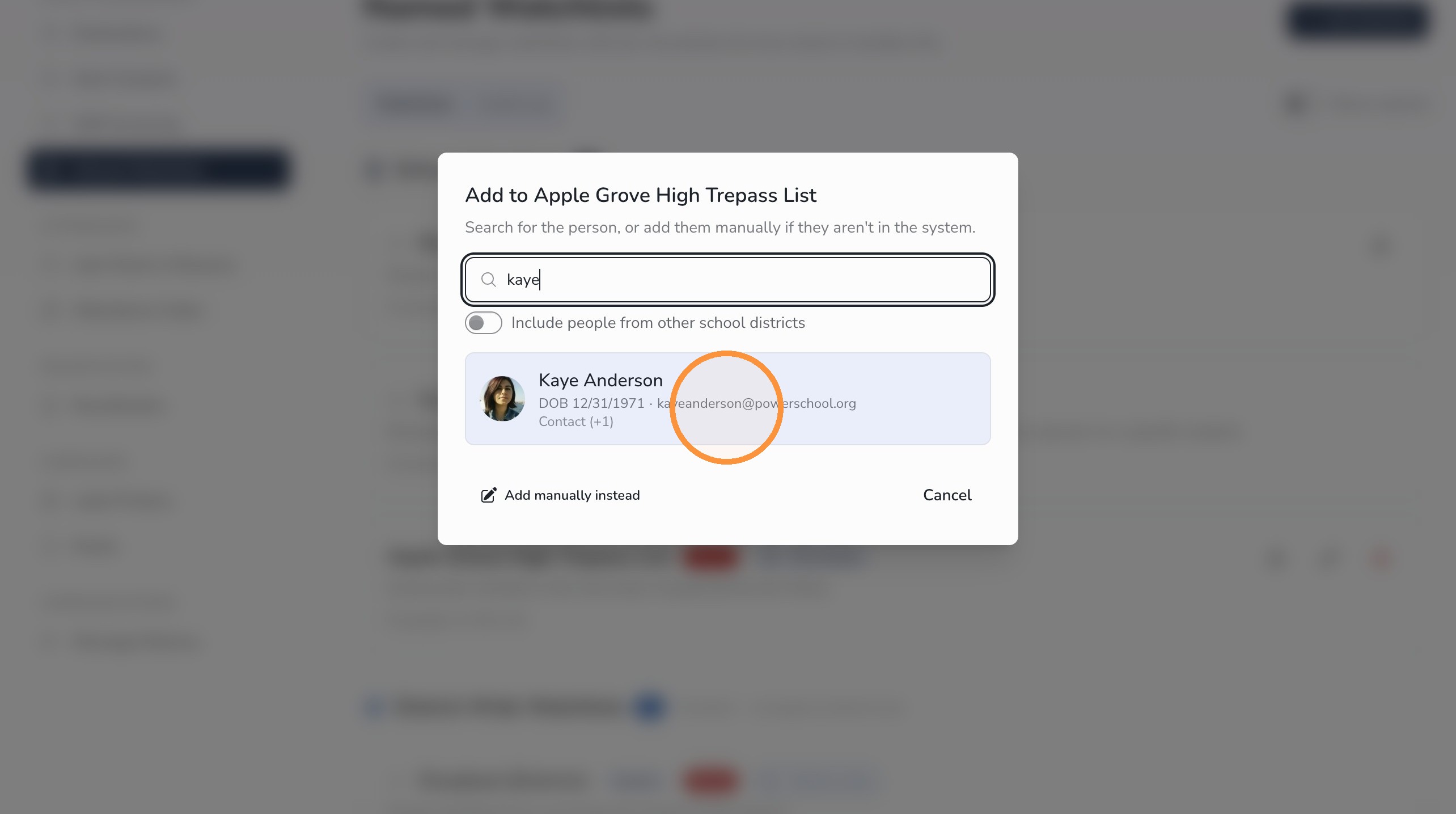
Step 8: Select the person
- Select the person from the search results to add them to the Watchlist.
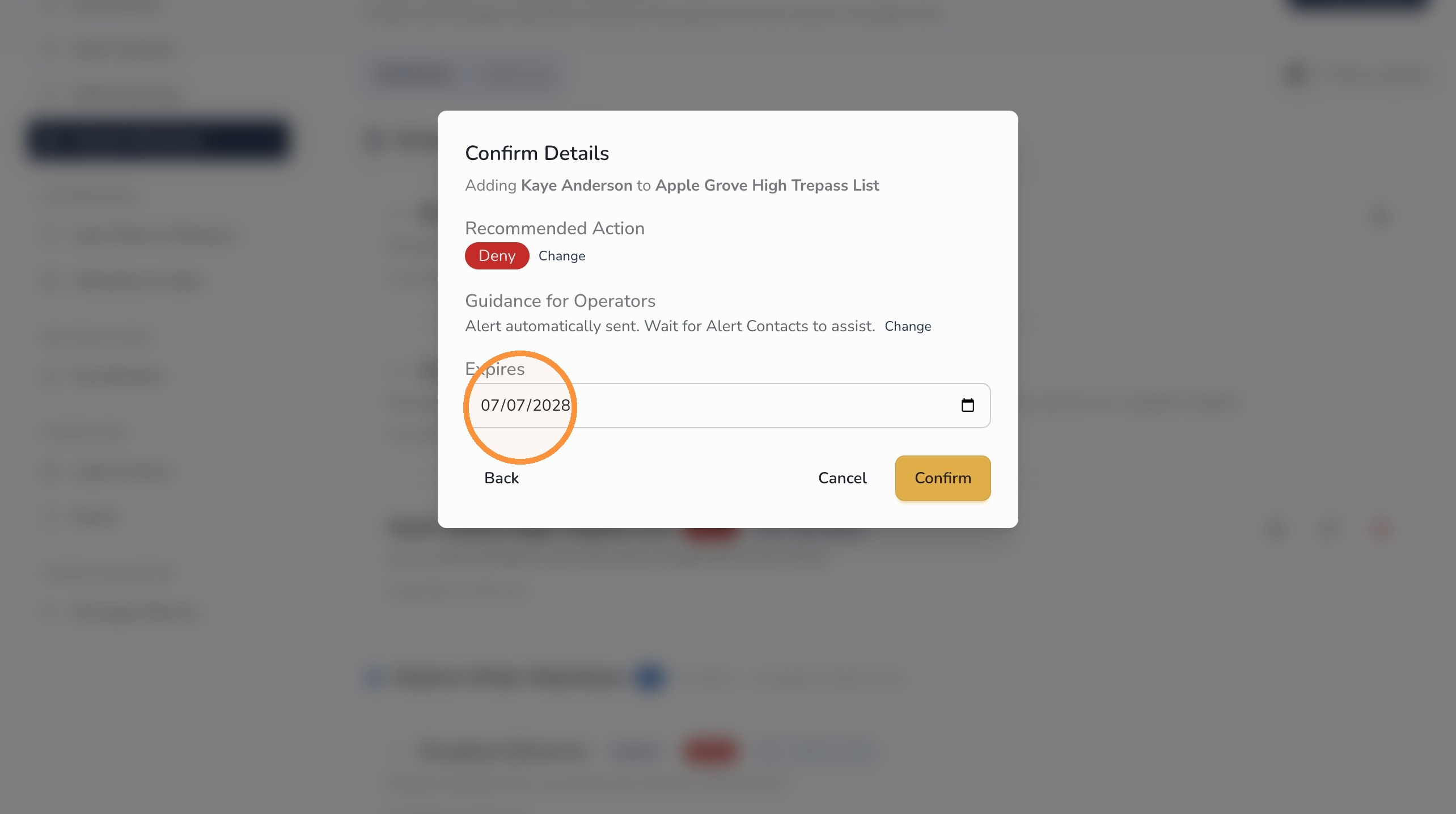
Step 9: Set the expiration date
- Set the expiration date for this person’s Watchlist status.
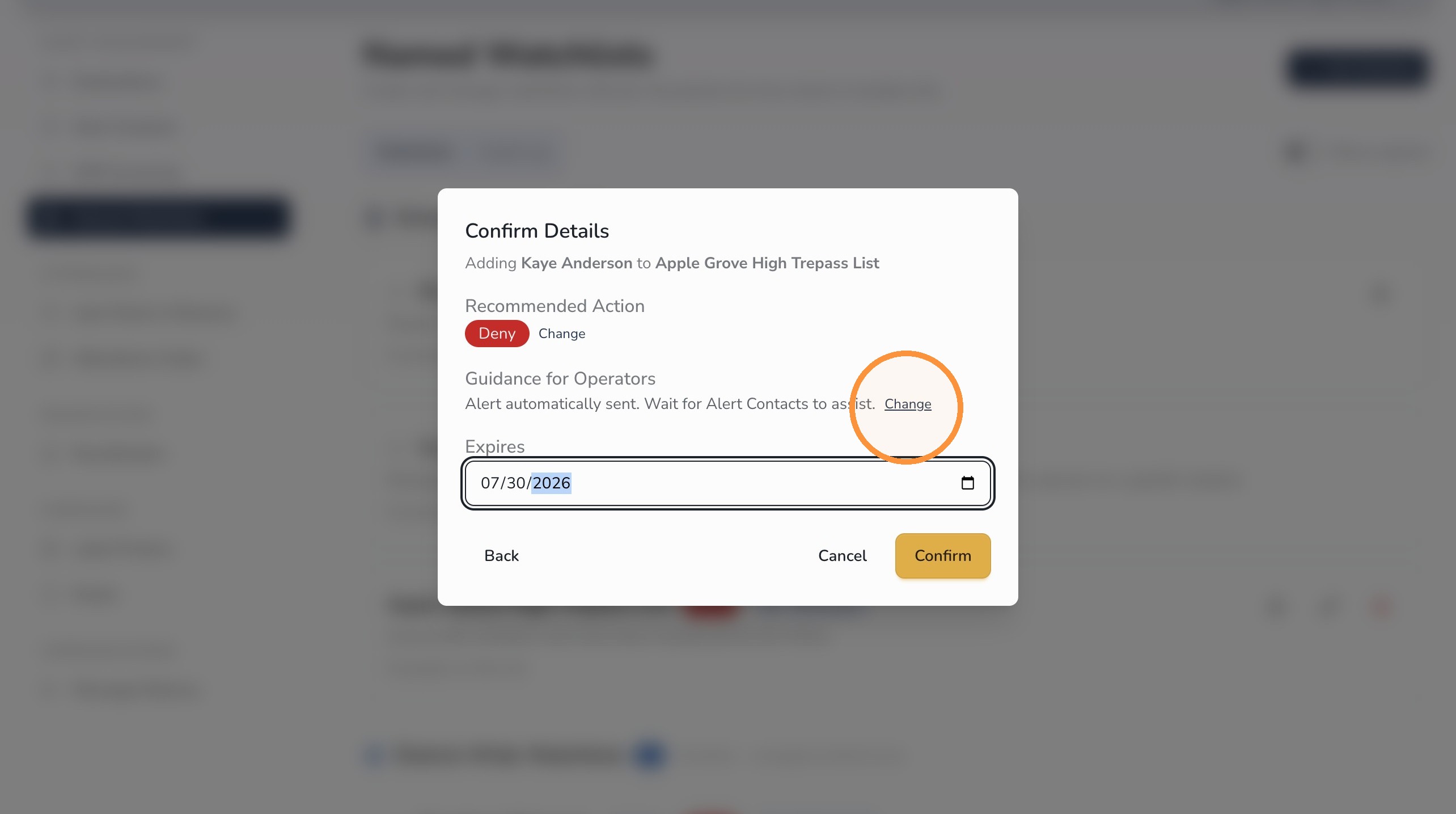
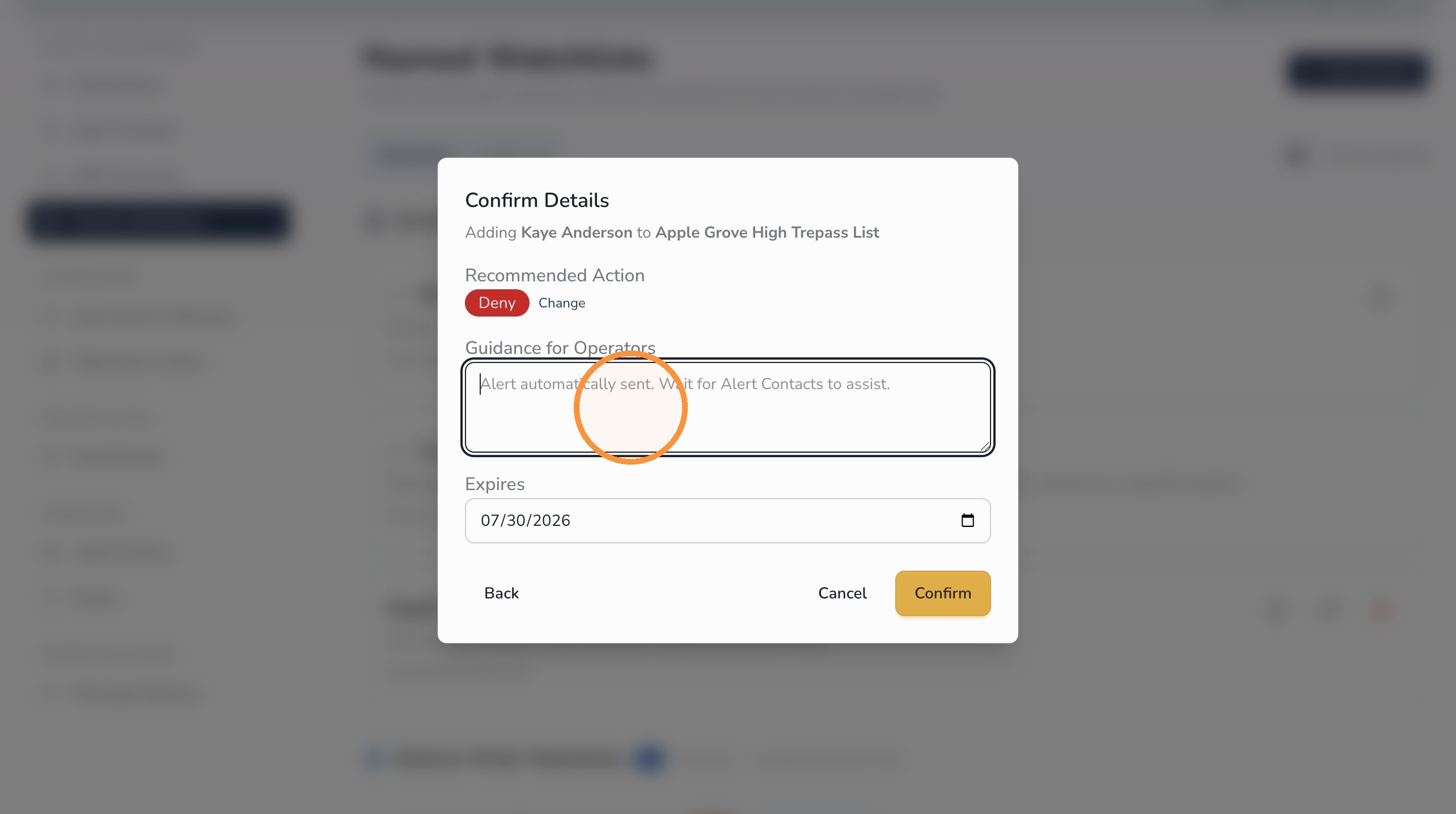
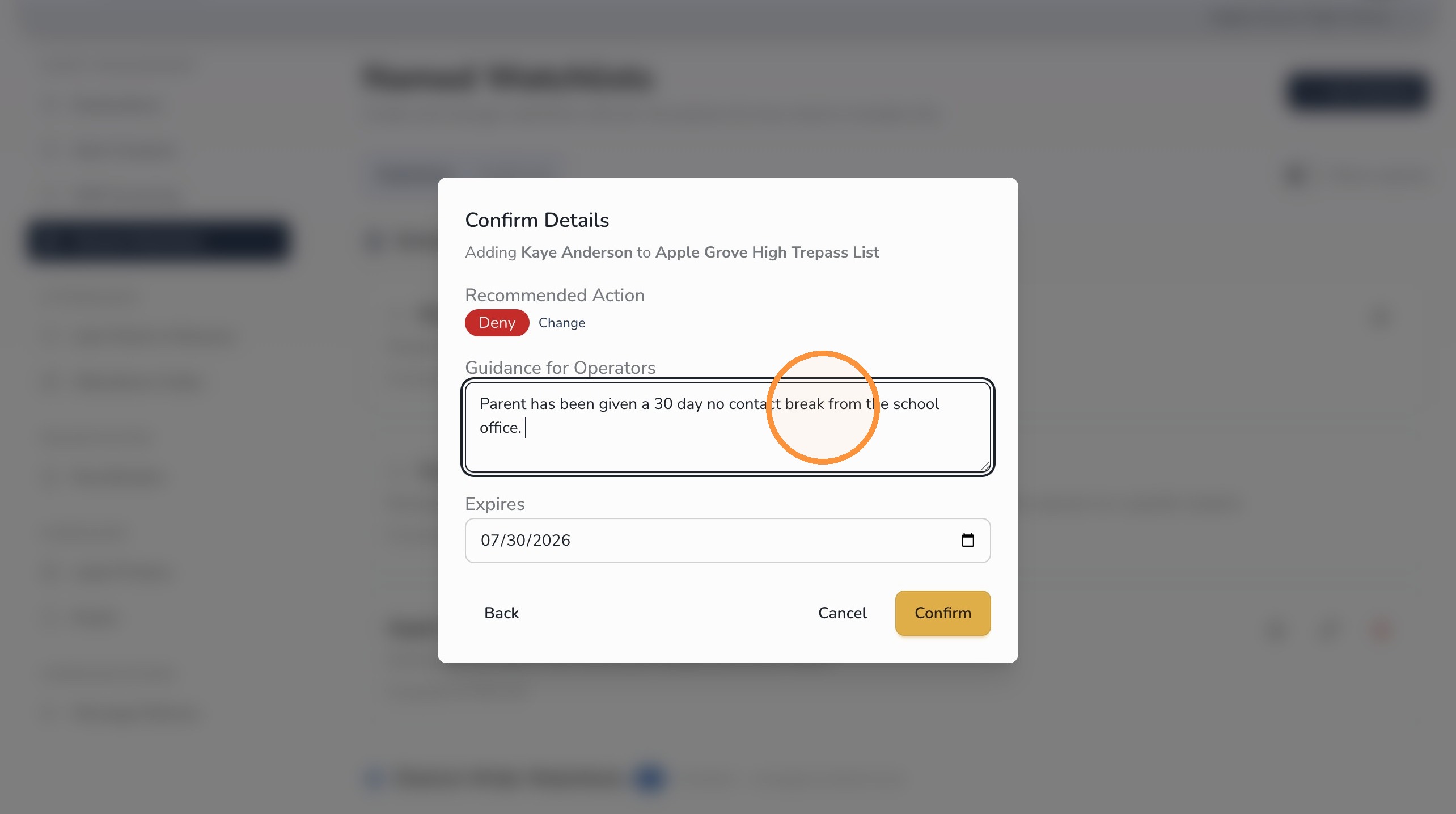
Step 10: Add individual instructions, if needed
You can change the default instructions for a specific person if their situation needs different guidance.
- Review the default instructions.
- Add or change the guidance for this individual, if needed.
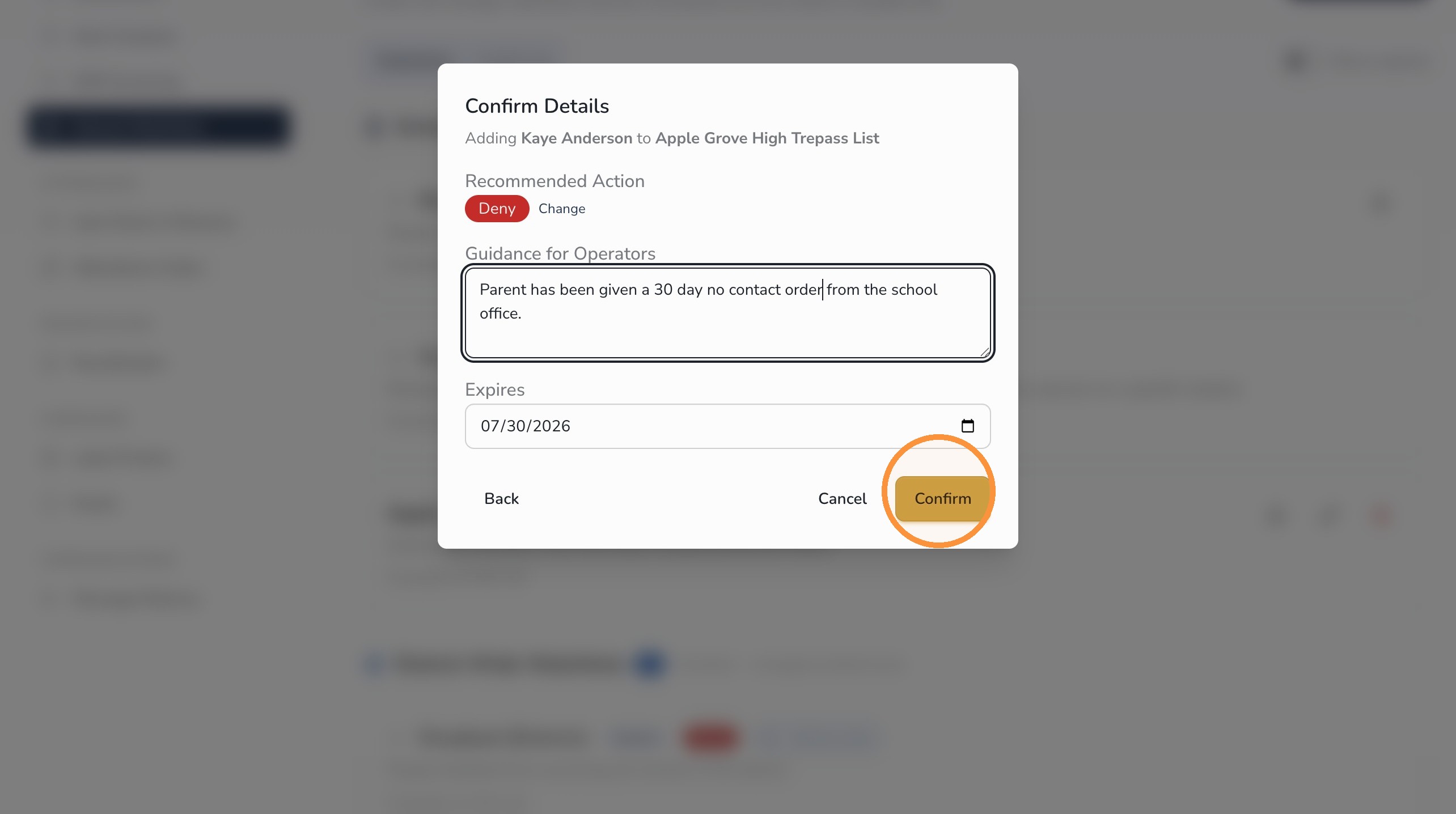
Step 11: Confirm the Watchlist entry
- Click Confirm to finalize adding the person to the Watchlist.
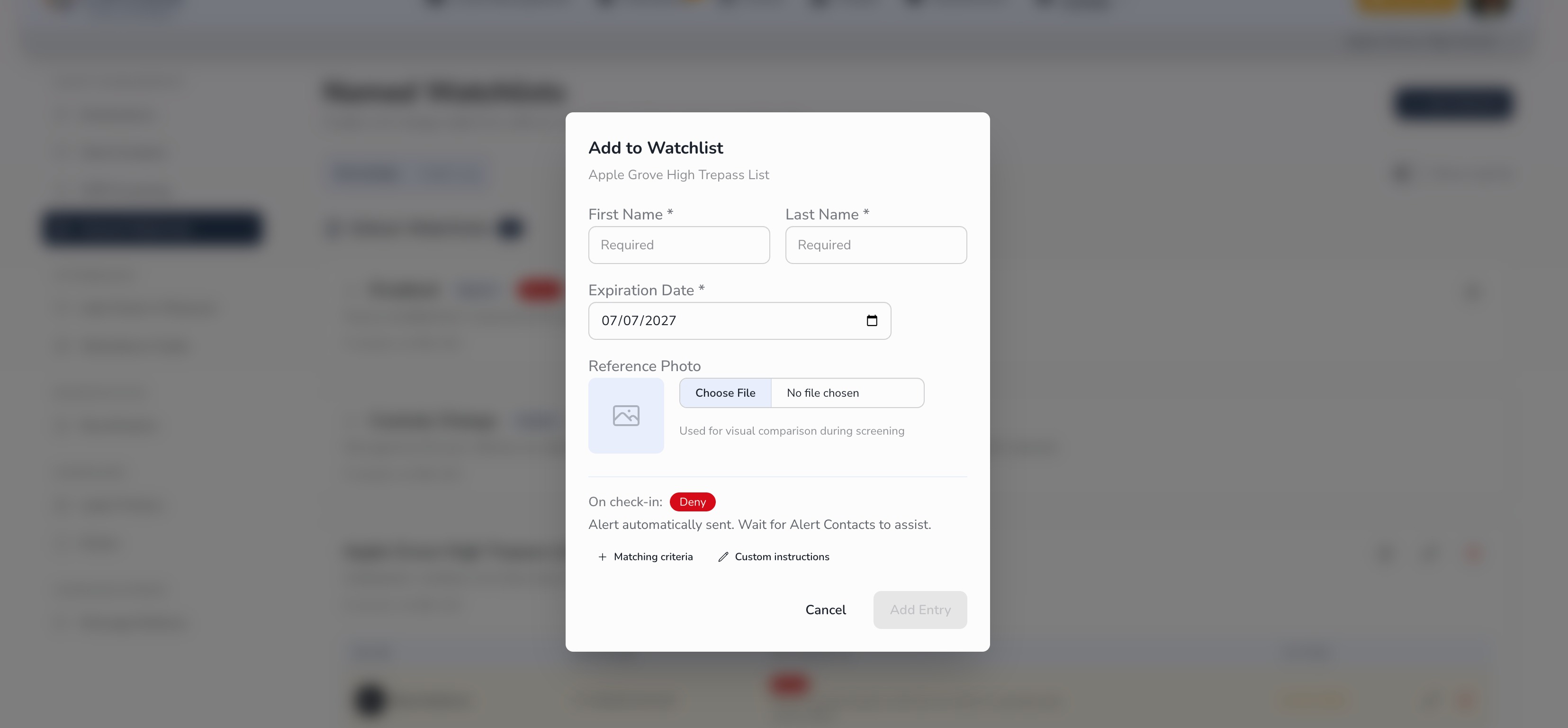
Step 12: Manually add a person by name
You can also manually add a person to a Watchlist by name.
- First name and last name are required
- An expiration date is required
- A photo is optional, but helpful
Guest screening and Watchlist review
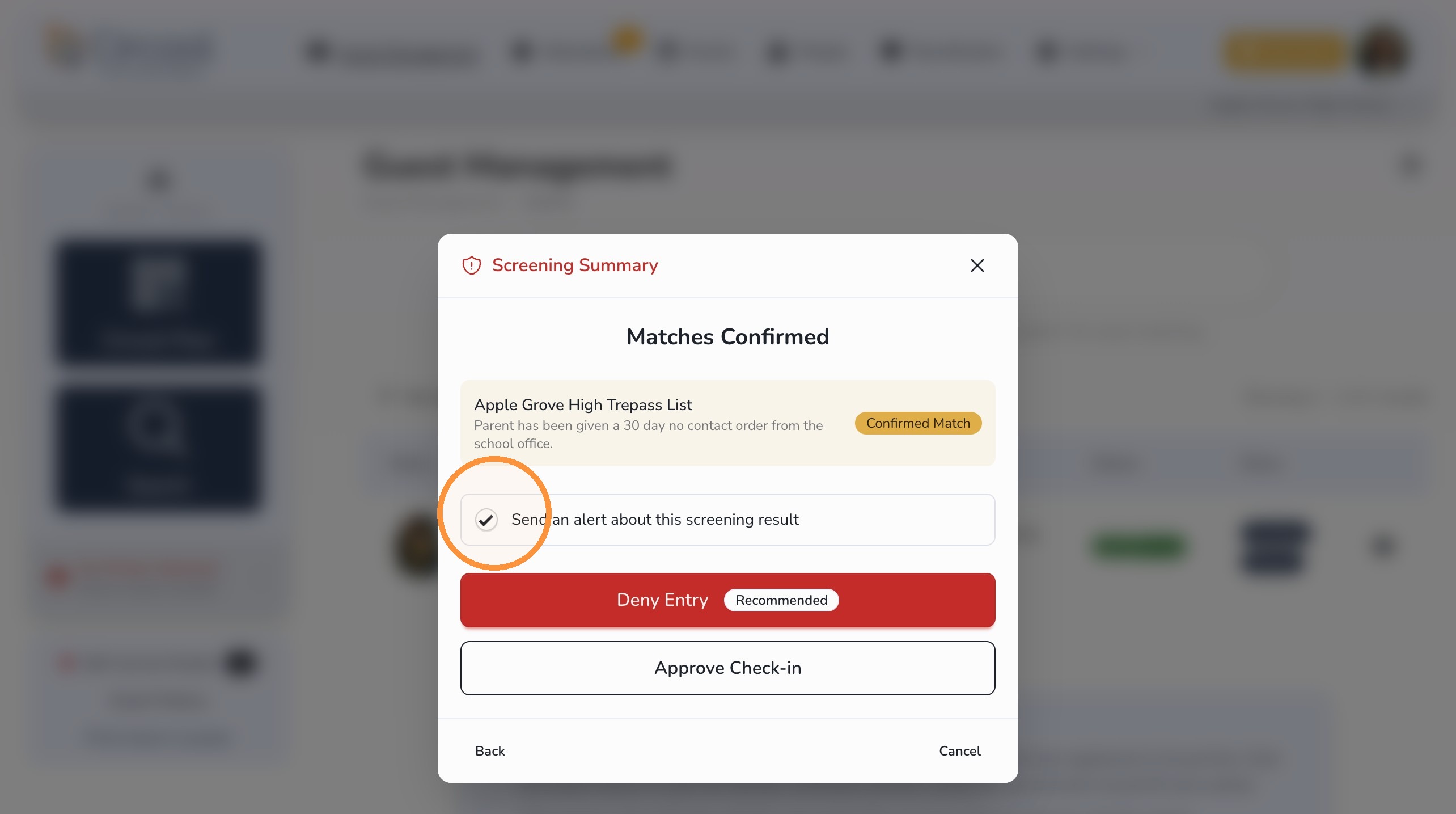
When a guest is screened, Circool checks whether they appear on a Watchlist and shows a summary for staff review.
From there, your team can choose the next step:
- Send Alert to notify your school’s alert contacts
- Deny Entry if the person should not enter the building
- Approve Check-In if staff determines the visit should continue
Important: Circool helps provide guardrails and bring important information to the front office quickly. Your school staff remains in control of the final decision and should follow your school or district procedures when allowing or denying access.
What happens if someone on a Watchlist uses the kiosk?
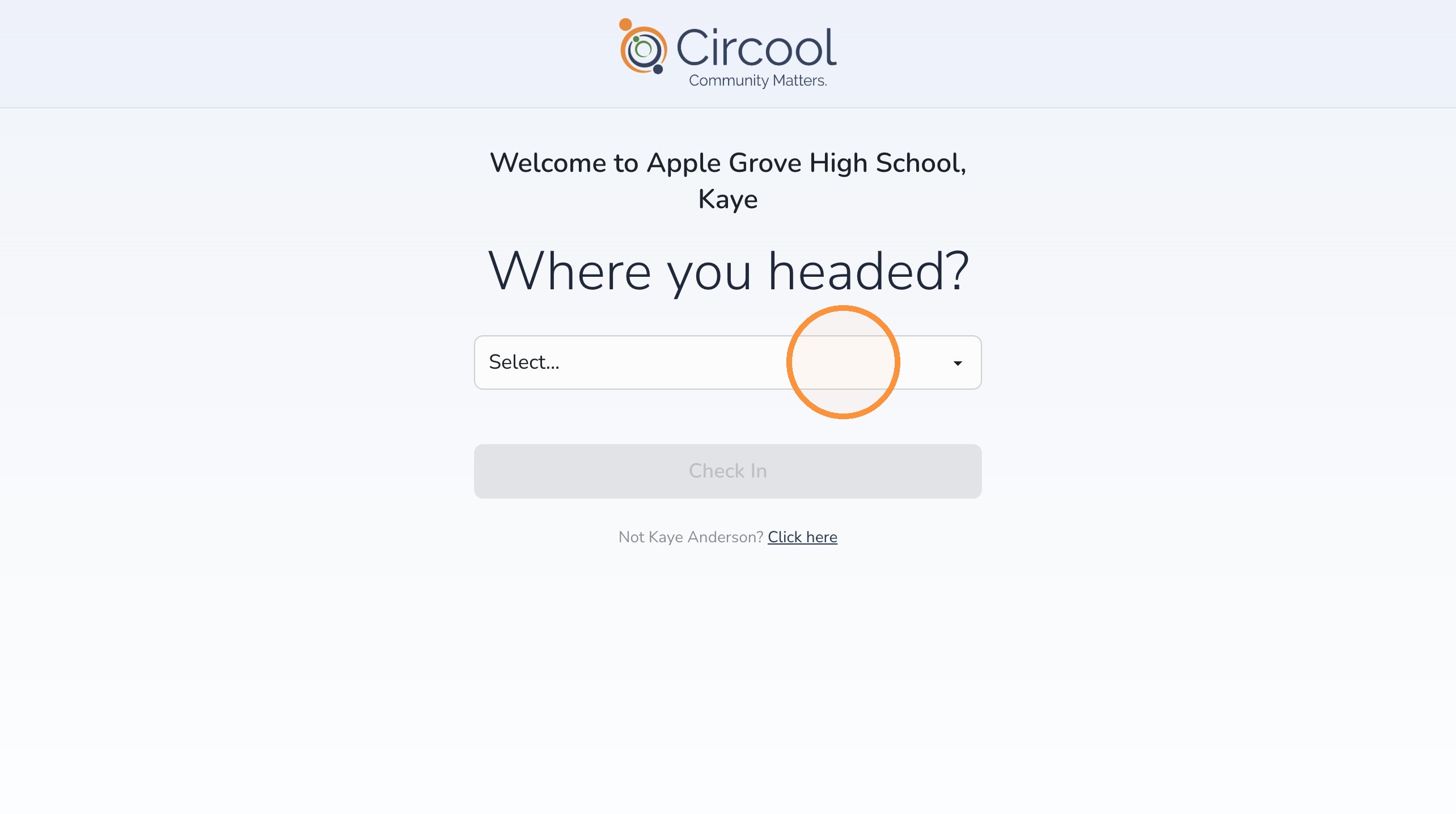
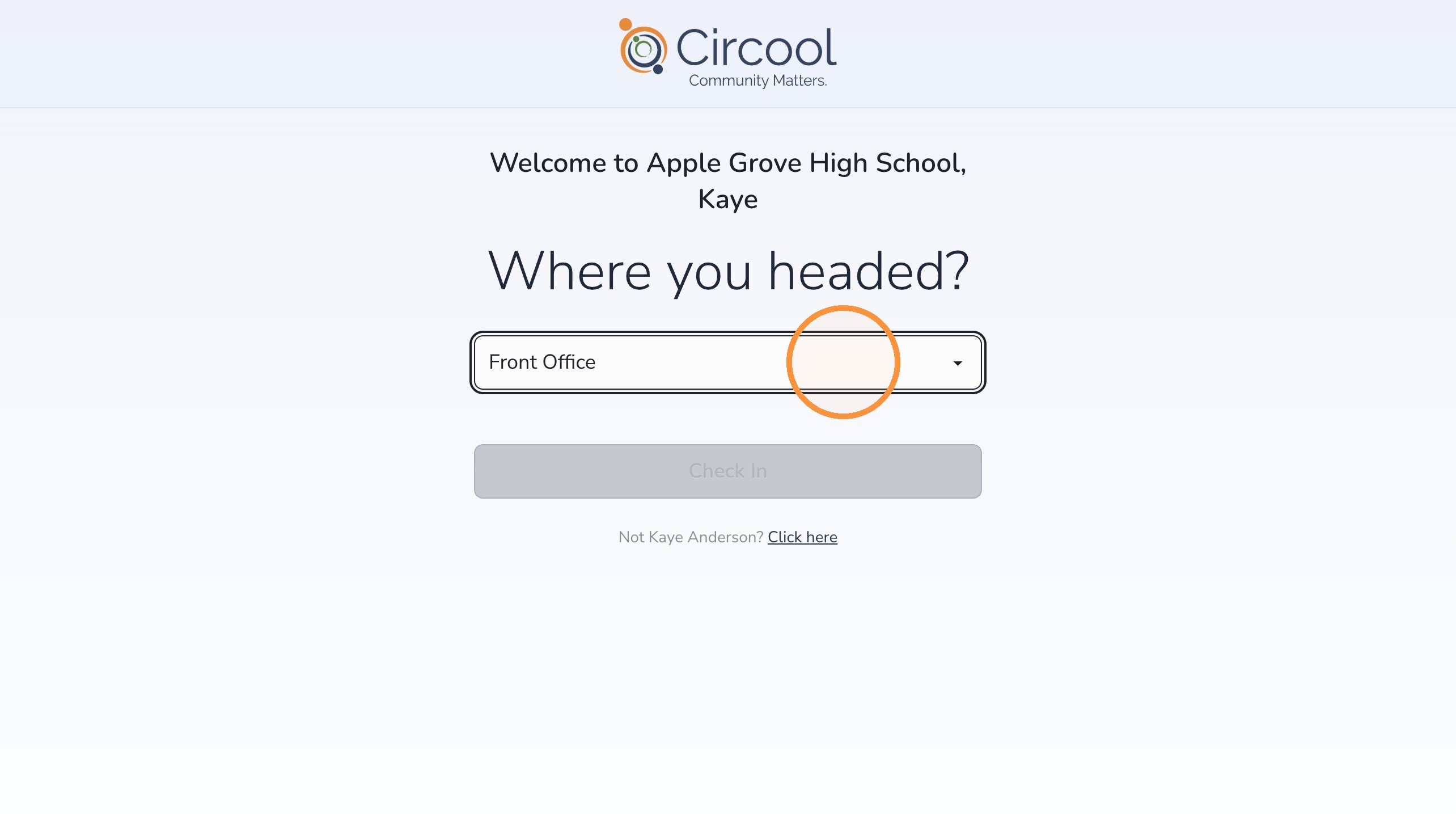
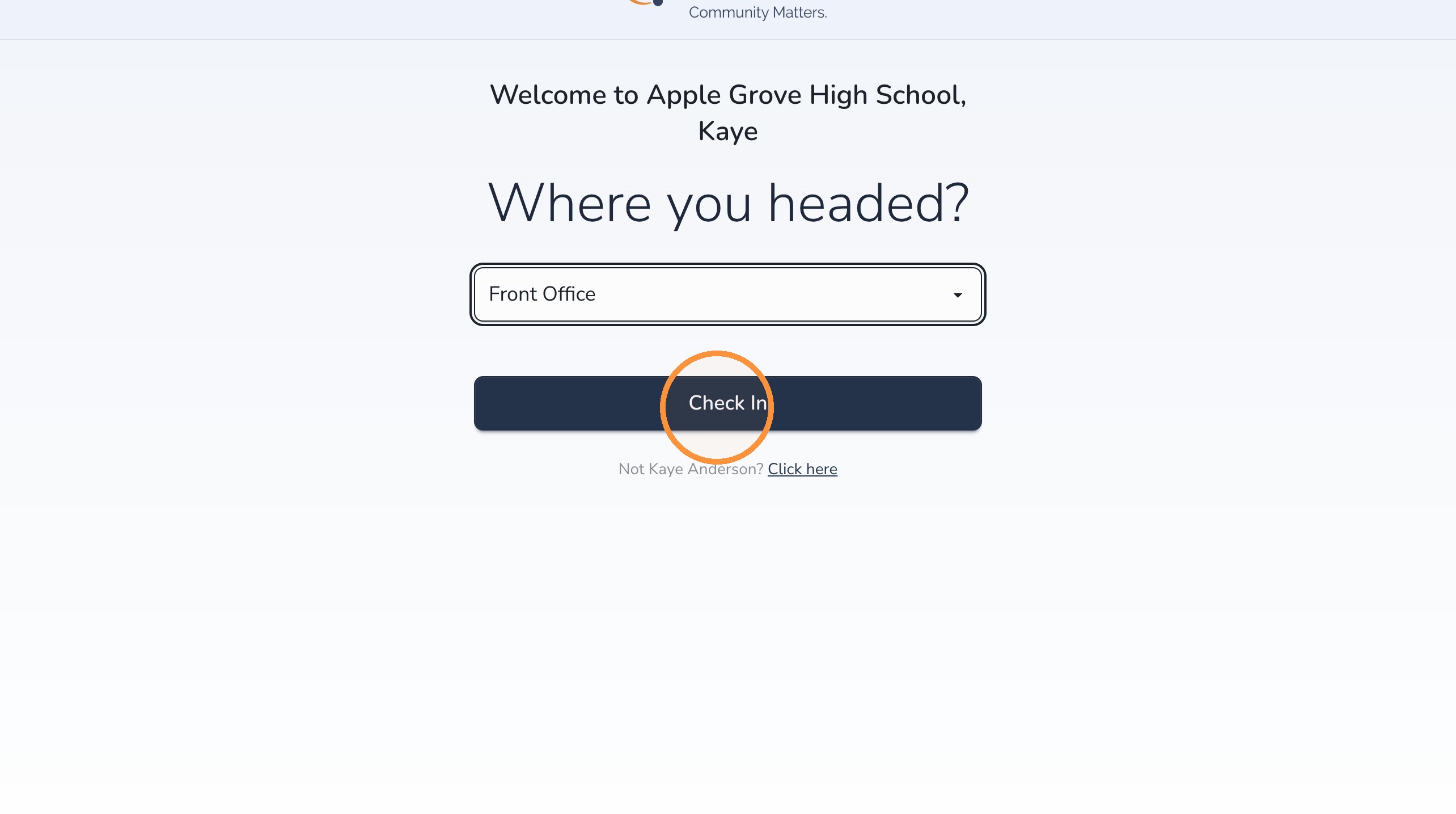
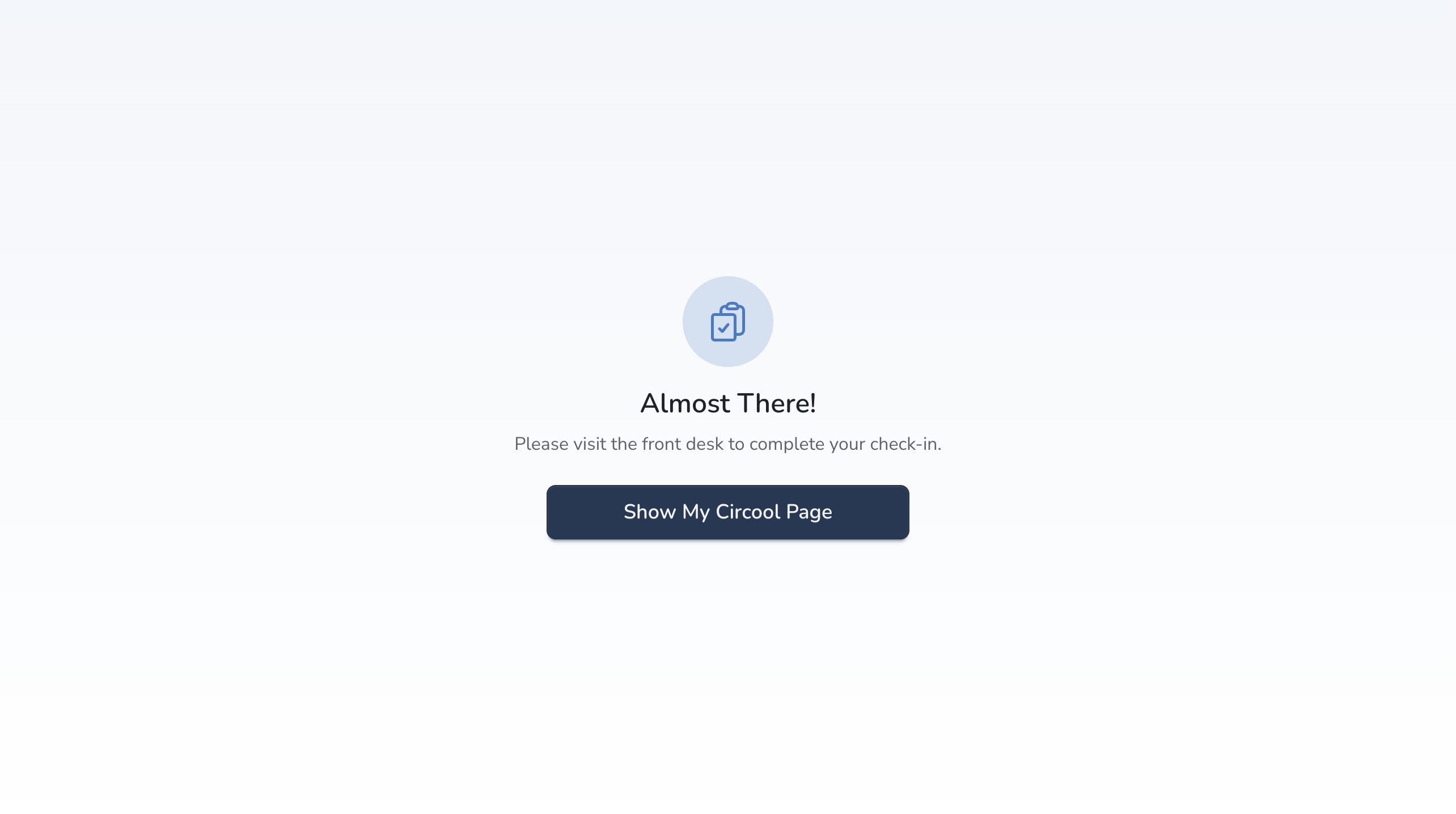
If someone on a Watchlist tries to check in using a self-service kiosk or posted QR code, they will move through the check-in steps like normal.
At the final Check In step, Circool will stop the self-check-in process. A badge will not print, and the person will be directed to see the front office staff to complete check-in.
Important: Individuals on a Watchlist cannot complete self-check-in from a kiosk or QR code. They will always be routed to office staff for review.
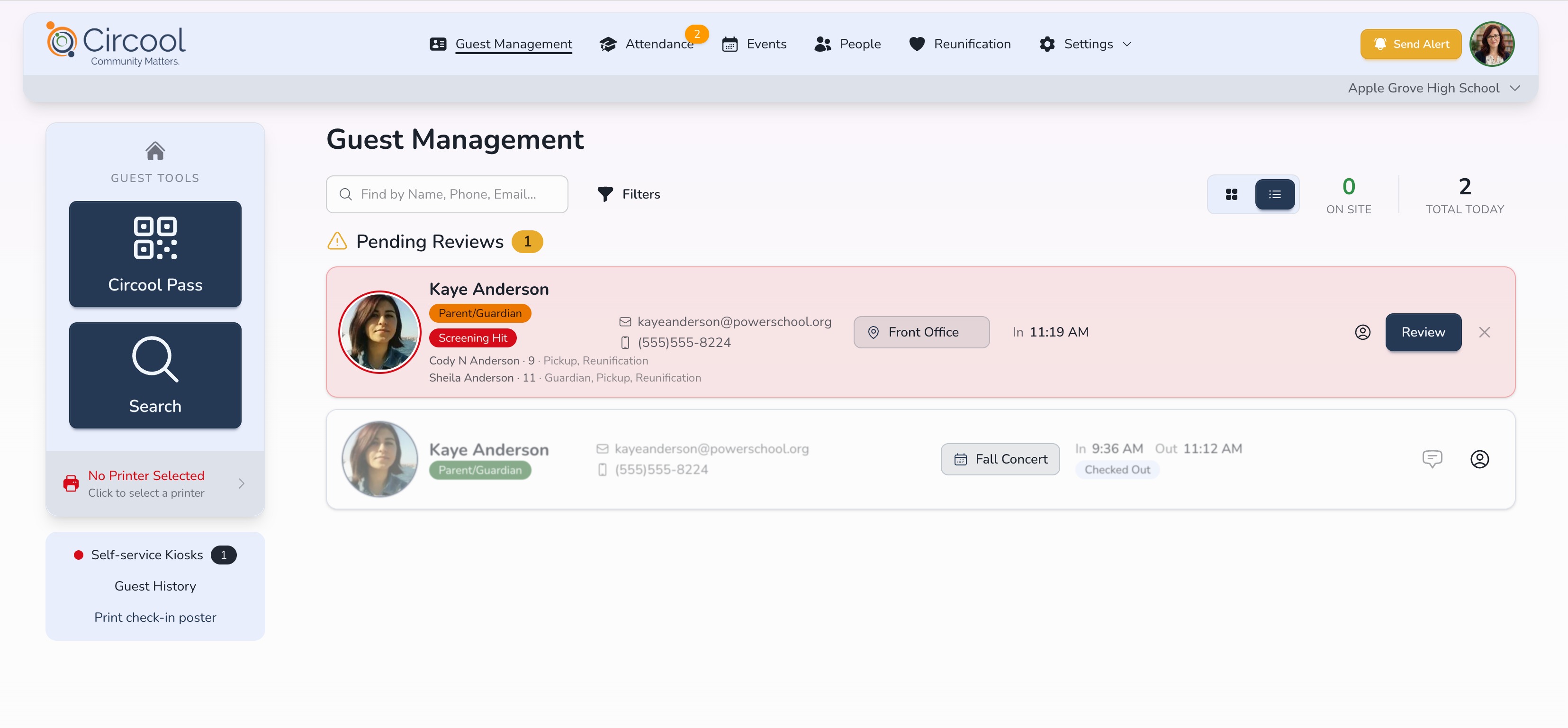
Pending Review on the dashboard
The attempted kiosk check-in will appear as Pending Review on the Guest Management dashboard.
Helpful tips
- Use clear Watchlist names: Make the purpose of each Watchlist easy for staff to understand.
- Keep instructions specific: Tell staff exactly what to do when the Watchlist appears.
- Review expiration dates: Remove or update entries that are no longer needed.
- Follow school procedures: Circool provides the alert, but your school team makes the final decision.
What happens next
Once a Watchlist is created and people are added, Circool can flag those people during future check-ins.
If a Watchlist is triggered, your front desk team will see the alert and should follow the instructions your school provided.
That’s it. Watchlists help your school recognize people who need extra review and respond according to your safety procedures.
Need help?
Circool support is here to help.
If you need help configuring Watchlists, adding people to a Watchlist, or reviewing Watchlist alerts, contact Circool support by phone at 205.202.1124 or email support@circool.com.
Was this article helpful?
That’s Great!
Thank you for your feedback
Sorry! We couldn't be helpful
Thank you for your feedback
Feedback sent
We appreciate your effort and will try to fix the article