Add People to a Watchlist
Use this guide to add a person to a Circool Watchlist/No-Trespass and provide clear instructions for your front desk team.
Watchlists help Circool flag specific people during future check-ins so your school can review the alert and follow the correct campus safety procedure.
Before you start
There are two ways to add someone to a Watchlist:
- Add a known Circool person: Use this when the person already exists in Circool, such as a parent, guardian, step-parent, student contact, or repeat guest.
- Add a non-Circool person: Use this when the person does not already exist in Circool, such as someone from the community or another individual your school needs to flag.
Important: Use clear, calm operator instructions. The goal is to help front desk staff know exactly what to do if the person appears during check-in.
Option 1: Add a known Circool person to a Watchlist
Use this option when the person already exists in Circool. Search for their name, select the correct person, and add them to the appropriate Watchlist.
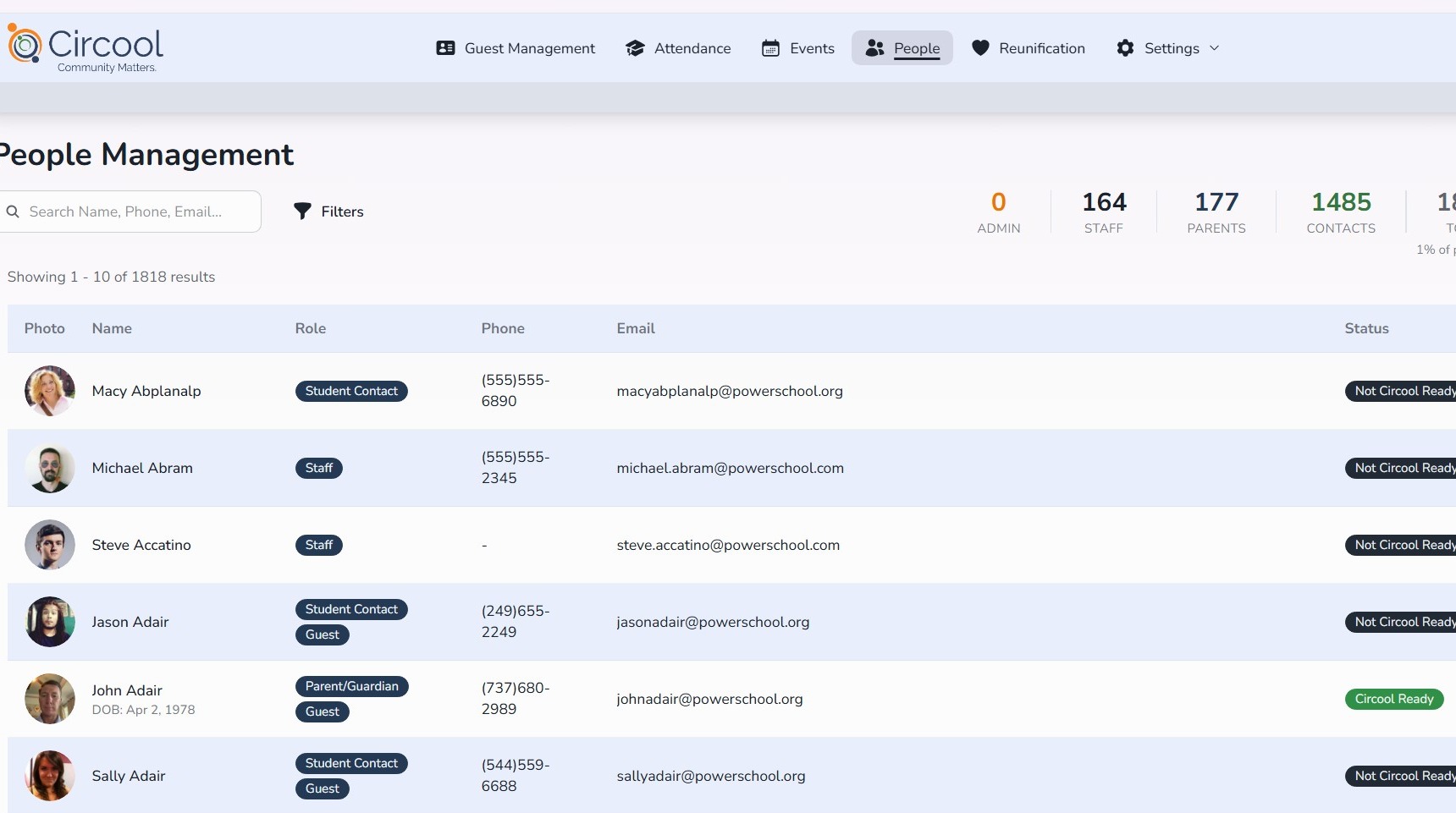
Step 1: Open People
- Click People.
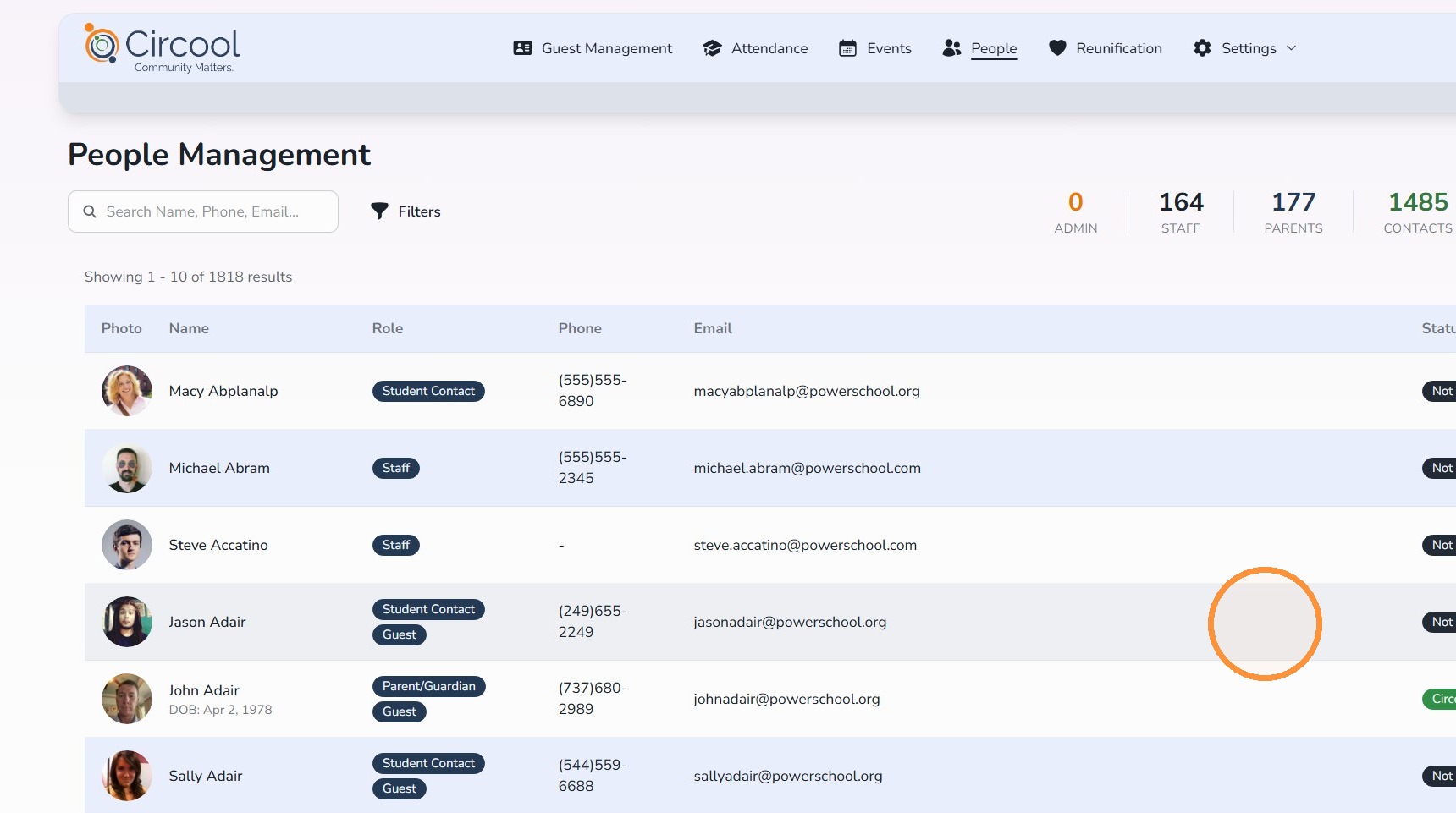
Step 2: Search for the person
- Search for the person by name.
- Click the person’s row to open their profile.
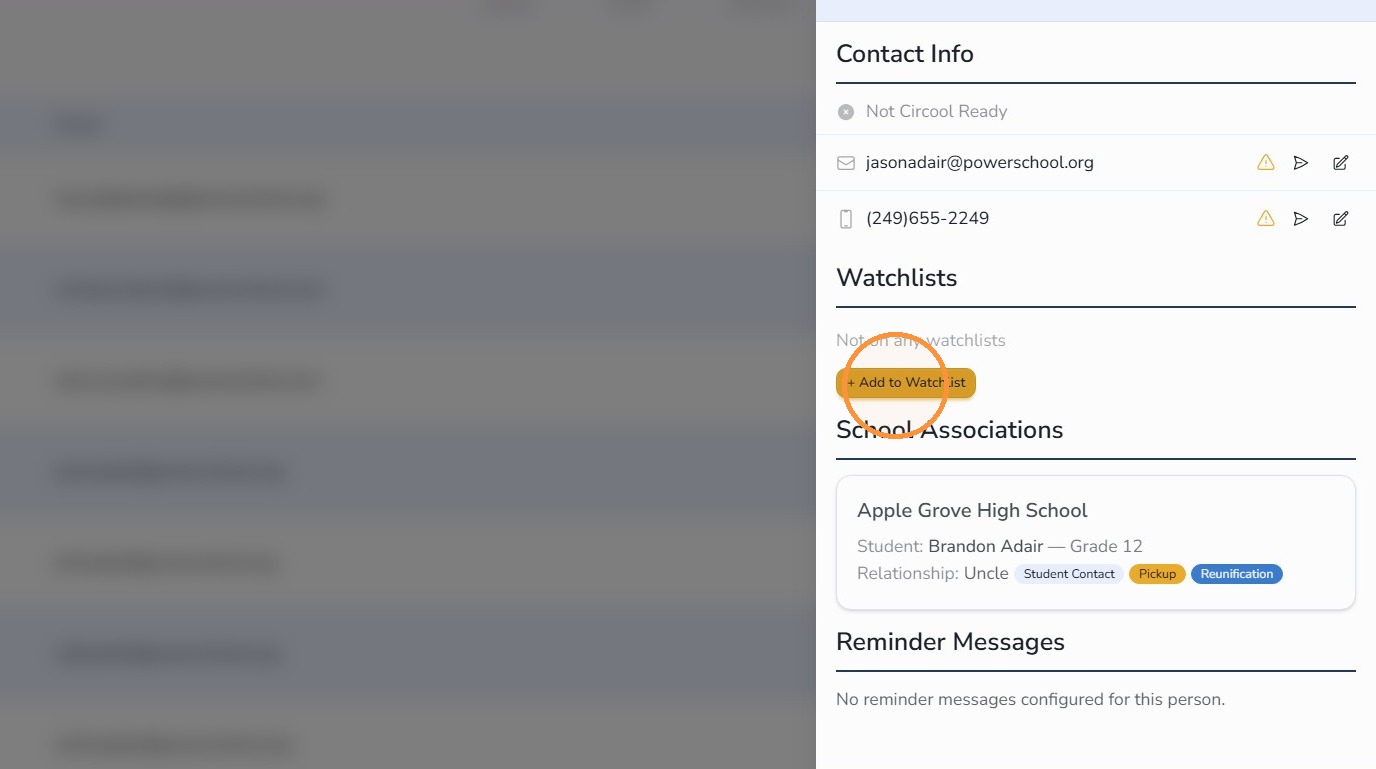
Step 3: Add the person to a Watchlist
- In the slide-out profile, click + Add to Watchlist.
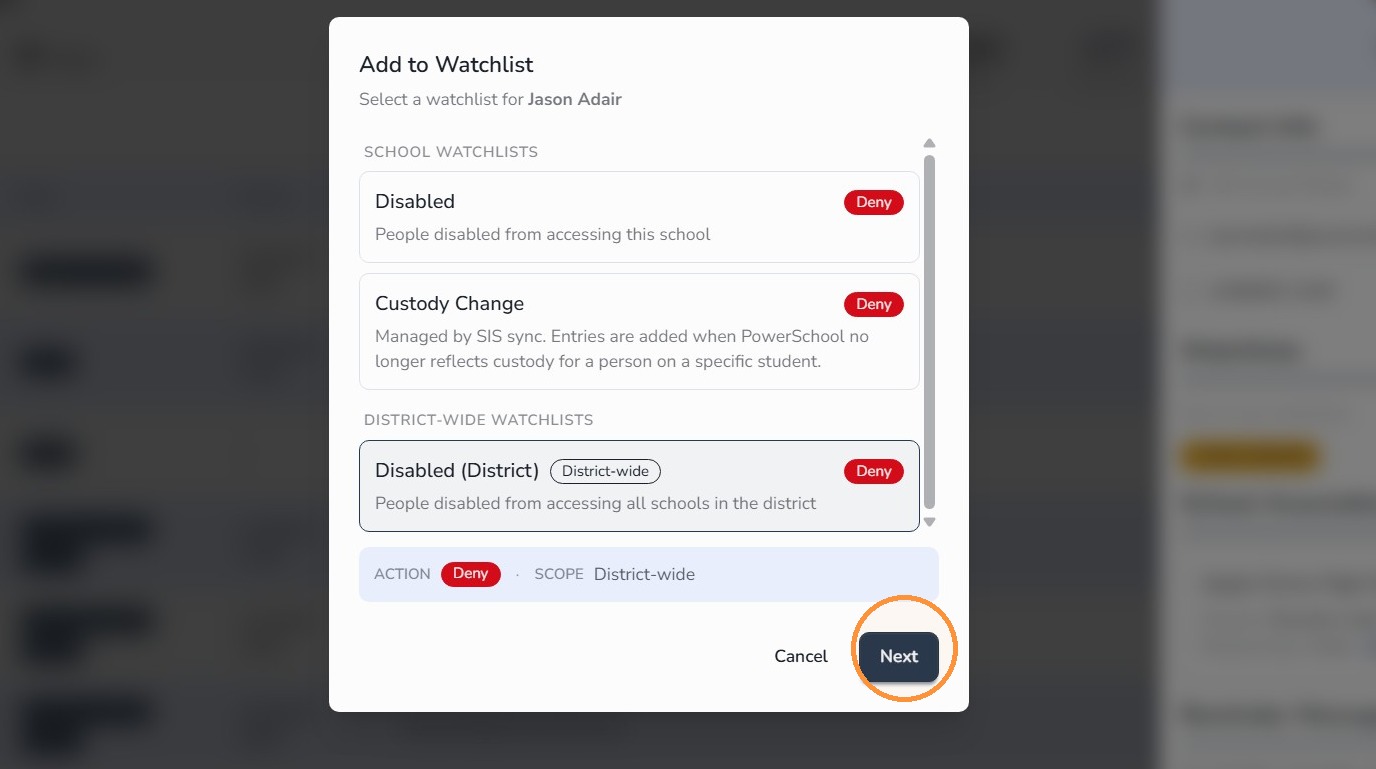
Step 4: Select the Watchlist
- Select the appropriate Watchlist option.
- Click Next.
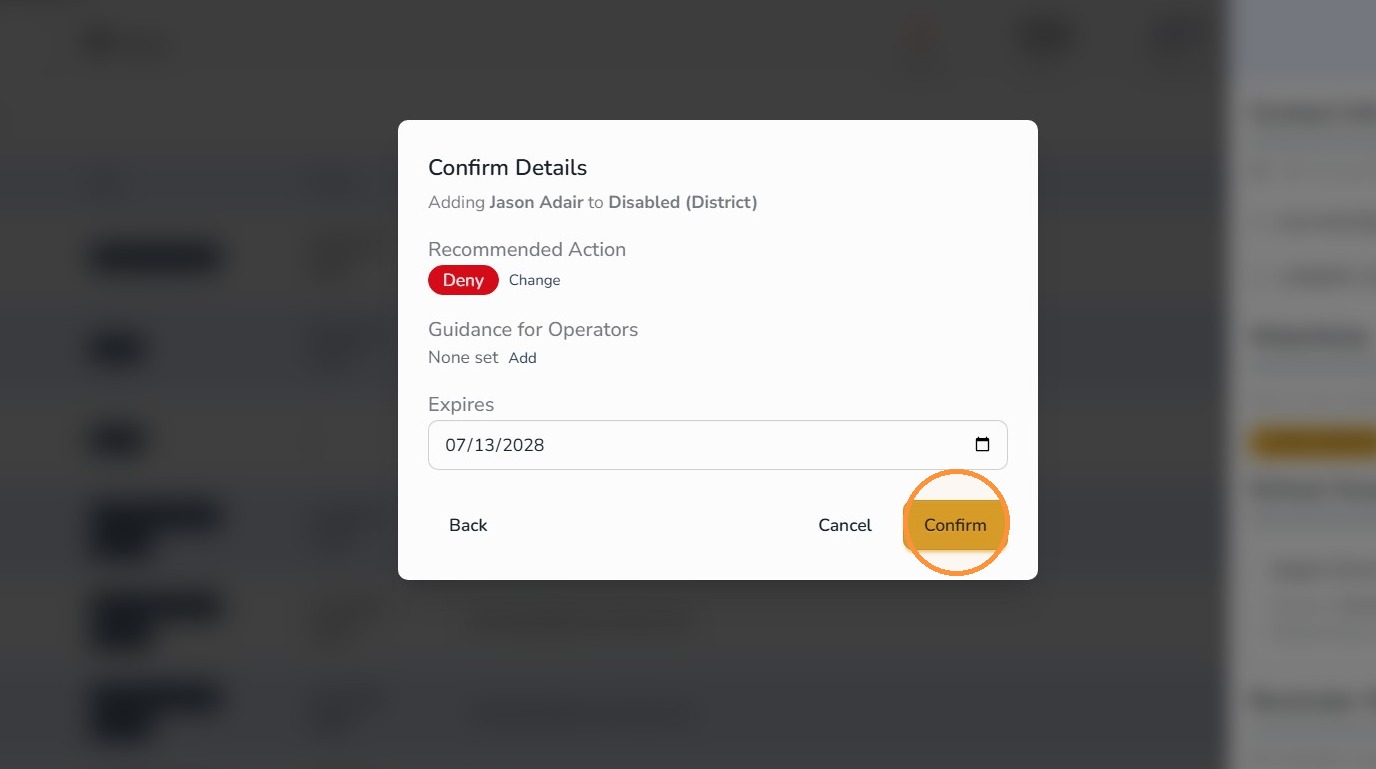
Step 5: Set the expiration date
- Select the date you want the Watchlist entry to remain active.
- Click Confirm.
Option 2: Add a non-Circool person to a Watchlist
Use this option when the person does not already exist in Circool. You can create a new Watchlist entry using the information your school has available.
Tip: Add enough information to help staff identify the person later, such as name, description, date of birth when available, and operator instructions.
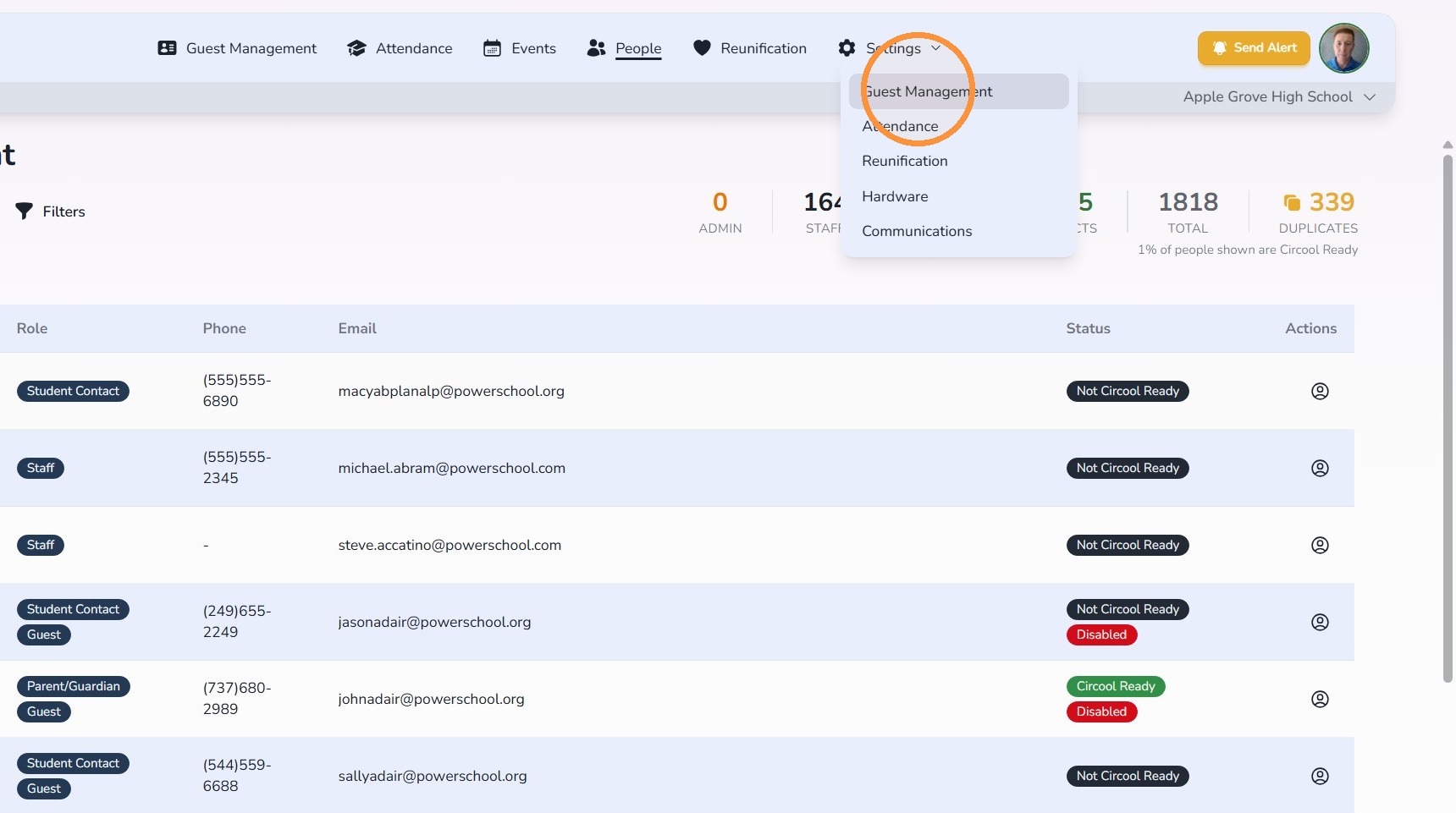
Step 6: Open Guest Management settings
- Click the Settings gear icon.
- Click Guest Management.
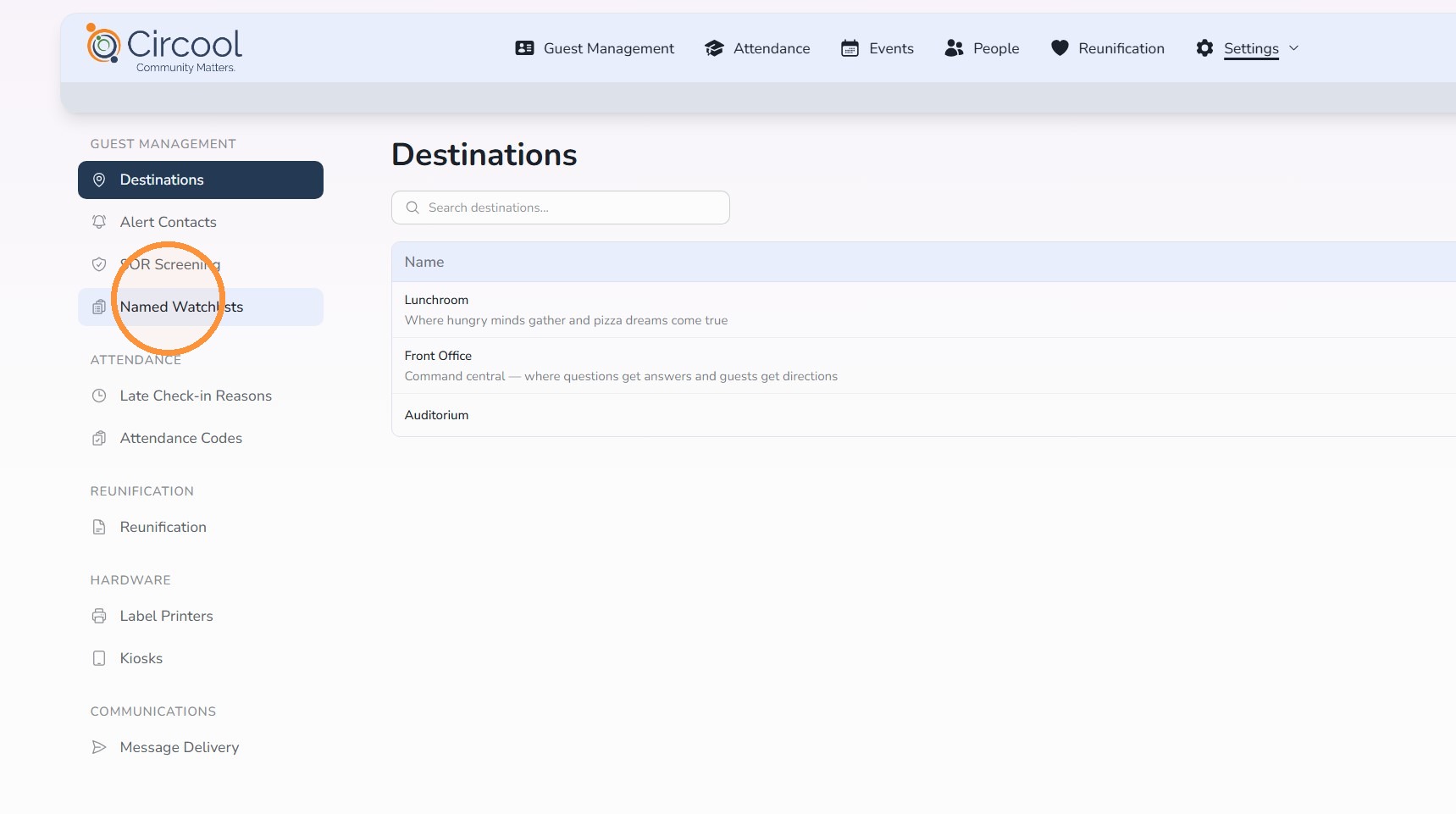
Step 7: Open Named Watchlists
- Click Named Watchlists.
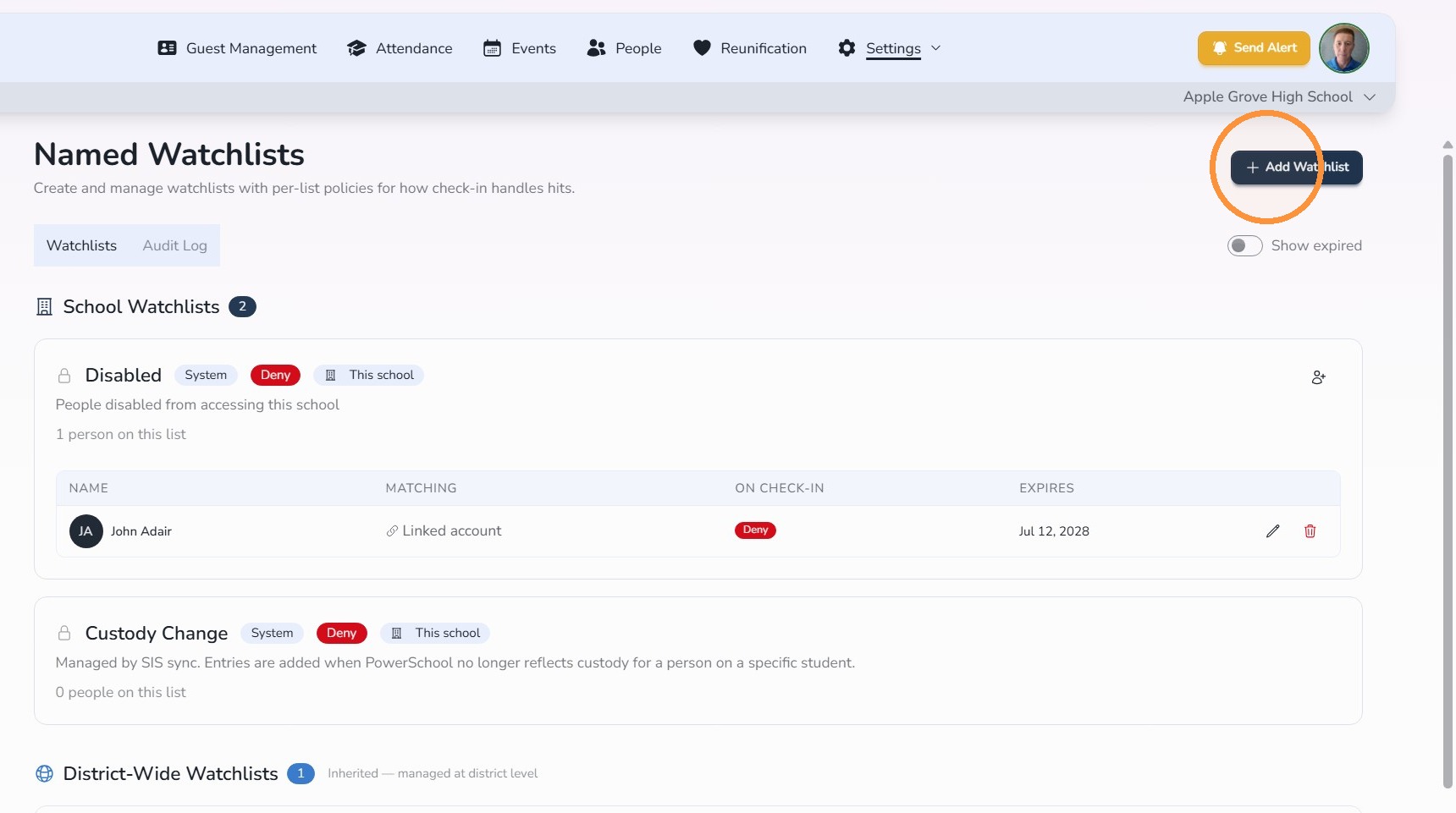
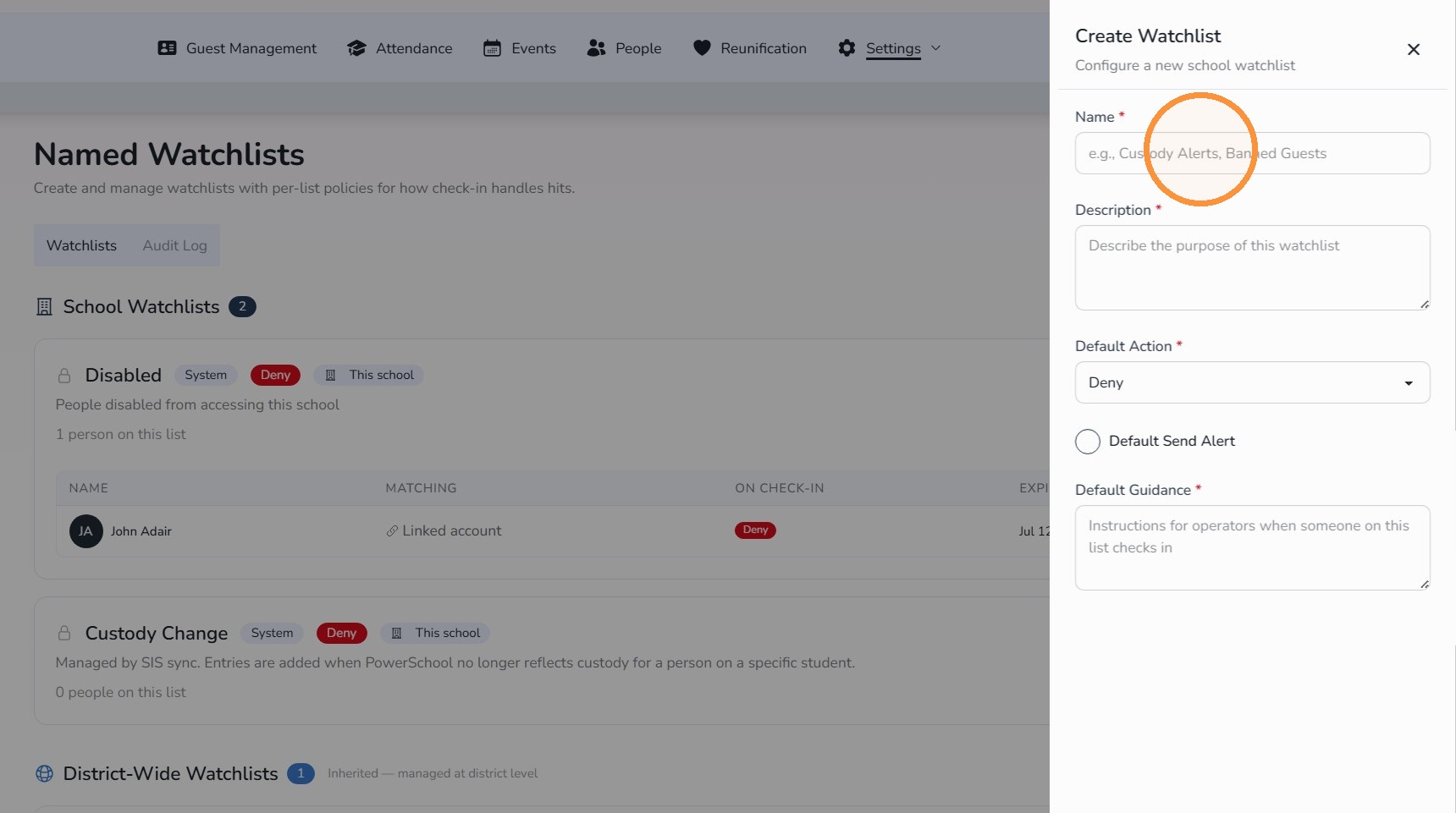
Step 8: Add a Watchlist
- Click Add Watchlist.
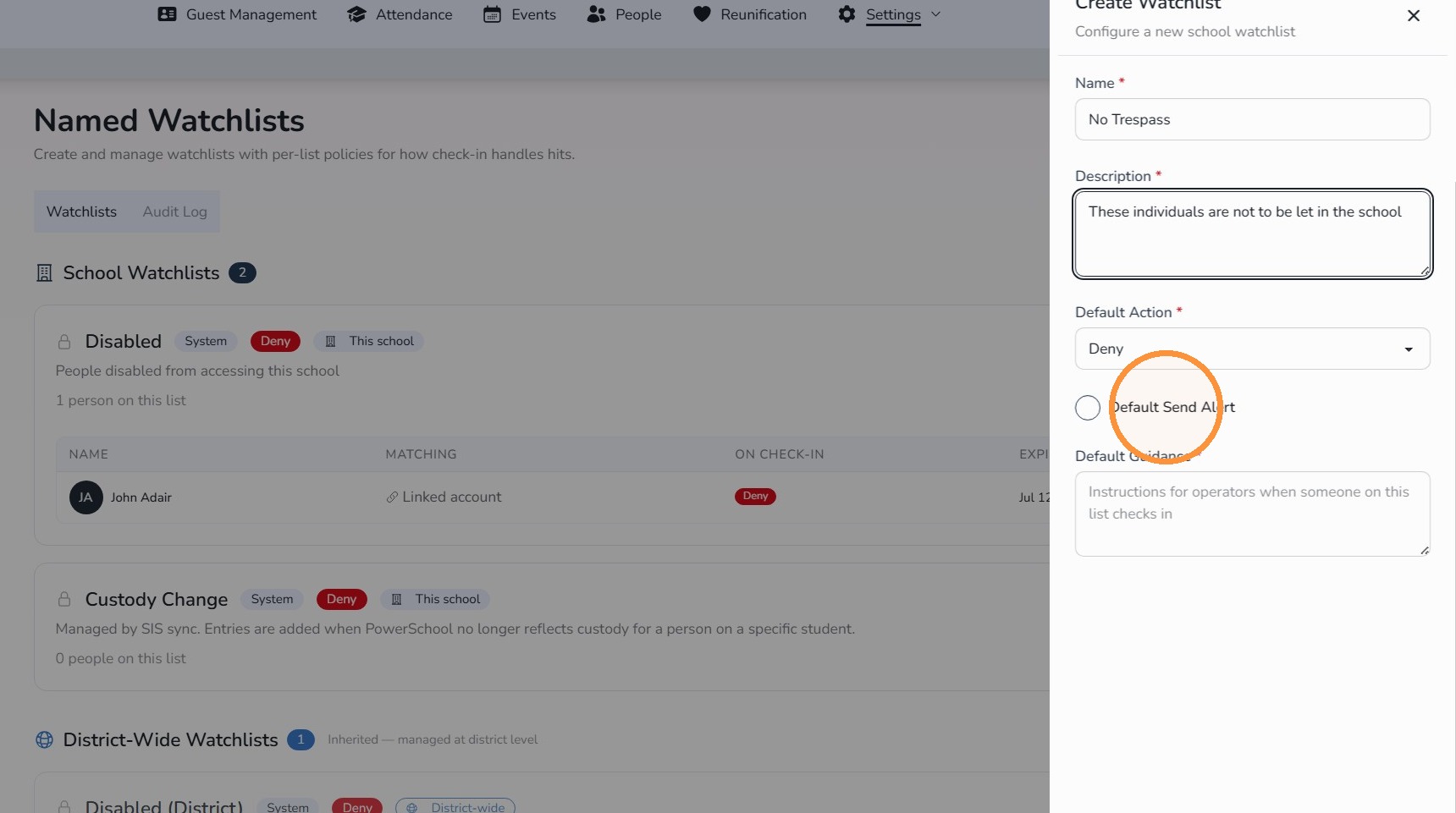
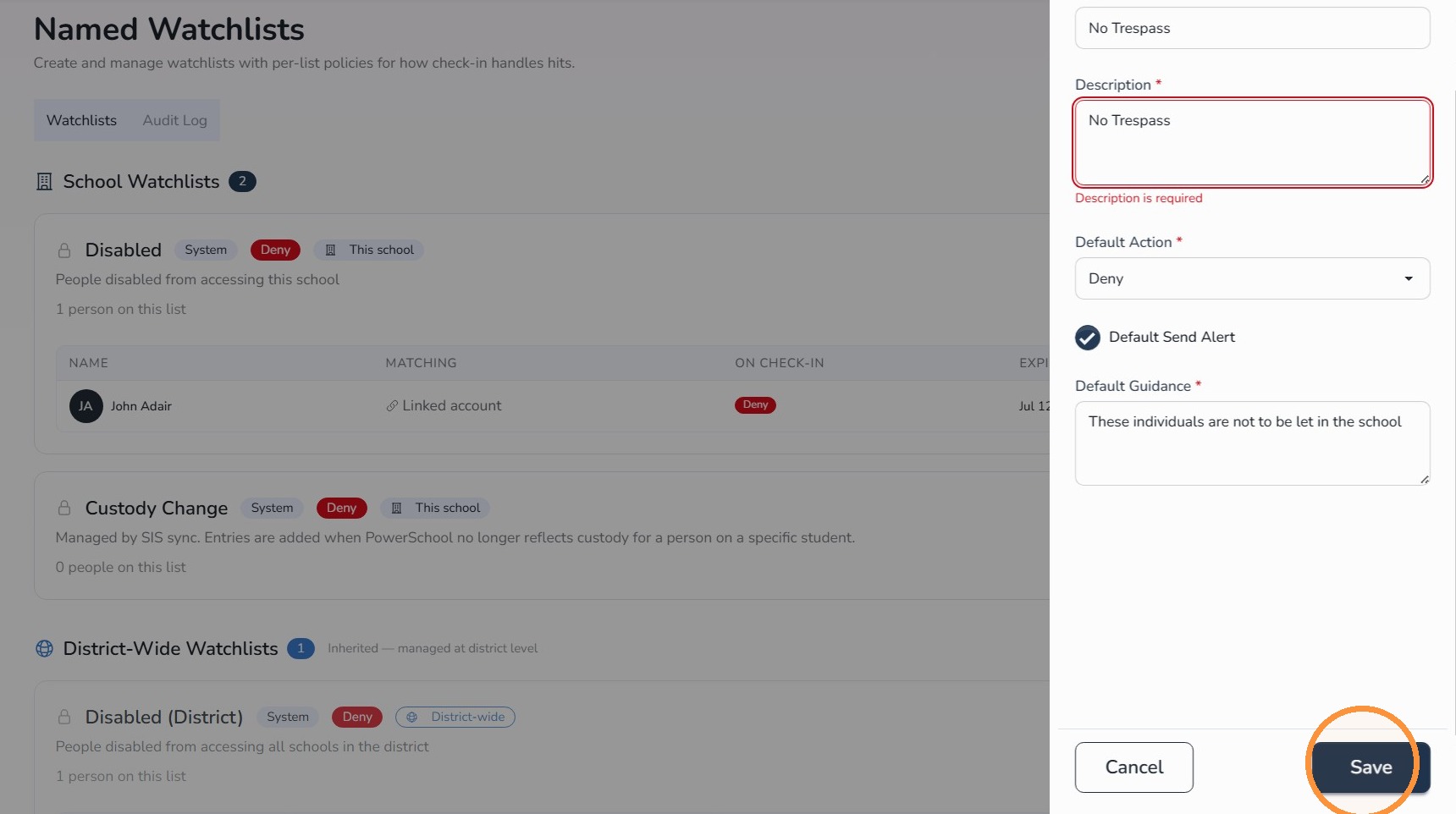
Step 9: Name and configure the Watchlist
- Enter the Watchlist Name.
- Enter a clear Description.
- Enable Default Send Alert if your school wants alert contacts notified when this Watchlist is triggered.
- Click Save.
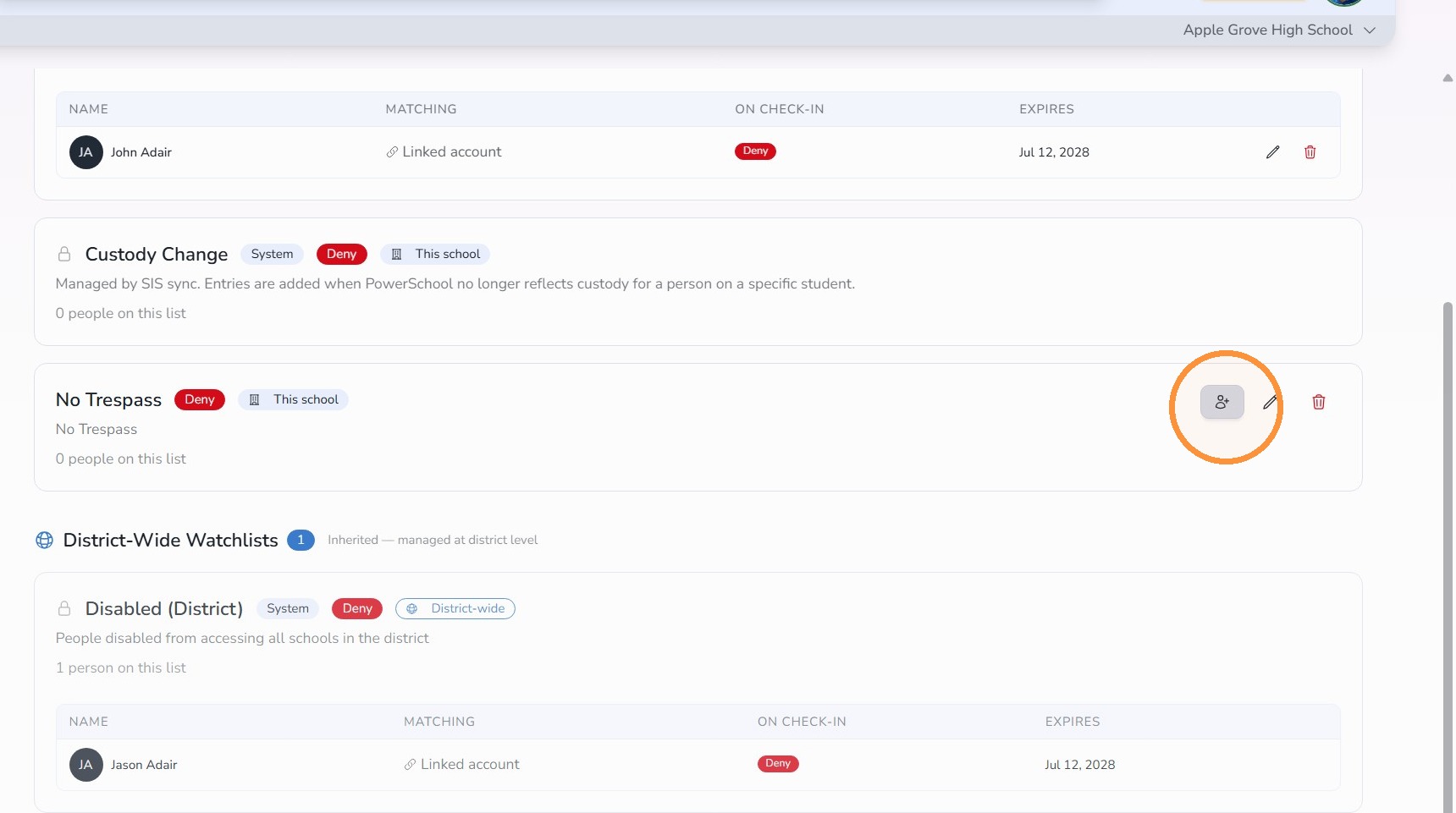
Step 10: Add a member to the Watchlist
- Click the Add Member icon for the Watchlist you want to use.
Step 11: Choose manual entry
- Click Add Manually Instead.
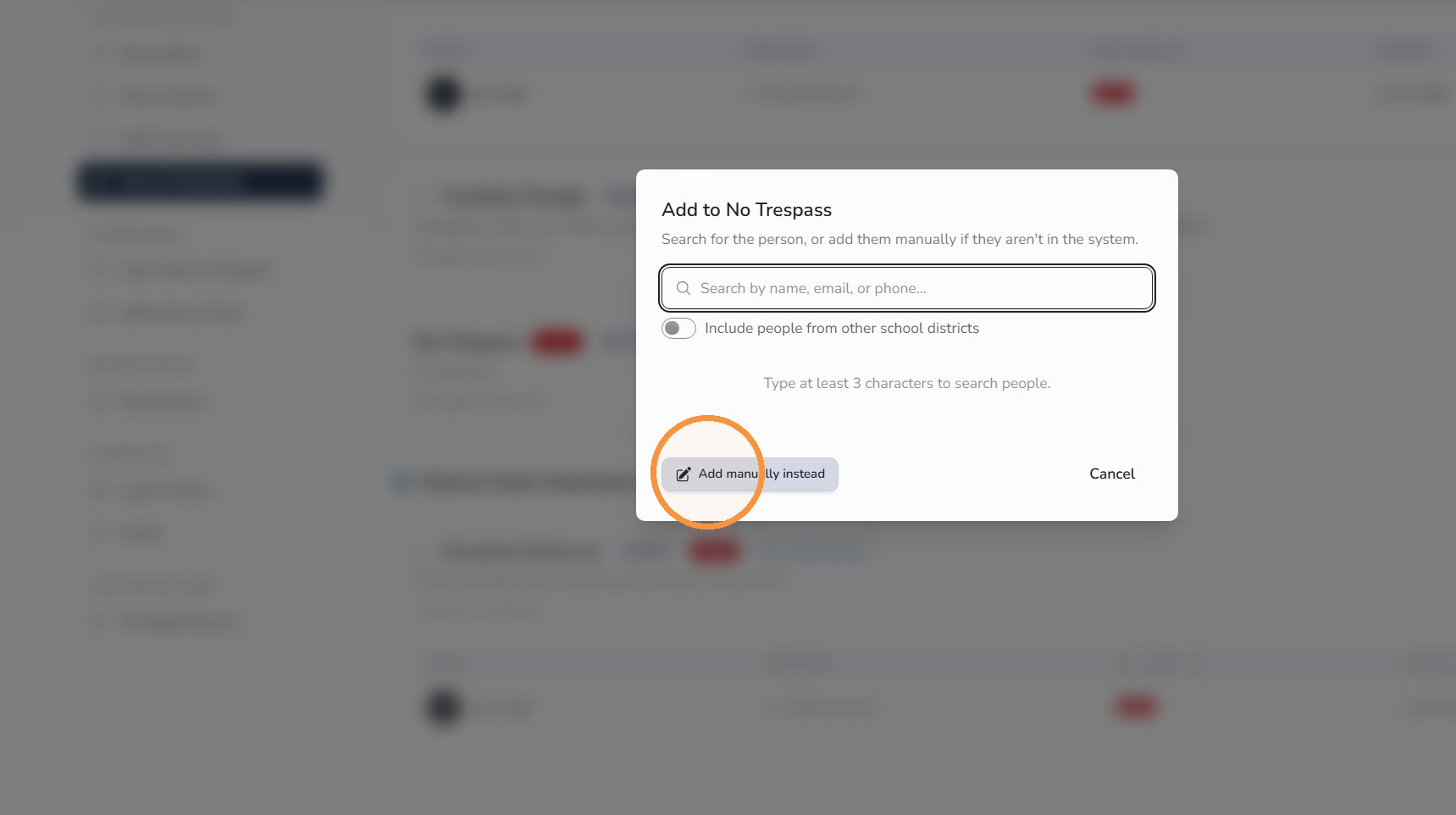
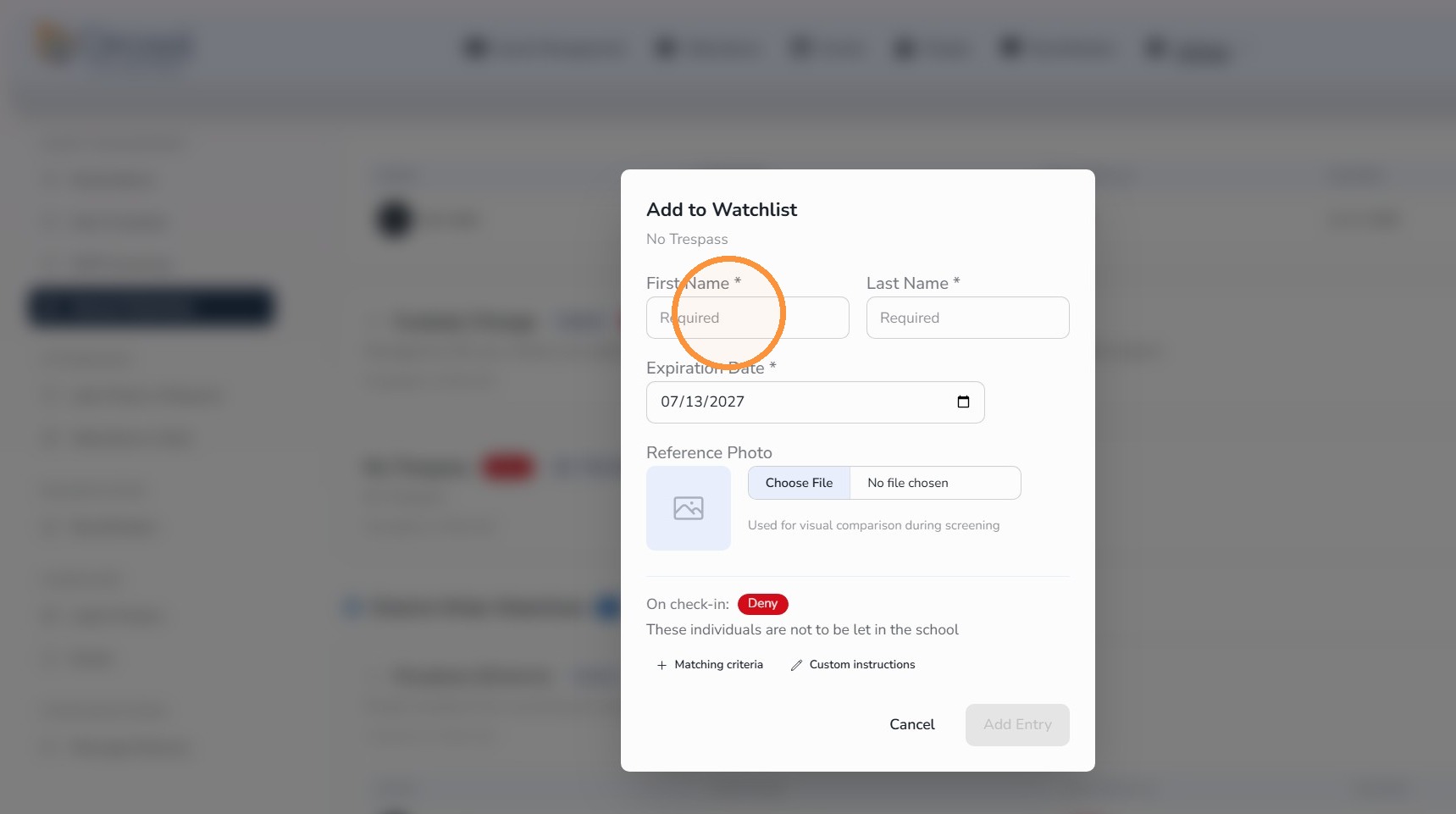
Step 12: Enter the person’s name
- Enter the person’s first and last name.
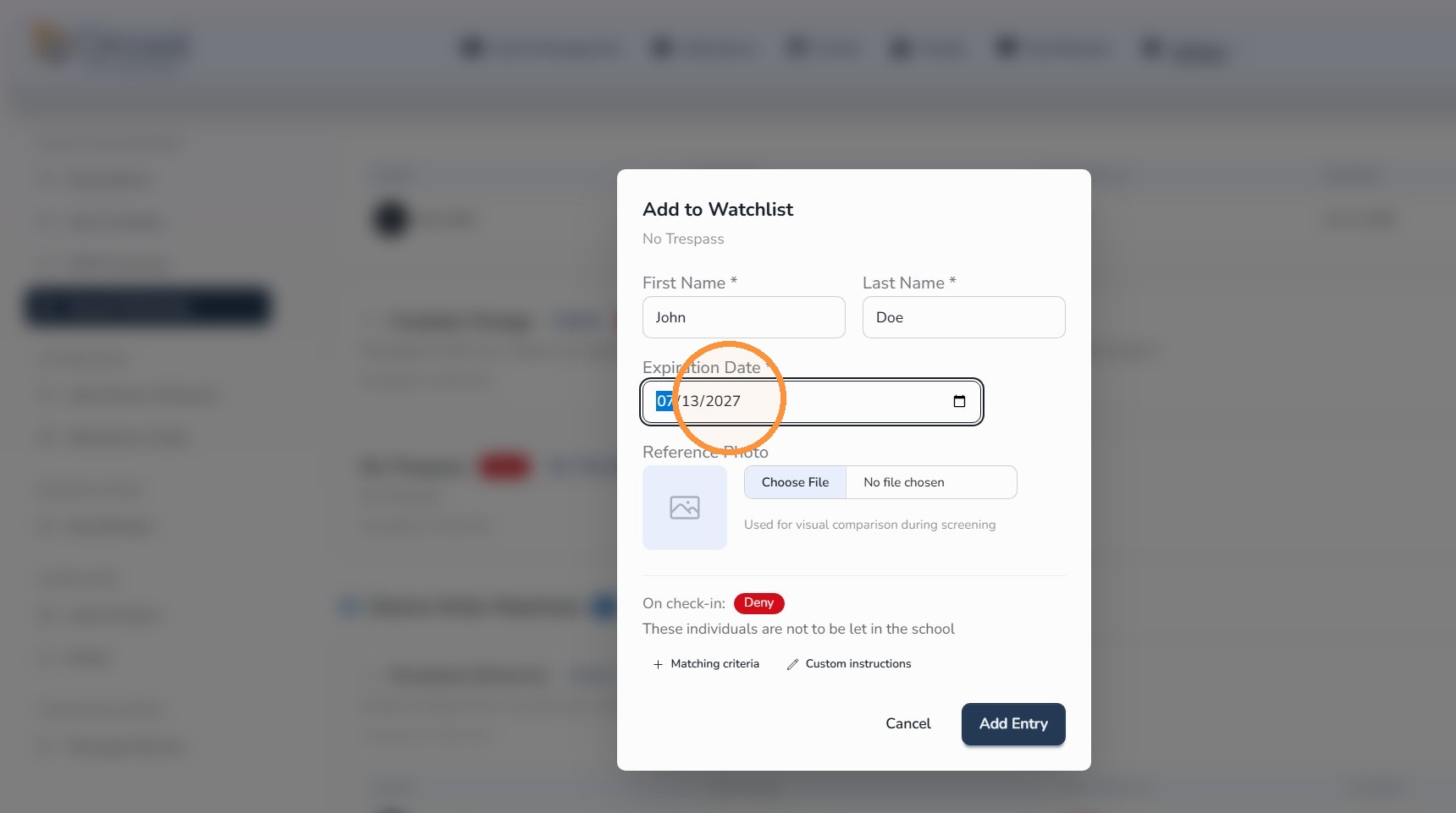
Step 13: Set the expiration date
- Select the date you want the Watchlist entry to expire.
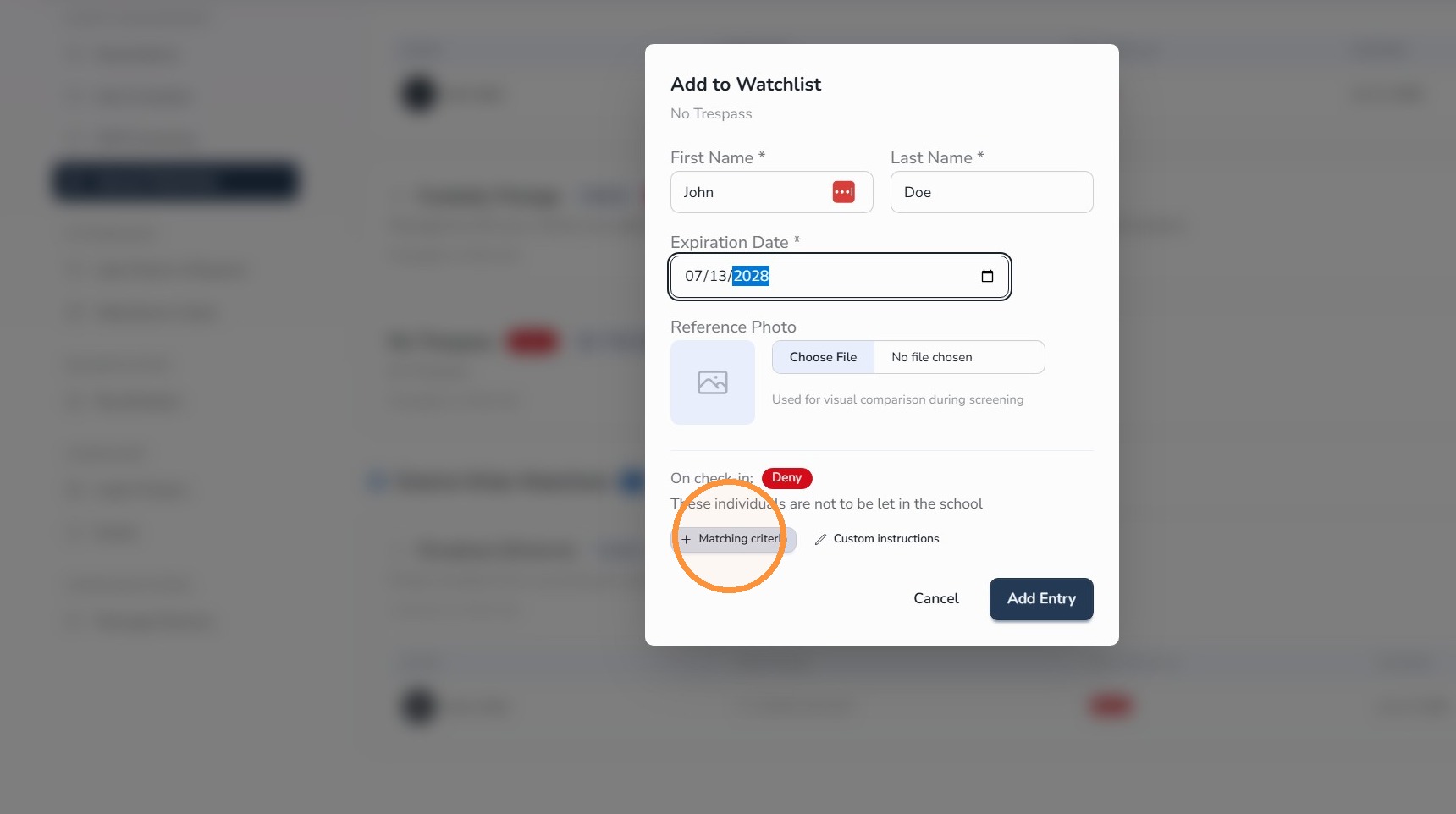
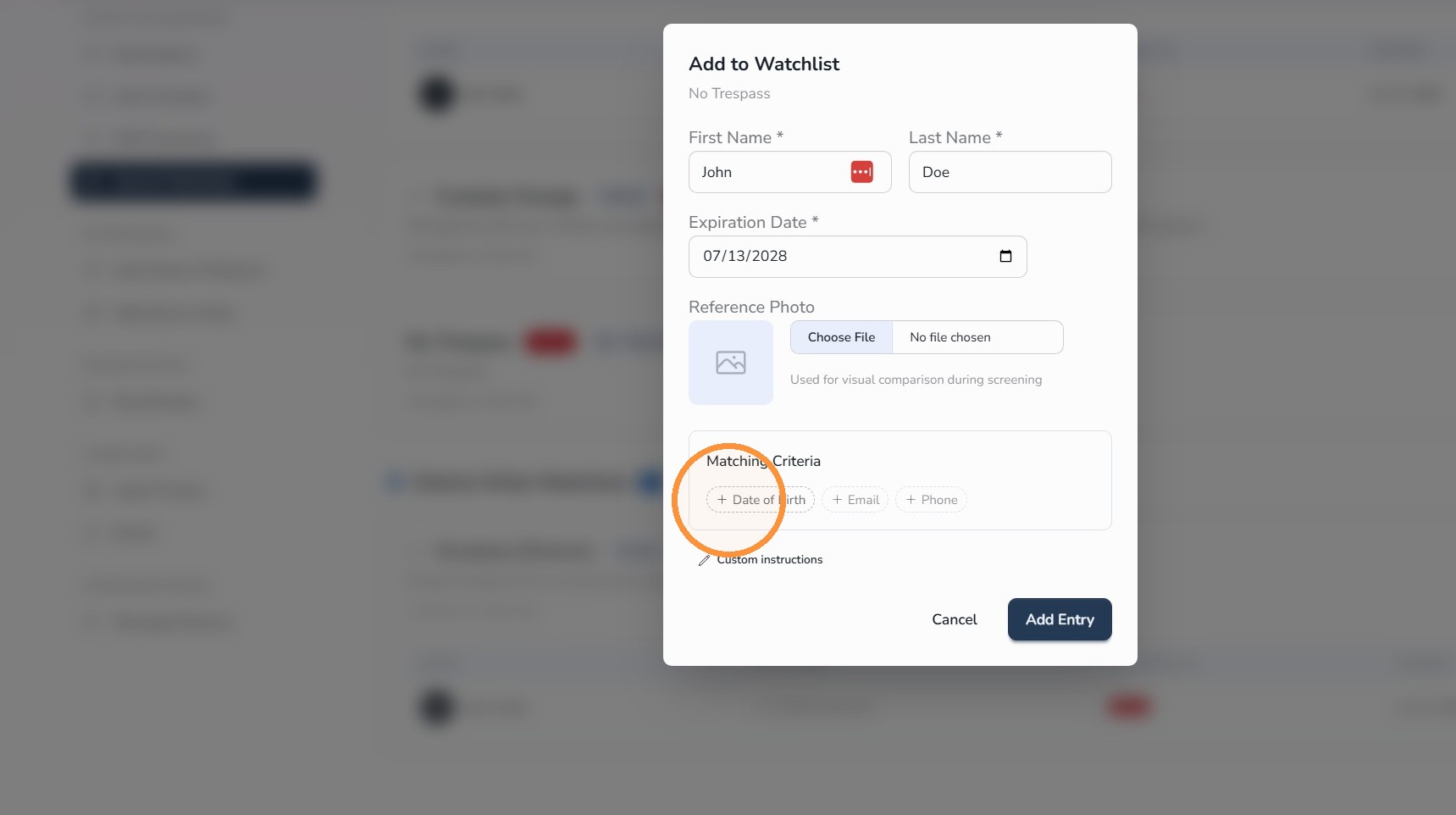
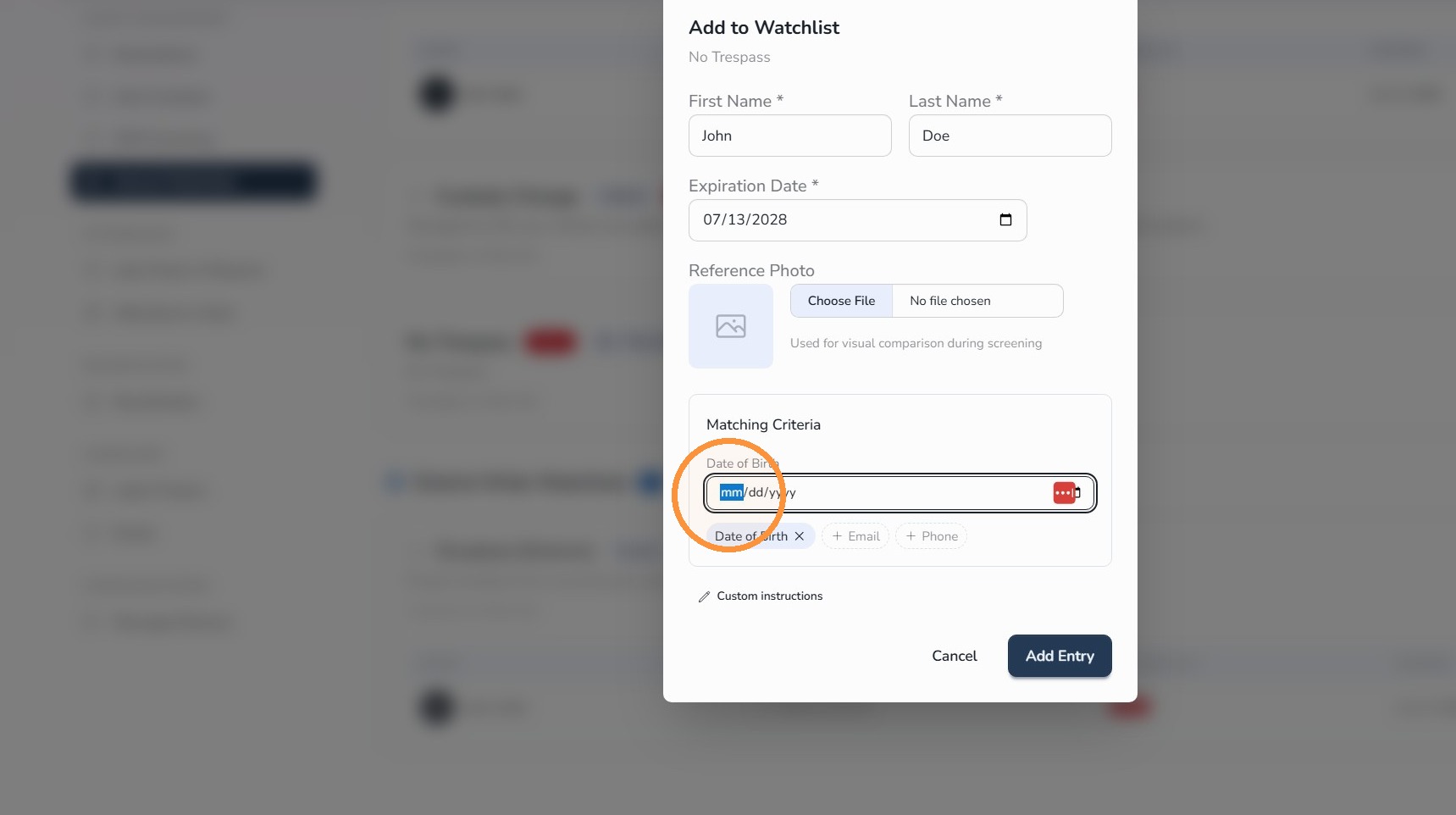
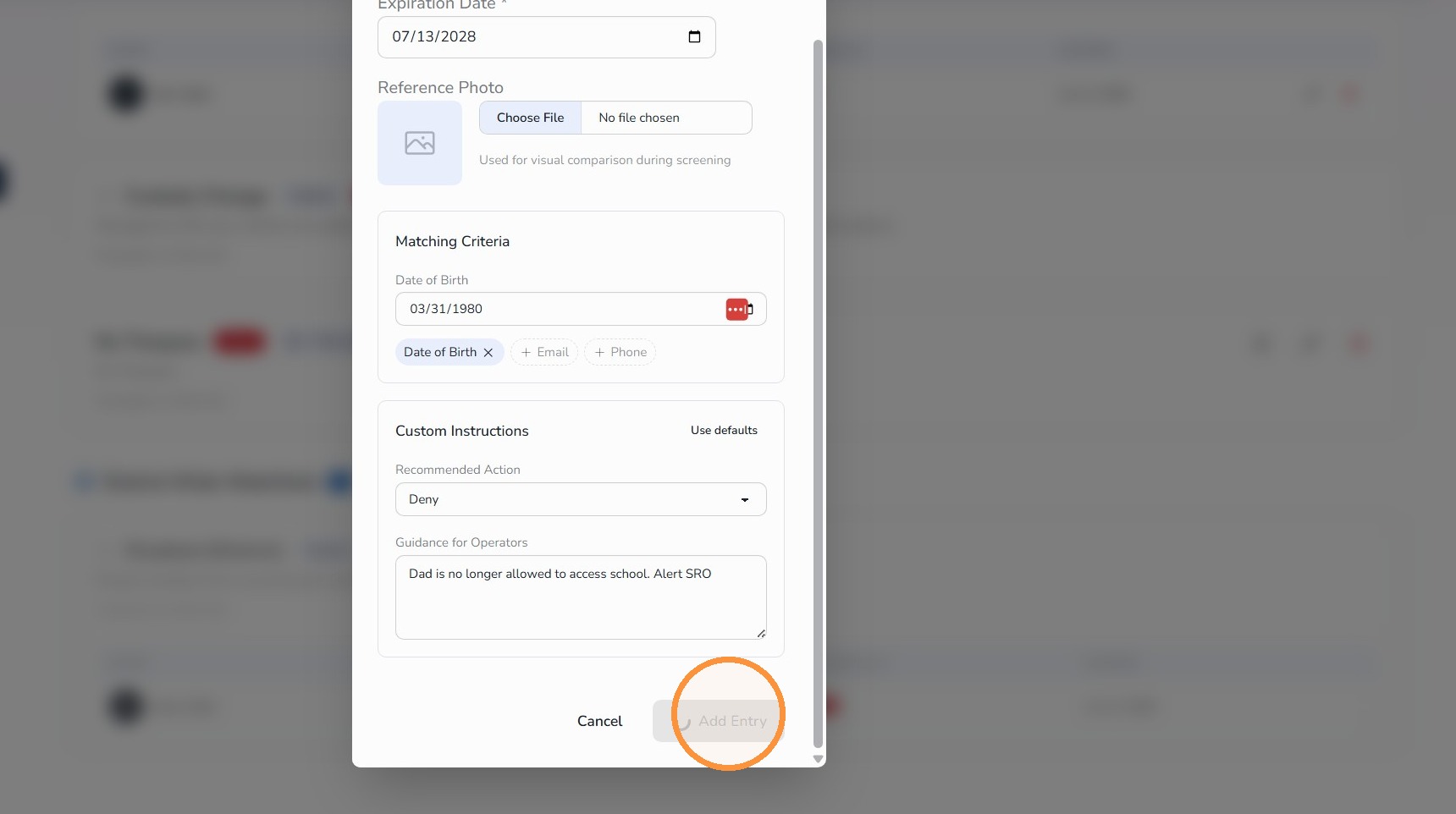
Step 14: Add date of birth matching, if available
Date of birth matching can help Circool identify the correct person more accurately if that information is available.
- Select the date of birth matching criteria.
- Enter the date of birth.
Step 15: Add custom operator instructions
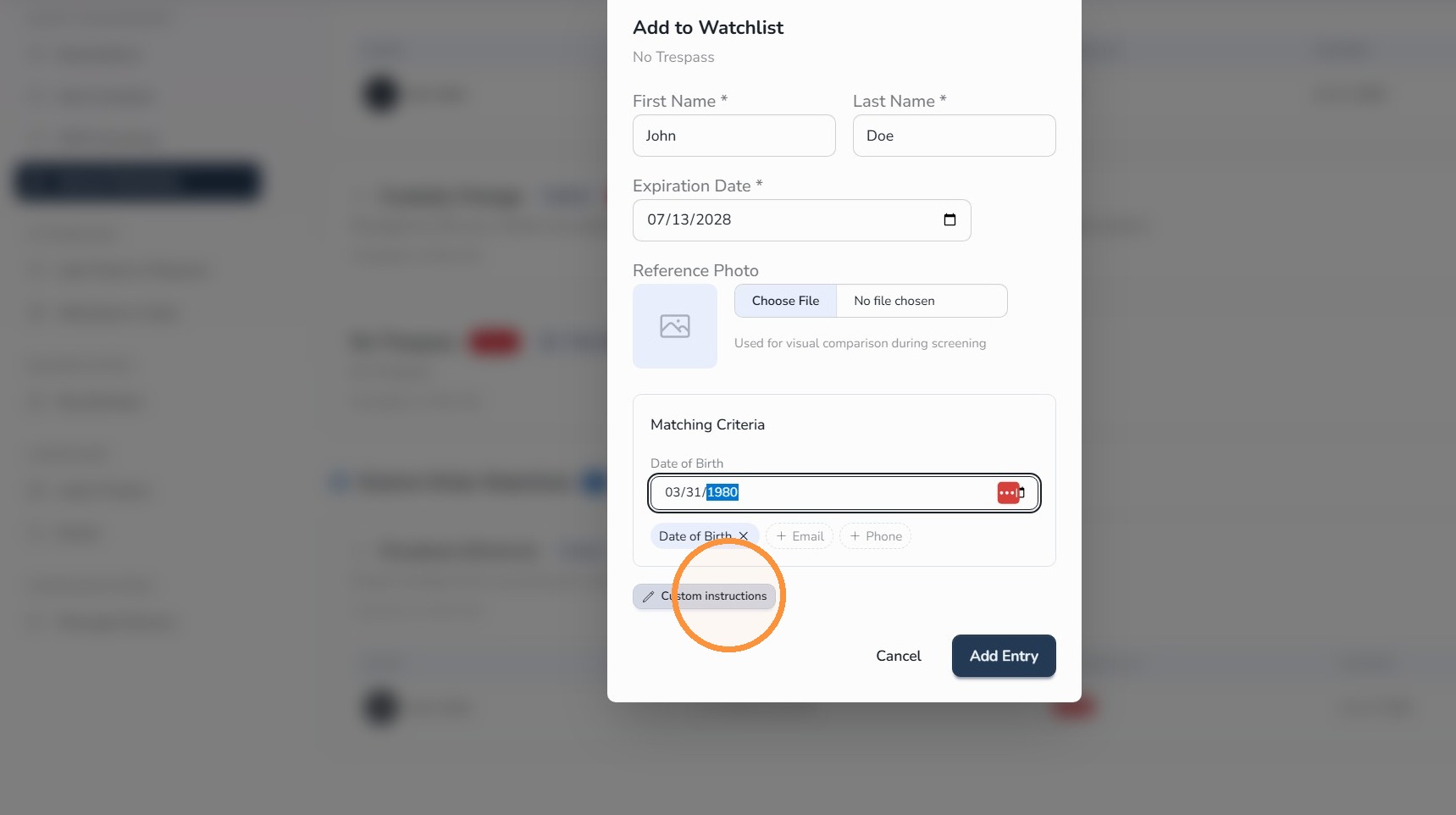
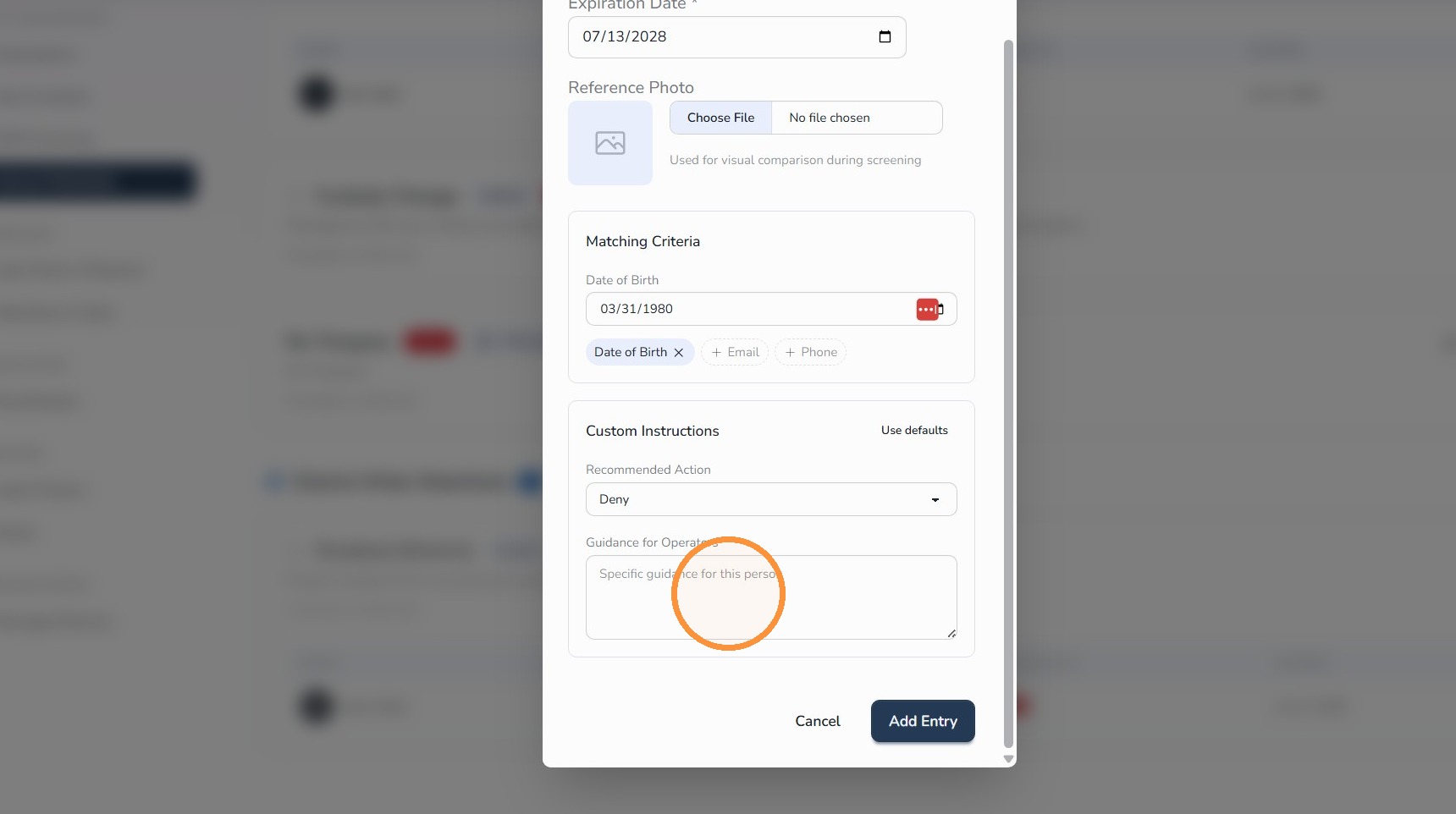
Custom instructions tell front desk staff what to do if this Watchlist entry is triggered during check-in.
- Enable Custom Instructions.
- Enter clear guidance for your operators.
Example: “Do not complete check-in. Notify the front office administrator immediately.”
Step 16: Add the entry
- Click Add Entry.
What happens next
Once the person is added to the Watchlist, Circool can flag the person during future check-ins.
If the Watchlist is triggered, your front desk team will see the alert and should follow the instructions your school provided.
That’s it. Watchlists help your team recognize people who need extra review and respond according to your school’s procedures.
Need help?
Circool support is here to help.
If you need help adding someone to a Watchlist, setting operator instructions, or reviewing Watchlist alerts, contact Circool support by phone at 205.202.1124 or email support@circool.com.
Was this article helpful?
That’s Great!
Thank you for your feedback
Sorry! We couldn't be helpful
Thank you for your feedback
Feedback sent
We appreciate your effort and will try to fix the article