Configuring Attendance Reasons and Codes
Use this guide to manage the reasons and codes used for student late check-ins and early check-outs.
Attendance Reasons help your front office quickly select why a student is arriving late or leaving early. Attendance Codes help control what is sent back to your Student Information System, also called your SIS.
Before you start
The Attendance Reasons and Codes section helps your school manage why students are checking in late or checking out early.
Attendance Reasons are the options staff select from a dropdown during student check-in or check-out. Common examples include:
- Doctor Appointment
- Parent Note
- Late Arrival
- Early Dismissal
Attendance Codes control what is sent back to the SIS when the check-in or check-out is recorded.
Good to know: Keeping reasons and codes accurate helps your front office move faster and helps ensure attendance records are sent correctly.
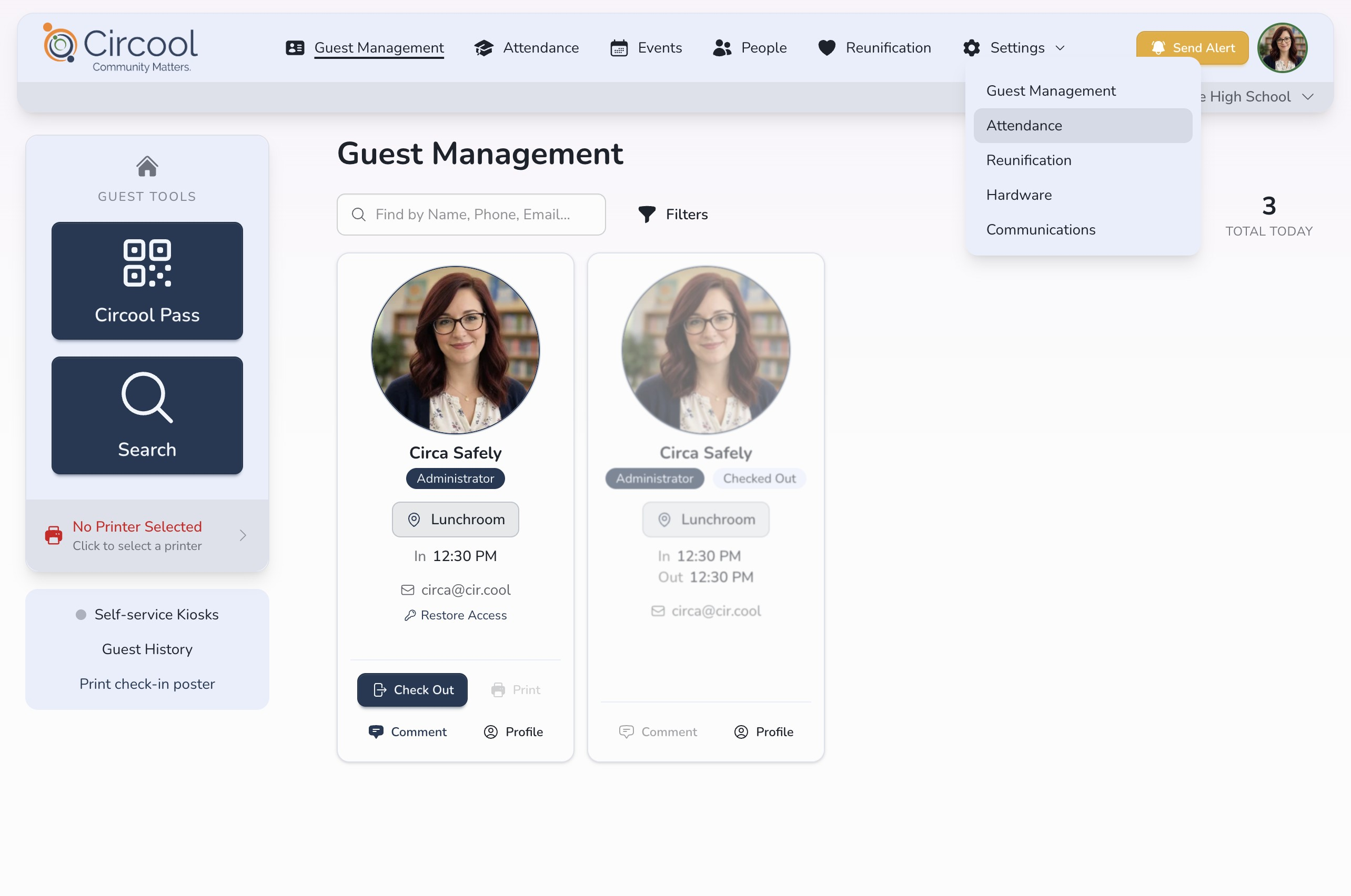
Step 1: Open Attendance settings
- Log in to Circool.
- Click Settings.
- Click Attendance.
Step 2: Review Check-In and Check-Out Reasons
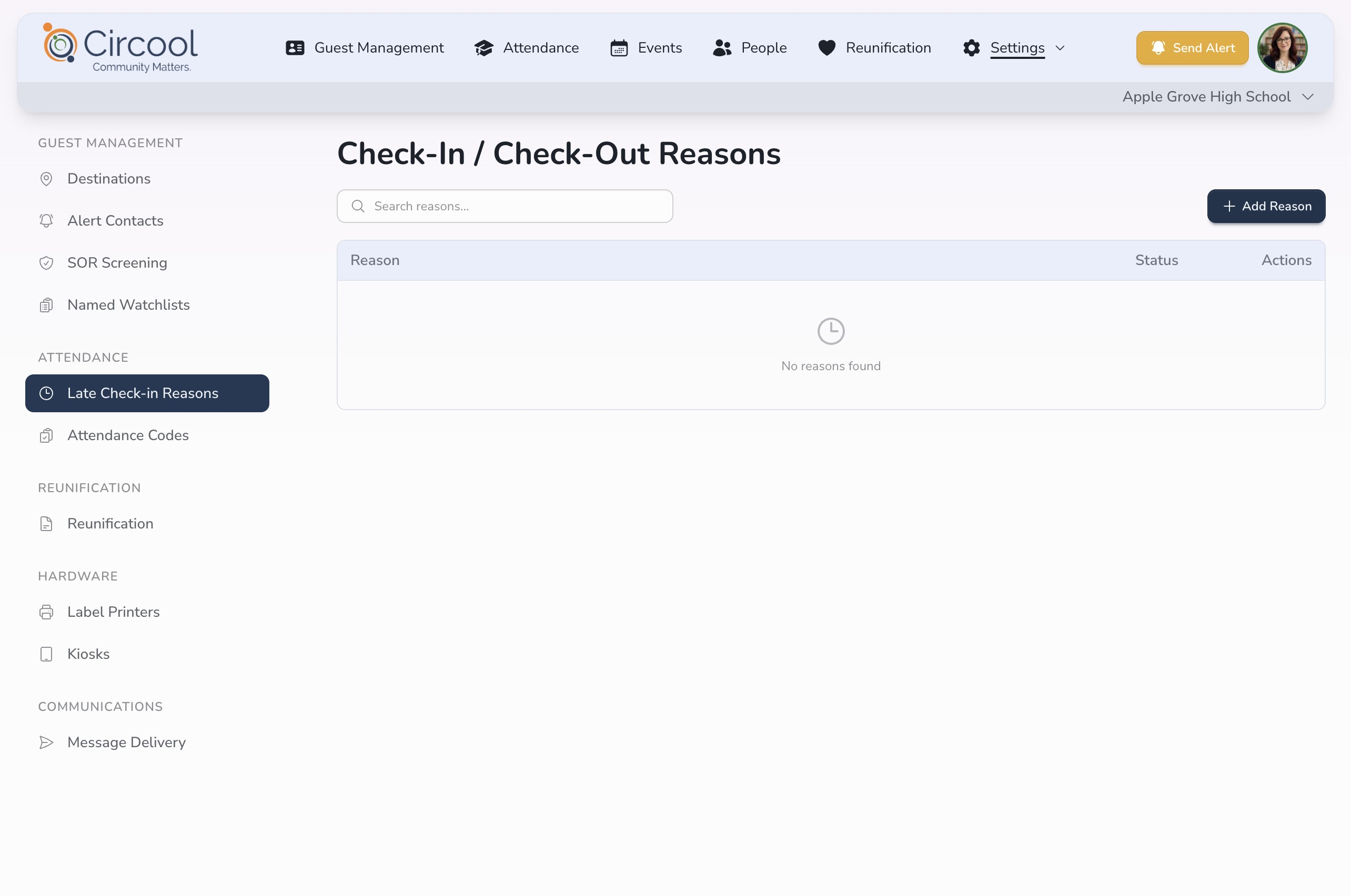
Check-In / Check-Out Reasons are the options parents, students, or front office staff can select to explain why a student is late or needs to leave early.
These are general reason labels used during the check-in or check-out process. They are not always the same as the attendance codes sent to your SIS.
Tip: Keep the reason list simple. Too many choices can slow down the front desk during busy arrival and dismissal times.
Step 3: Add a reason
- Click Add Reason.
Step 4: Enter the reason details
- Enter the reason Name.
- Enter a short Description.
- Configure the visibility settings for where this reason should appear.
- Click Save.
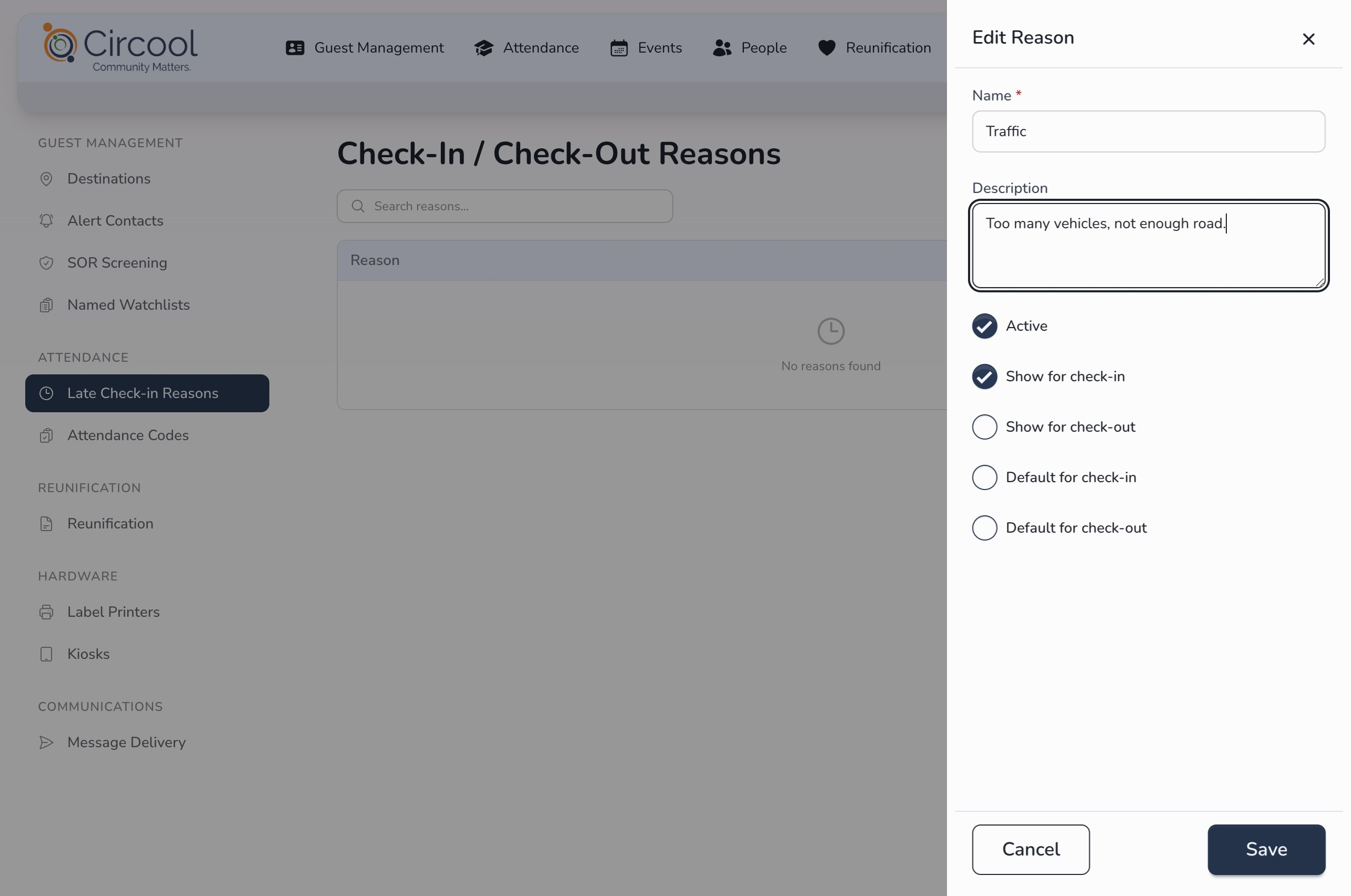
Good to know: Visibility settings help control whether a reason appears for late check-in, early check-out, or both.
Step 5: Review Attendance Codes
Attendance Codes control what Circool sends back to your SIS when student attendance records are created.
Review and manage these codes to make sure late check-ins and early check-outs are mapped correctly for your school.
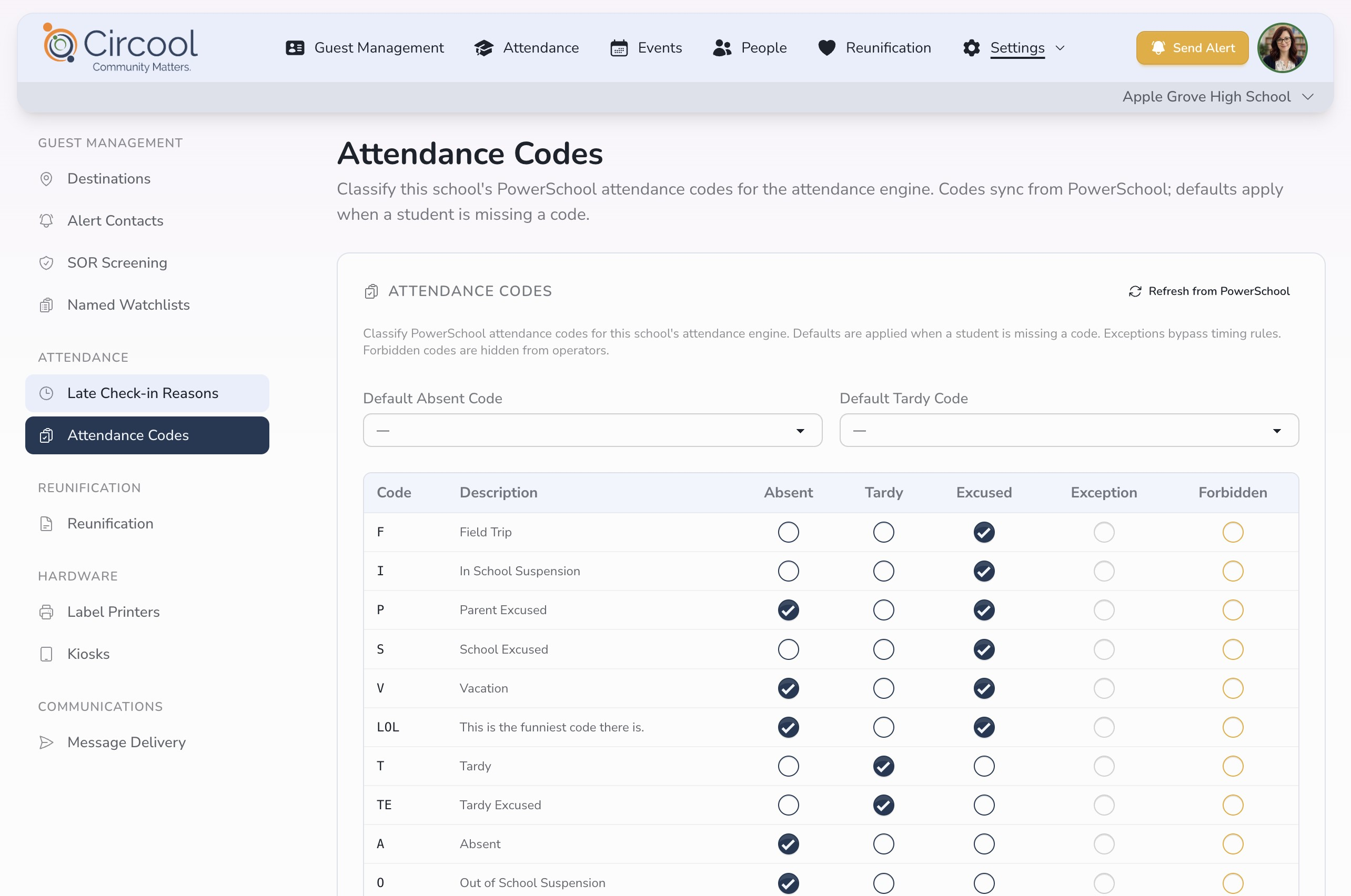
Important: Attendance Codes should match the codes your school or district expects in the SIS. If you are unsure which code to use, confirm with your attendance or SIS administrator before changing it.
Helpful tips
- Use parent-friendly reason names: Choose labels that are easy for staff and families to understand.
- Keep descriptions short: Descriptions should clarify when to use the reason.
- Review codes before school starts: Make sure attendance records are being sent to the SIS the way your school expects.
- Do not guess on SIS codes: If a code is unclear, confirm before updating it.
What happens next
Once Attendance Reasons are saved, they will appear as options during student late check-in or early check-out.
Once Attendance Codes are reviewed and configured, Circool can use those settings when creating records for your SIS.
That’s it. Clear reasons and accurate codes help your front desk move quickly while keeping attendance records organized.
Need help?
Circool support is here to help.
If you need help configuring Attendance Reasons, Attendance Codes, or SIS mappings, contact Circool support by phone at 205.202.1124 or email support@circool.com.
Was this article helpful?
That’s Great!
Thank you for your feedback
Sorry! We couldn't be helpful
Thank you for your feedback
Feedback sent
We appreciate your effort and will try to fix the article