How to Start a Reunification Event
Use this guide to start and publish a Circool Reunification Event for either a drill or a live reunification.
Circool Reunification helps your school send clear instructions to selected parents, guardians, and staff. A drill follows the same setup steps as a live event, but all drill communications clearly show that it is a drill.
Before you start
Before starting a Reunification Event, your school should already have its Reunification settings configured. See Configure Reunification Templates
Those settings can include saved locations, default instructions, and reusable message templates. Setting those up ahead of time helps staff move through this process faster when time matters.
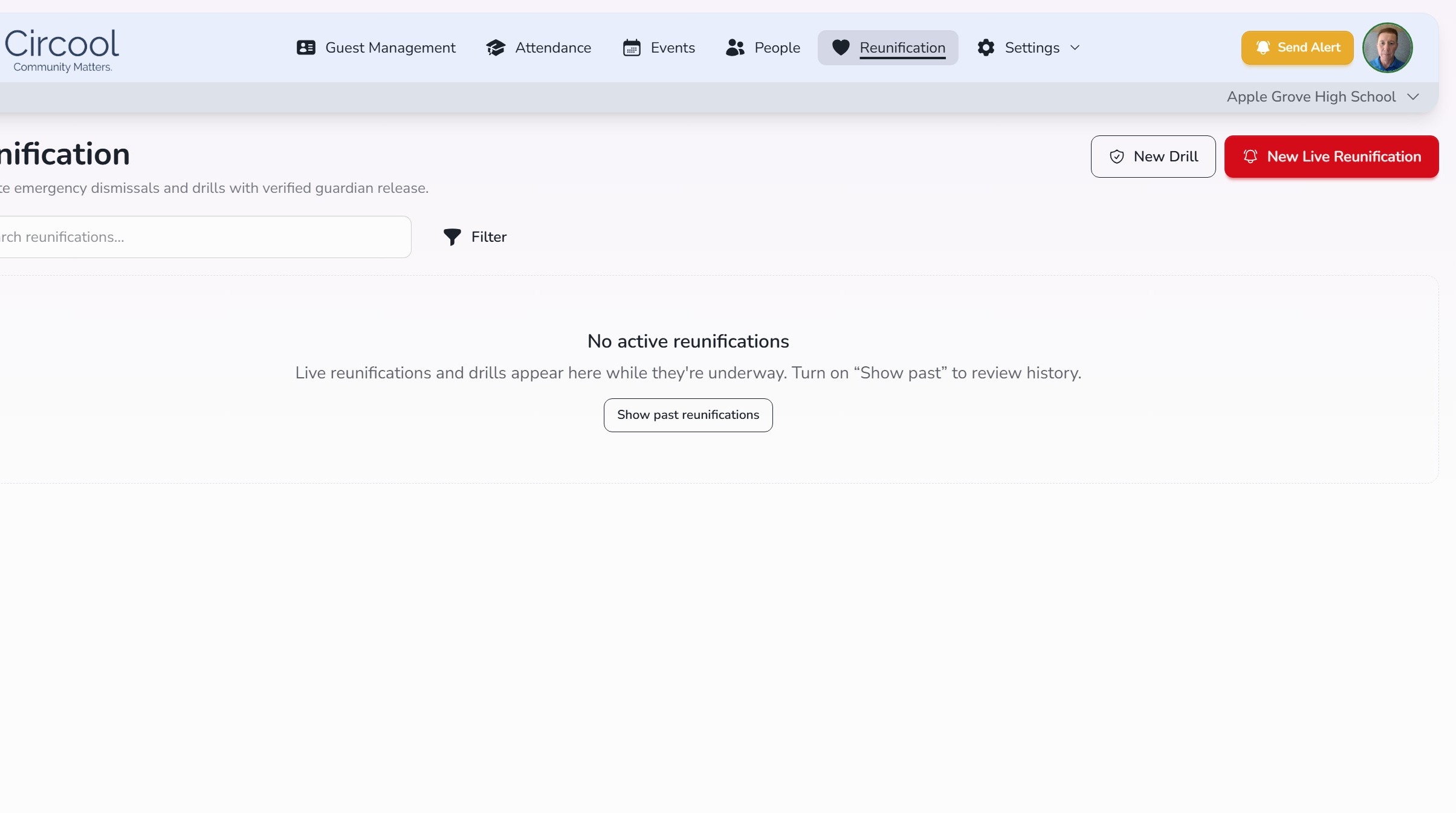
Step 1: Open Reunification
Navigate to the Reunification tab.
Step 2: Choose Drill or Live Reunification
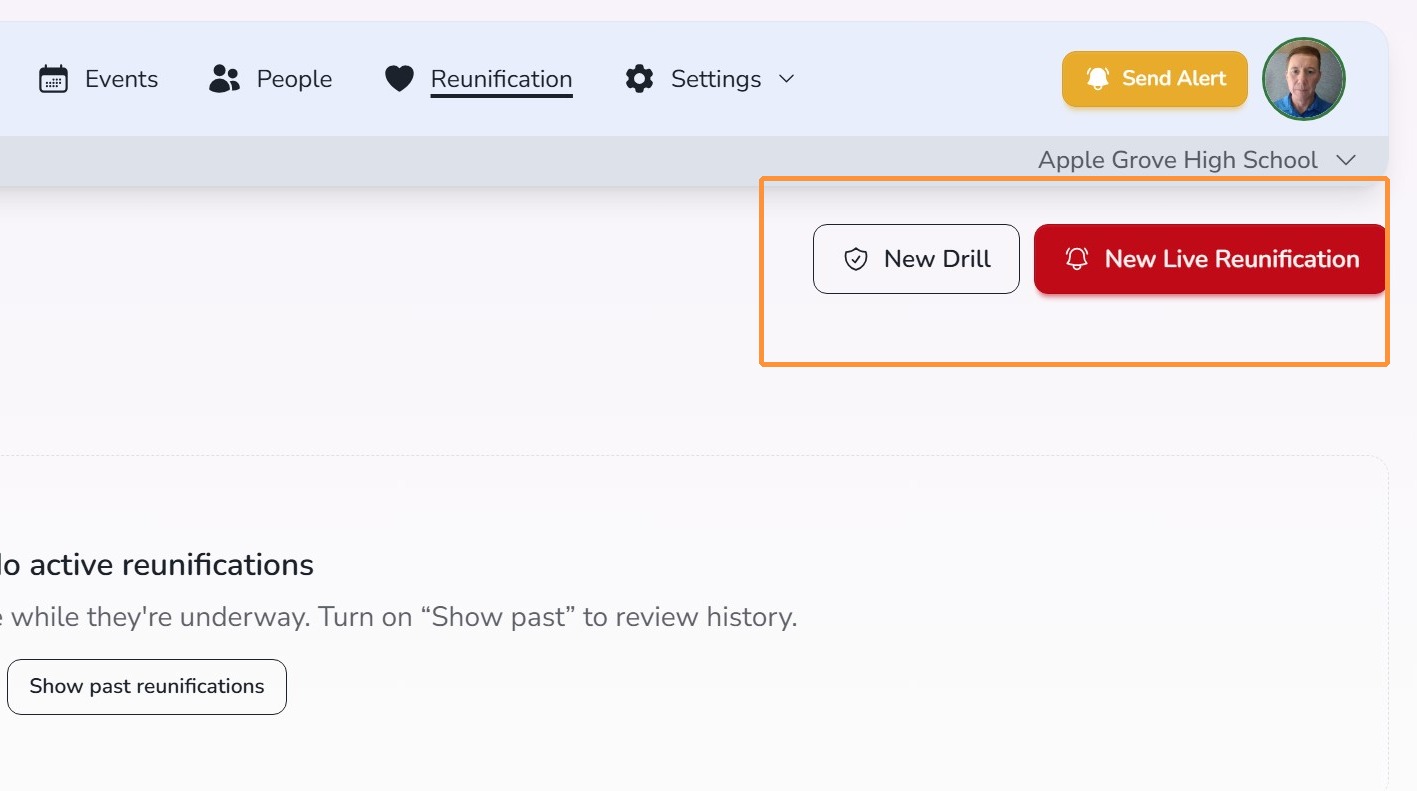
Choose the type of Reunification Event you need to create.
Drill
Use this option to safely test your reunification process. The word DRILL will appear clearly on any messages sent to staff and parents (optional).
Live Reunification
Use this option during an active reunification. Messages will be sent without the drill label and should include the current location, pickup time, and instructions families and staff need to follow.
Step 3: Review event details
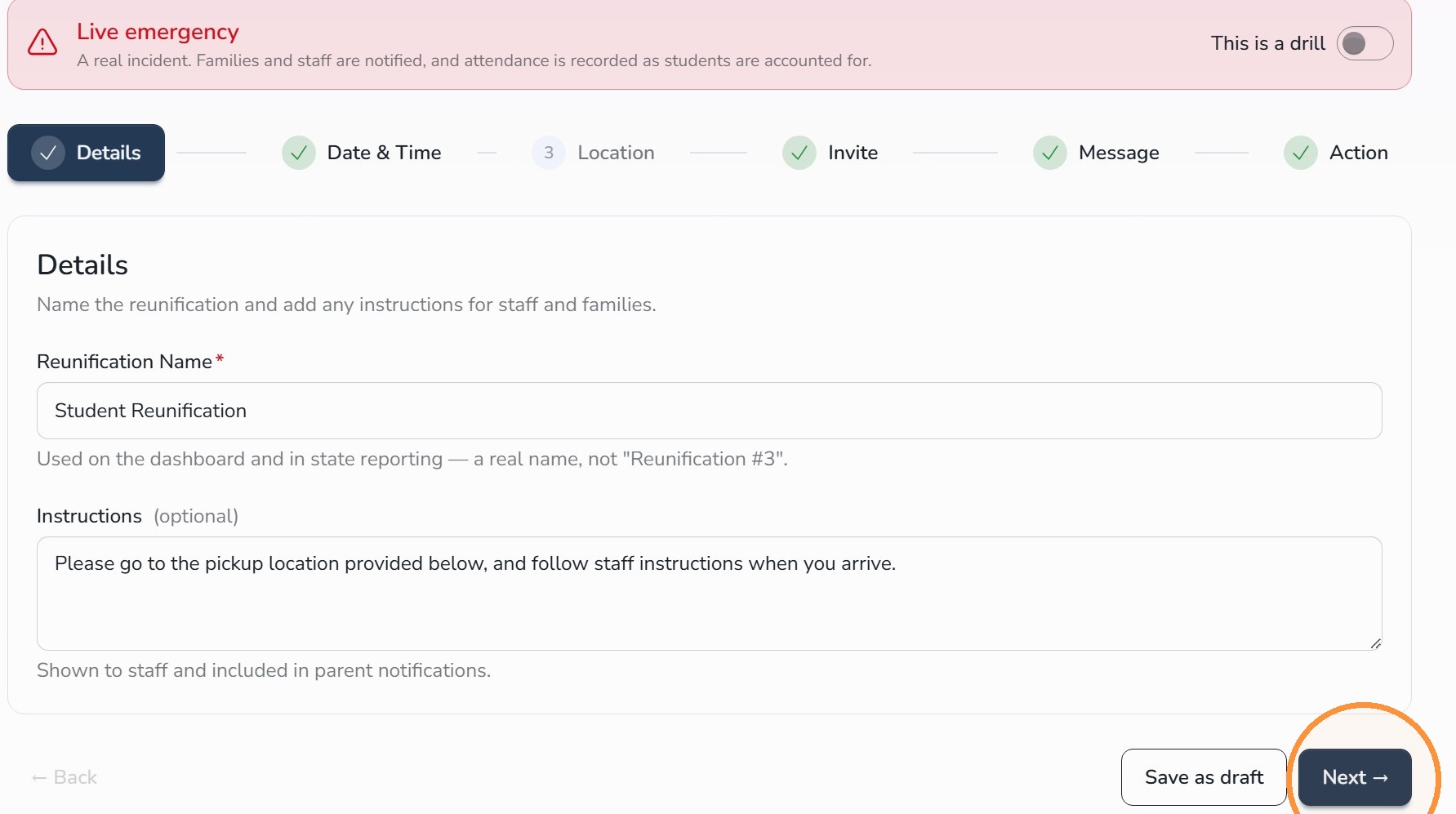
The Details step will already be filled in using your preconfigured Reunification settings.
Review the information and make any updates needed. These details will be included in the email and SMS messages sent to parents and staff when the Reunification Event is published.
Click Next.
Step 4: Set the date and time
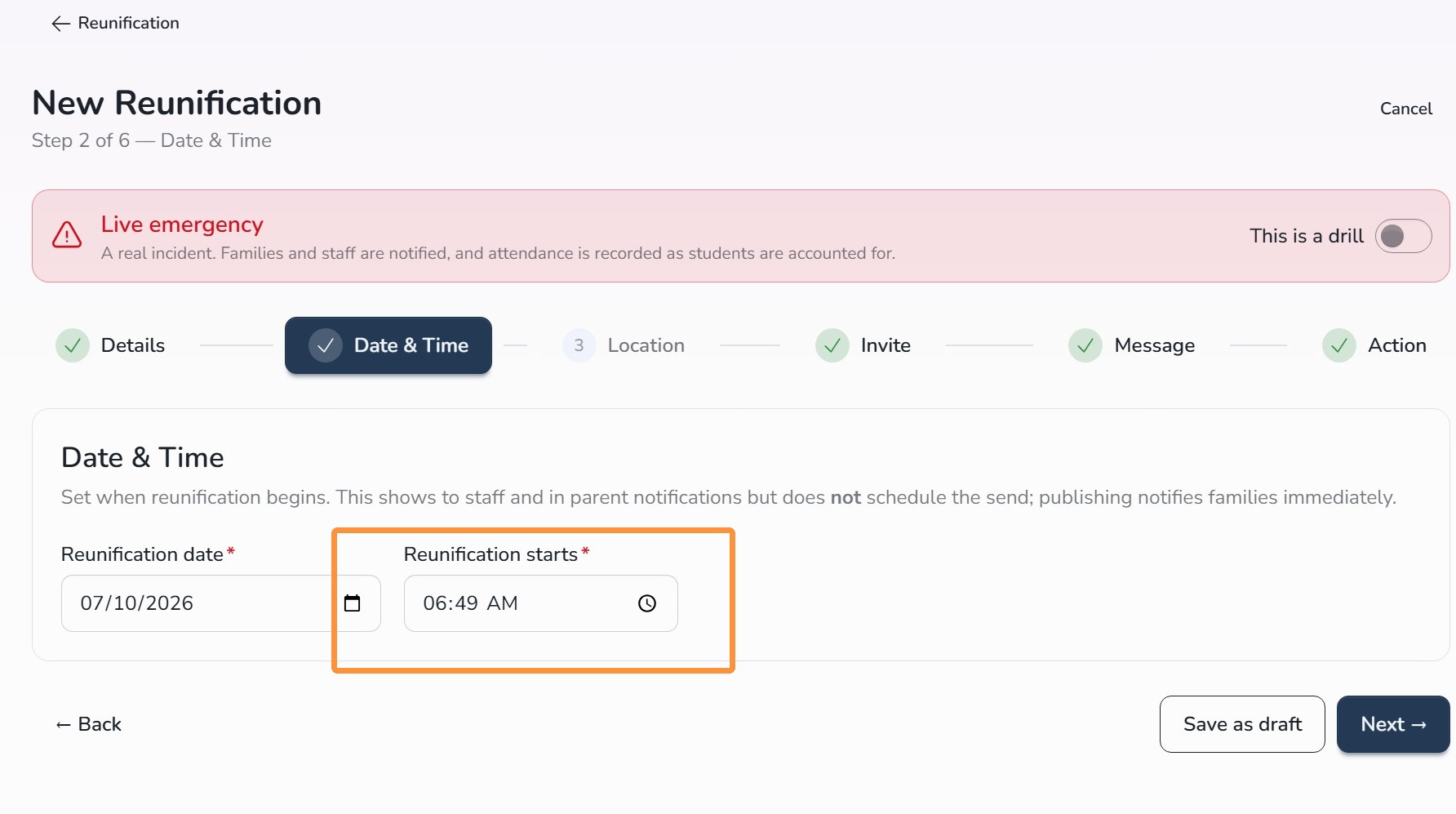
Set the date and time that the reunification process will begin.
This tells parents and guardians when they should arrive at the reunification location.
Click Next.
Step 5: Confirm the location
The Location step will be filled in when you select one of your saved reunification locations.
Review the venue name and address, then make any updates needed. This location will be included in the email and SMS messages sent to parents and staff when the Reunification Event is published.
Click Next.
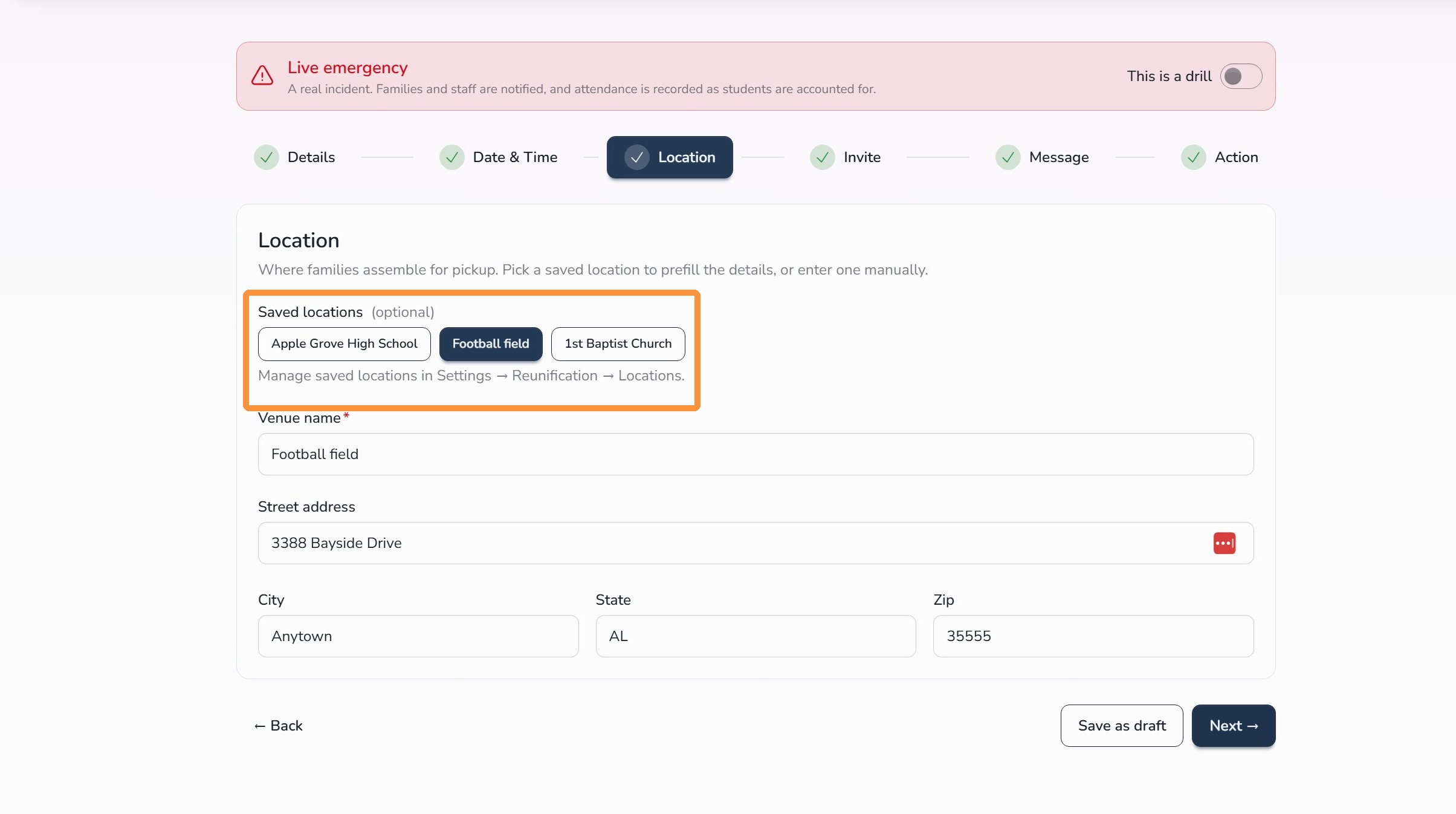
Tip: Always double-check the pickup location before publishing. This is one of the most important details families will receive.
Step 6: Choose who is included
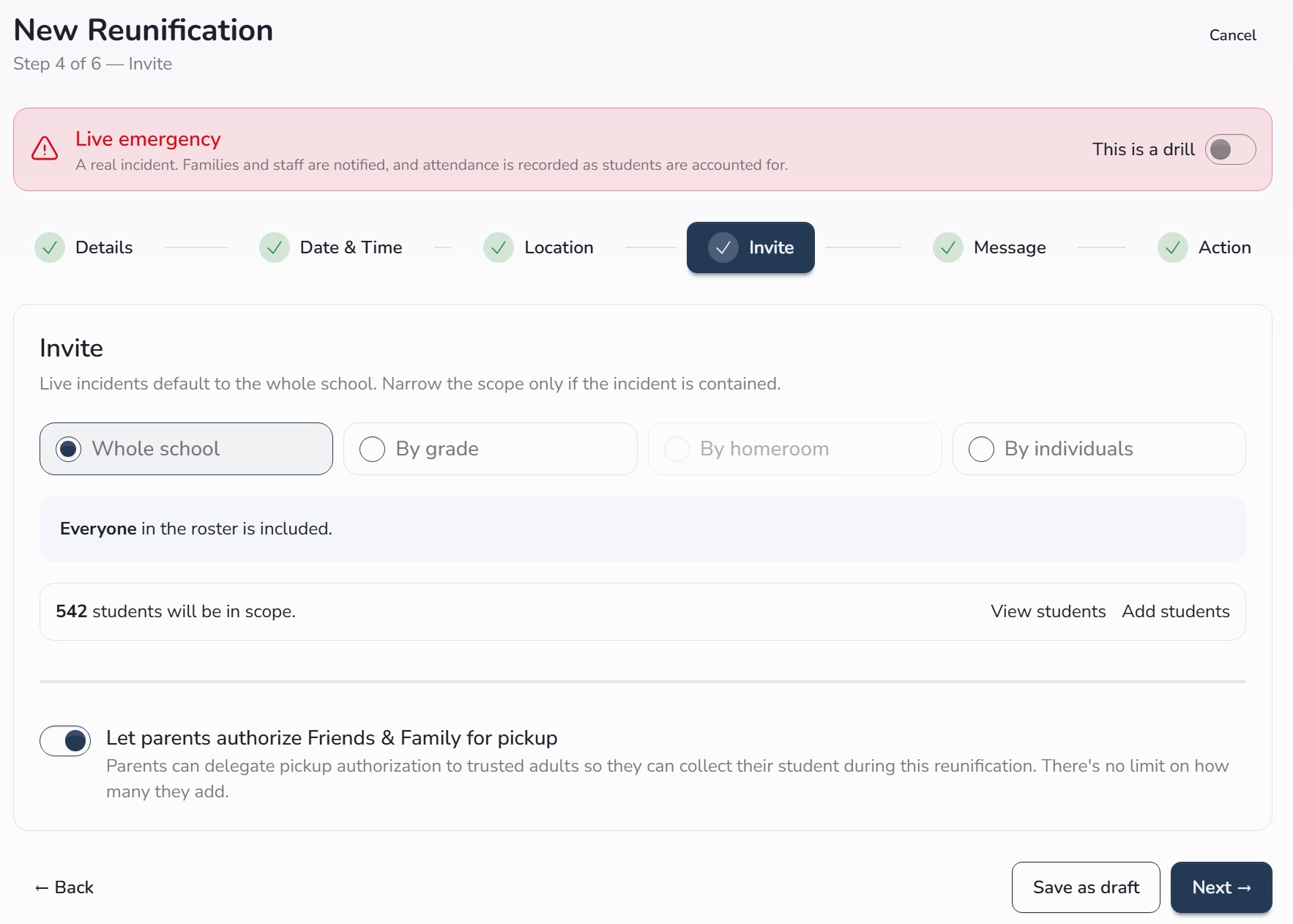
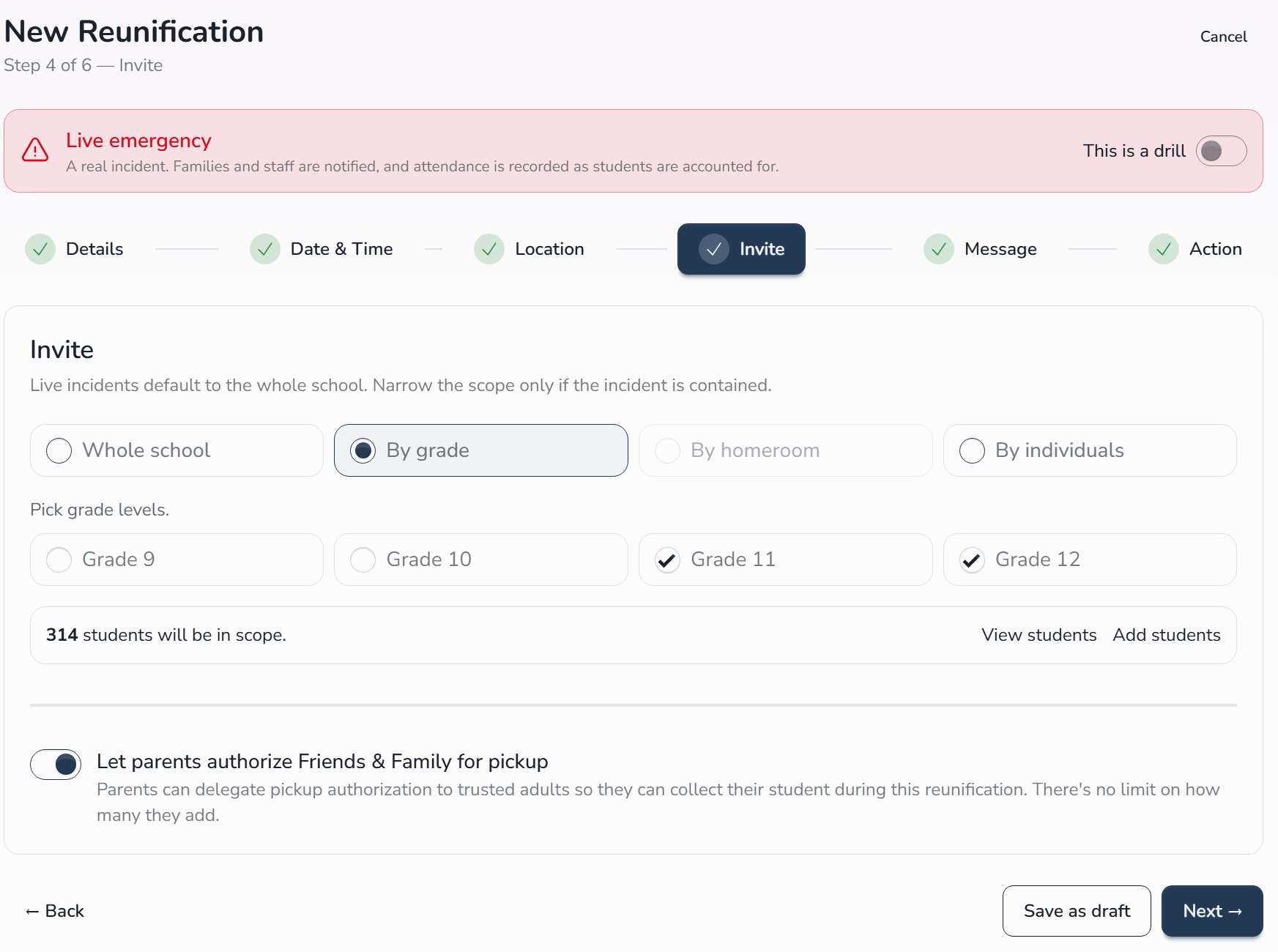
The Invite step lets you choose which students are included in the Reunification Event.
The entire school is selected by default, but you can narrow the list by:
- Grade
- Homeroom
- Individual student
Circool will notify the parents, guardians, and staff connected to the students selected here. Student information is pulled live from your Student Information System.
Click Next.
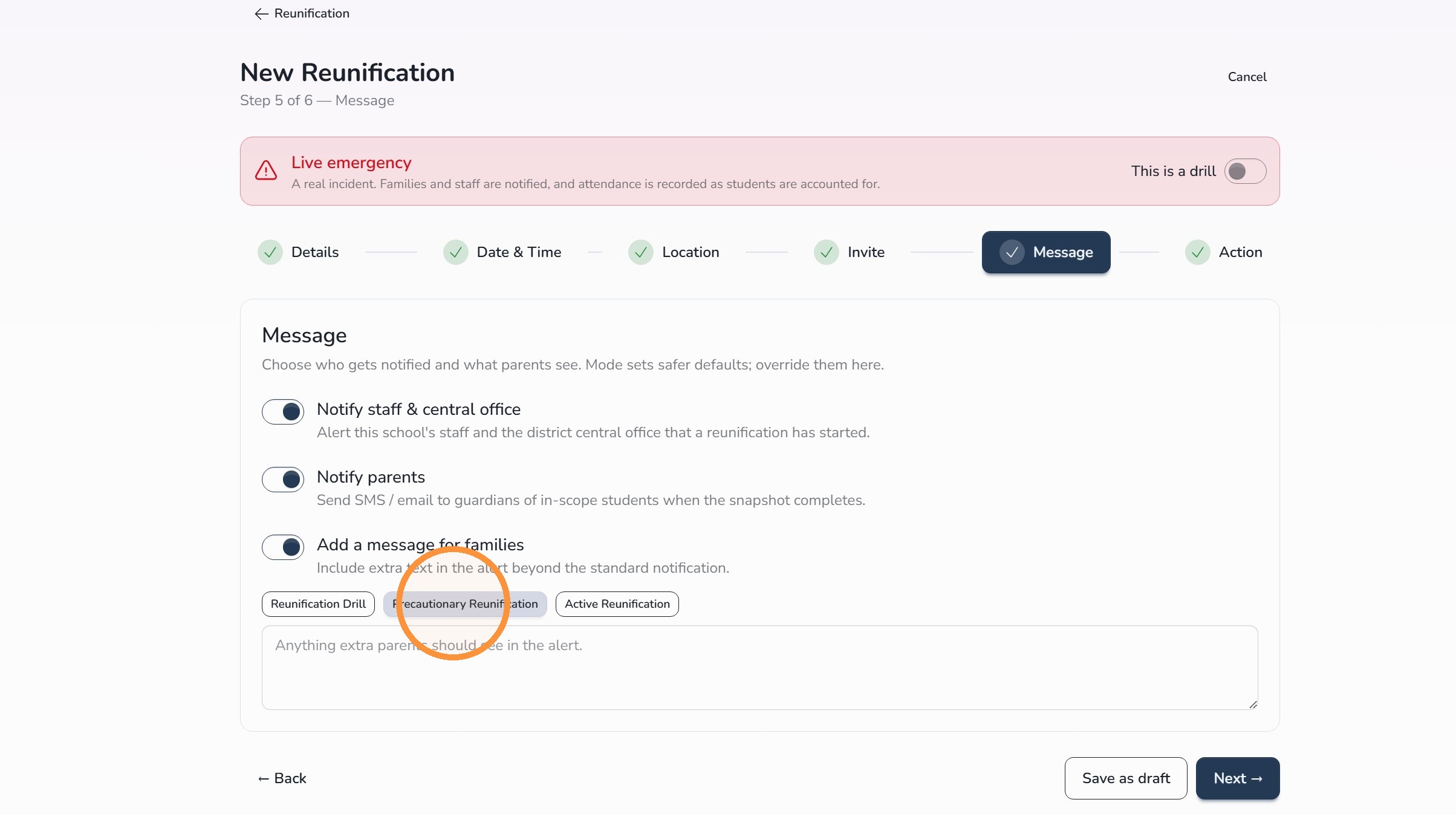
Step 7: Choose message recipients
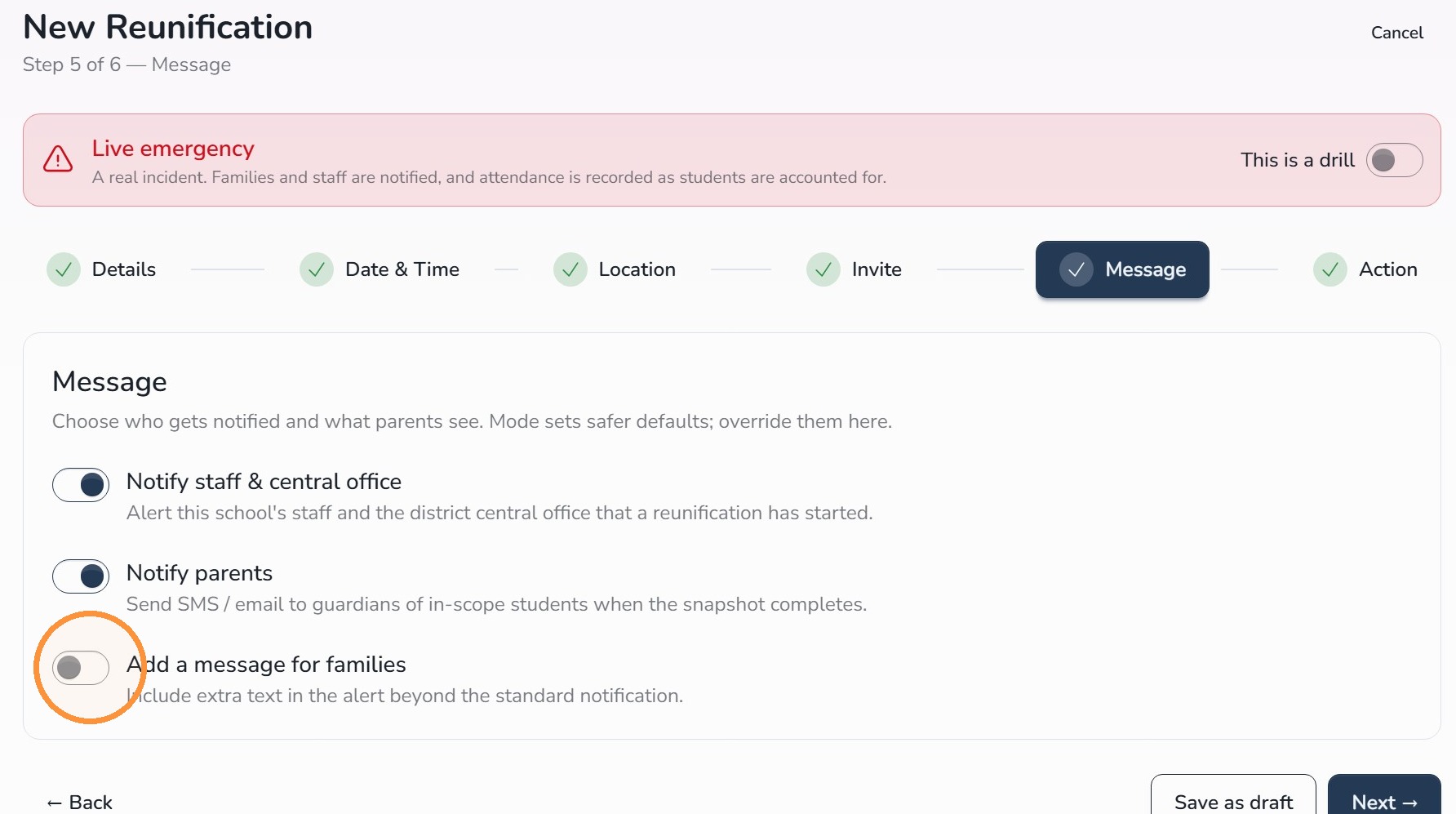
The Message step lets you choose who will be notified when the Reunification Event begins.
You can notify:
- School and central office staff
- Parents and guardians
Depending on whether this is a drill or a live event, your school may choose to limit who receives the notice.
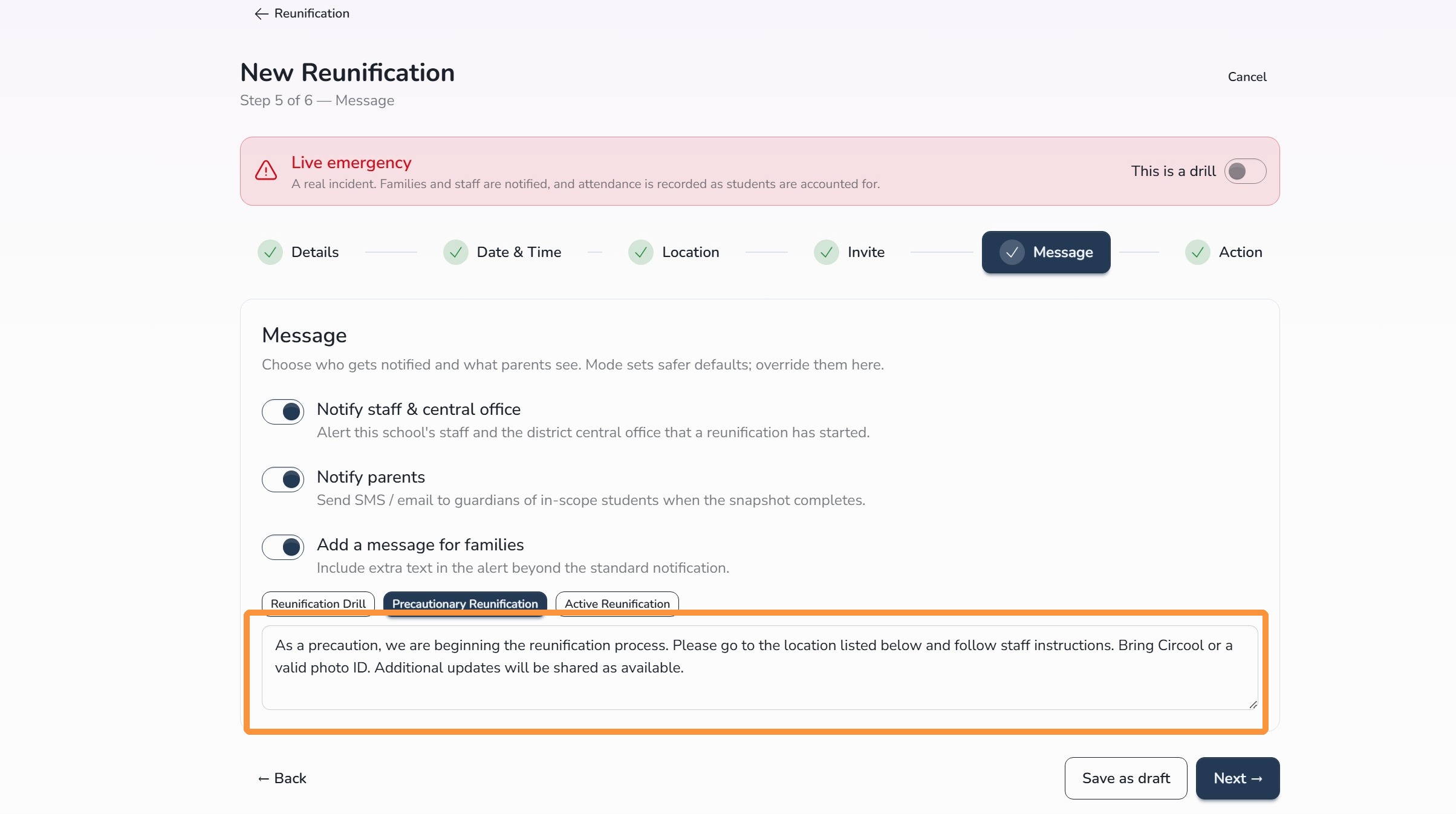
You can also select a preconfigured family message and make any needed updates before publishing. Circool will send the message by email and SMS to the recipients connected to the students selected in the Invite step.
Click Next.
Step 8: Review and preview messages
The Review & Publish step lets you review all Reunification Event settings before anything is sent.
You can also preview the exact email and SMS messages parents and staff will receive.
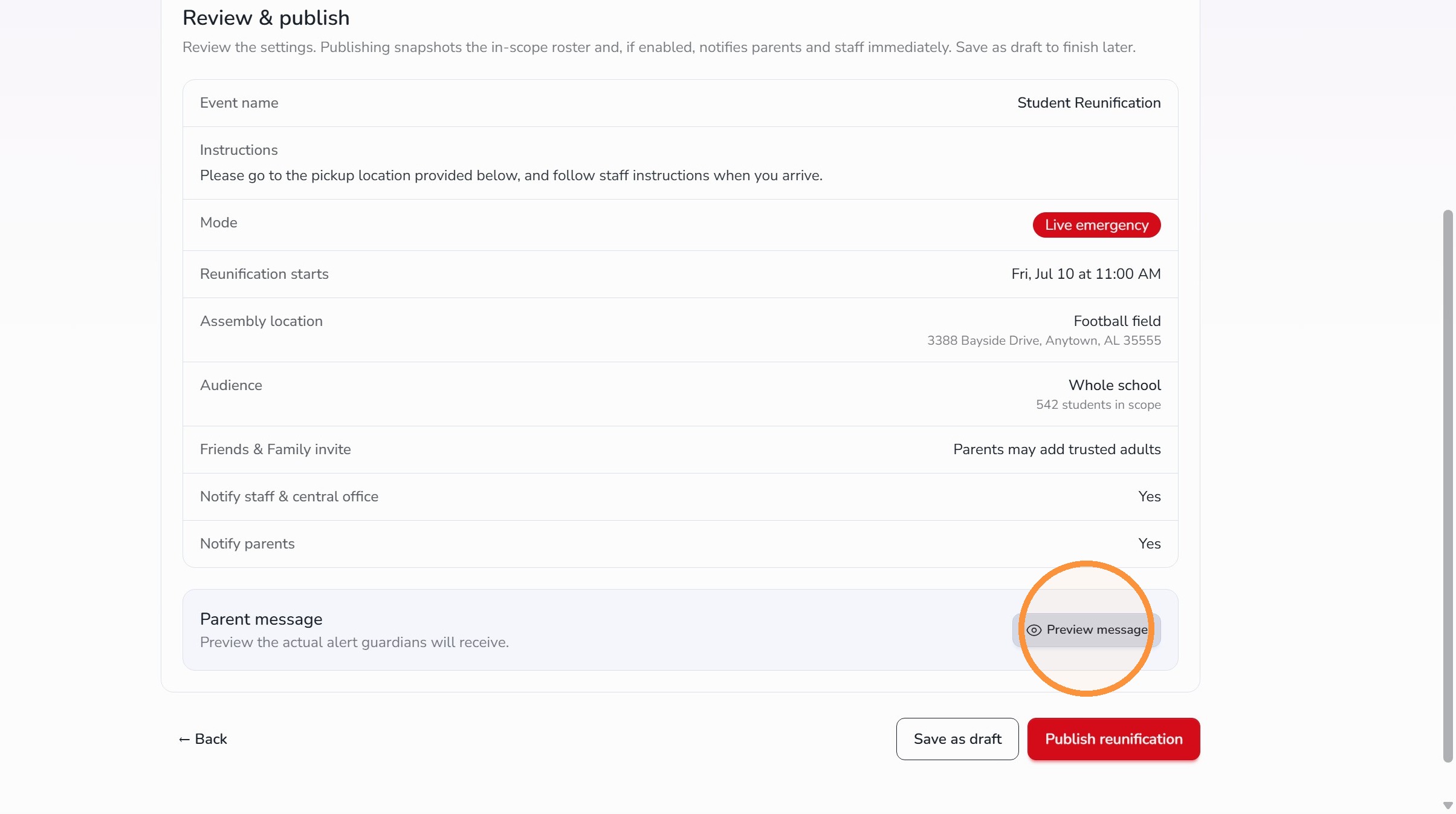
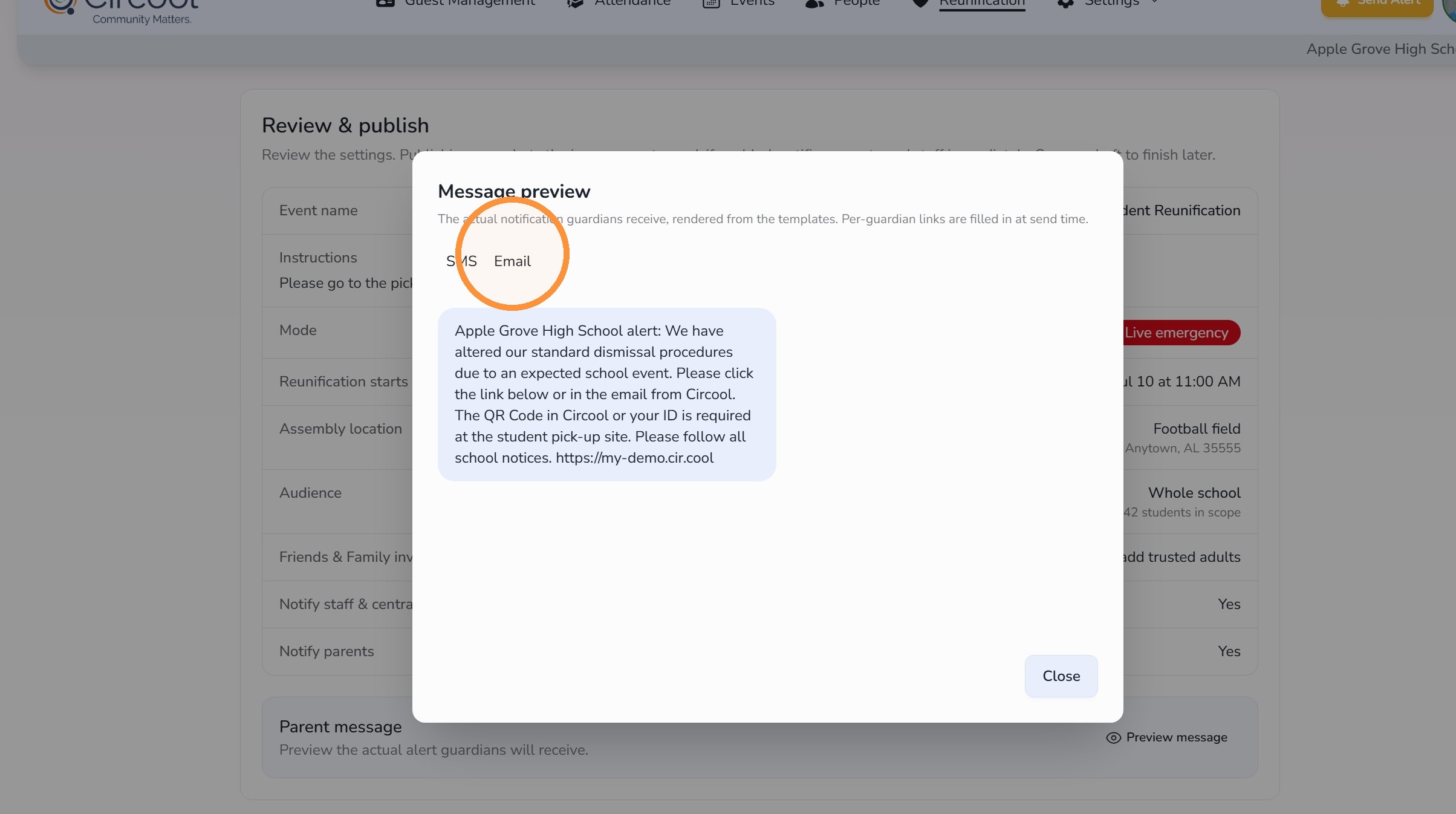
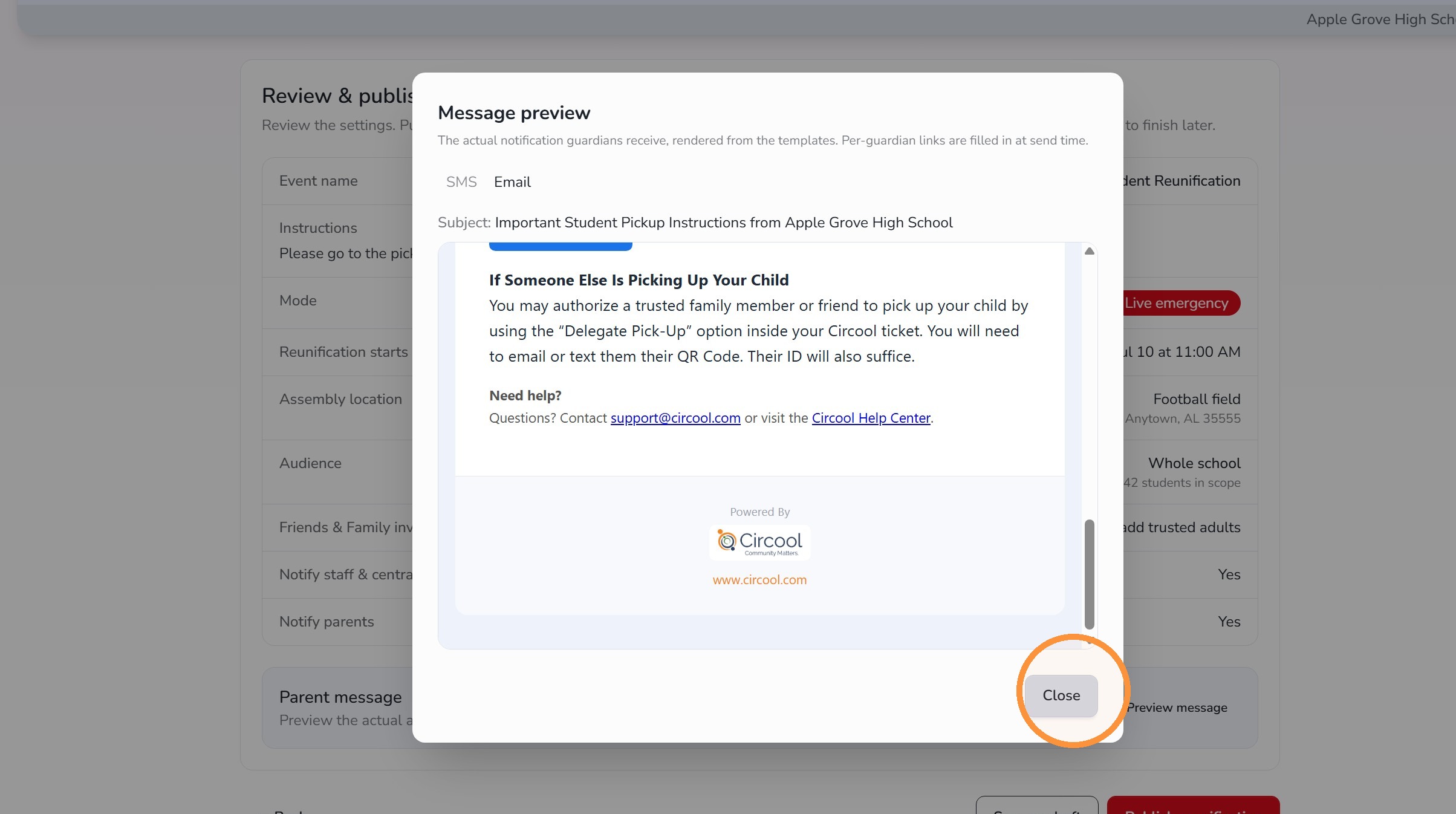
Take a moment here: Before publishing, confirm the event type, recipients, location, pickup time, and message wording.
Step 9: Publish the Reunification Event
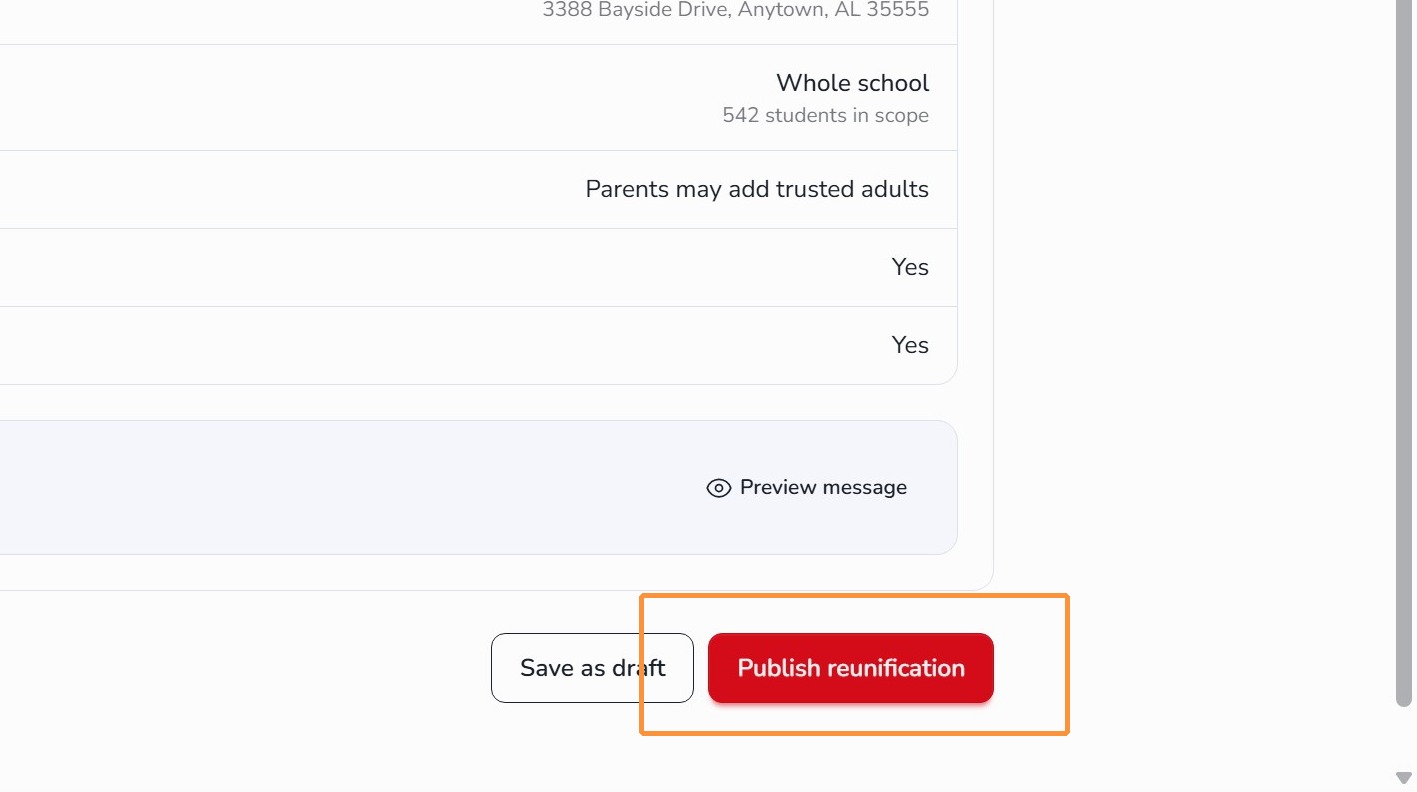
Once everything looks correct, click Publish Reunification.
This will begin the event and prepare Circool to send the selected notifications.
Step 10: Confirm publishing
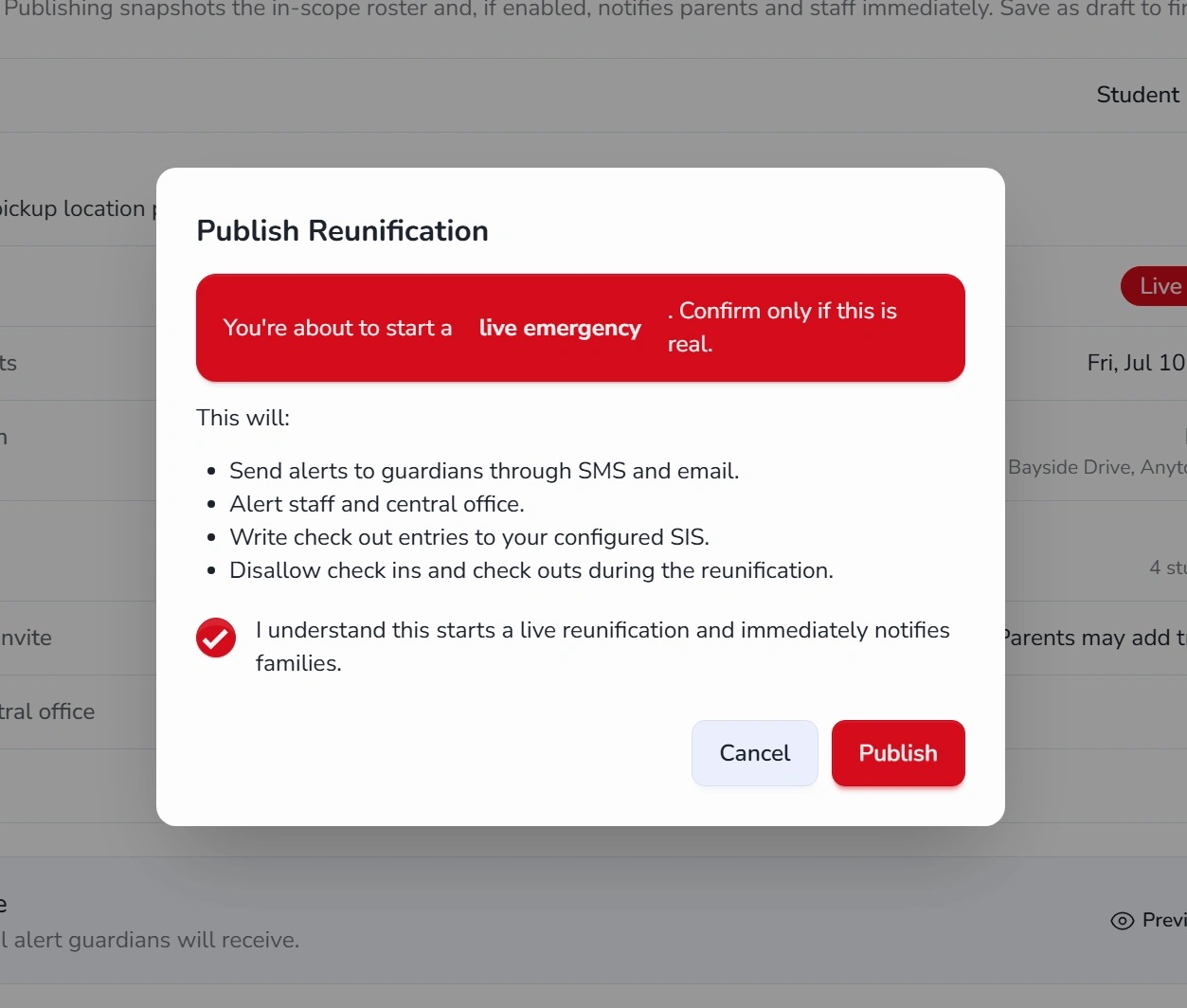
Circool will ask you to confirm before the Reunification Event is published.
- Click Publish to notify the selected parents, guardians, and staff by email and SMS.
- Click Cancel to return to the previous screen.
Helpful tips
- Configure settings first: Saved locations and message templates help staff move faster during setup.
- Choose the right event type: Use Drill for practice events and Live Reunification for an active reunification.
- Review the location carefully: Parents and guardians will use this information to know where to go.
- Preview messages before publishing: Make sure the email and SMS messages are clear and accurate.
- Use calm wording: Messages should tell families what to do next without adding unnecessary alarm.
What happens next
After publishing, Circool sends the selected email and SMS notifications to the parents, guardians, and staff connected to the students included in the event.
The Reunification Event will then be active in Circool so staff can begin using the reunification tools for the event.
That’s it. Circool helps your school quickly launch a drill or live Reunification Event with clear instructions for families and staff.
Need help?
Circool support is here to help.
If you need help starting a Reunification Event, reviewing messages, or publishing a drill or live reunification, contact Circool support by phone at 205.202.1124 or email support@circool.com.
Was this article helpful?
That’s Great!
Thank you for your feedback
Sorry! We couldn't be helpful
Thank you for your feedback
Feedback sent
We appreciate your effort and will try to fix the article