Student Reunification: Scanning or Searching by Name
Use this guide during a Reunification Event to confirm the approved pickup person for a student, and check the student out in Circool.
Staff can scan a parent or guardian’s Circool Pass or search by name. Circool displays the students that person is approved to pick up so staff can confirm the release and create a clear record of who picked up each student and when.
Before you start
This article is for staff who are helping with student release during an active Reunification Event or drill.
Staff can release students by:
- Scanning the parent or guardian’s Circool Pass
- Searching for the parent or student contact by name
- Reviewing the students that person is approved to pick up
Related articles
Before using the student release tools, review these related guides if needed:
Step 1: Open the Reunification scanner
There are two ways to start scanning for a Reunification Event.
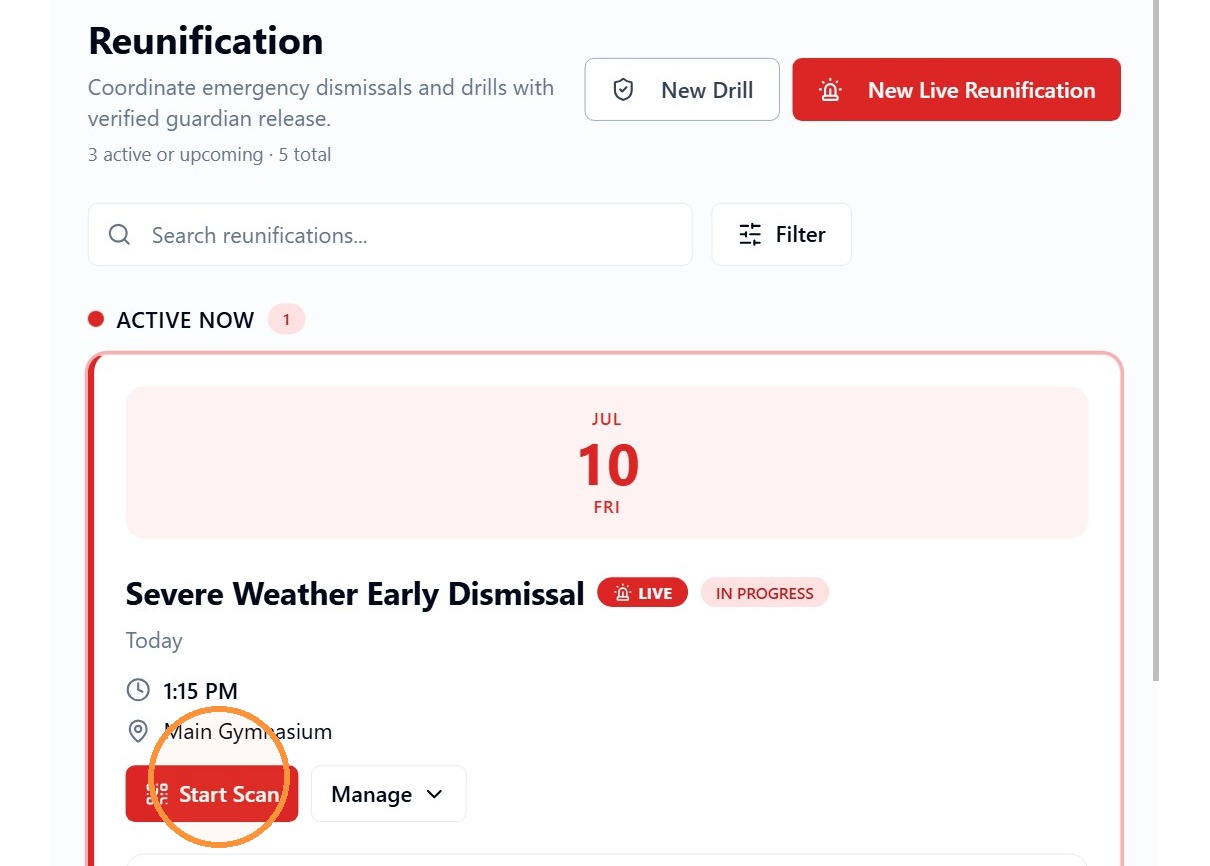
- From the Reunification Dashboard, click Start Scan.
- Or, log in to Circool from your phone. If a Reunification Event is active, Circool will show a message asking you to start scanning QR codes for the event.
Tip: Phones are often the easiest scanning device during reunification because staff can move with the line or work from different release areas.
Step 2: Invite or resend scanning help
When the Reunification Event is published, invitations to help scan are sent to your school staff and central office team.
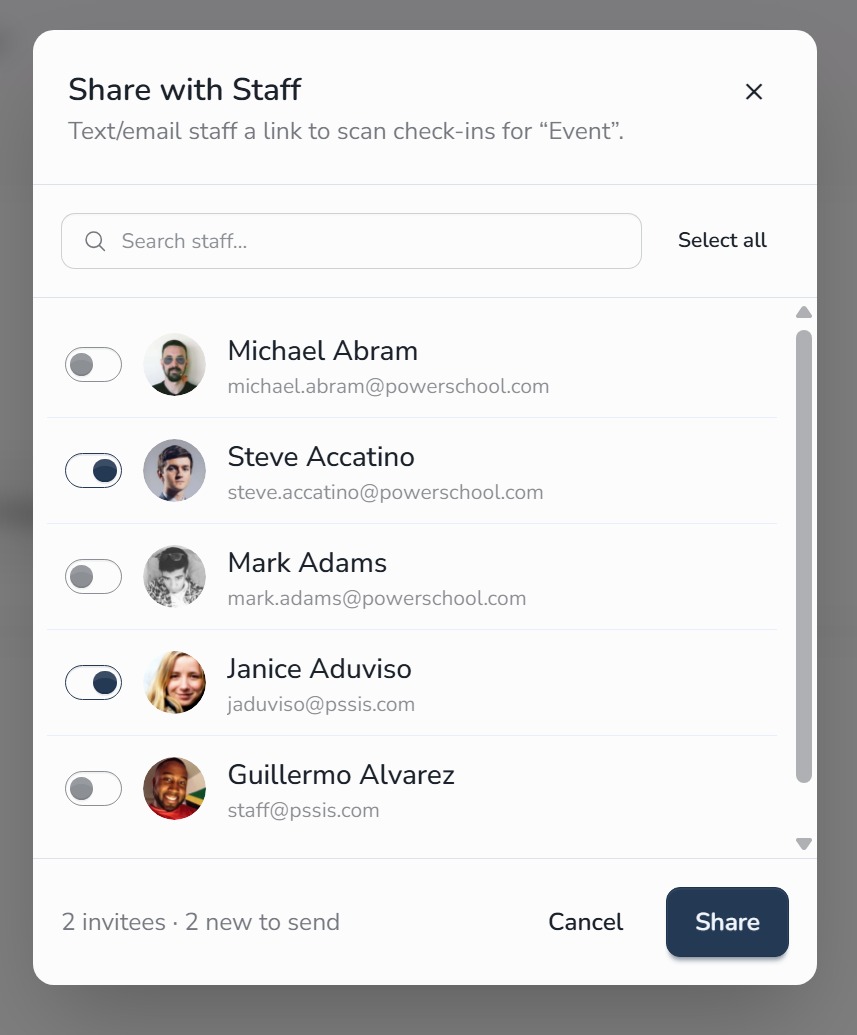
To resend an invitation or add someone new, click Ask for Check-in Help.
- Click Ask for Check-in Help.
- Select the staff members who should receive the scanner link.
- Click Share.

Good to know: Extra scanning help can keep the release process moving. Staff can scan Circool Passes or search by name from their phone or other device.
Step 3: Open the Circool Pass scanner
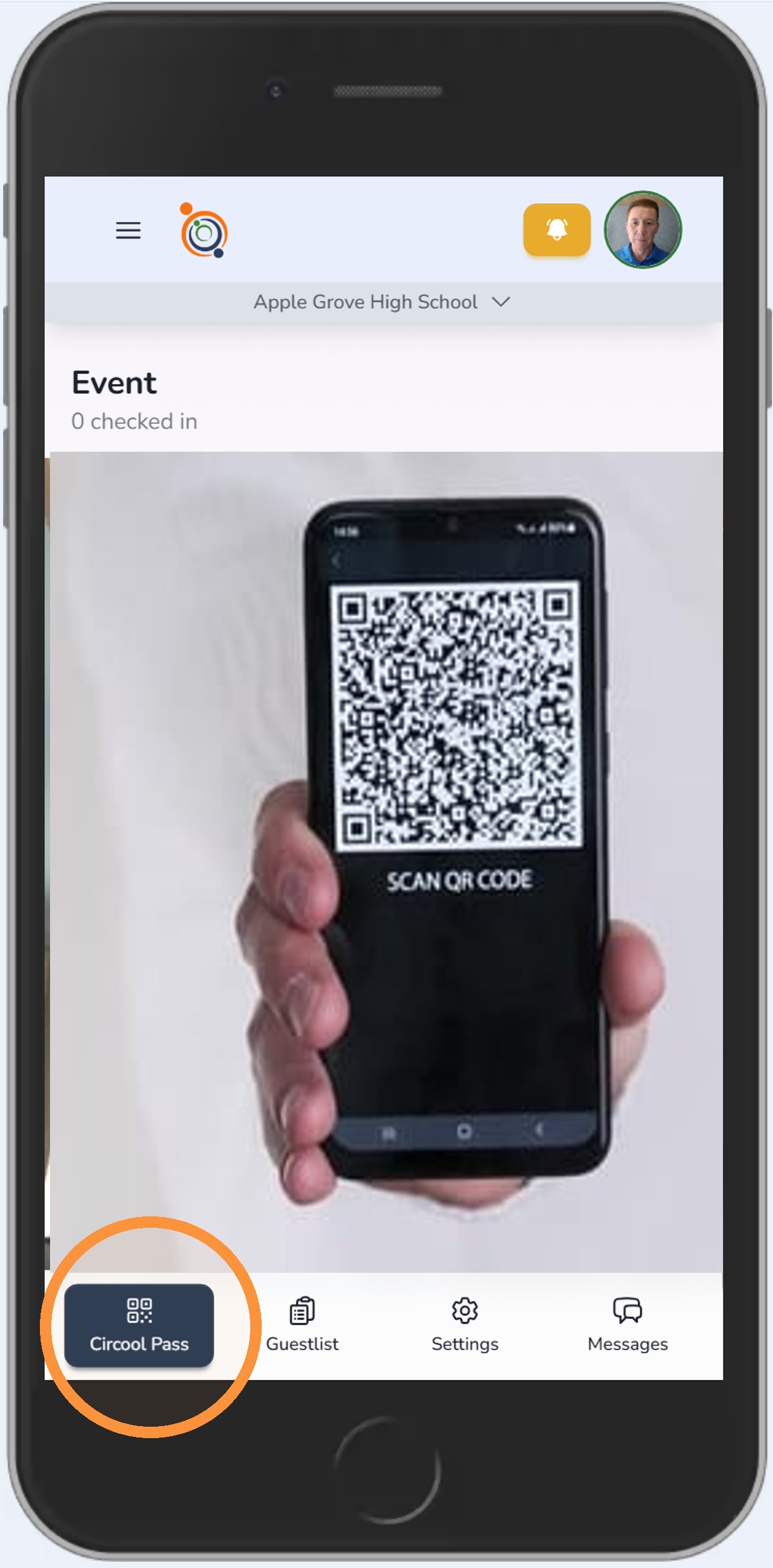
To begin scanning a parent or student contact’s Circool Pass, click Circool Pass.
Your camera will open after you grant permission.
Point your camera at the parent or guardian’s Circool Pass. Circool will recognize the pass and open the student release screen.
Step 4: Select the student or students to release
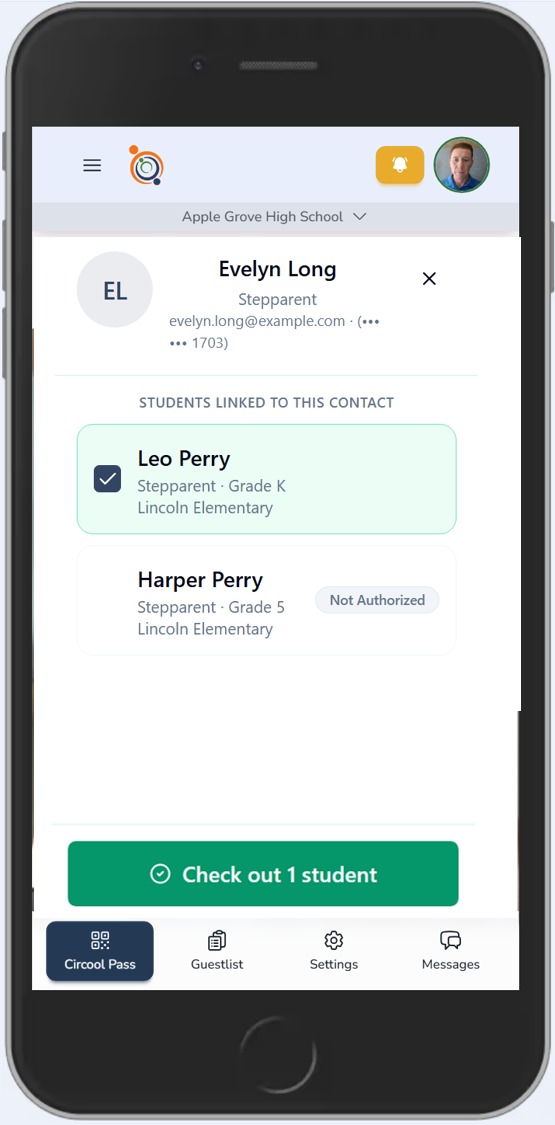
After the Circool Pass is scanned, Circool will show the students that parent, guardian, or student contact is approved to pick up.
On this screen, staff should:
- Review the approved pickup person.
- Review the student or students listed.
- Select one or multiple students from the list.
- Click Check Out Student.
After checkout is complete, your screen will return to the scanning page so you can continue releasing students.
Important: Only release students to an approved parent, guardian, or student contact shown in Circool. Follow your school’s procedures if anything does not look right.
Step 5: Search by name
If the parent, guardian, or student contact does not have their phone or Circool Pass, you can look them up by name.
To look up a parent, guardian, or student contact by name, click Guestlist.
Then:
- Search by parent, guardian, or student contact name.
- Review the correct person.
- Click Checkout.
- Select the student or students to check out.
The same student release screen will appear so staff can confirm the student or students before completing checkout.
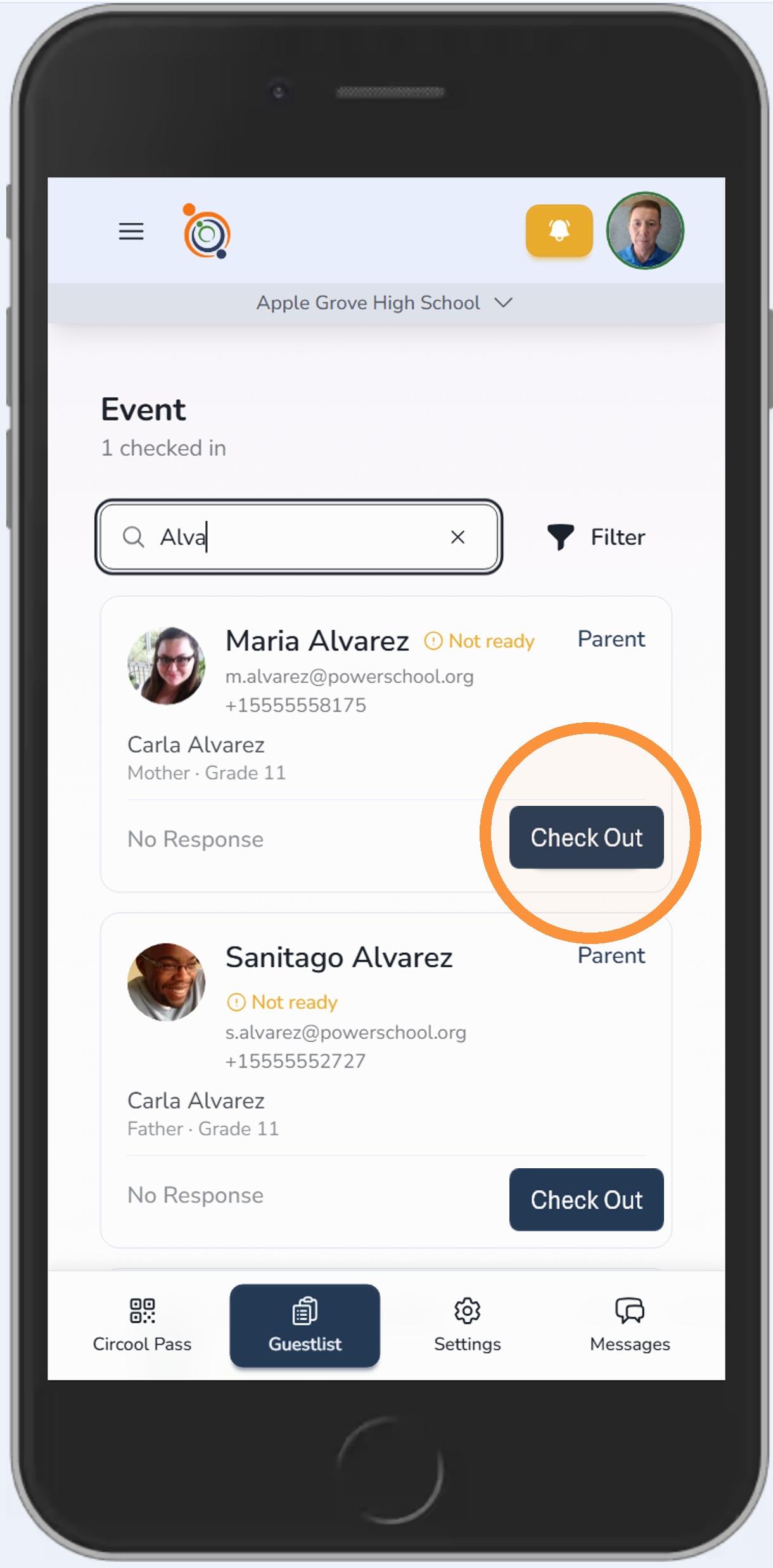
Good to know: Searching by name is helpful when a parent or guardian does not have access to their Circool Pass, but staff still need to confirm approved pickup information before releasing the student.
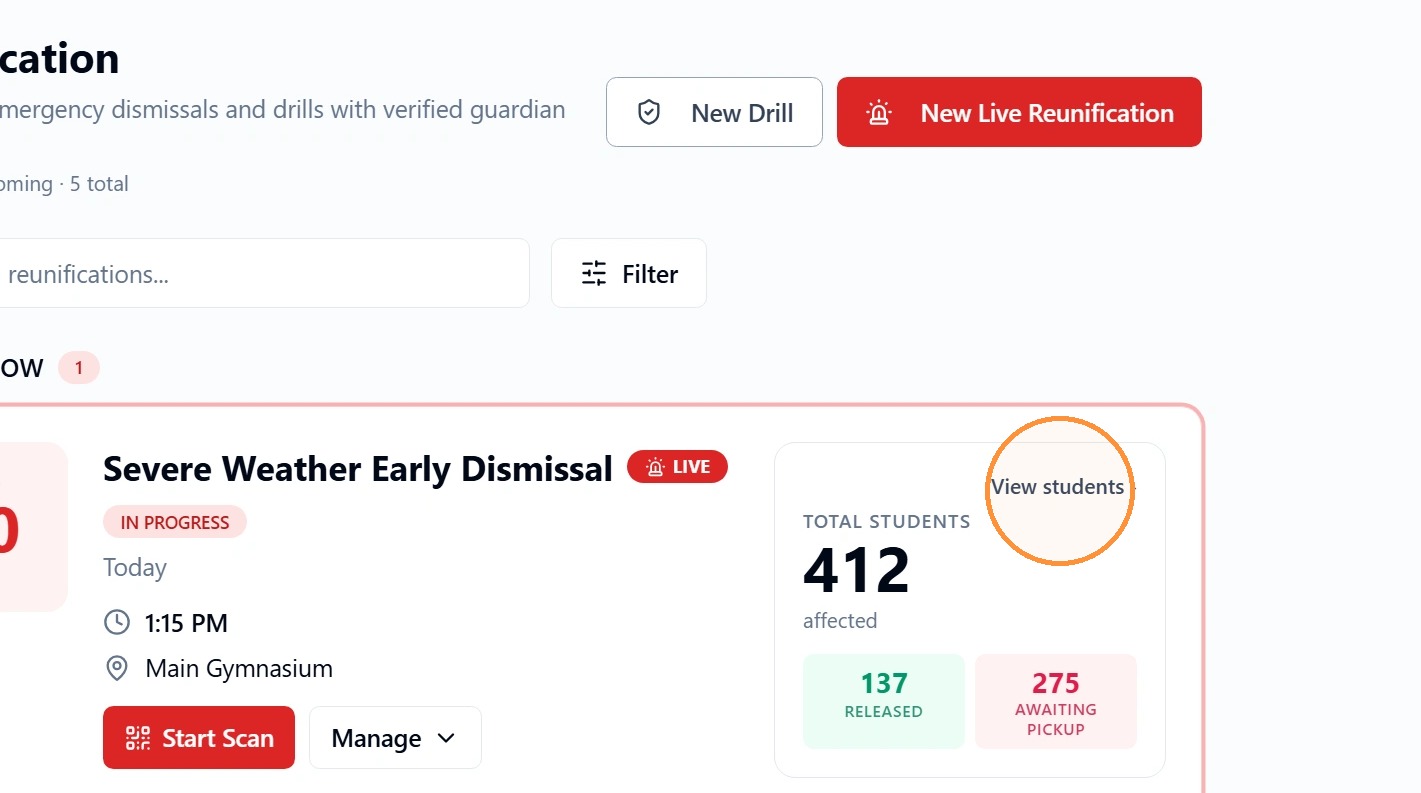
Step 6: View Student Release Status
This view helps staff see which students have already been picked up and which students have not been released yet.
Step 7: Review released and not released students
After clicking View Students, you can monitor student release status during the Reunification Event.
You can:
- Click Released to see all students who have been released.
- Click Not Released to see all students who have not yet been released.
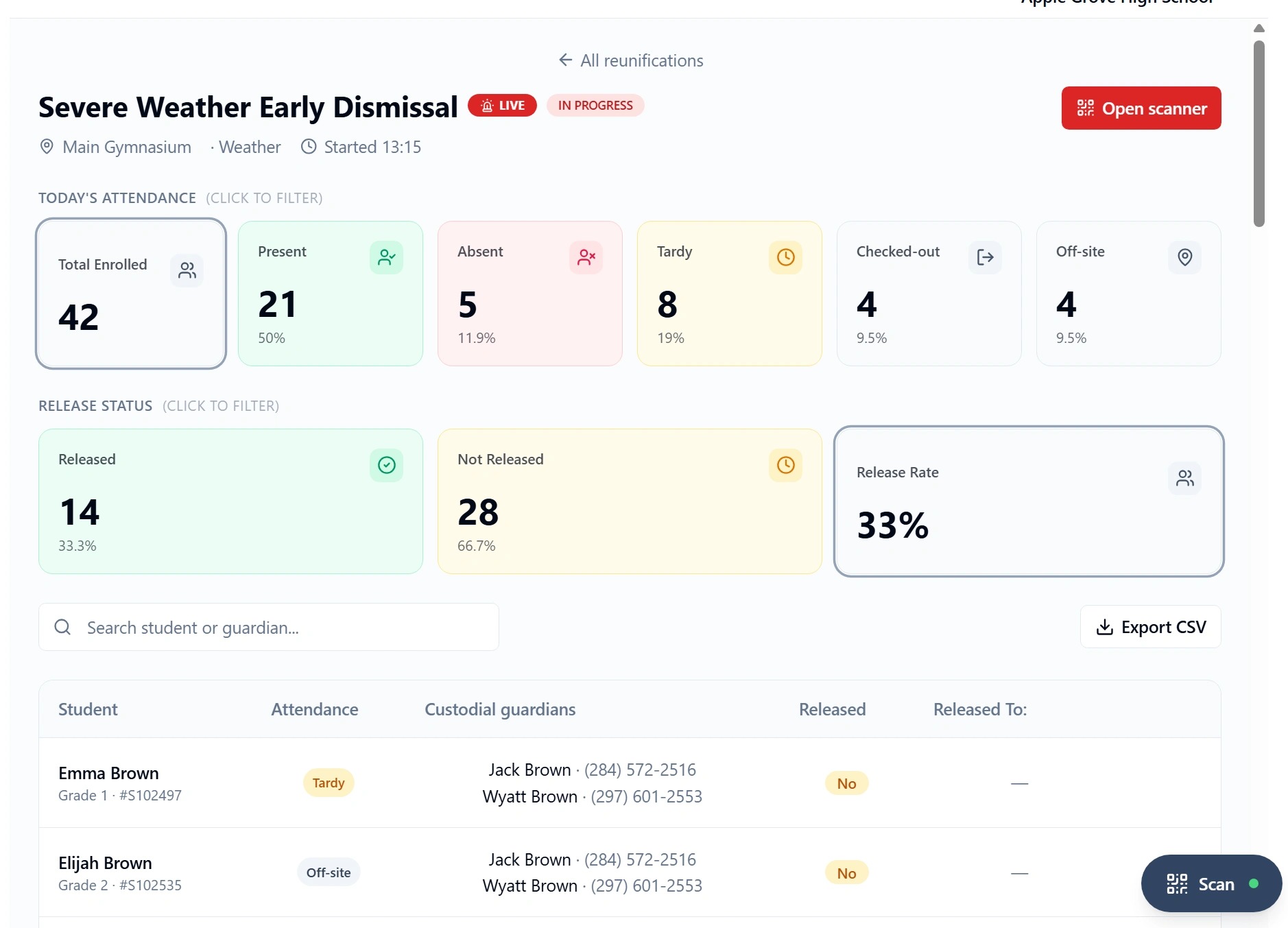
Why this matters: The student dashboard gives school leadership a clearer view of who has been released and who still needs to be accounted for.
Helpful tips
- Use the Circool Pass when available: Scanning is usually the fastest way to locate the approved pickup person and eligible students.
- Use name search as a backup: If the parent or guardian does not have their phone or Circool Pass, search by name.
- Confirm before release: Review the approved pickup person and selected students before clicking Check Out Student.
- Release multiple students when appropriate: If the approved pickup person is connected to multiple students, select all students being released to that person.
- Use View Students for oversight: The student dashboard helps staff track who has been released and who remains.
What happens next
After a student is checked out, Circool records the release and returns staff to the scanner so they can continue processing the next parent, guardian, or student contact.
School staff can continue scanning Circool Passes, searching by name, and monitoring released and not released students from the Reunification dashboard.
That’s it. Circool helps staff verify approved pickup information, release students, and maintain a clear record during a Reunification Event.
Need help?
Circool support is here to help.
If you need help scanning Circool Passes, searching by name, or checking out students during a Reunification Event, contact Circool support by phone at 205.202.1124 or email support@circool.com.
Was this article helpful?
That’s Great!
Thank you for your feedback
Sorry! We couldn't be helpful
Thank you for your feedback
Feedback sent
We appreciate your effort and will try to fix the article