Printing Guest Check-In Posters
Guest Check-In Posters help guests start check-in from their own phone.
Print these posters and place them in your front office, atrium, or check-in area so guests can scan the QR code and begin the Circool check-in process.
When to use this
Use this guide when your school wants to print QR code posters for guest check-in.
These posters are helpful for:
- First-time guests who need to start check-in from their phone.
- Returning guests who can scan the QR code and connect to their Circool account.
- Parents who are not Circool-Ready and need to activate or finish their account.
Tip: Place posters where guests naturally stop first, such as the front entrance, atrium, front desk line, or check-in table.
Step 1: Open Guest Management
- Log in to Circool.
- Go to the Guest Management dashboard.
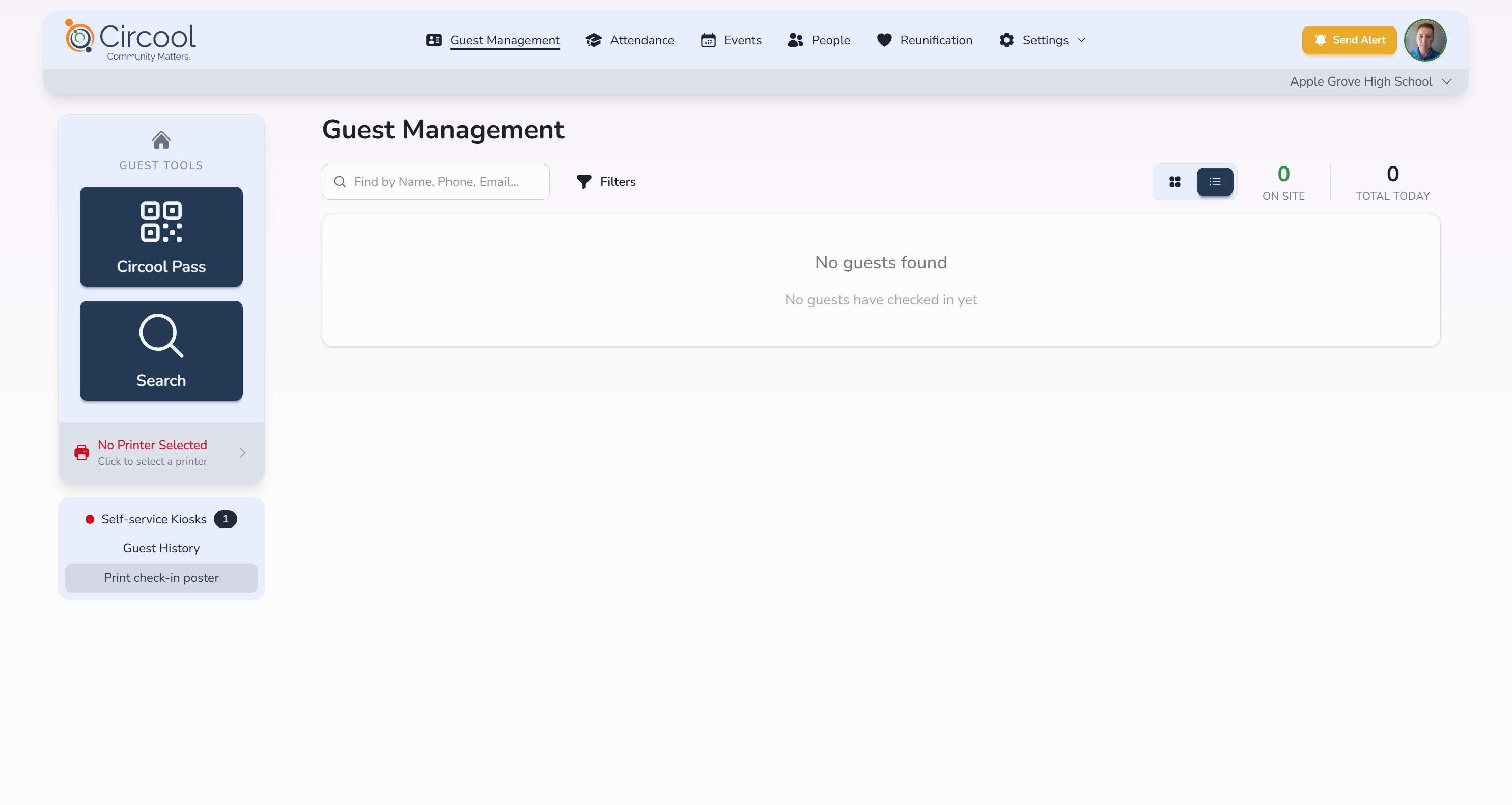
Step 2: Click Print Check-In Poster
From the Guest Management dashboard, click Print Check-In Poster.
Step 3: Choose the poster language
Choose the language you want to print.
- English
- Spanish
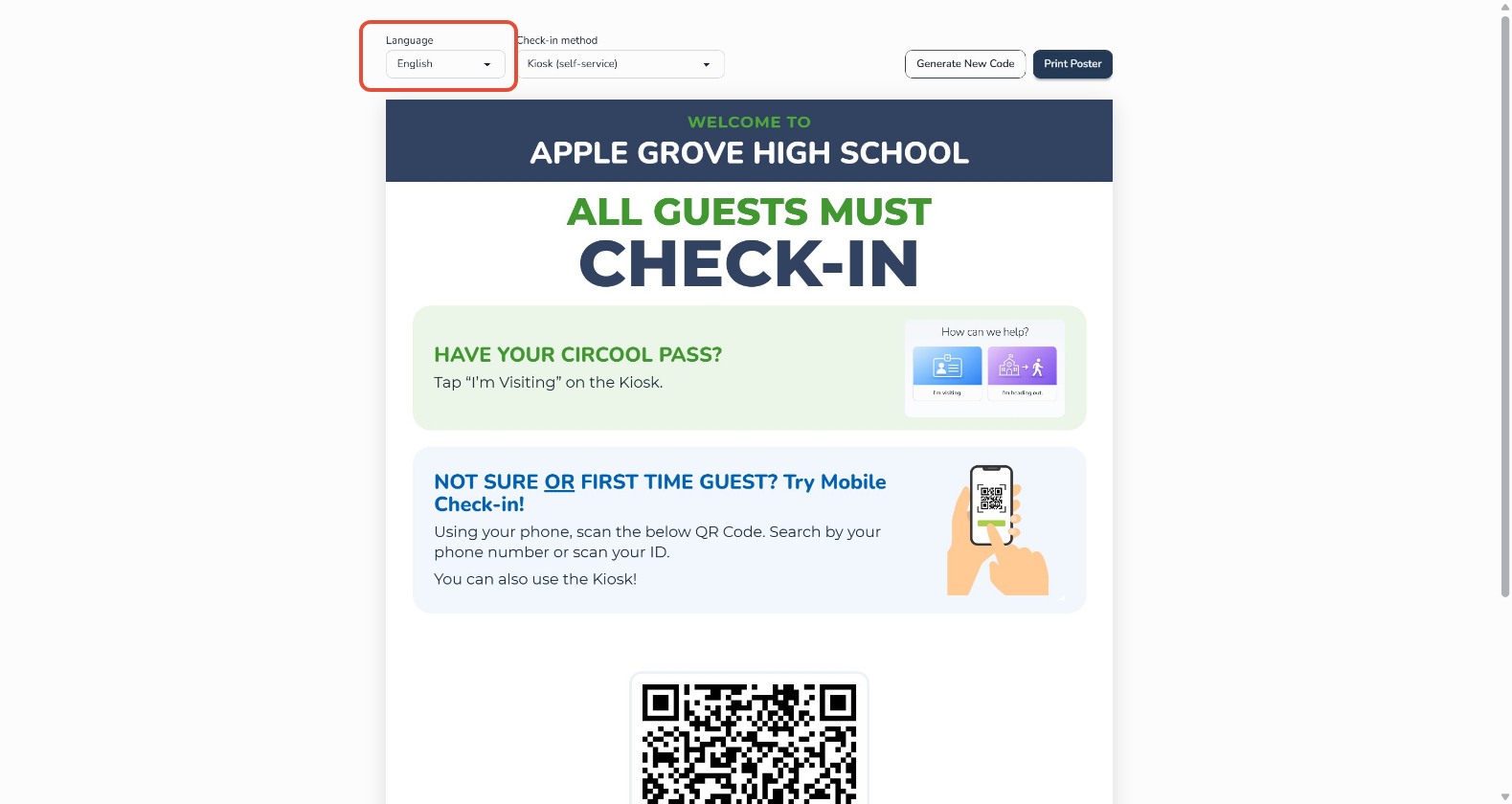
Good to know: Many schools print both English and Spanish posters and place them side by side.
Step 4: Choose the check-in method
Under Check-In Method, choose the option that matches how your school checks in guests.
- Kiosk (Self-Service): Choose this if your school has a self-service station, such as an iPad or Chromebook.
- Front Desk (Staffed): Choose this if your front desk team checks in guests using a webcam and you do not use a kiosk.
Step 5: Print and place the poster
- Click Print Poster.
- Print the poster.
- Place the poster where guests can easily see and scan it.
That’s it. Your Guest Check-In Poster is ready to help guests start check-in from their own phone.
Helpful tips
- 1 Print both languages: If your school serves English and Spanish-speaking families, print both versions.
- 2 Choose the right method: Use Kiosk for self-service devices and Front Desk for staffed webcam check-in.
- 3 Place posters clearly: Put posters near the entrance, front desk, or check-in line so guests know what to do.
- 4 Test the QR code: After printing, scan the poster with a phone to make sure it opens the correct school check-in page.
Need help?
Circool support is here to help.
If you need help printing Guest Check-In Posters, contact Circool support by phone at 205.202.1124 or email support@circool.com.
Was this article helpful?
That’s Great!
Thank you for your feedback
Sorry! We couldn't be helpful
Thank you for your feedback
Feedback sent
We appreciate your effort and will try to fix the article