Welcome Back to School and to an Updated Circool
Welcome back! Circool has a fresh look and helpful updates for the new school year.
This guide will help your team get back into Circool, review the updated dashboard, and make sure your front desk is ready before the first busy morning.
Start here
First, log in to Circool and make sure your account is ready.
- Log in to Circool using your regular Circool link or saved bookmark.
- If you do not have the link saved, go to https://my.circool.com.
- Log in with your district email address and password.
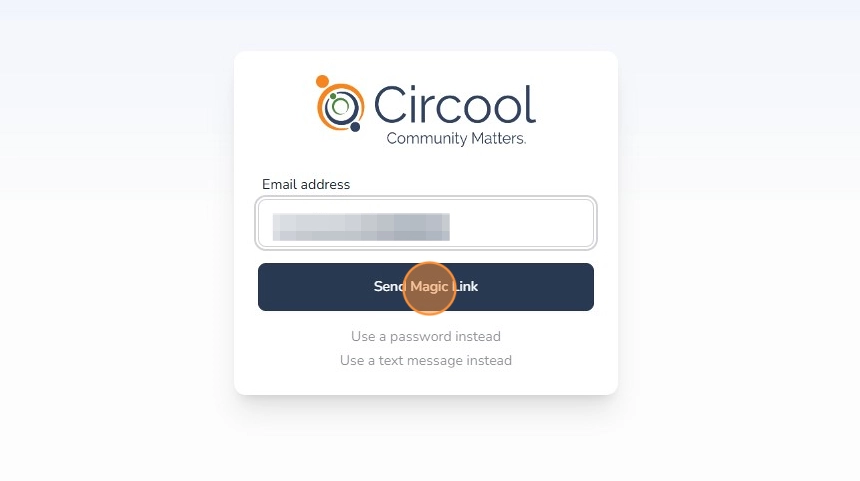
- If you forgot your password, enter your email address and click Send Magic Link. Circool will email you a secure link to log in.
Step 1: Take a quick tour of the Circool dashboard
Start by getting familiar with the updated Circool dashboard. The layout has been refreshed, but the goal is the same: help your team move through the school day with confidence.
This quick tour will show you where to find your main tools, modules, school selector, People records, and Guest Management options.
Step 2: Get your front desk Circool-Ready
Next, take a few minutes to make sure Circool, your badge printer, webcam, iPad, Chromebook, and front desk setup are ready before guests and students arrive.
This is the best place to confirm your printer, test your webcam, review your school settings, and make sure your team is ready for the new school year.
Step 3: Print updated Guest Check-In Posters
If your school uses QR code posters for guest check-in, you will need to print the updated version.
These posters can help first-time guests, returning guests, and parents who still need to activate or finish their Circool account.
Important: Replace your old check-in posters with the updated version so guests scan the correct QR code.
Step 4: Set up self-service kiosks
If your school uses an iPad, Chromebook, or other self-service device in the front office, it will need to be enrolled before guests can use it.
The kiosk setup guide walks you through enrolling the device and assigning it to the correct badge printer.
You’re ready for the school year!
If you completed the steps above, your Circool environment should be ready to go.
Important: We also recommend reviewing the additional school admin help guides below. Each guide is short and focused, so your team can quickly learn the workflows they use most.
School Admin Help Guides
Guest Management
Review the Guest Management guide that matches your school setup.
Guest Management — Webcam Only
Use this guide if your front desk checks in guests with a webcam and does not use a self-service kiosk.
View Webcam Only GuideGuest Management — Kiosk and Webcam
Use this guide if your school uses both a self-service kiosk and a staffed webcam at the front desk.
View Kiosk and Webcam GuideStudent Check-In and Check-Out
If your school uses Circool for student check-in, student check-out, or attendance writeback, review these guides before the school year gets fully underway.
How to Check In a Tardy Student
View Student Check-In GuideHow to Check Out a Student
View Student Check-Out GuideWhat happens next
After you finish these steps, your front desk should be ready to use Circool for Guest Management, check-in posters, kiosks, and student check-in/check-out if your school uses those features.
Keep the school admin help guides handy so your team can quickly review a workflow when needed.
That’s it. You’re ready to welcome families, guests, and students back with confidence.
Need help?
Circool support is here to help.
If you need help getting ready for the new school year, contact Circool support by phone at 205.202.1124 or email support@circool.com.
Was this article helpful?
That’s Great!
Thank you for your feedback
Sorry! We couldn't be helpful
Thank you for your feedback
Feedback sent
We appreciate your effort and will try to fix the article