How to Check Out a Student
Circool helps front desk staff check out students quickly and accurately.
This guide walks through student check-out, selecting the authorized pickup contact, choosing a reason code, and recording the check-out to your Student Information System.
Before you start
Front desk staff have two easy ways to check out a student:
- Search by student name
- Scan the parent or guardian’s Circool Pass
Once the student is checked out, Circool records the dismissal and sends the check-out to your Student Information System, also called your SIS.
Tip: Scanning a parent’s Circool Pass is especially helpful when a parent or guardian is checking out more than one child.
Step 1: Open Attendance
- Click Attendance from the top menu.
- Use the Check Out button on the left side of the screen. This guide focuses on student check-out.
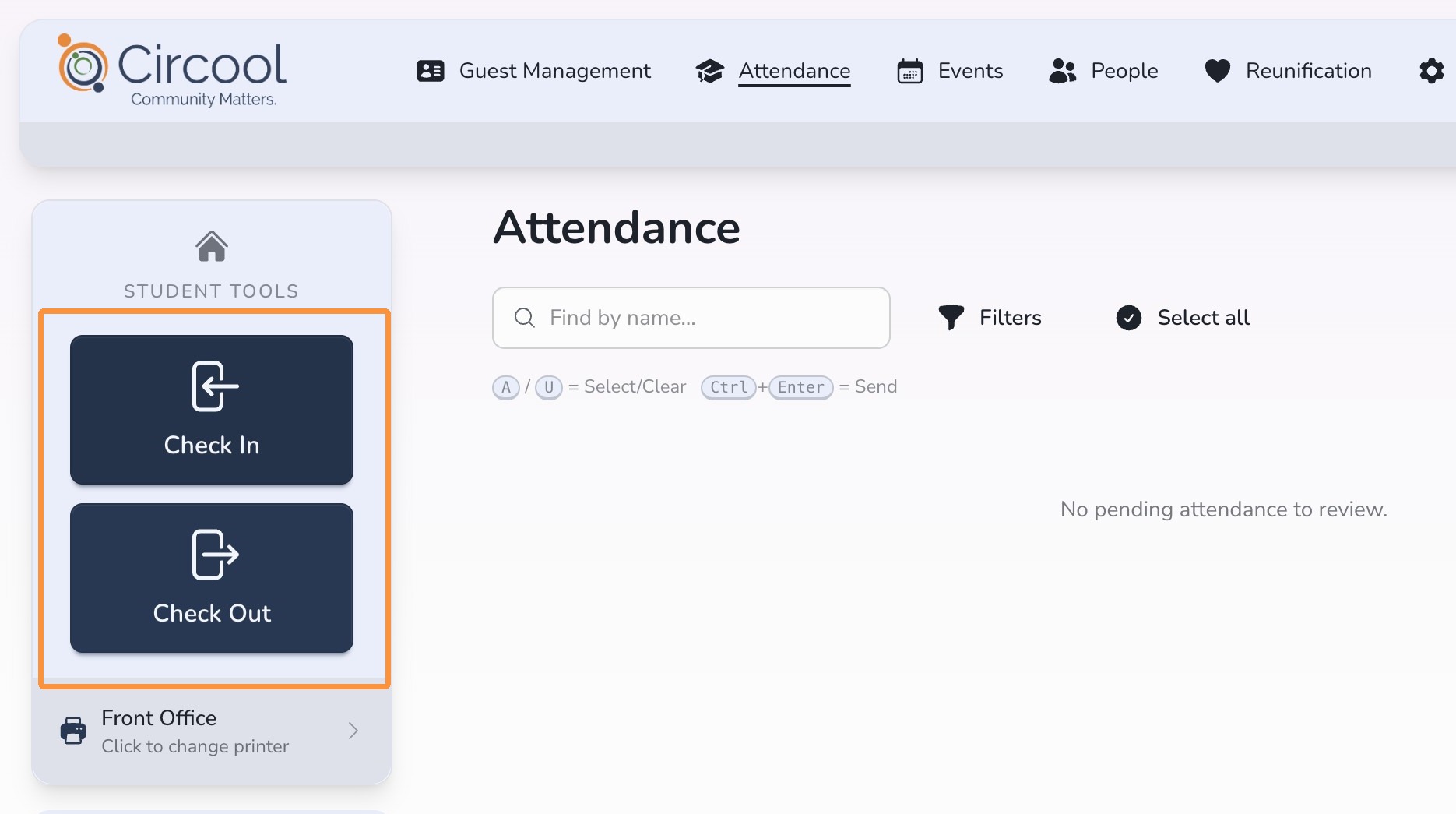
Step 2: Choose how to find the student
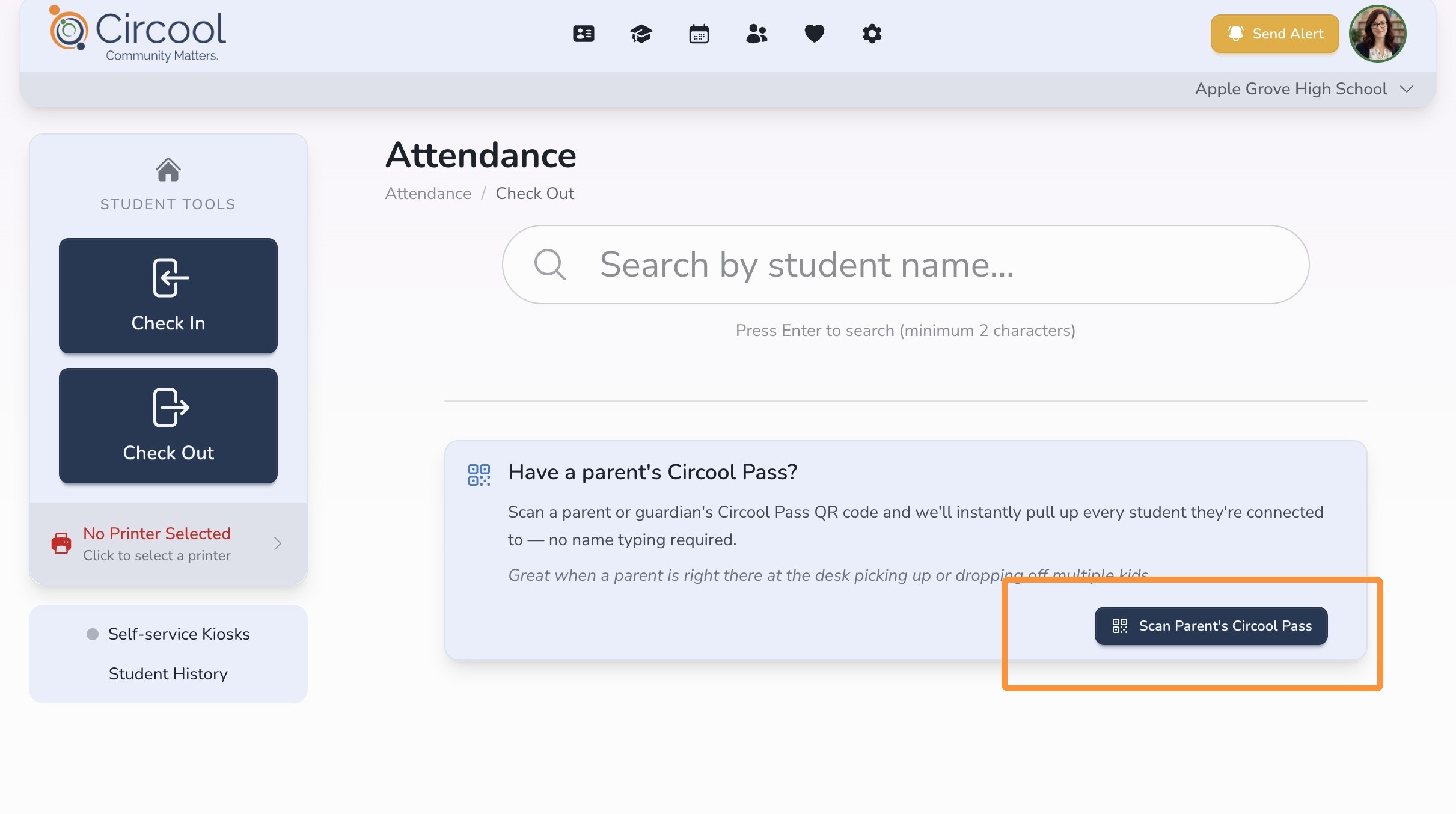
You can find the student in one of two ways:
- Search by Name: Search for the student directly.
- Scan Parent’s Circool Pass: Scan the parent or guardian’s Circool Pass to show only students connected to that person.
Good to know: The Circool Pass option can make check-out faster when a parent or guardian is checking out multiple children at the same time.
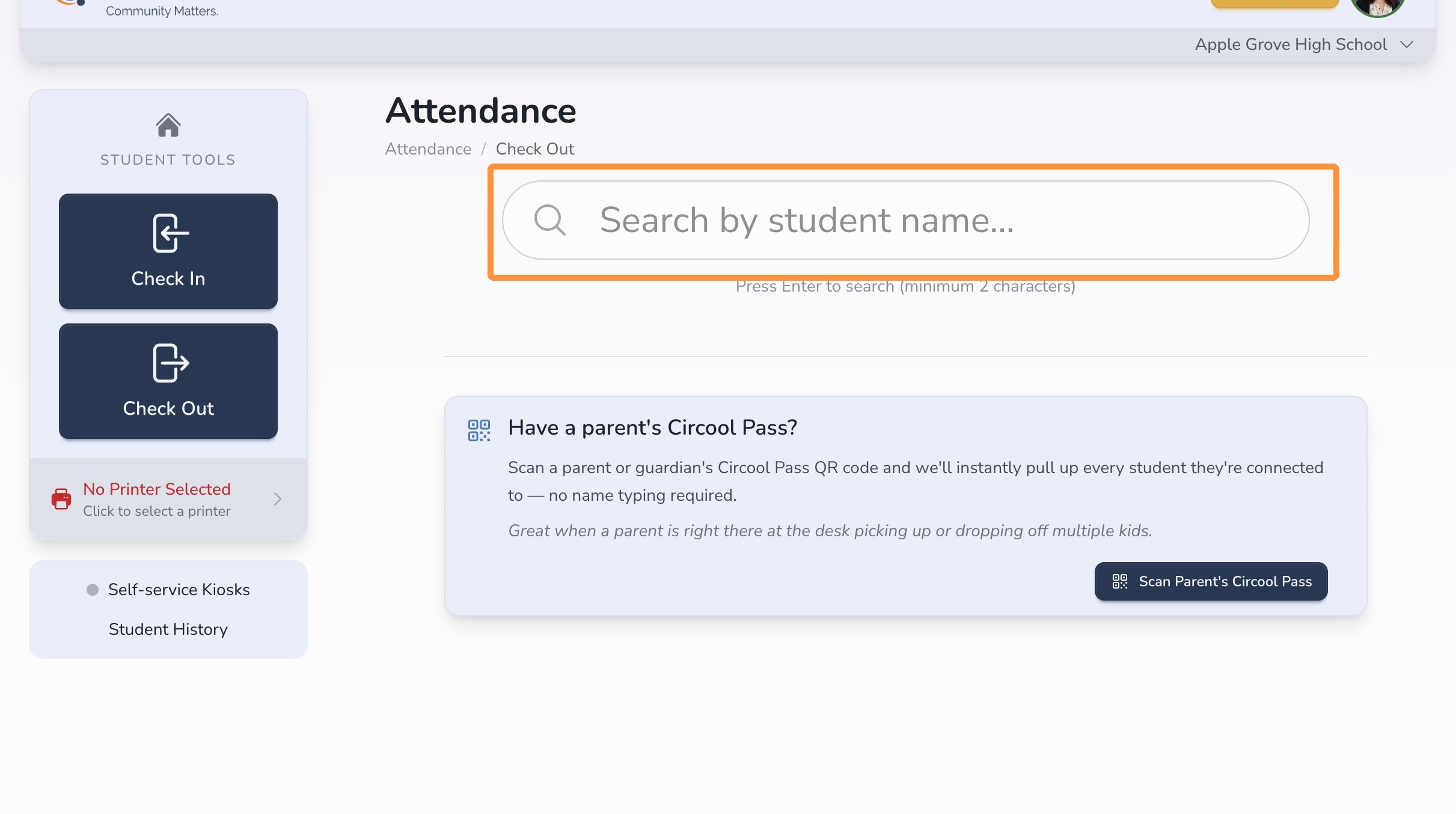
Step 3: Search by student name
Search for the student by name. You can enter a full name or a partial name.
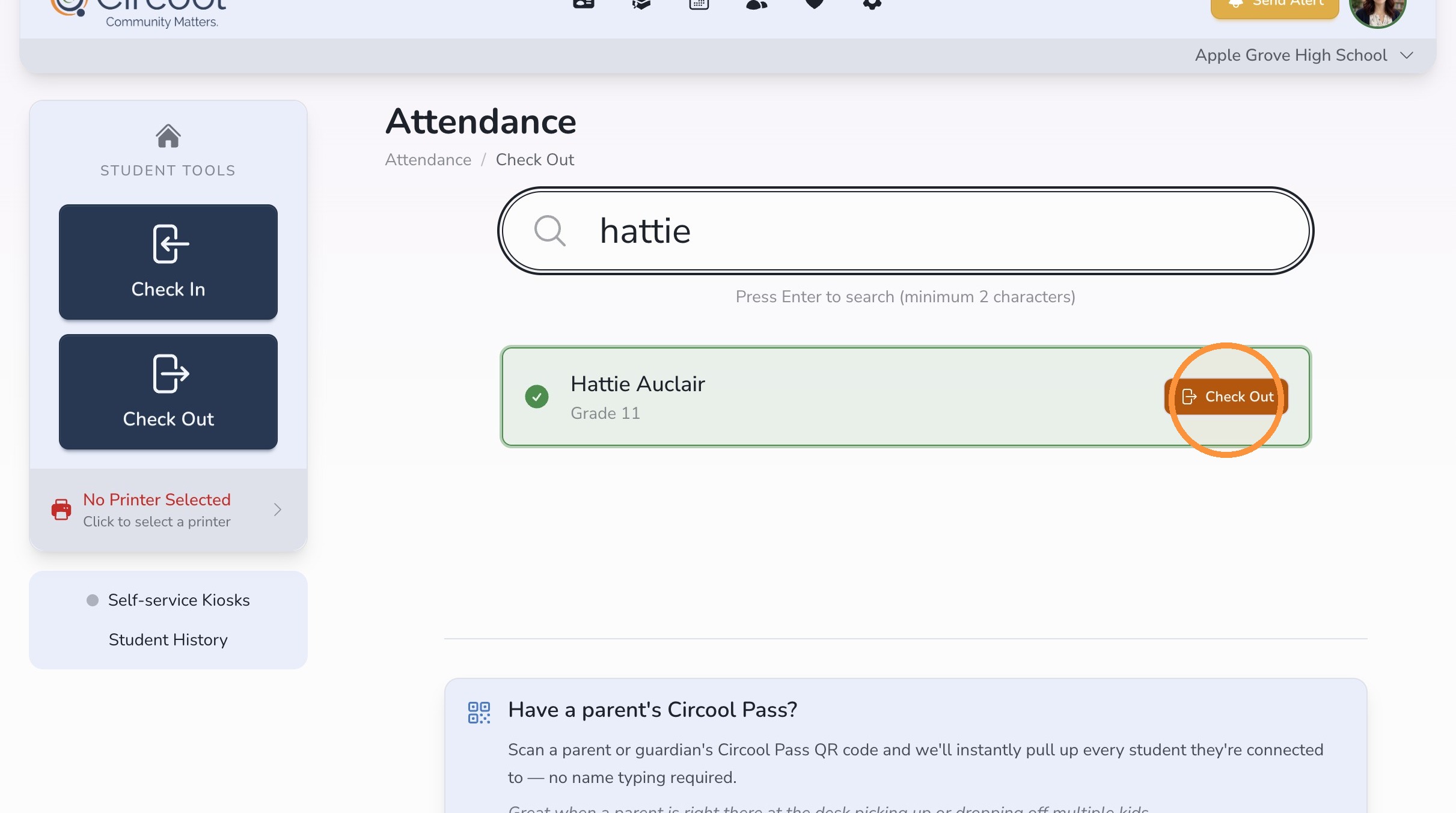
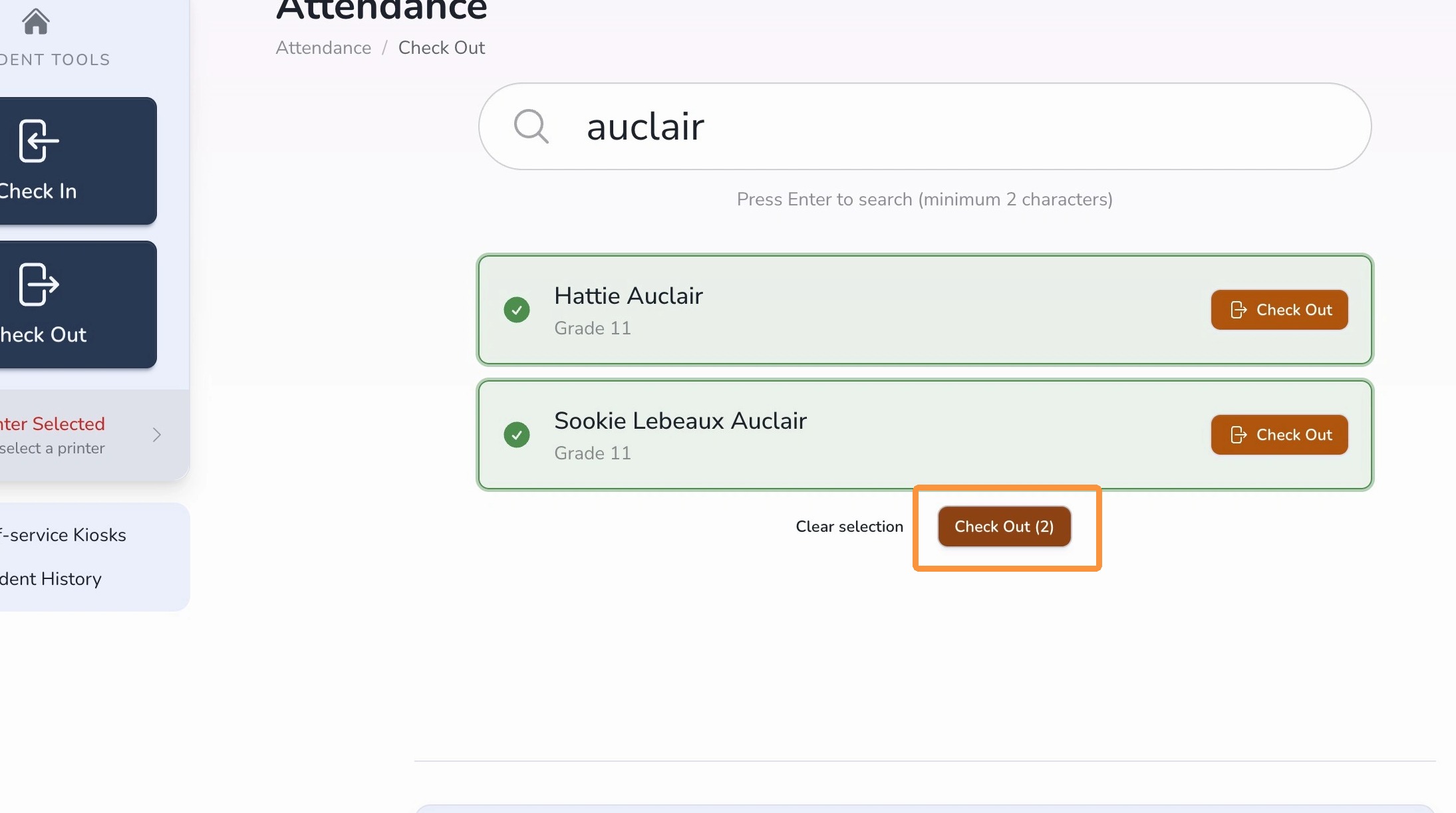
Step 4: Select the student or students
- If you are checking out one student, click Check Out on that student’s tile.
- If you are checking out multiple students, select the students and click Check Out at the bottom of the list.
Step 5: Review check-out details
Circool checks the Student Information System in real time and returns the contacts connected to the student.
Contacts with the Pick Up flag checked in the SIS will appear as Authorized.
- Confirm the authorized pickup contact.
- Add comments if needed. Comments are written to the SIS if added.
- Select the appropriate Reason Code.
- Click Confirm Check-Out.
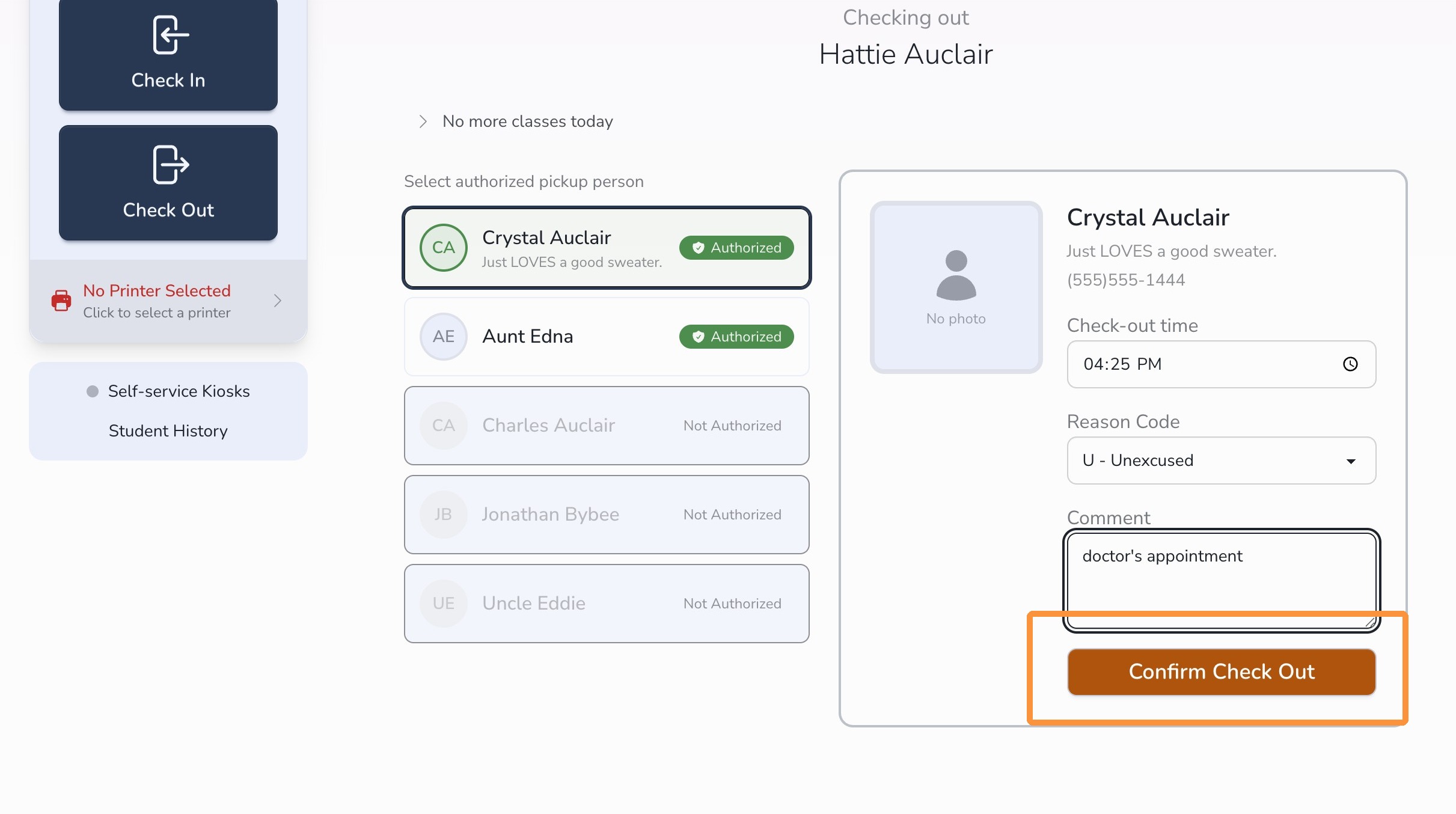
Important: Student check-outs are sent directly to your SIS. You do not need to return to the Attendance Dashboard to send them.
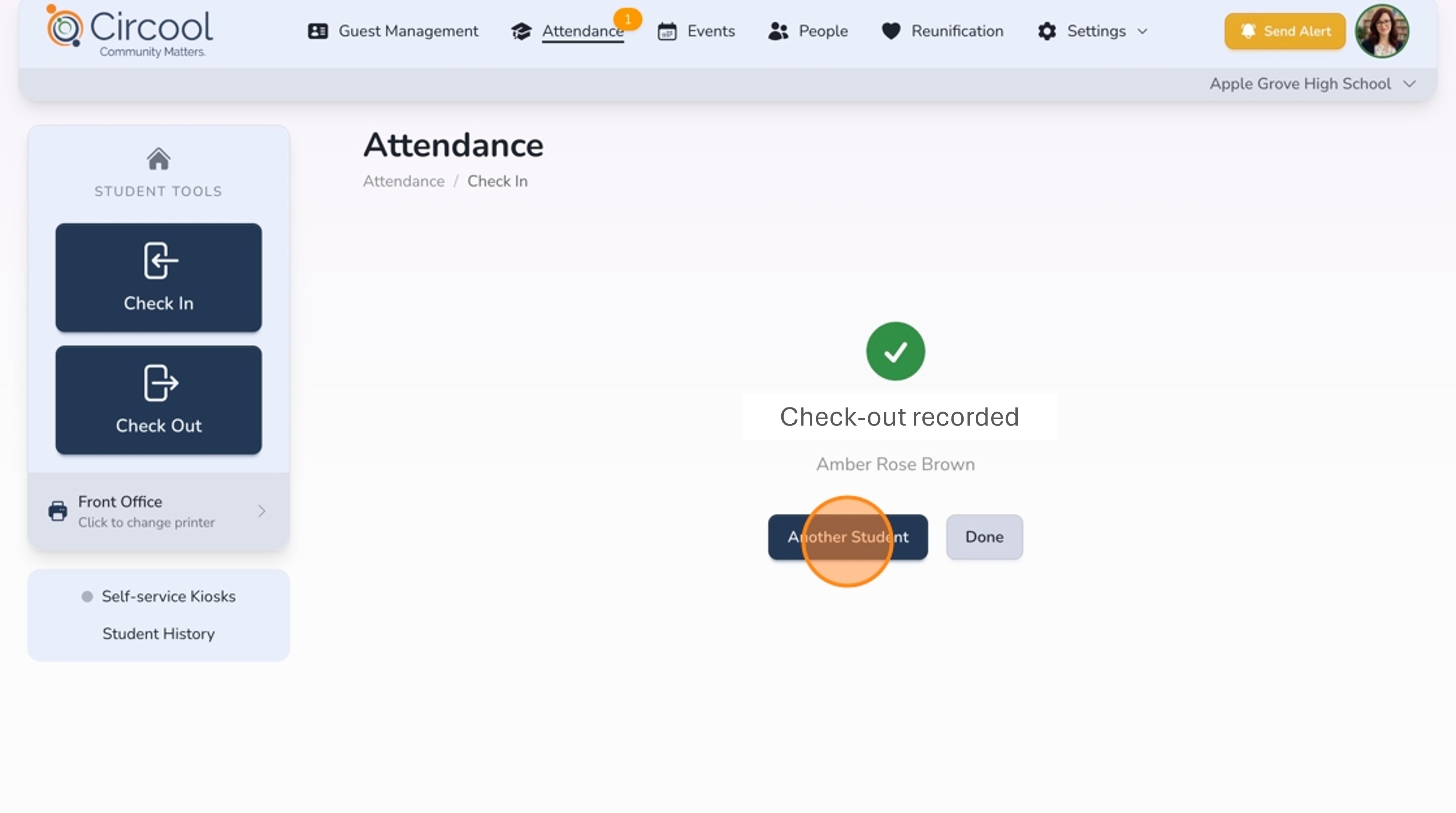
Step 6: Check out another student or finish
- Click Another Student if you need to check out another student.
- Click Done to return to the Attendance Dashboard.
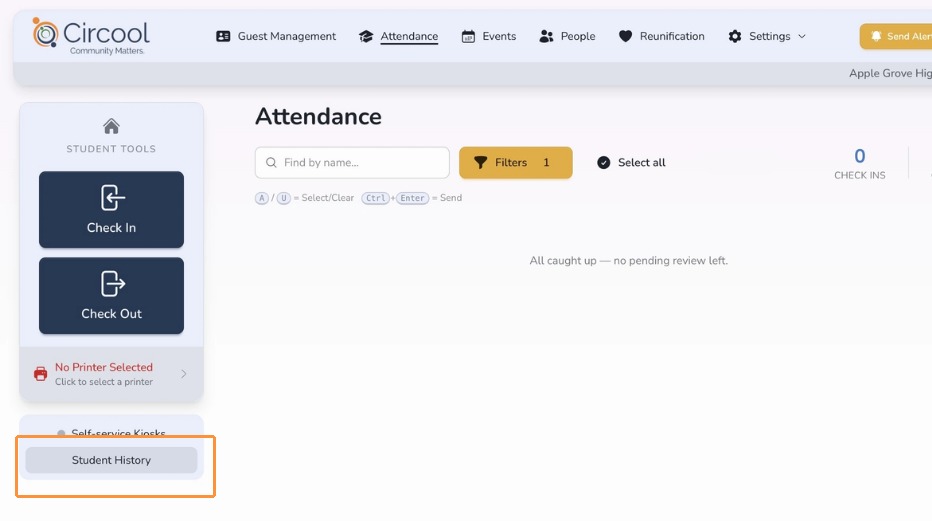
Step 7: View student check-in and check-out history
Click Student History to review student check-in and check-out records.
Step 8: Search student history
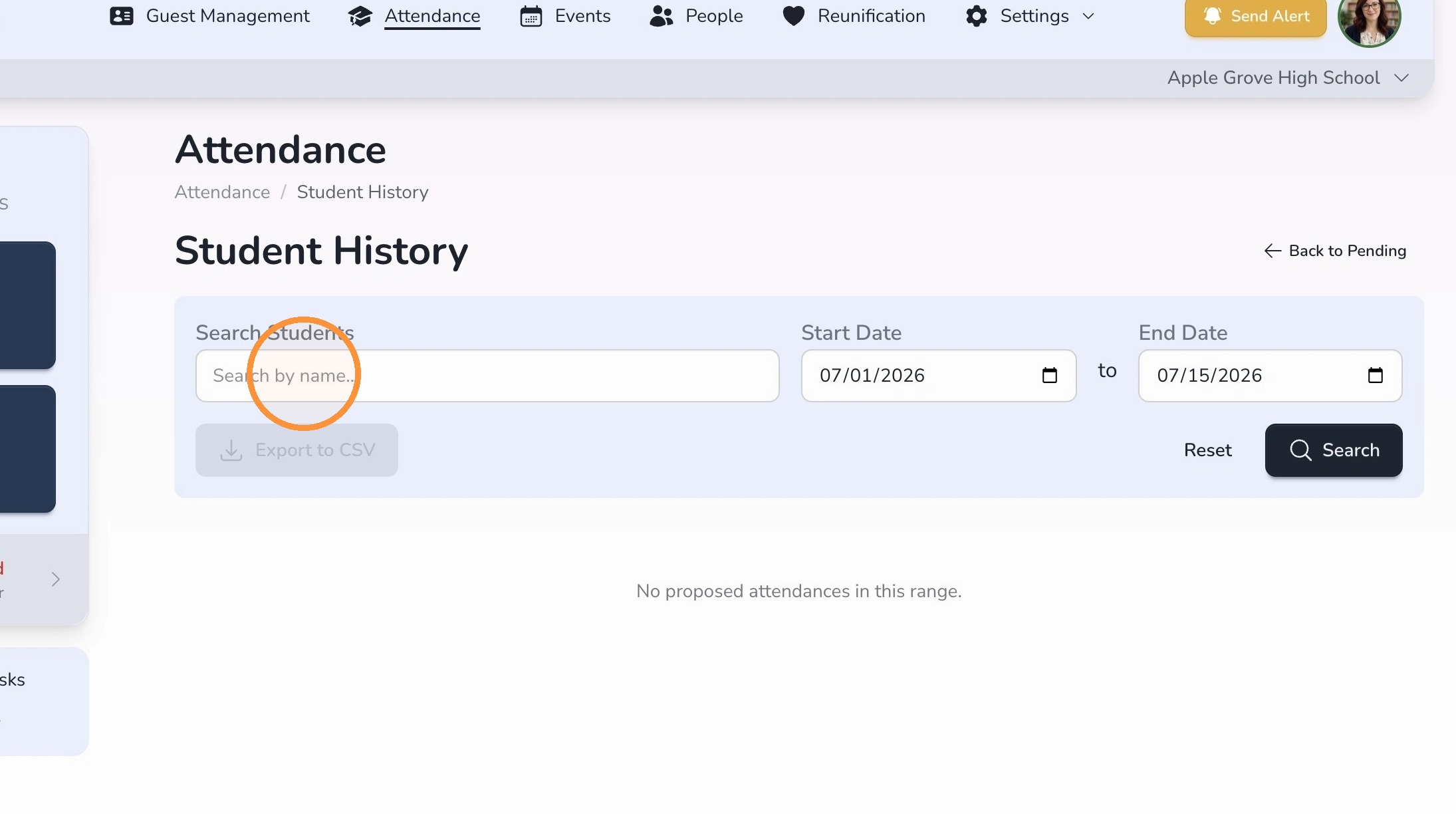
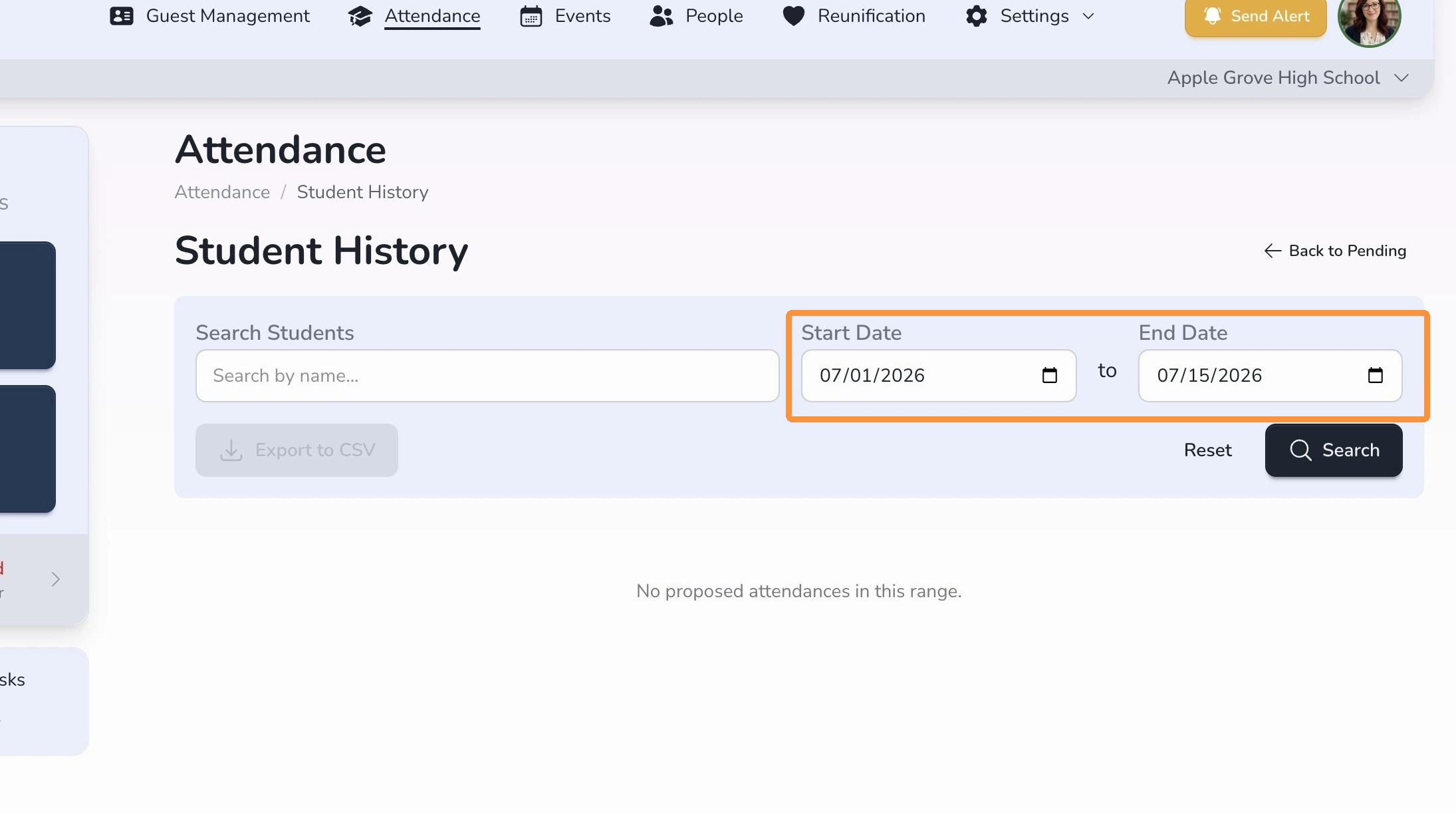
Use the search filters to find the student check-in and check-out records you need.
- To view records for one student: Search for the student by name and select a date range. Circool will display that student’s check-in and check-out records for the selected dates.
- To view records for all students: Leave the student field blank and select only a date range. Circool will display every student check-in and check-out record for those dates.
What happens next
After the check-out is confirmed, Circool records the dismissal and sends the check-out to your SIS.
Your team can use Student History to review check-in and check-out records later if needed.
That’s it. Circool helps your front desk confirm authorized pickup contacts and keep student check-out records organized.
Need help?
Circool support is here to help.
If you need help with student check-out, authorized pickup contacts, or SIS updates, contact Circool support by phone at 205.202.1124 or email support@circool.com.
Was this article helpful?
That’s Great!
Thank you for your feedback
Sorry! We couldn't be helpful
Thank you for your feedback
Feedback sent
We appreciate your effort and will try to fix the article