How to Check In a Tardy Student
Circool helps front desk staff check in tardy students quickly and accurately.
This guide walks through student check-in, hall pass printing, attendance review, and sending tardy records to your Student Information System.
Before you start
Front desk staff have two easy ways to check in a tardy student:
- Search by student name
- Scan the parent or guardian’s Circool Pass
Once the student is checked in, Circool records the arrival, prints a hall pass, and helps your team send the record to your Student Information System.
Tip: Scanning a parent’s Circool Pass is especially helpful when a parent is checking in more than one child.
Step 1: Open Attendance
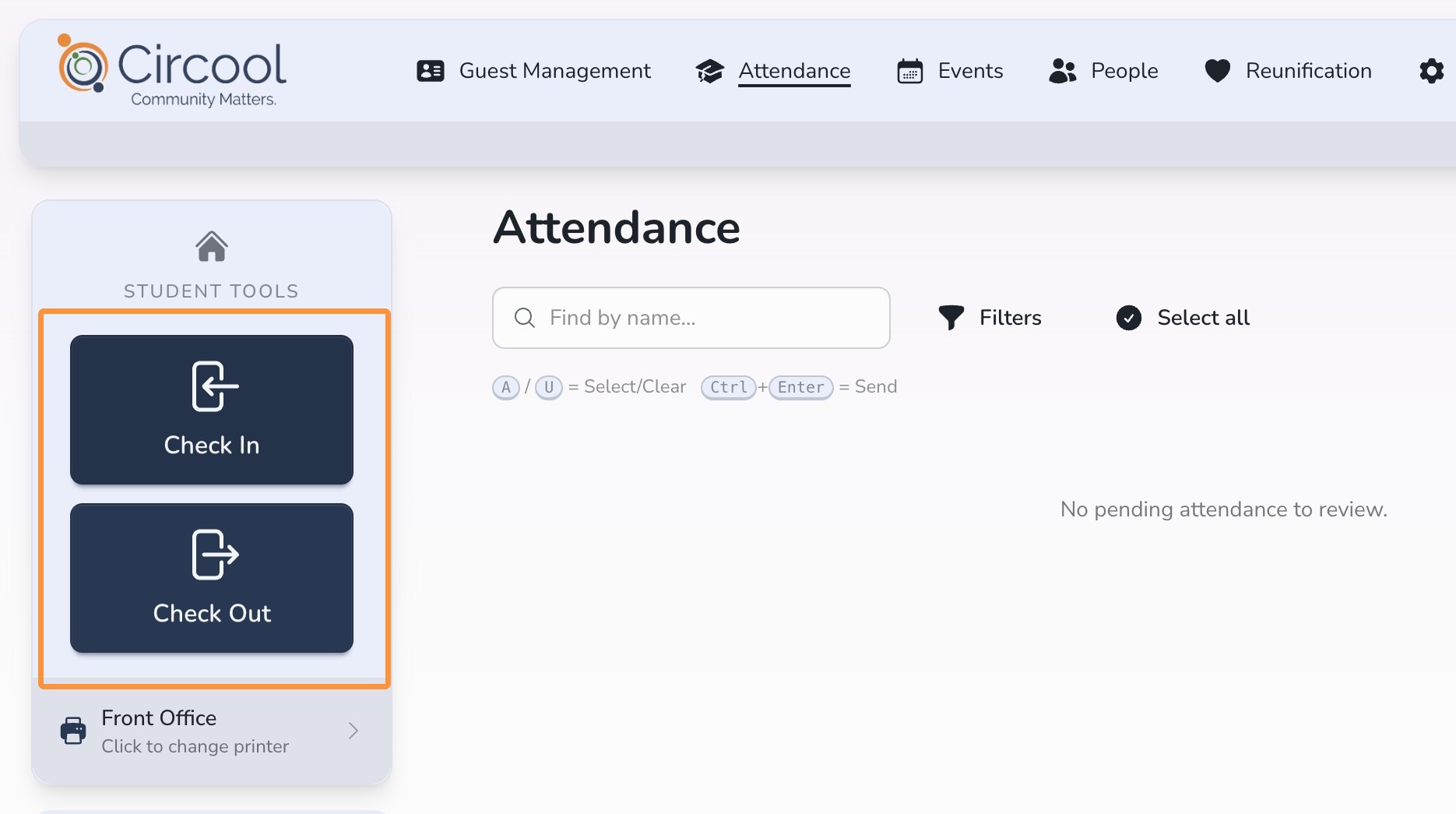
- Click Attendance from the top menu.
- Use the Check In button on the left side of the screen. This guide focuses on student check-in.
Step 2: Choose how to find the student
You can find the student in one of two ways:
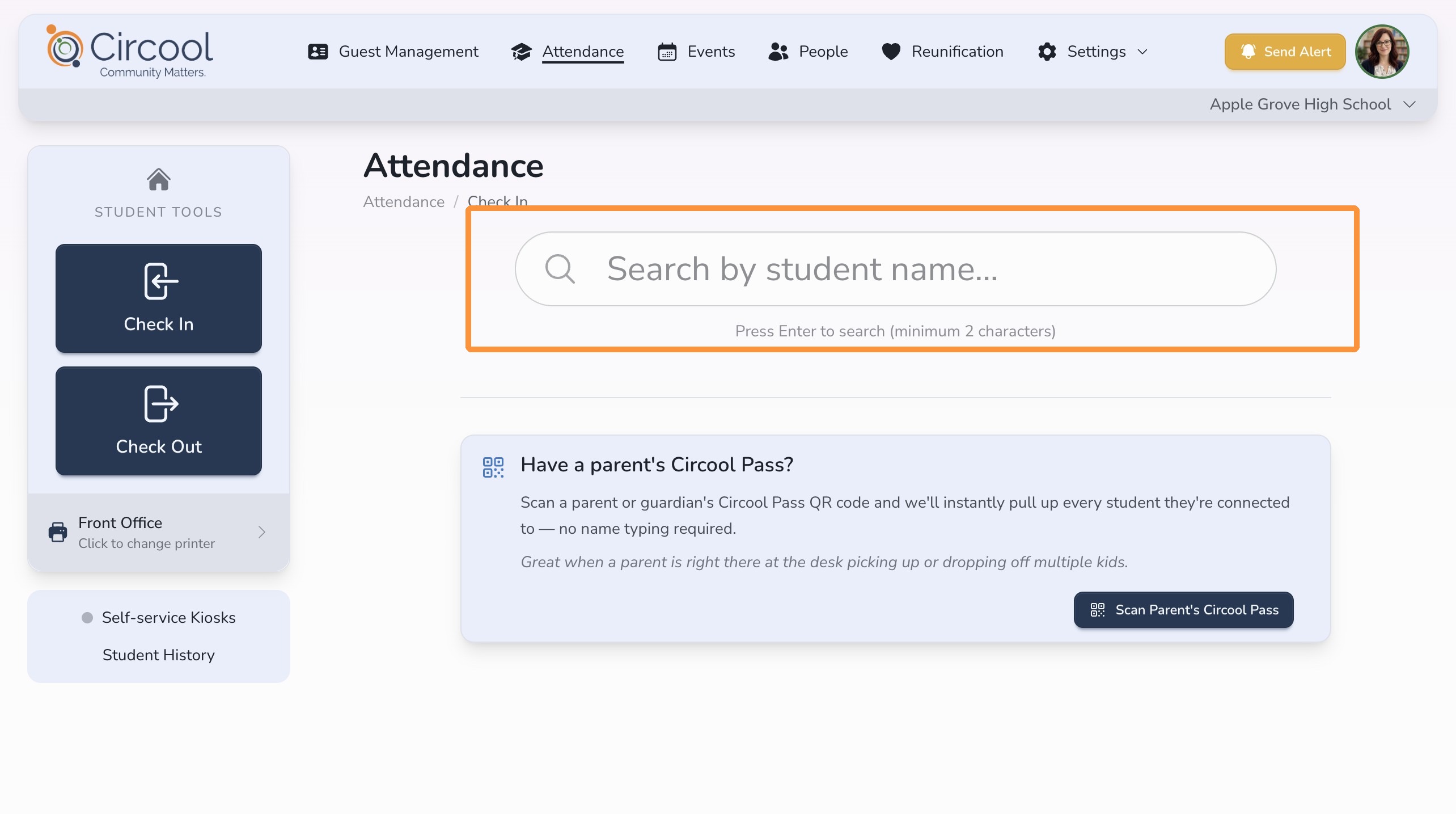
- Search by Name: Search for the student directly.
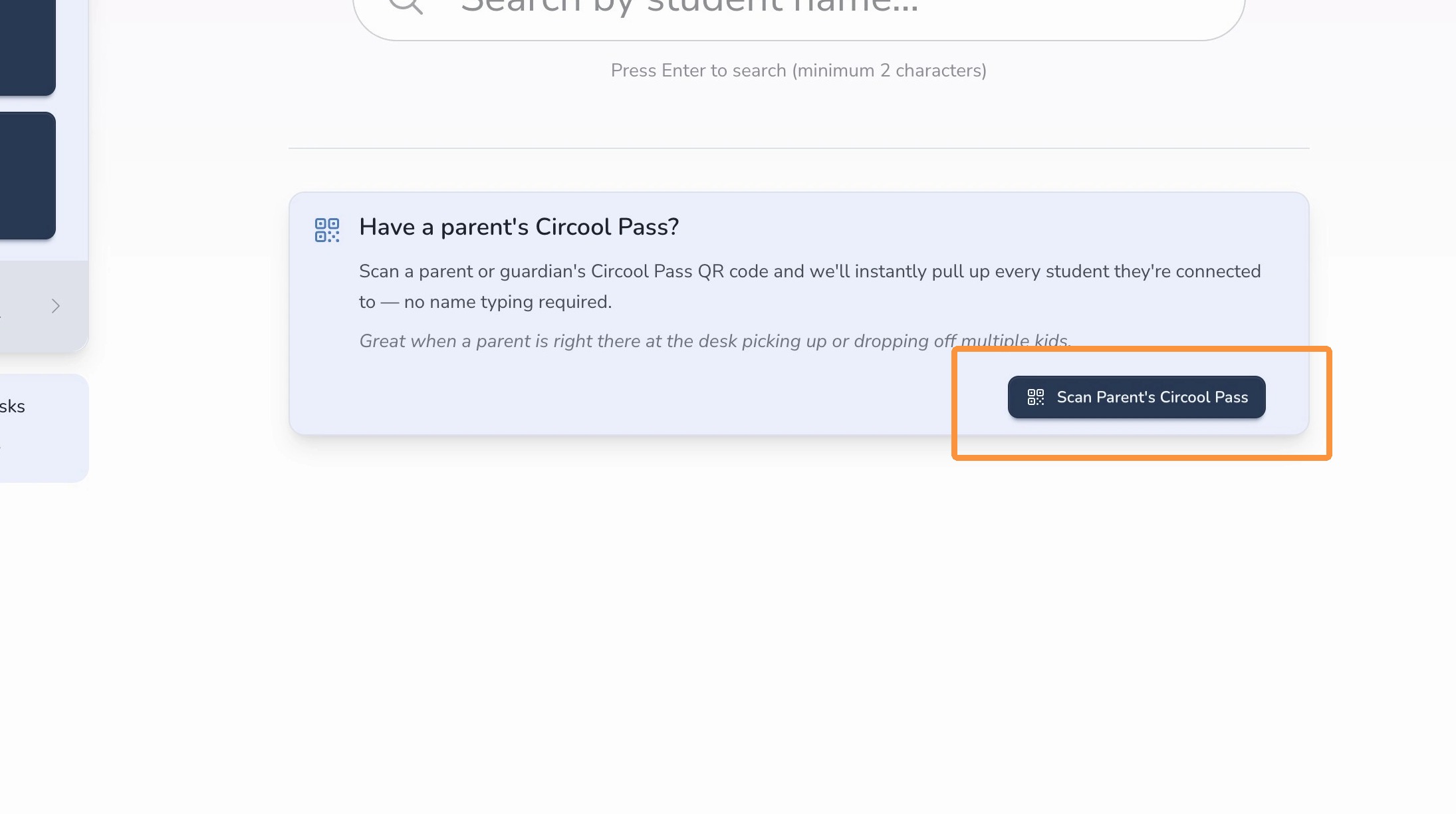
- Scan Parent’s Circool Pass: Scan the parent or guardian’s Circool Pass to show only students connected to that person.
Good to know: The Circool Pass option can make check-in faster when a parent is checking in multiple children at the same time.
Step 3: Search by student name
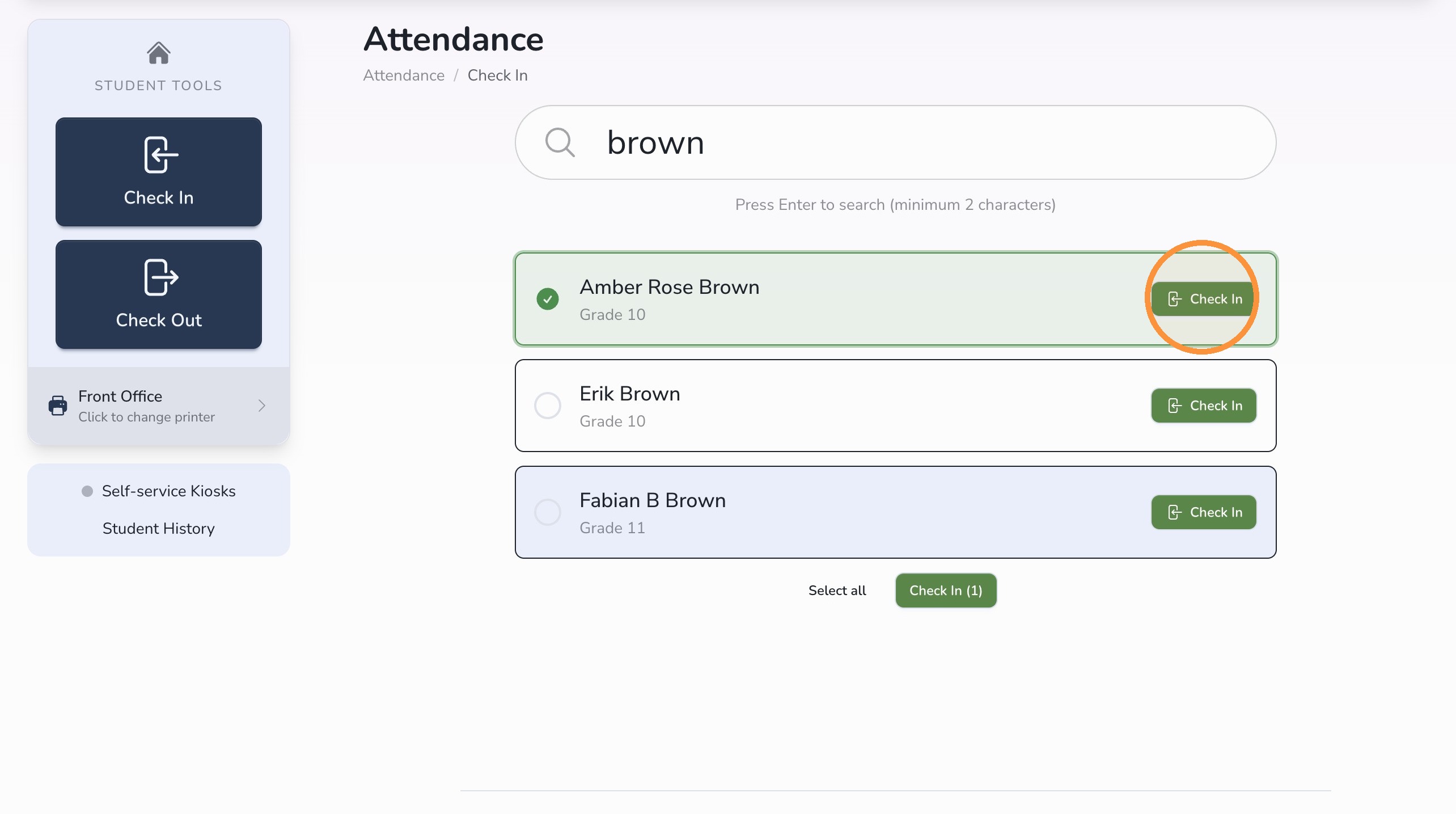
- Enter the student’s first name, last name, or both in the search box.
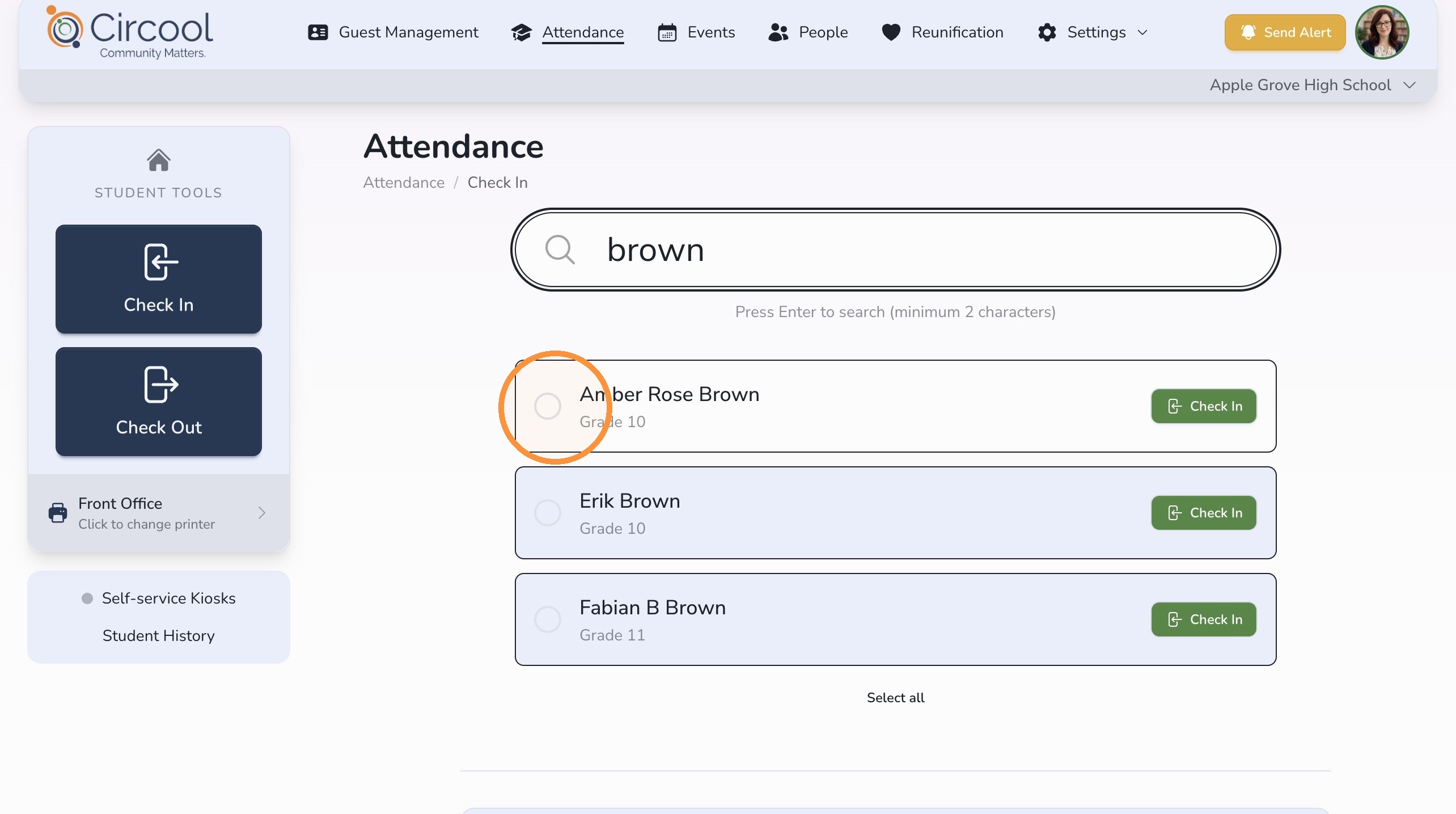
- Click the student tile to select the student. The selected tile will highlight.
- Click Check In on the student tile to continue.
Step 4: Check in multiple students, if needed
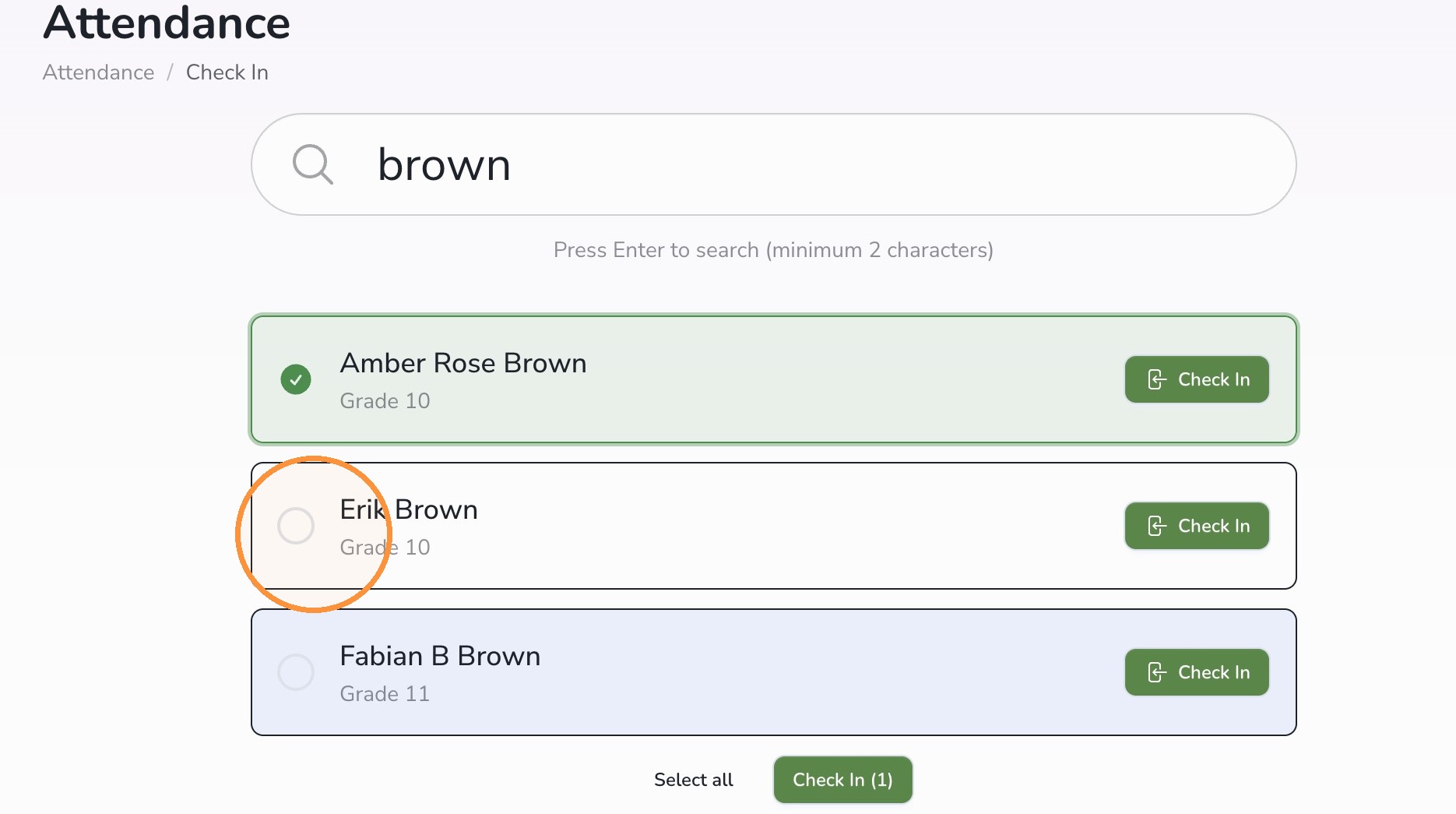
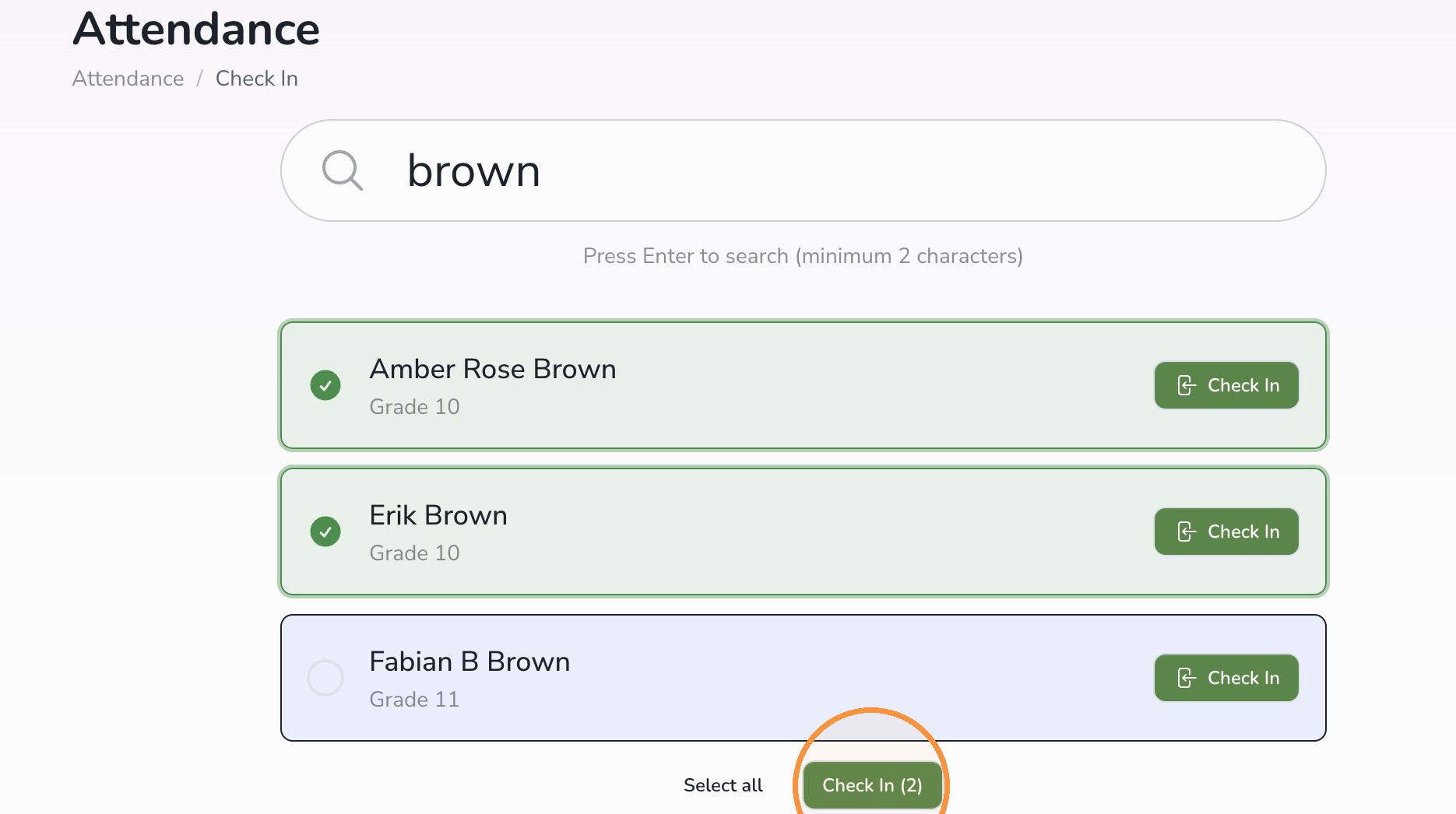
If multiple students are checking in at the same time, you can select more than one student before continuing.
- Select each matching student.
- Scroll to the bottom of the list.
- Click Check In to continue.
Step 5: Select a reason and confirm
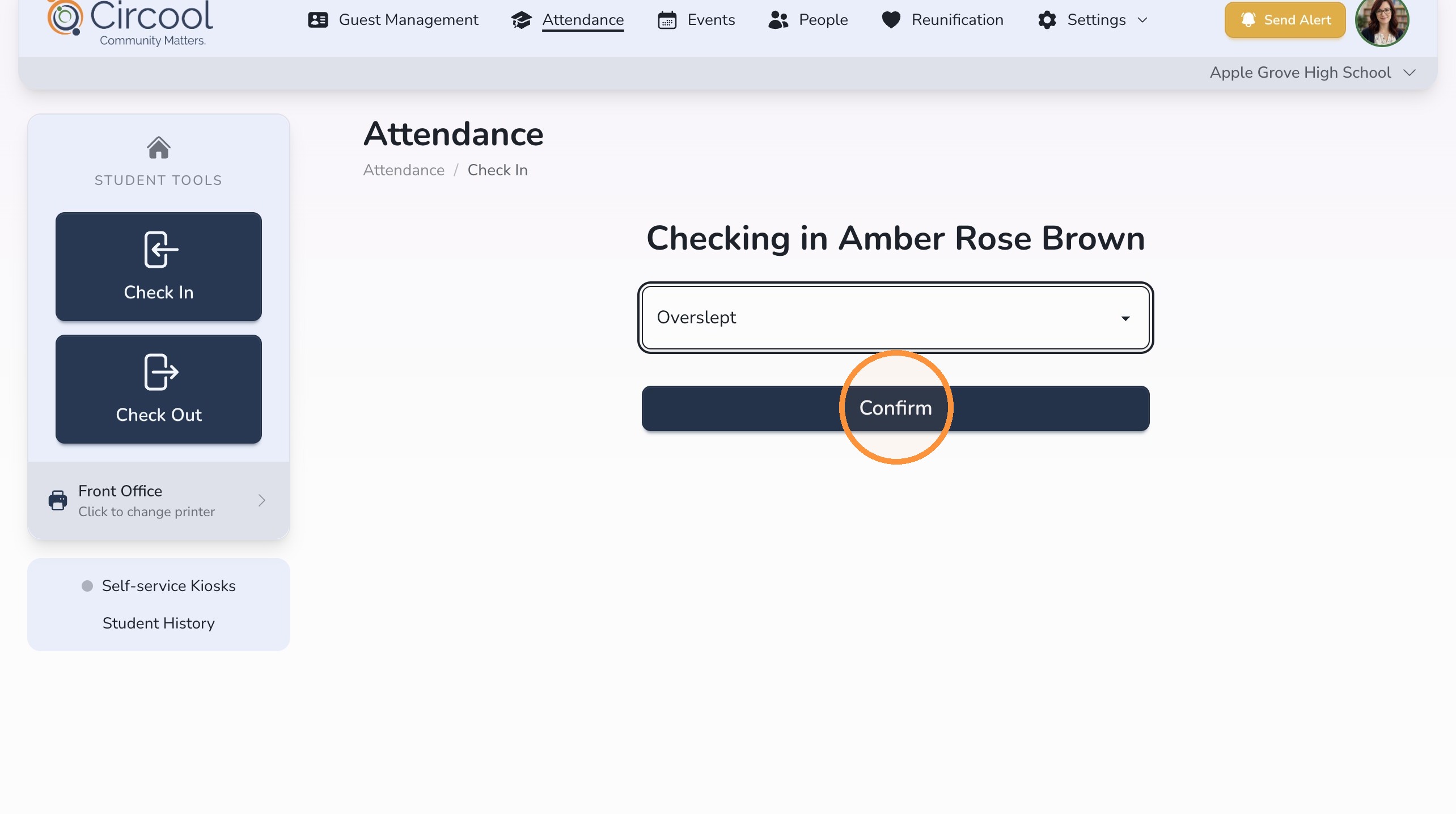
- Select the appropriate tardy reason.
- Click Confirm.
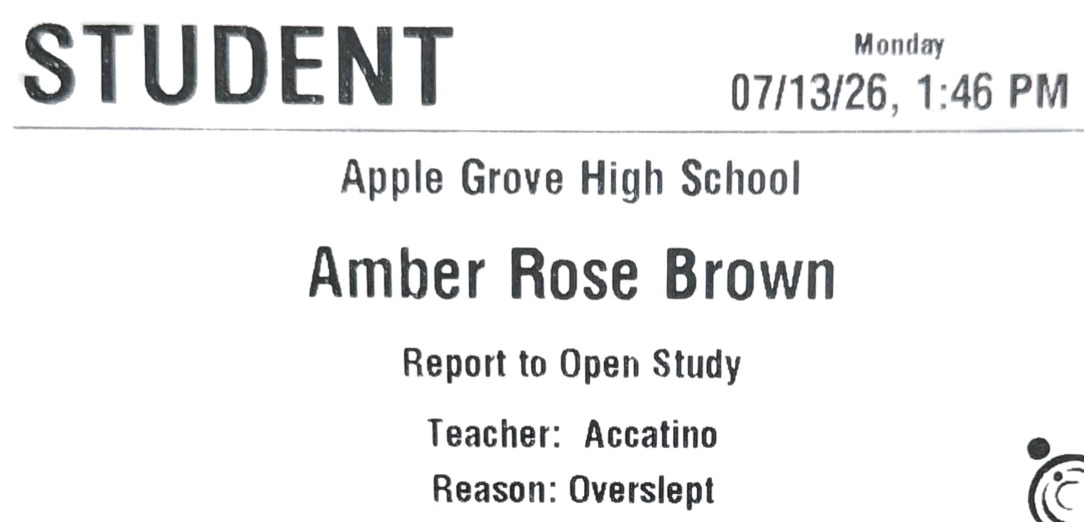
Step 6: Print the hall pass
After check-in is confirmed, a hall pass will print for the student.
Step 7: Check in another student or finish
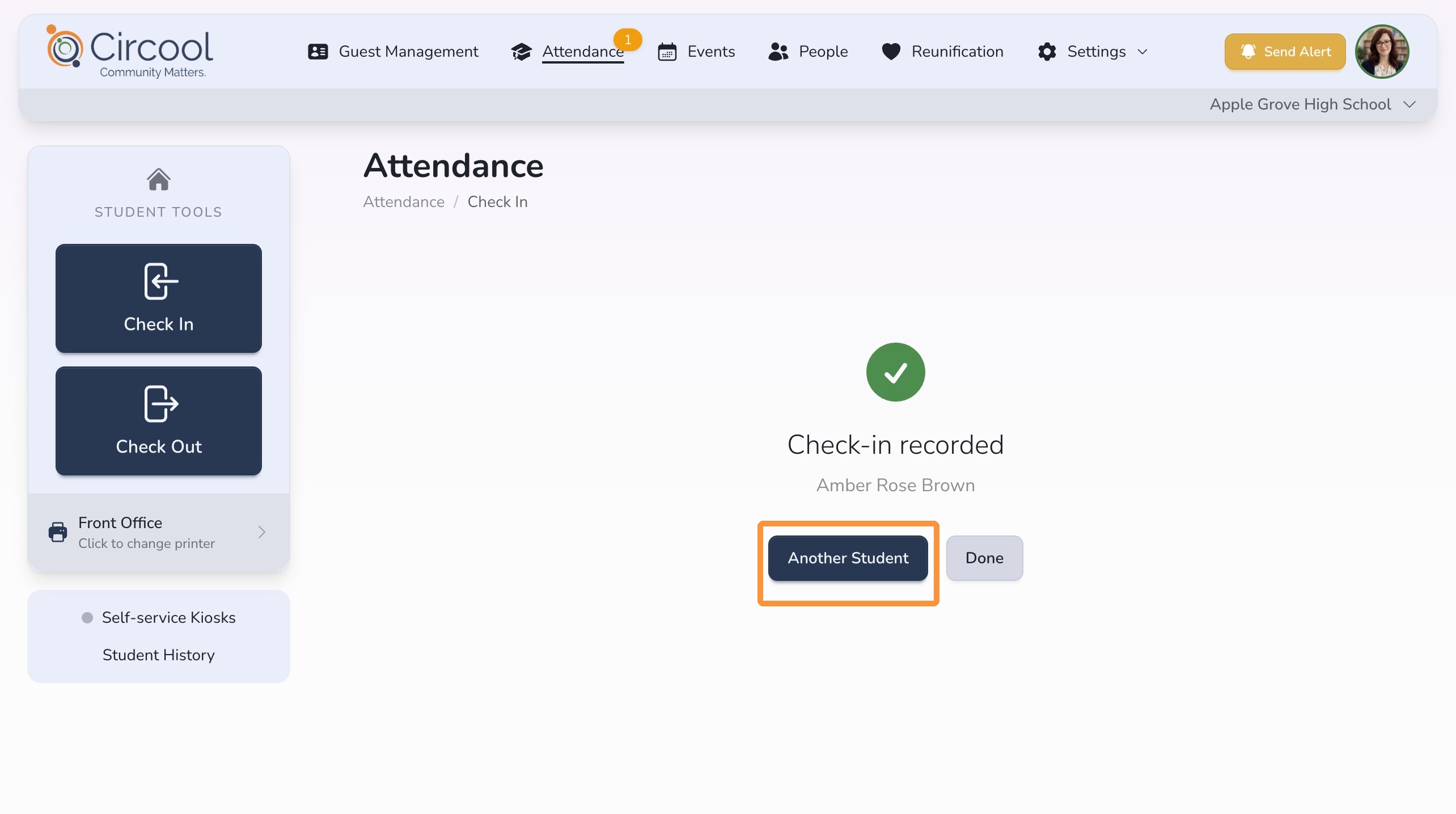
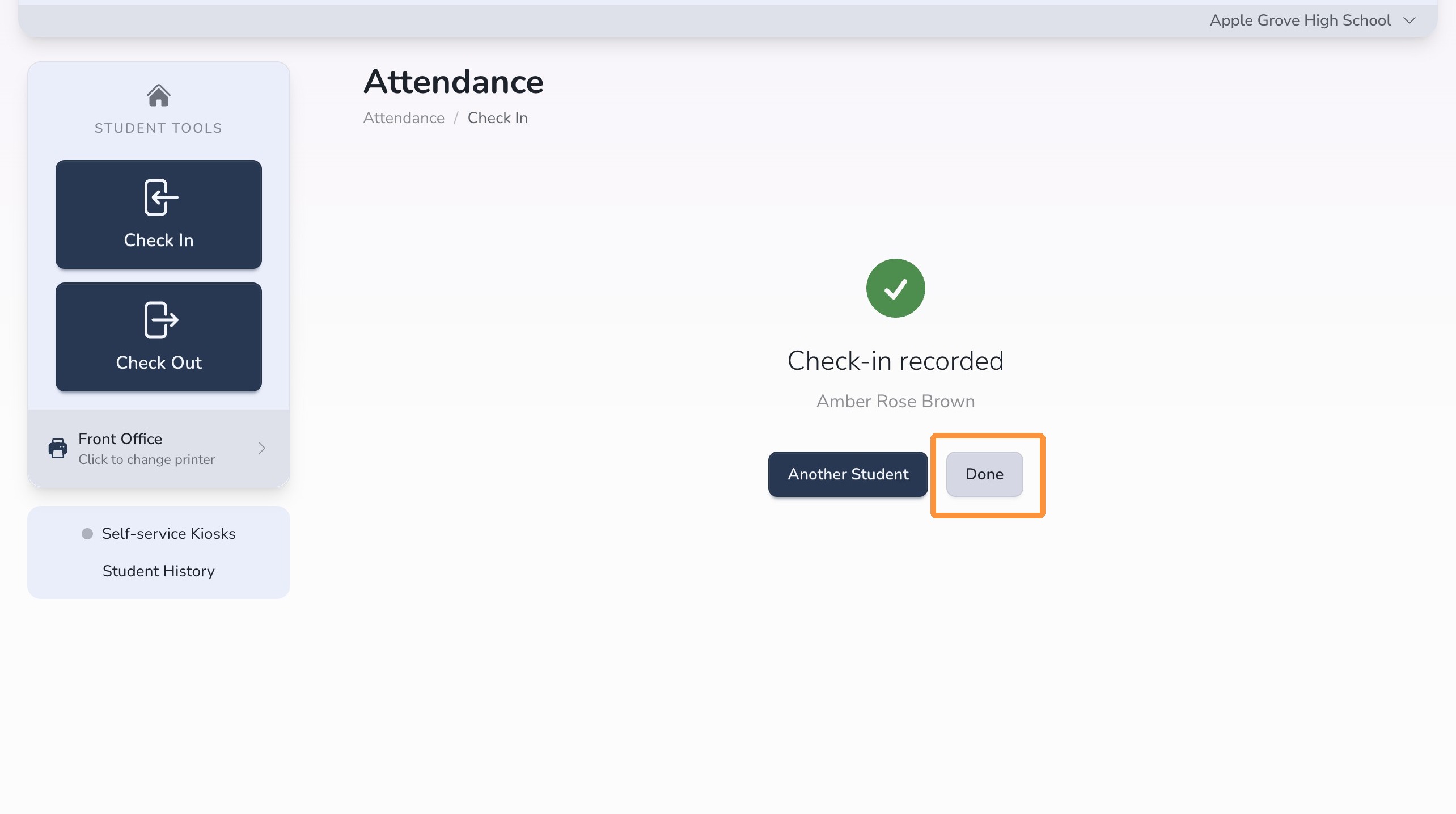
- Click Another Student if you need to check in another student.
- Click Done to return to the Attendance Dashboard.
Step 8: Sending to your Student Information System (SIS)
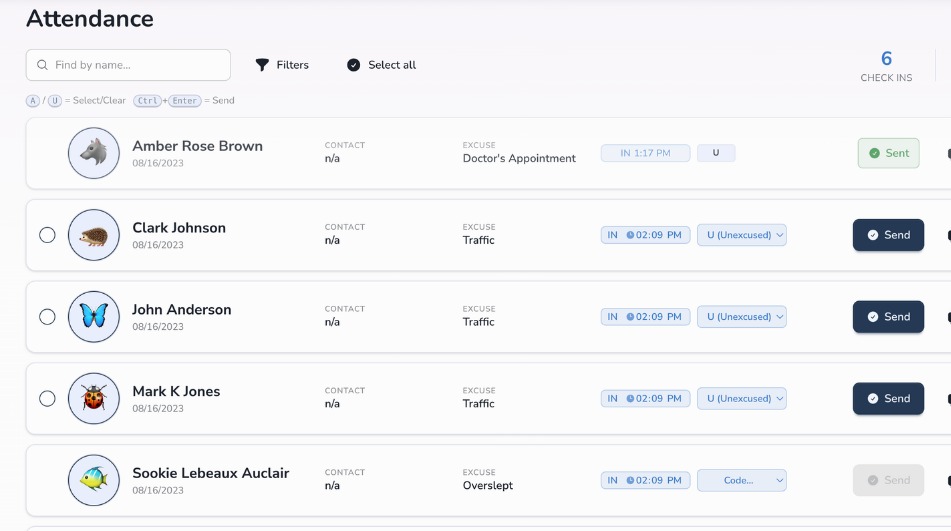
When you are ready to send tardy records to the Student Information System, return to the Attendance dashboard.
Today’s tardies, along with any unprocessed records from yesterday, will appear here. Think of this screen like the front desk sign-in clipboard, but organized inside Circool.
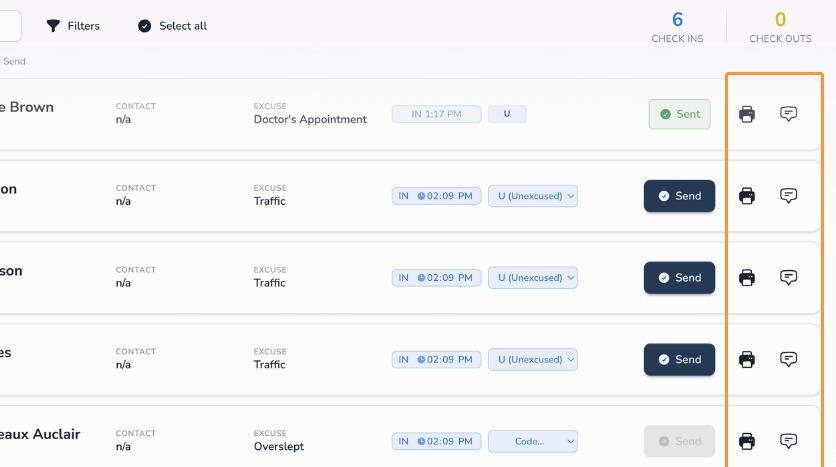
Step 9: Reprint a hall pass or add a comment
- Use the Printer icon to reprint the student’s hall pass.
- Use the Comment icon to add a comment that will be sent to your student information system.
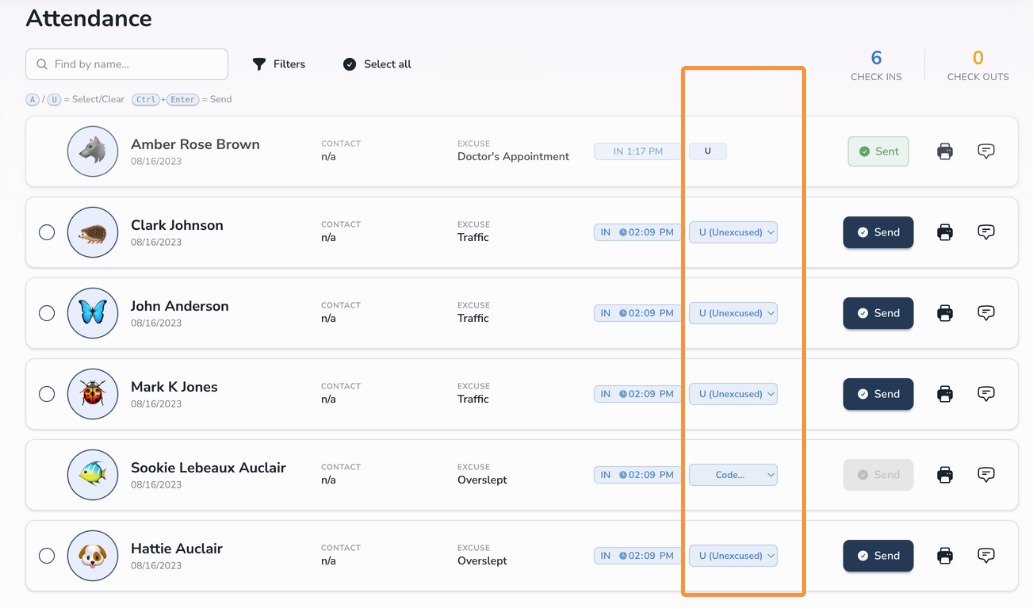
Step 10: Review the SIS reason code
Circool will default the SIS reason code based on your school’s settings and the time of check-in.
You may change the SIS reason code before sending the record to the SIS.
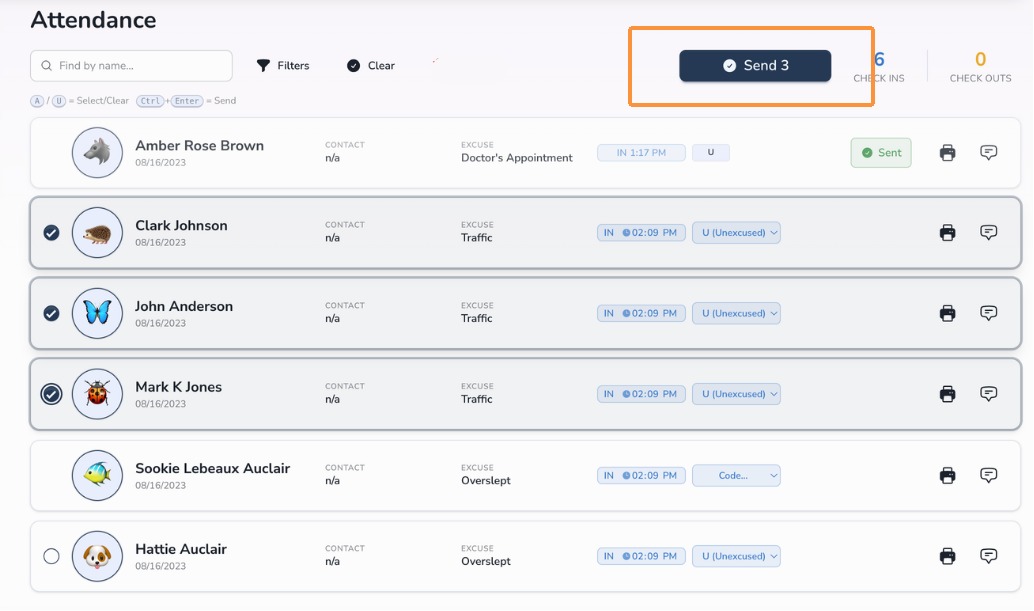
Step 11: Send tardies to the Student Information System
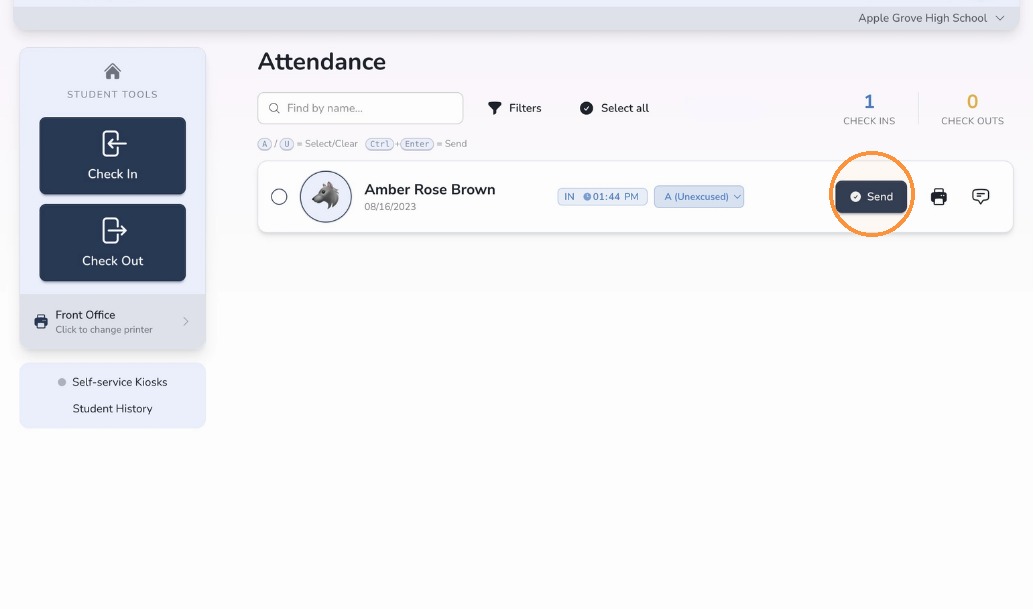
You can send all students at once or send one student at a time.
- To send all students, click Select All, then click Send.
- To send one student, click the Send button to the right of that student’s name.
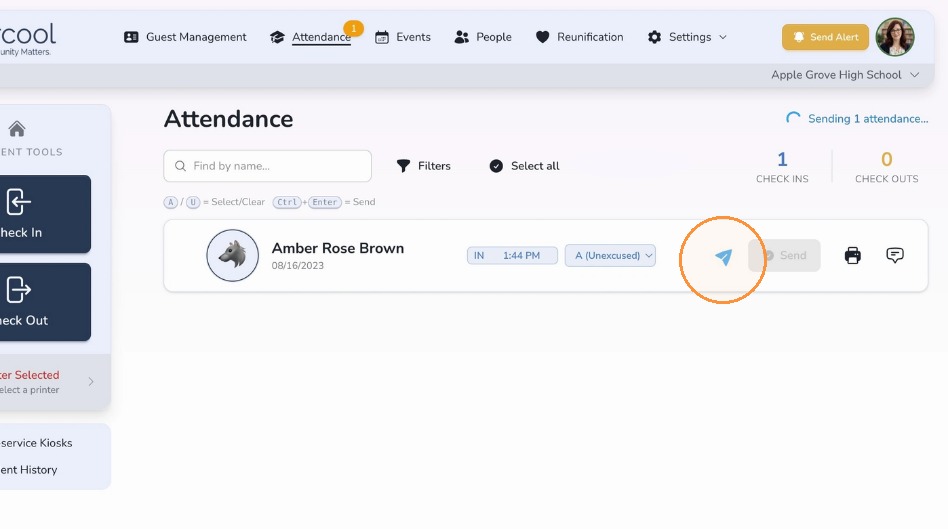
Step 12: Confirm records are sending
After you click Send, a paper airplane icon will appear next to the greyed-out Send button.
You may also see a spinner in the top-right corner showing how many records are being sent.
Step 13: Confirm records were sent
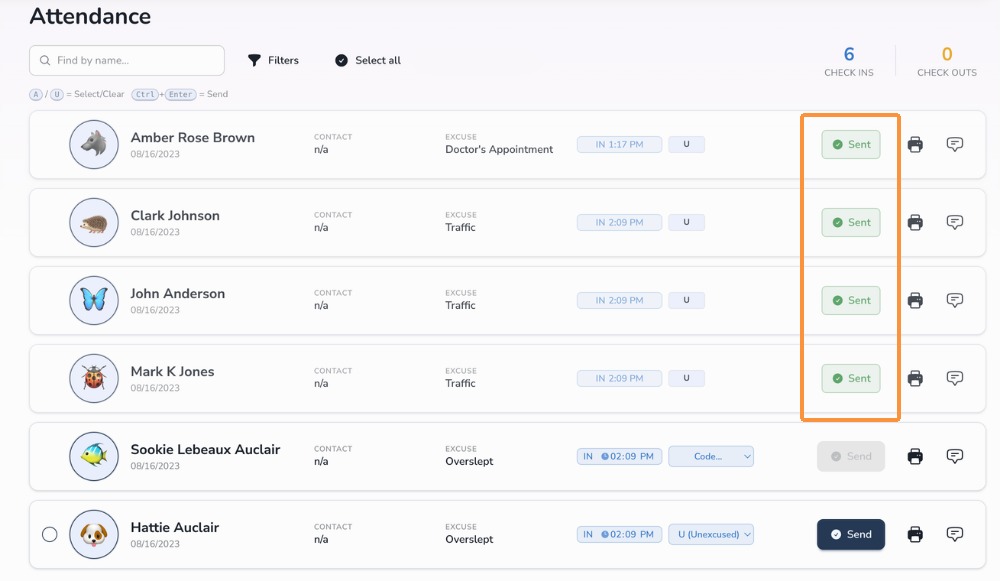
When the SIS accepts the record, Circool will display a green Sent notice.
Step 14: Review any SIS errors
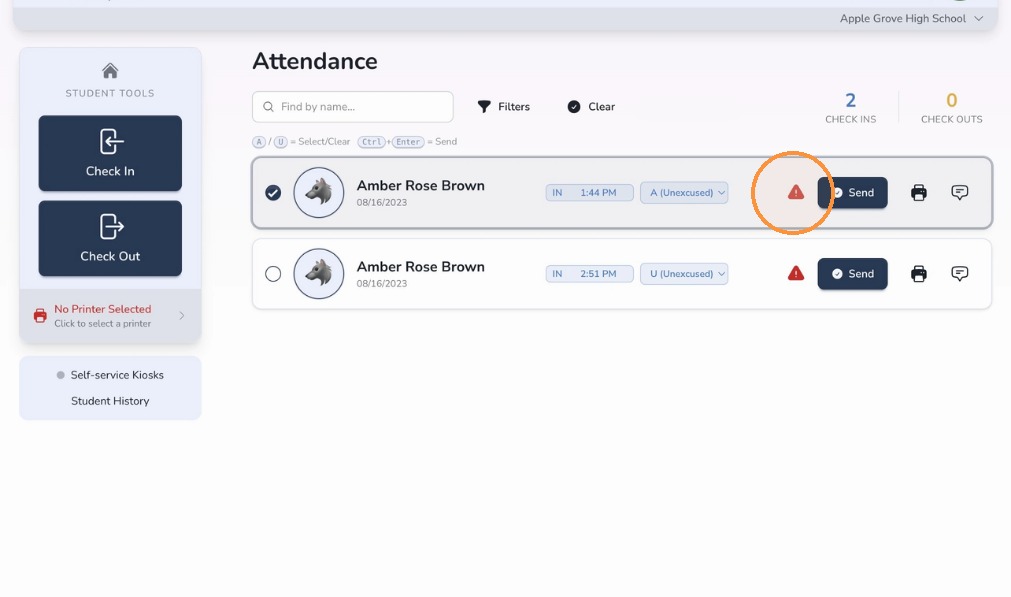
Occasionally, a record may return an error when being sent to the SIS.
If this happens, Circool will display a red warning triangle. A red banner may also appear at the top of the screen with more details about the error.
Need help? If you see an error that you cannot resolve, contact Circool support at support@circool.com.
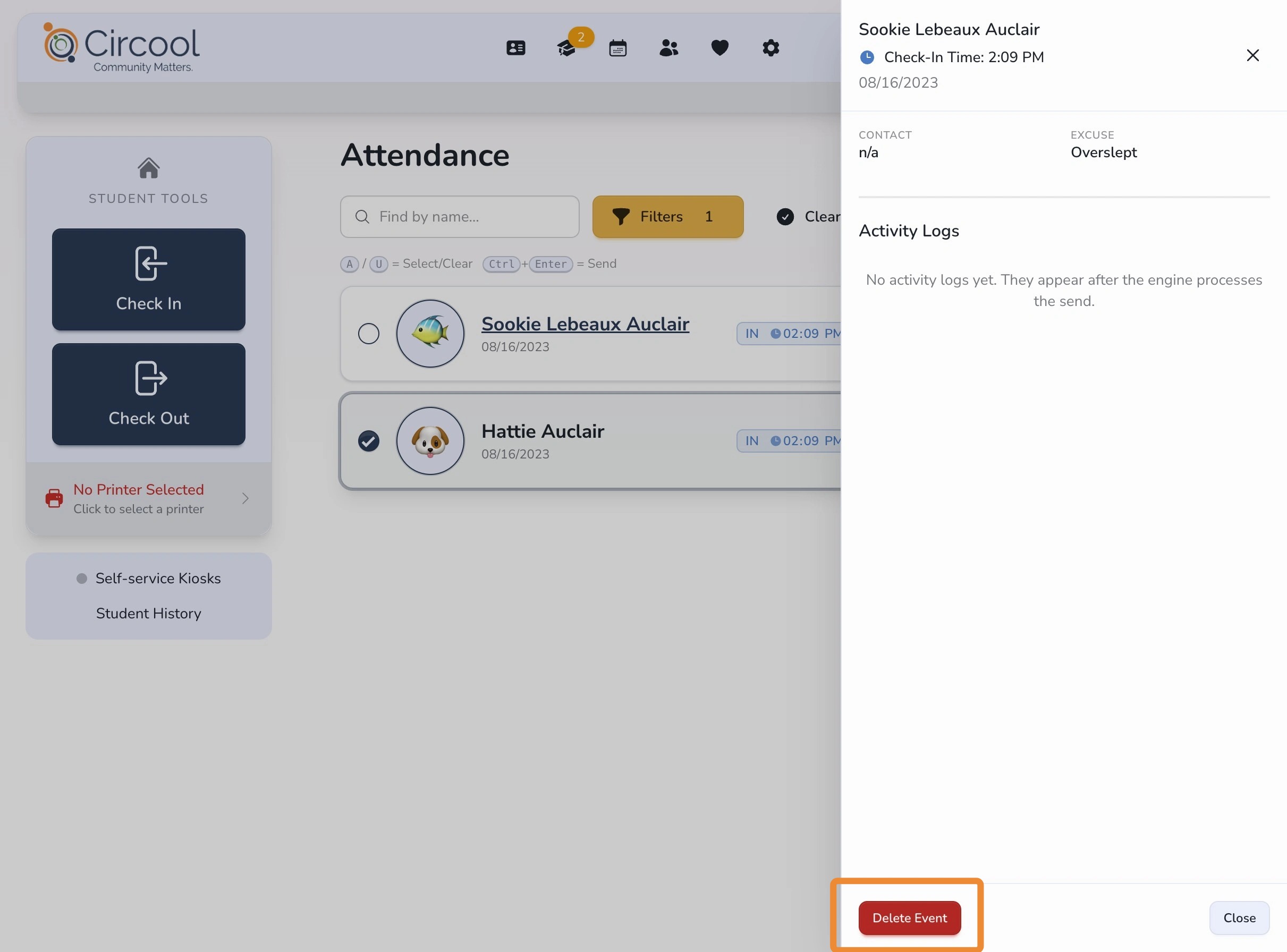
Step 15: View a student’s class schedule
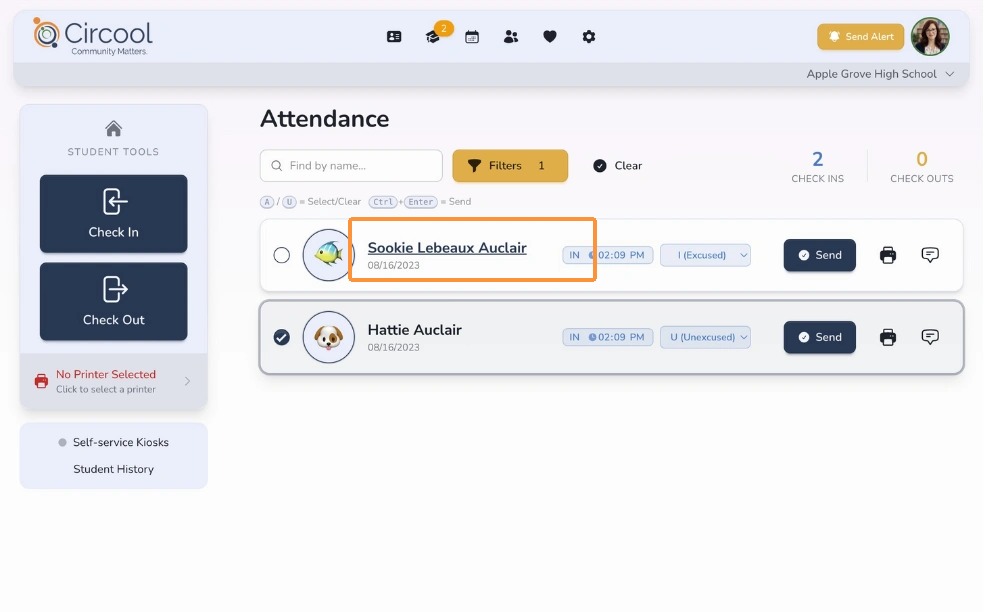
Click the student’s name to open a side panel with additional information.
From this panel, you can:
- View the student’s class schedule
- Delete the record before sending it to the SIS, such as when a duplicate was created
Step 16: View student check-in and check-out history
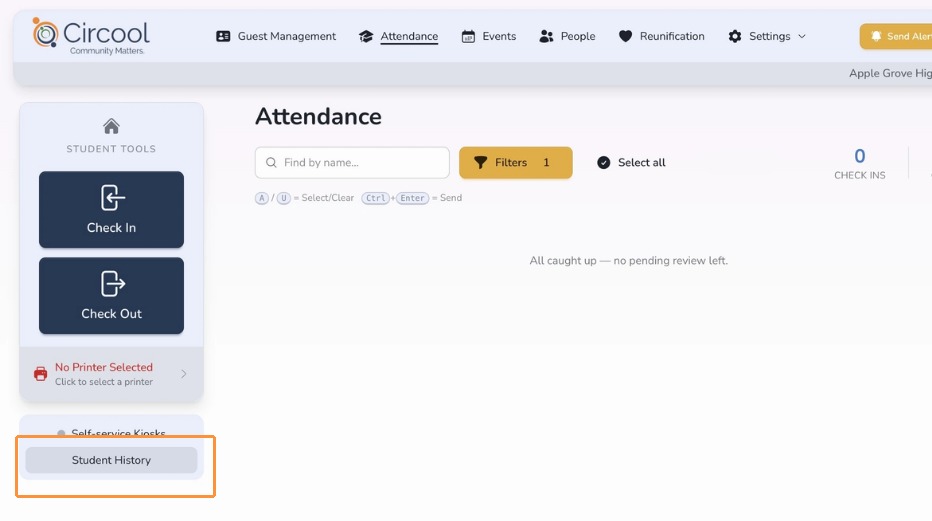
Click Student History to review student check-in and check-out records.
Step 17: Search student history
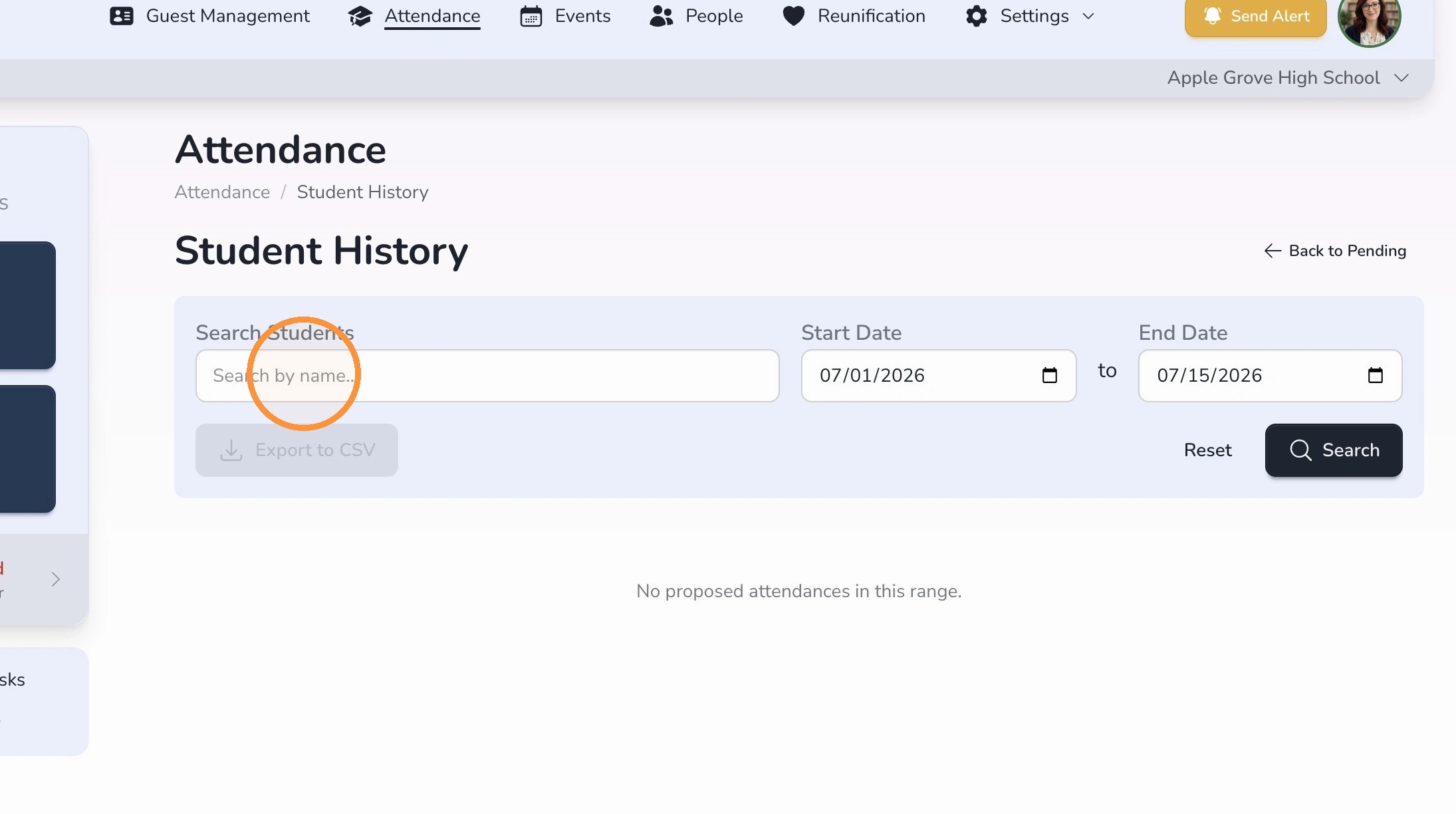
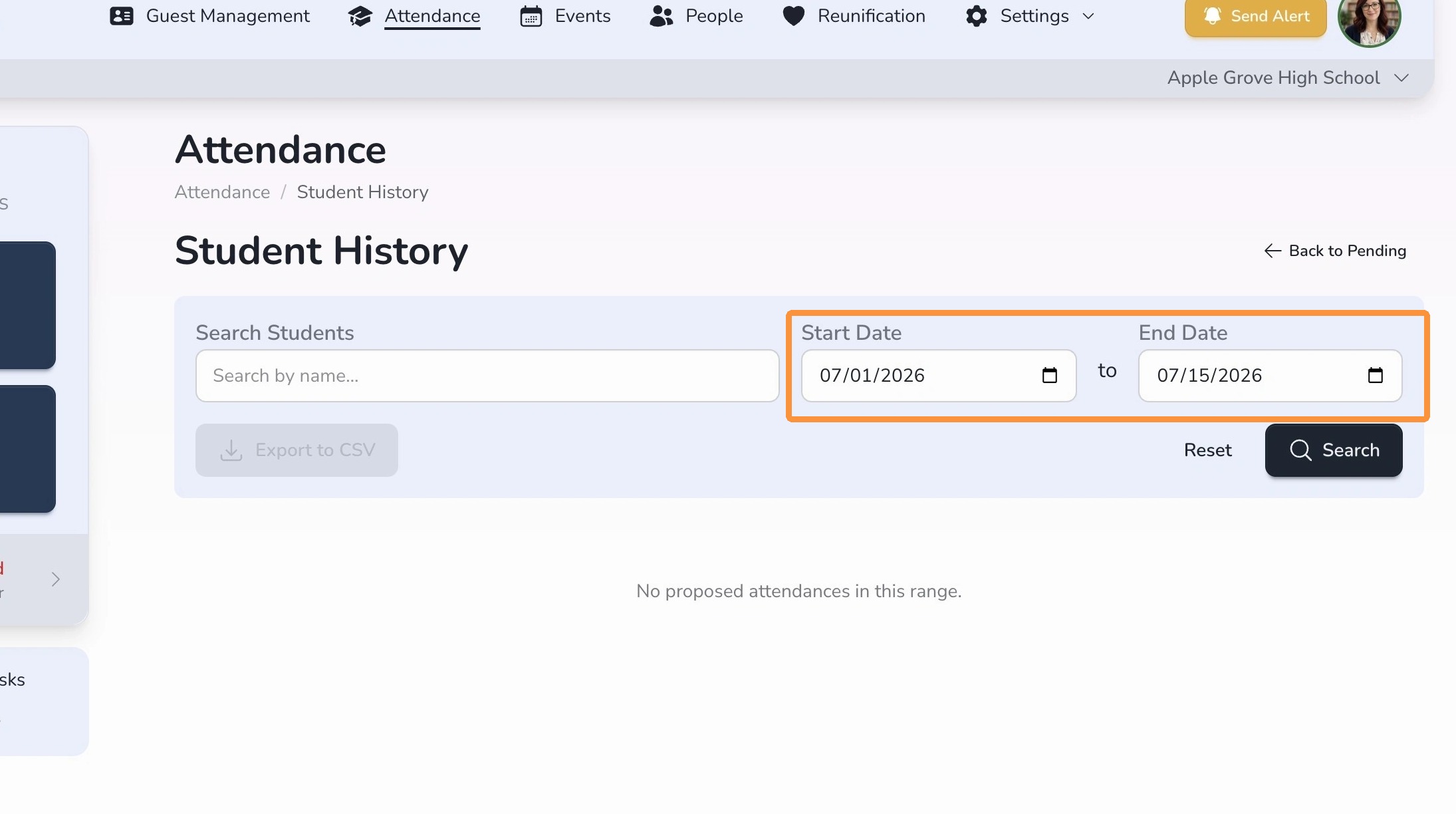
Use the search filters to find the student check-in and check-out records you need.
- To view records for one student: Search for the student by name and select a date range. Circool will display that student’s check-in and check-out records for the selected dates.
- To view records for all students: Leave the student field blank and select only a date range. Circool will display every student check-in and check-out record for those dates.
What happens next
After the student is checked in, the hall pass prints and the attendance record is ready for staff review.
When your team is ready, send the record to your SIS from the Attendance dashboard.
That’s it. Circool helps your front desk move tardy students through check-in quickly while keeping attendance records organized.
Need help?
Circool support is here to help.
If you need help with student check-in, hall pass printing, or sending attendance records to your SIS, contact Circool support by phone at 205.202.1124 or email support@circool.com.
Was this article helpful?
That’s Great!
Thank you for your feedback
Sorry! We couldn't be helpful
Thank you for your feedback
Feedback sent
We appreciate your effort and will try to fix the article