A Quick Tour of Circool
Welcome back! This quick refresher will help your team get familiar with the updated Circool dashboard.
During the summer, our team made updates and improvements requested by schools. This guide will help you know where to find the main tools and how to get ready for the first day of school.
What you’ll learn
- How to log in to Circool
- How to move between Circool modules
- Where to select your school
- Where to find guest check-in options
- How to view People records, student connections, and school associations
Tip: If you do not see every module shown in this guide, that is okay. Your district may only use certain Circool modules.
Step 1: Log in to Circool
You can log in using your existing Circool link, a saved bookmark, or by going directly to Circool.
- Go to https://my.circool.com.
- Log in with your district email address.
- Enter your password.
- If you forgot your password, enter your email address and click Send Magic Link. Circool will email you a secure link to log in.
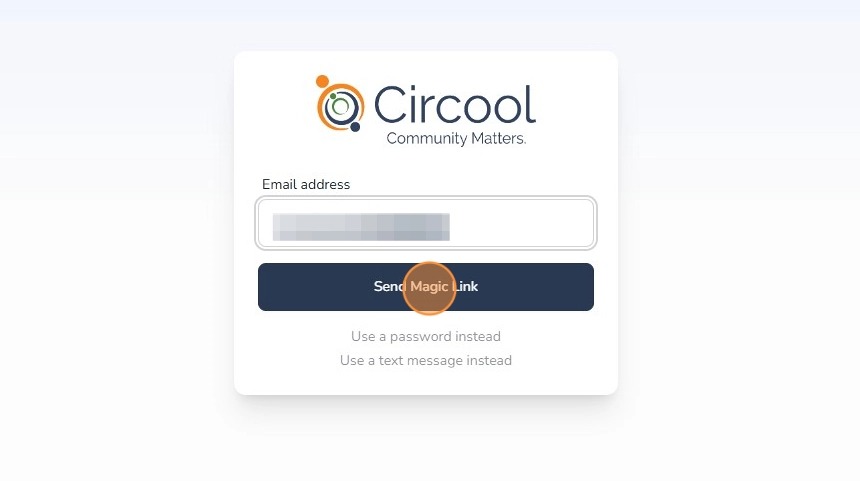
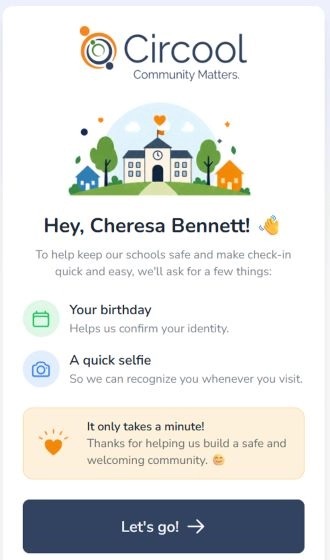
Good to know: If your Circool profile is incomplete, you may be asked to confirm your birthday and add a profile picture.
Step 2: Use the top menu to move between modules
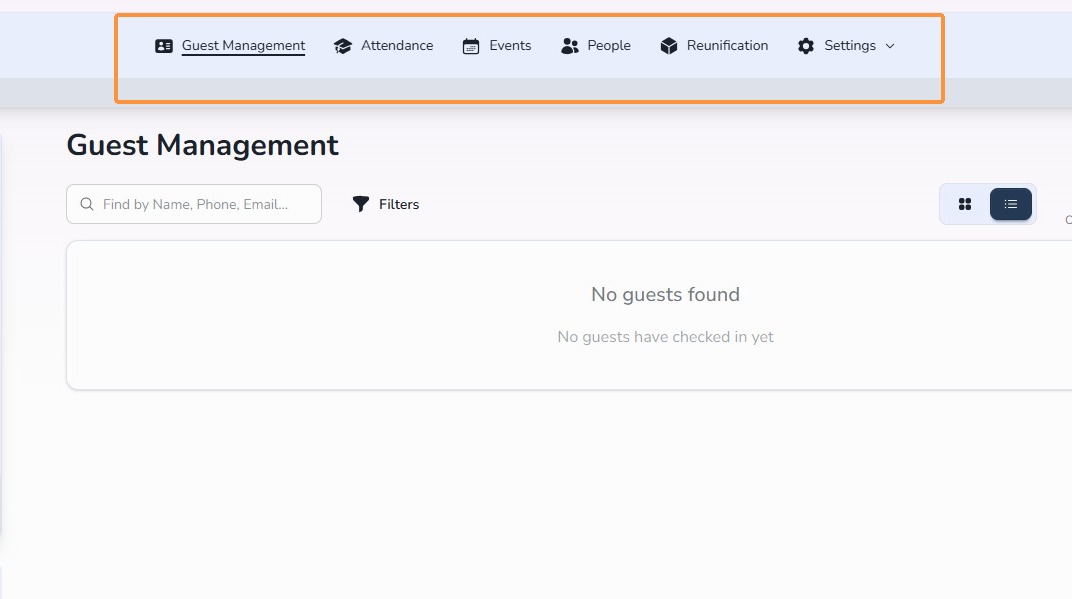
Once you are in Circool, you can move between available modules using the top menu bar.
Depending on your district’s setup, you may see options such as Guest Management, Events, Reunification, Student Check-In, or Student Check-Out.
Tip: If you do not see every option, your district may not be using that module yet.
Step 3: Select your school
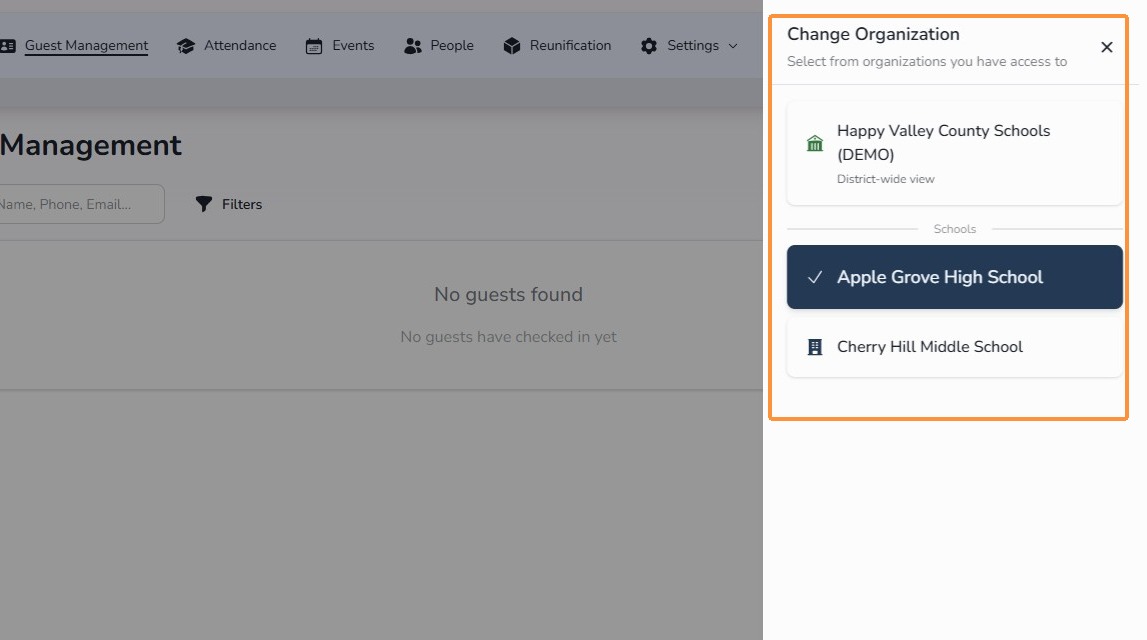
The schools you have access to are listed in the top-right corner.
Click the school name to switch schools or confirm you are viewing the correct school.
Step 4: Find guest check-in options
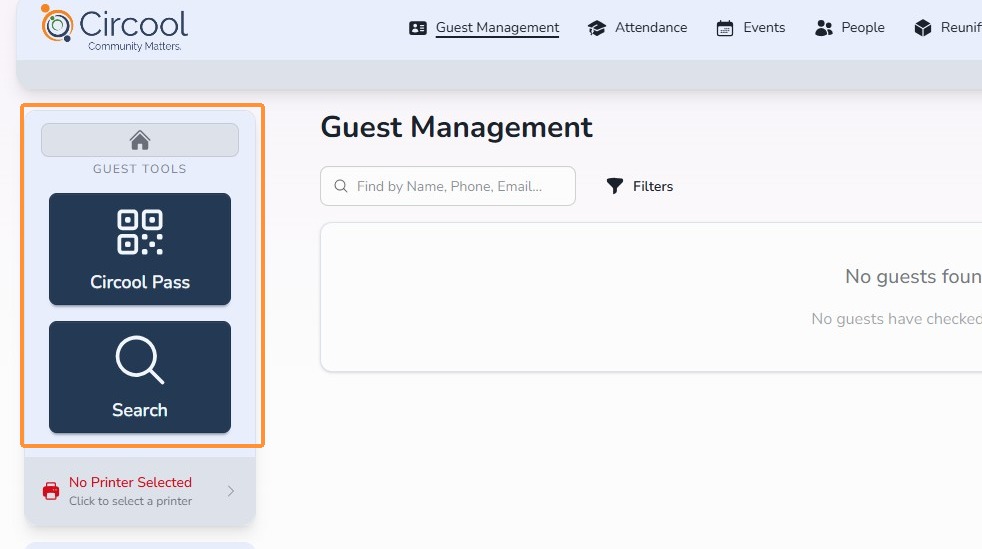
Guest check-in options are located on the left side panel in Guest Management.
These tools help your front desk team scan a Circool Pass, search for a guest by name, and move through the check-in process.
Step 5: Review People records
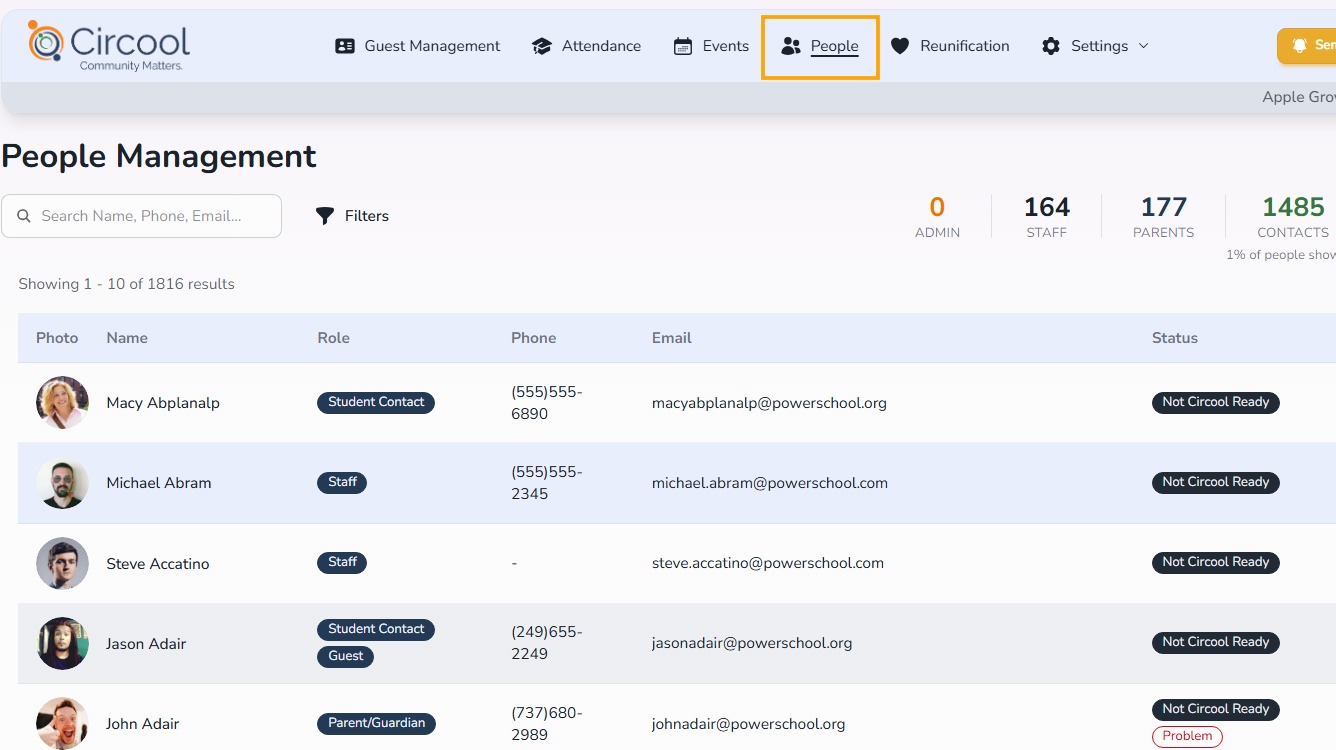
All parent and student contact records are listed under People.
Circool also syncs Student Contacts who have the Pick Up flag in the school information system. These contacts do not receive Circool accounts automatically.
These records help schools confirm who is approved for Student Check-Out. They can also make it easier for parents to add approved student contacts to school events and reunification situations when needed.
Step 6: Open a person profile
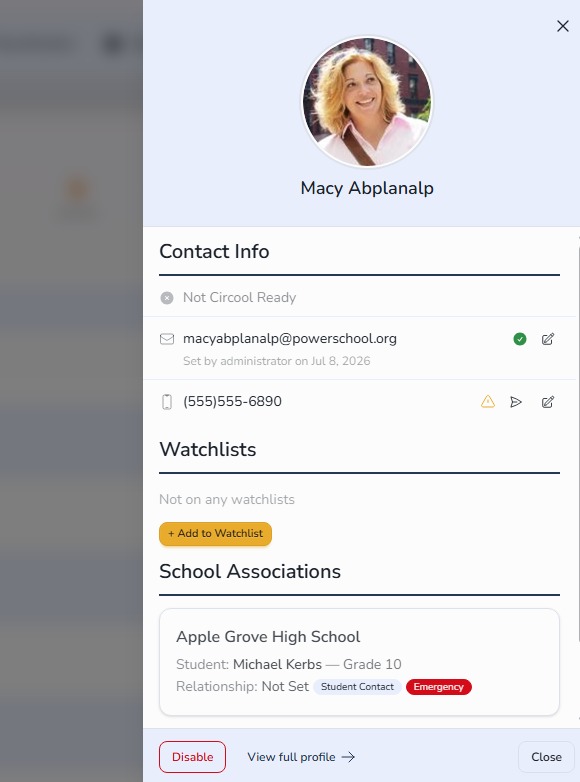
Click a person’s row to view their profile information, student connections, and school associations.
Click View Full Profile to see more details when needed.
What happens next
This quick tour is a strong starting point. From here, continue through the other training guides to learn the details of Guest Management, Student Check-In/Out, Events, Reunification, and setup tools.
The more comfortable your team is with the dashboard, the smoother the school day will feel.
That’s it for the quick tour. You’re off to a great start — and we’re just getting warmed up.
Need help?
Circool support is here to help.
If you need help using the Circool dashboard, contact Circool support by phone at 205.202.1124 or email support@circool.com.
Was this article helpful?
That’s Great!
Thank you for your feedback
Sorry! We couldn't be helpful
Thank you for your feedback
Feedback sent
We appreciate your effort and will try to fix the article