How to View Guest RSVPs for Your Event
Use this guide to view real-time RSVP responses for a Circool event.
Circool Events gives school staff a quick way to see who was invited, who has responded, and which guests plan to attend. This helps your team prepare for event check-in, staffing, parking, seating, and other day-of-event needs.
Step 1: View the RSVP quick view
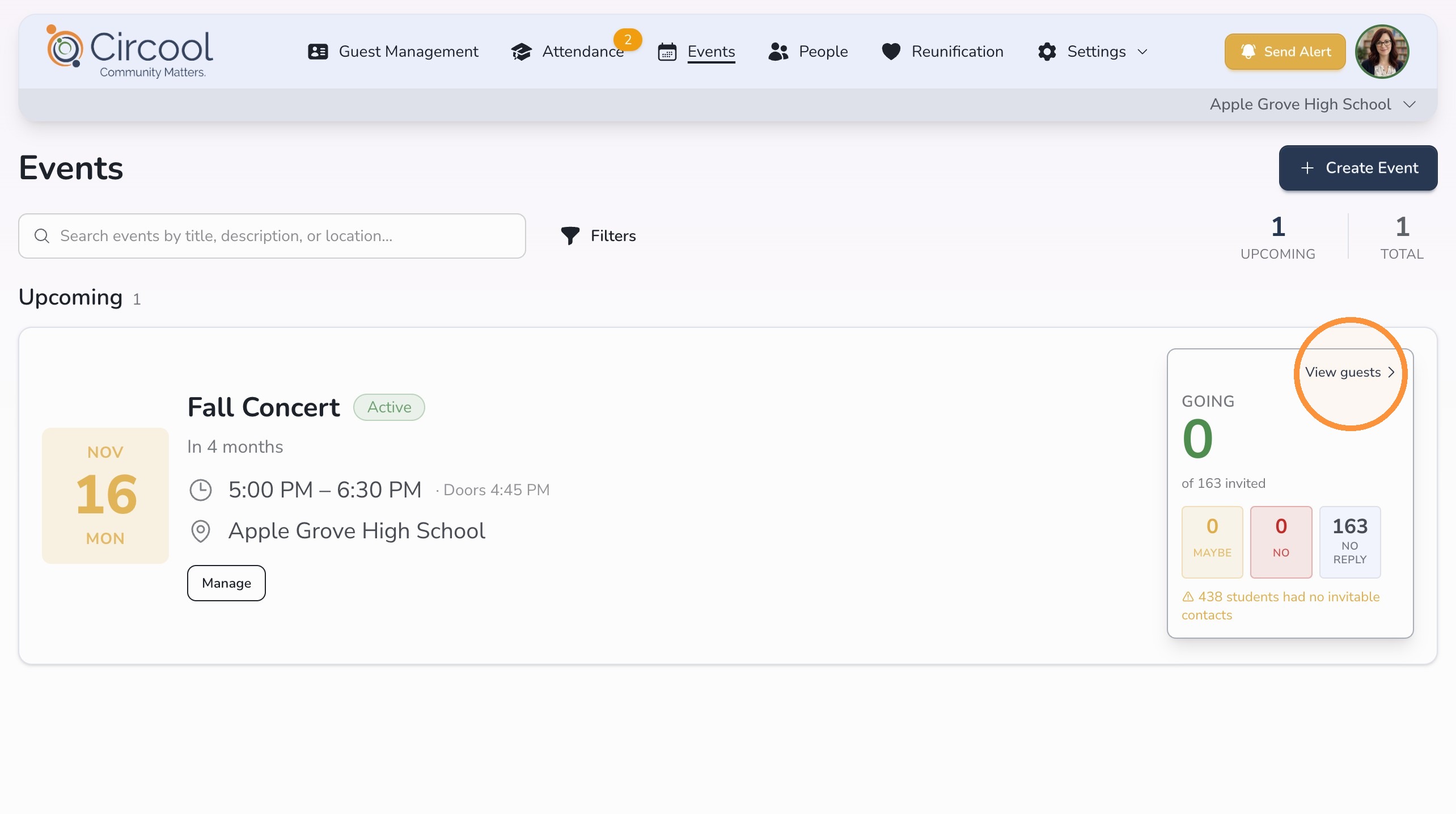
On the Events page, each event tile includes an RSVP quick view on the right side.
This gives you a running tally of how many guests were invited, along with a breakdown of their responses.
Step 2: Open the guest list
To see a more detailed RSVP breakdown, click View Guests on the event tile.
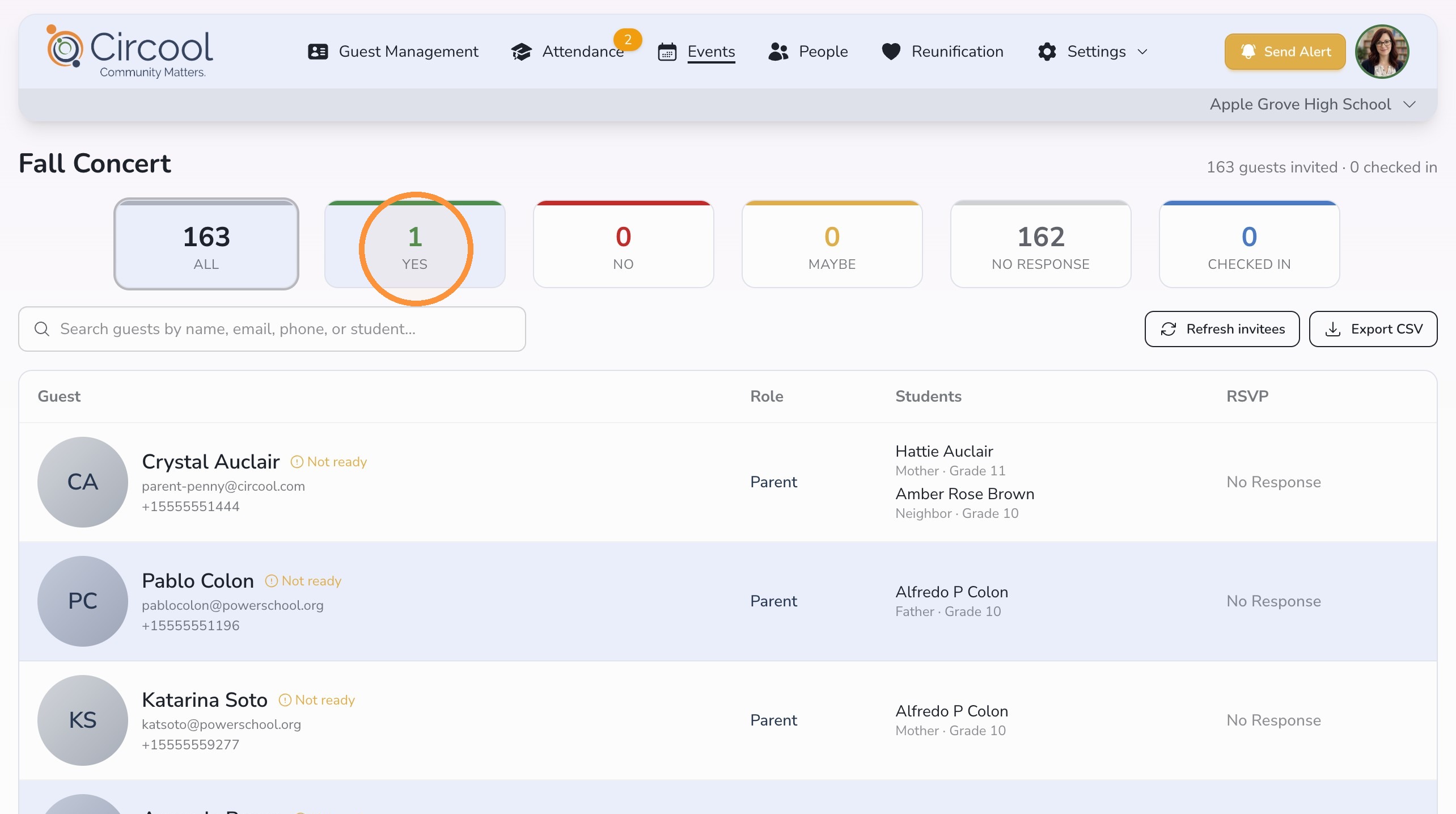
This opens the full guest list, where you can review parent and guardian information, student information, and RSVP status.
Step 3: Filter by RSVP response
On the guest list page, use the response tiles across the top of the screen to filter the list.
For example, click Yes to view only guests who have responded that they plan to attend. You can use the other response tiles the same way.
Step 4: Search for a specific guest or student
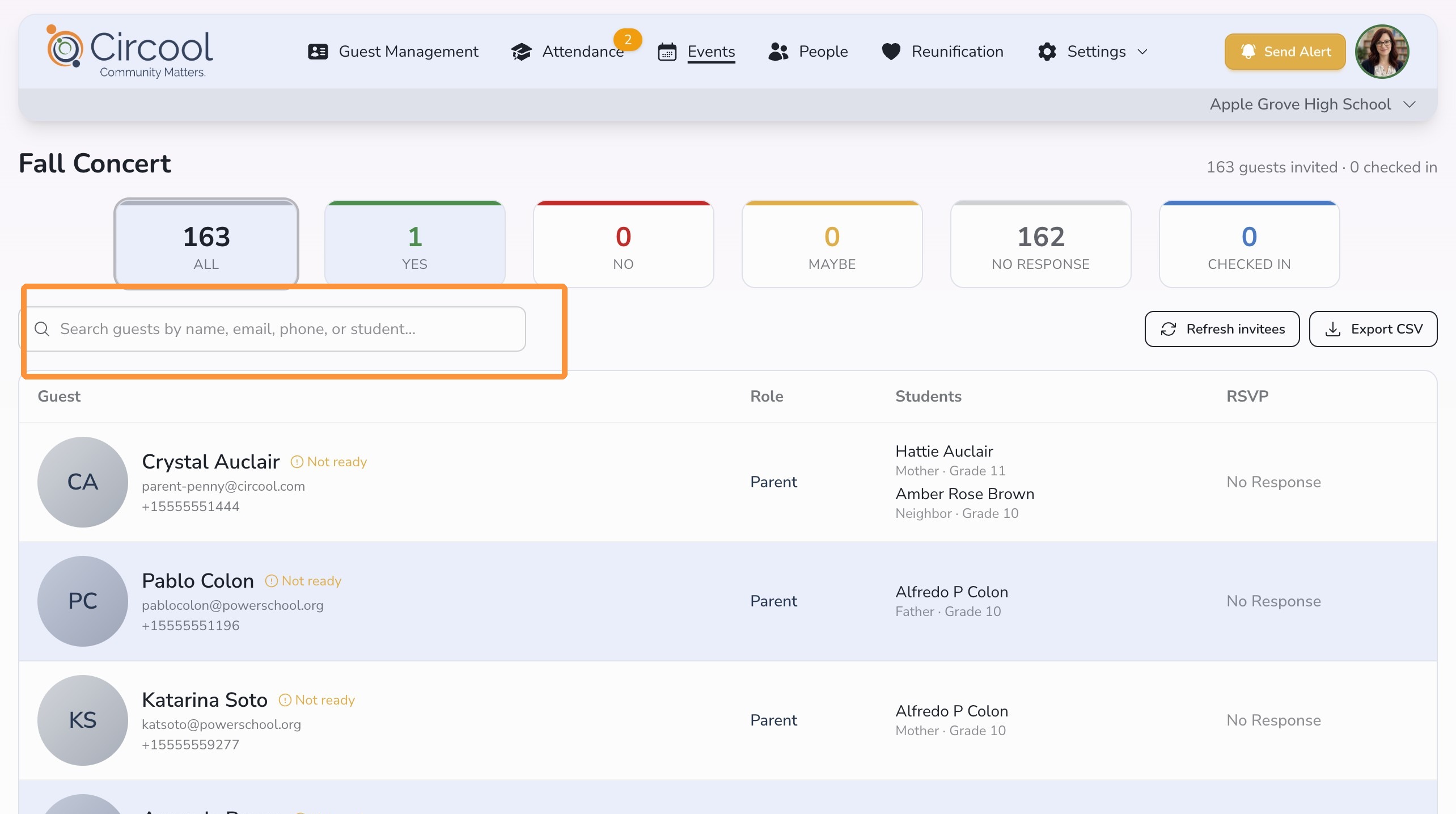
You can search within any RSVP filter to find a specific person.
Search by:
- Parent or guardian name
- Email address
- Phone number
- Student name
This is helpful when you need to check one parent’s response or confirm whether a student’s family has responded to the event.
Step 5: Return to the Events dashboard
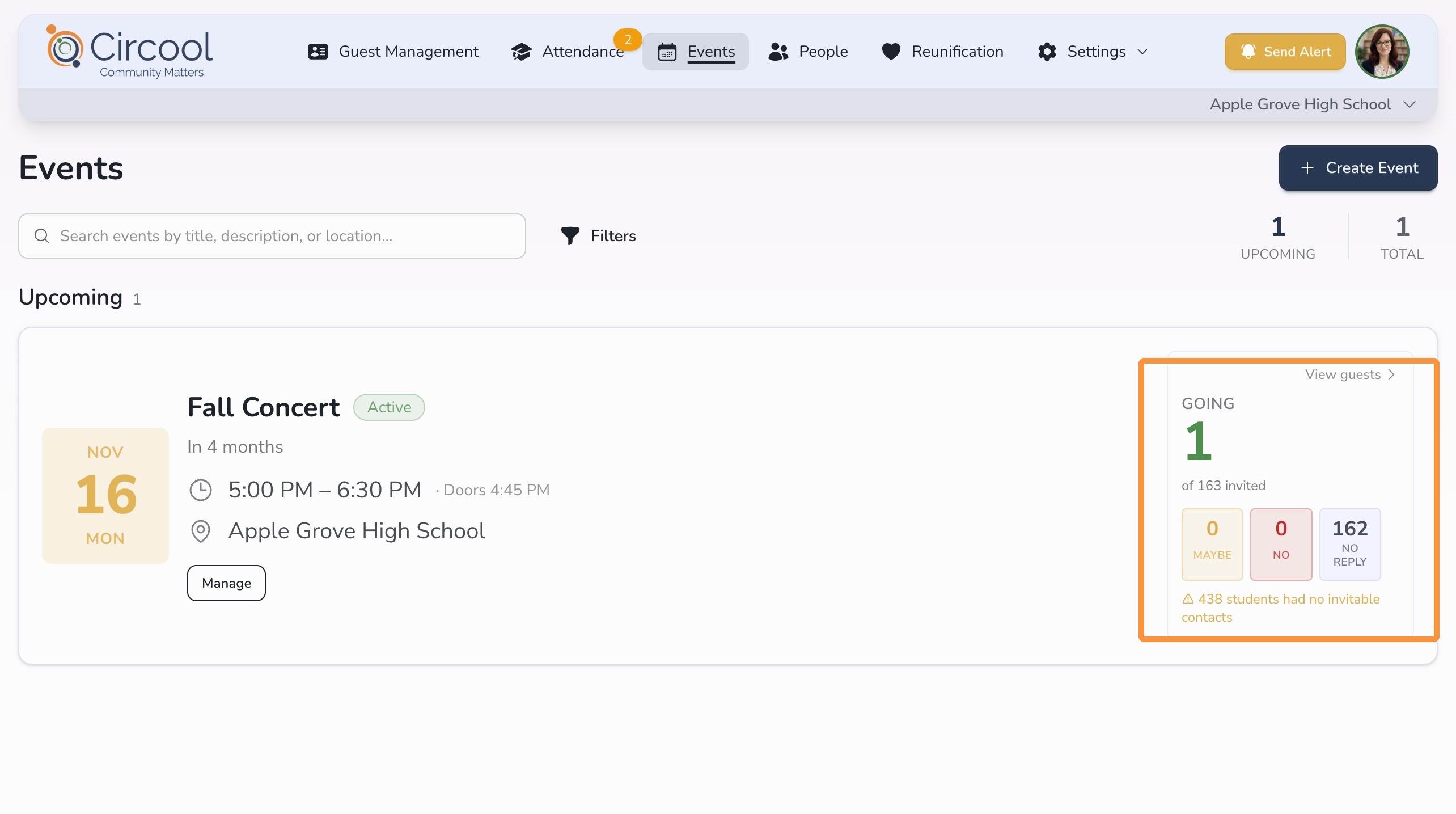
At any time, click the Events tab at the top of the page to return to the main Events dashboard.
Helpful tips
- Use the quick view first: The RSVP quick view is the fastest way to see a high-level count.
- Use View Guests for details: Open the guest list when you need parent, guardian, student, or response details.
- Filter by response: Use the response tiles to quickly see who said yes, who declined, and who has not responded.
- Search when needed: Use search to quickly confirm a specific family’s response.
What happens next
As families respond, the RSVP counts and guest list update so your school can see responses in real time.
Your team can use this information to plan check-in lines, staffing, seating, parking, and other event details.
That’s it. Circool Events gives school staff a simple way to track event RSVPs and prepare for the right number of guests.
Need help?
Circool support is here to help.
If you need help viewing event RSVPs, filtering the guest list, or finding a specific family’s response, contact Circool support by phone at 205.202.1124 or email support@circool.com.
Was this article helpful?
That’s Great!
Thank you for your feedback
Sorry! We couldn't be helpful
Thank you for your feedback
Feedback sent
We appreciate your effort and will try to fix the article