Managing Event Check-Ins and Staff Assistance
Use this guide on the day of your event to check in guests and coordinate staff members who can help scan people into the building.
Circool Events allows multiple school staff members to scan Circool Passes or look guests up by name, which helps your school move dozens or hundreds of guests through check-in quickly and safely.
Step 1: Open Events
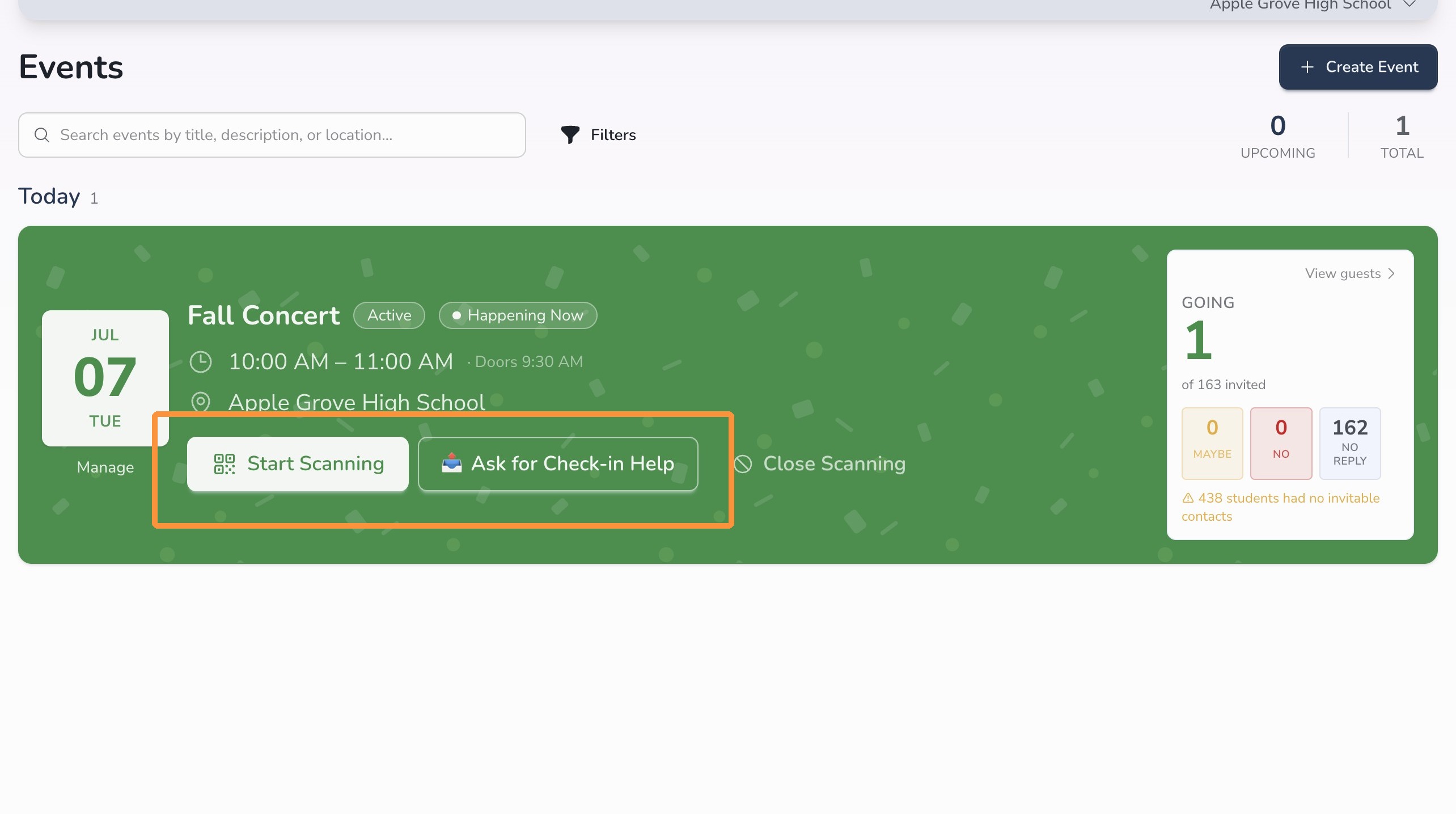
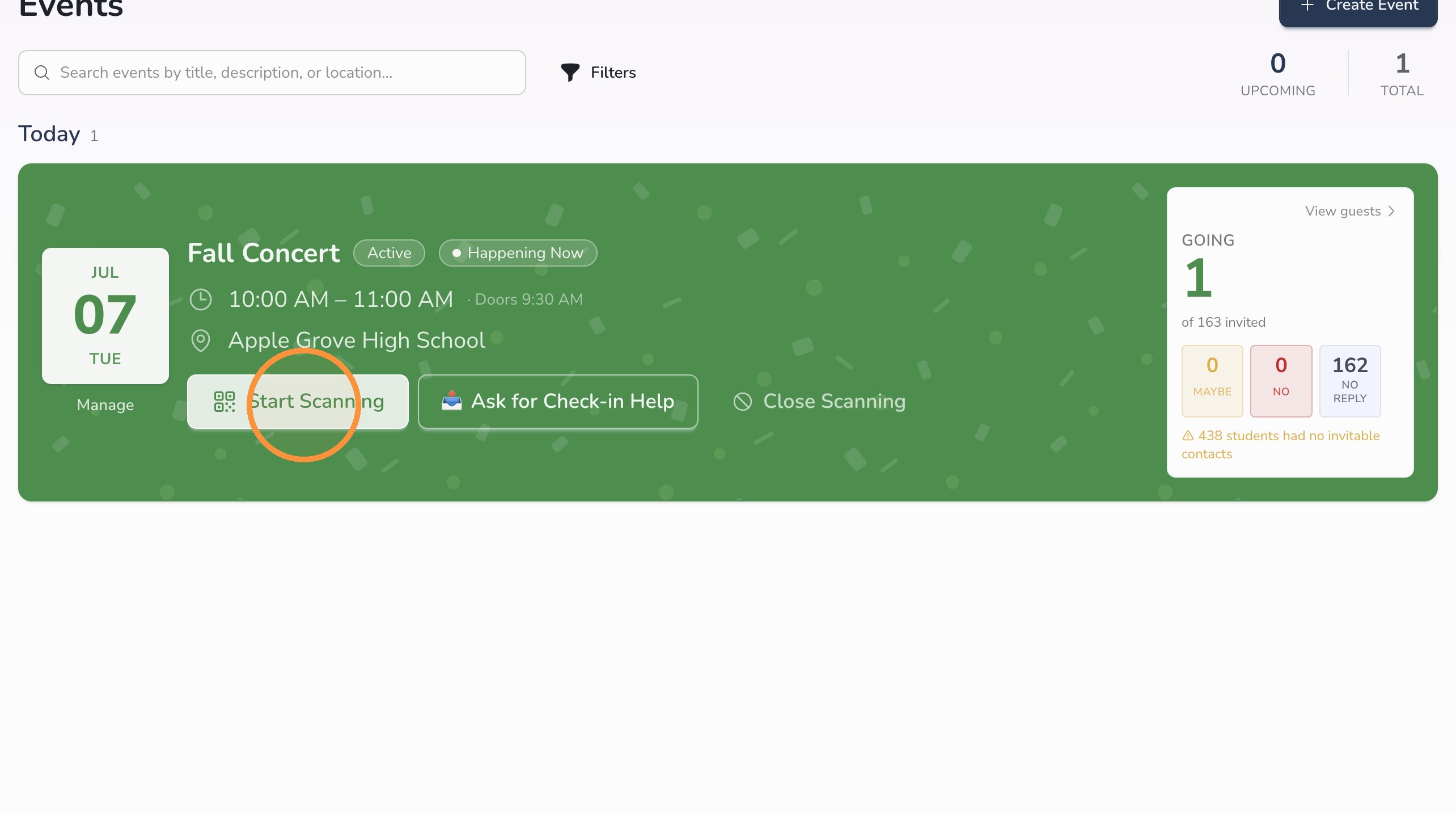
On the day of your event, the event tile will display in green. You will also see two new options at the bottom of the tile:
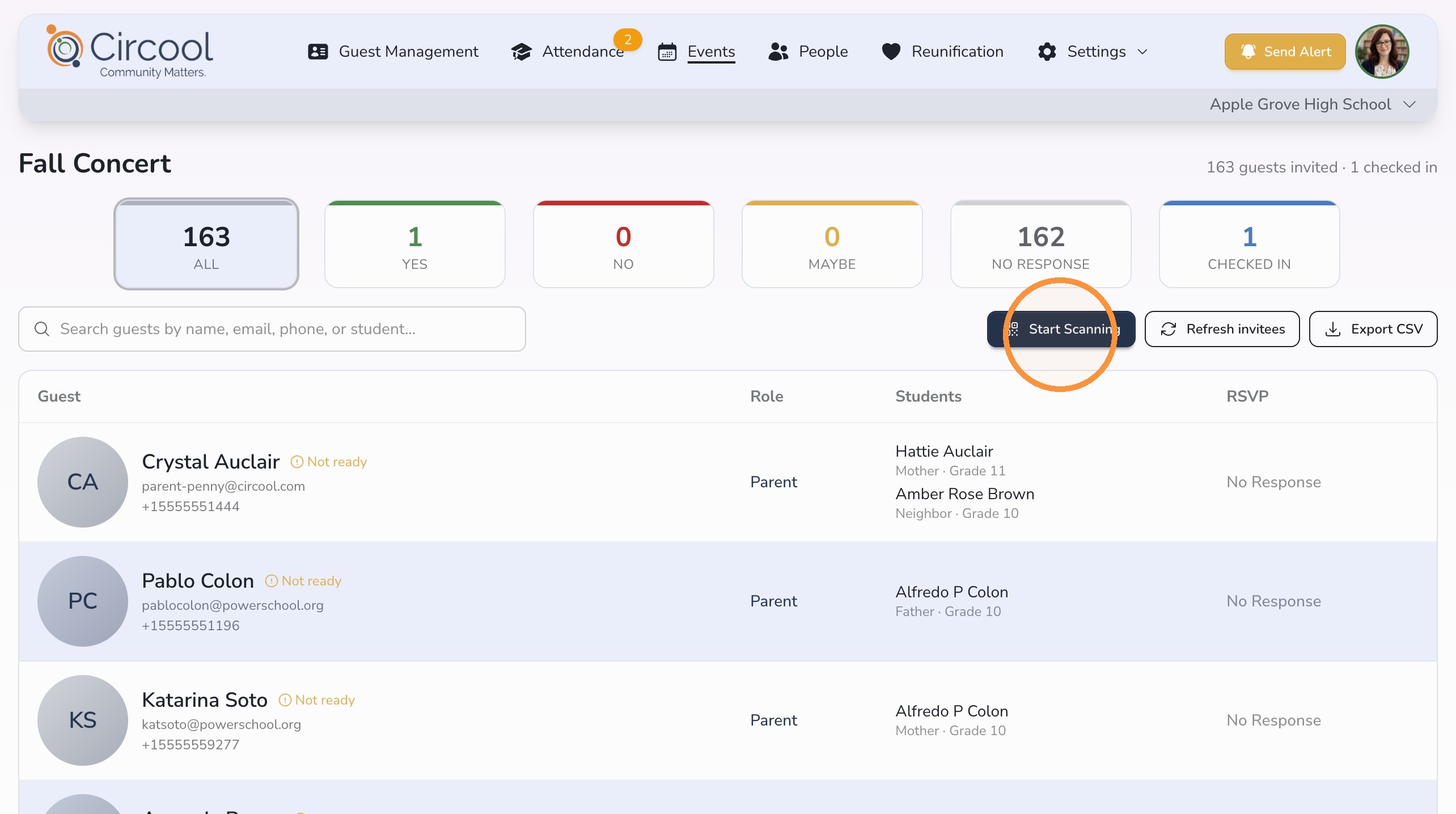
- Start Scanning
- Ask for Check-in Help
You can view the guest list on the right side of the event tile.
Good to know: The event scanner can also appear directly on the Guest Management Dashboard. When an event is about to start, based on the doors open or start time, a green event box will appear on the left side of the dashboard with your check-in options.
Step 2: Share the scanner link with staff
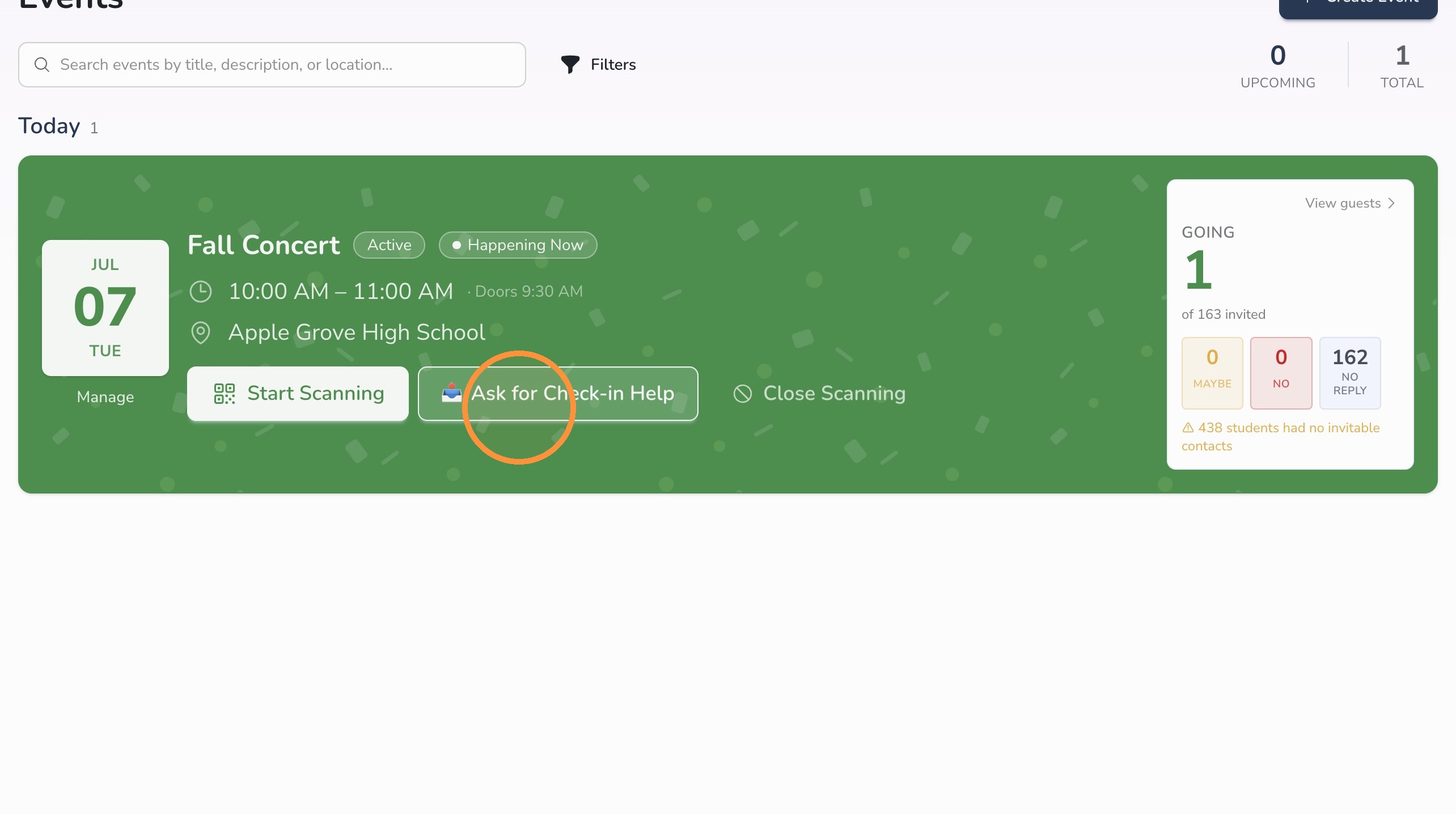
If you need additional staff to help scan guests into the event, use Ask for Check-in Help.
- Click Ask for Check-in Help.
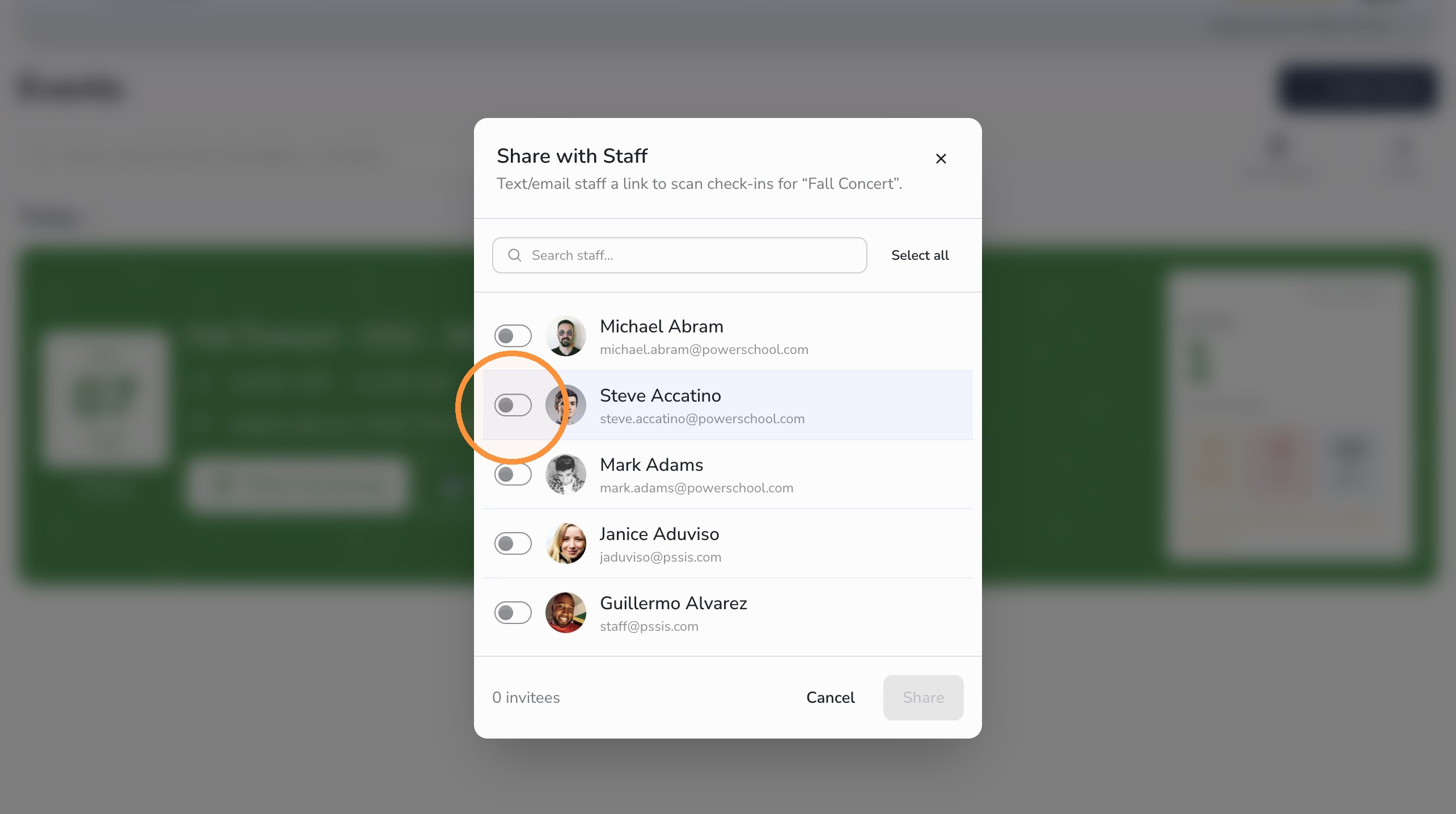
- Search and select the staff members who should receive the event scanner link.
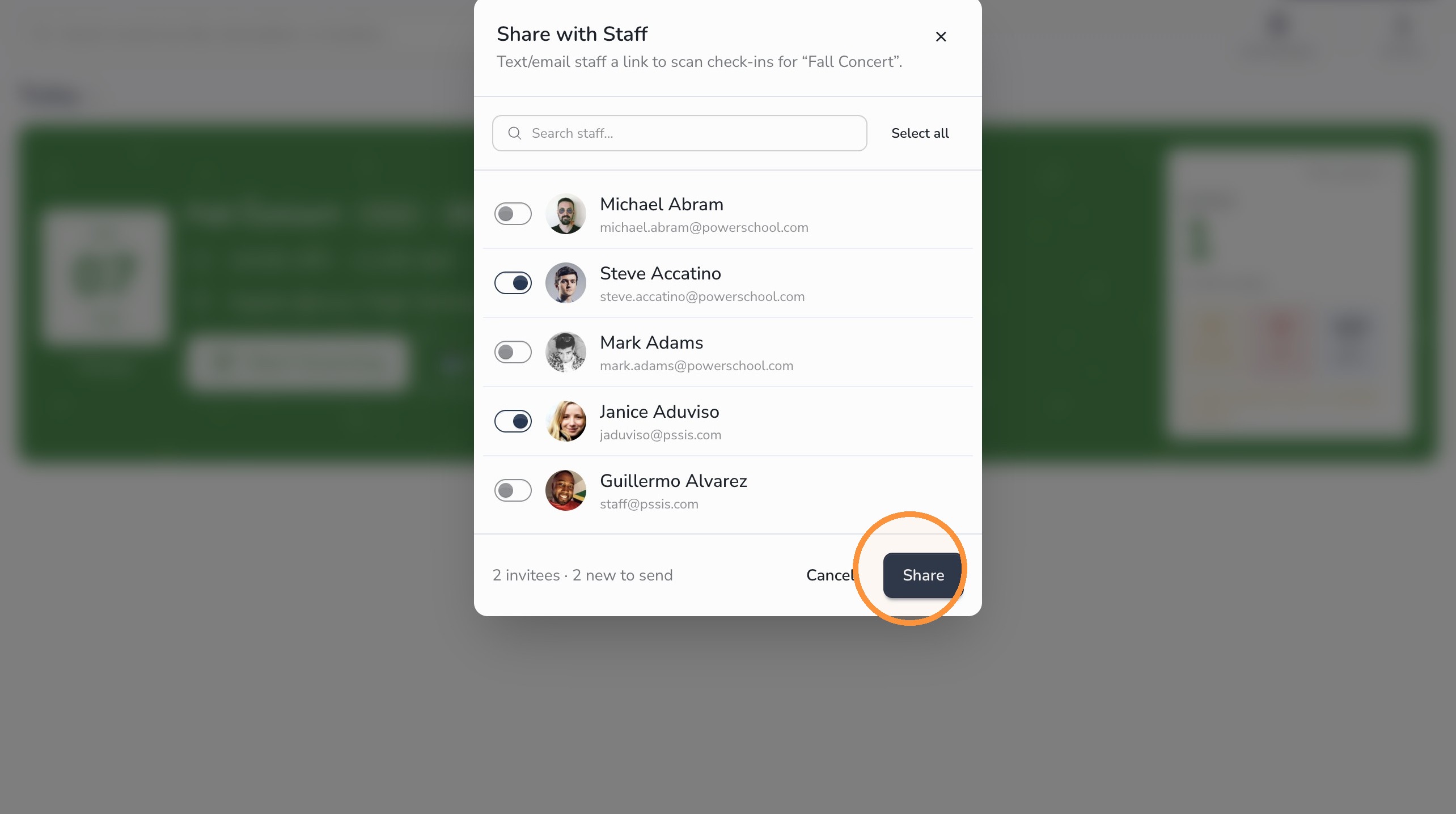
- Click Share.
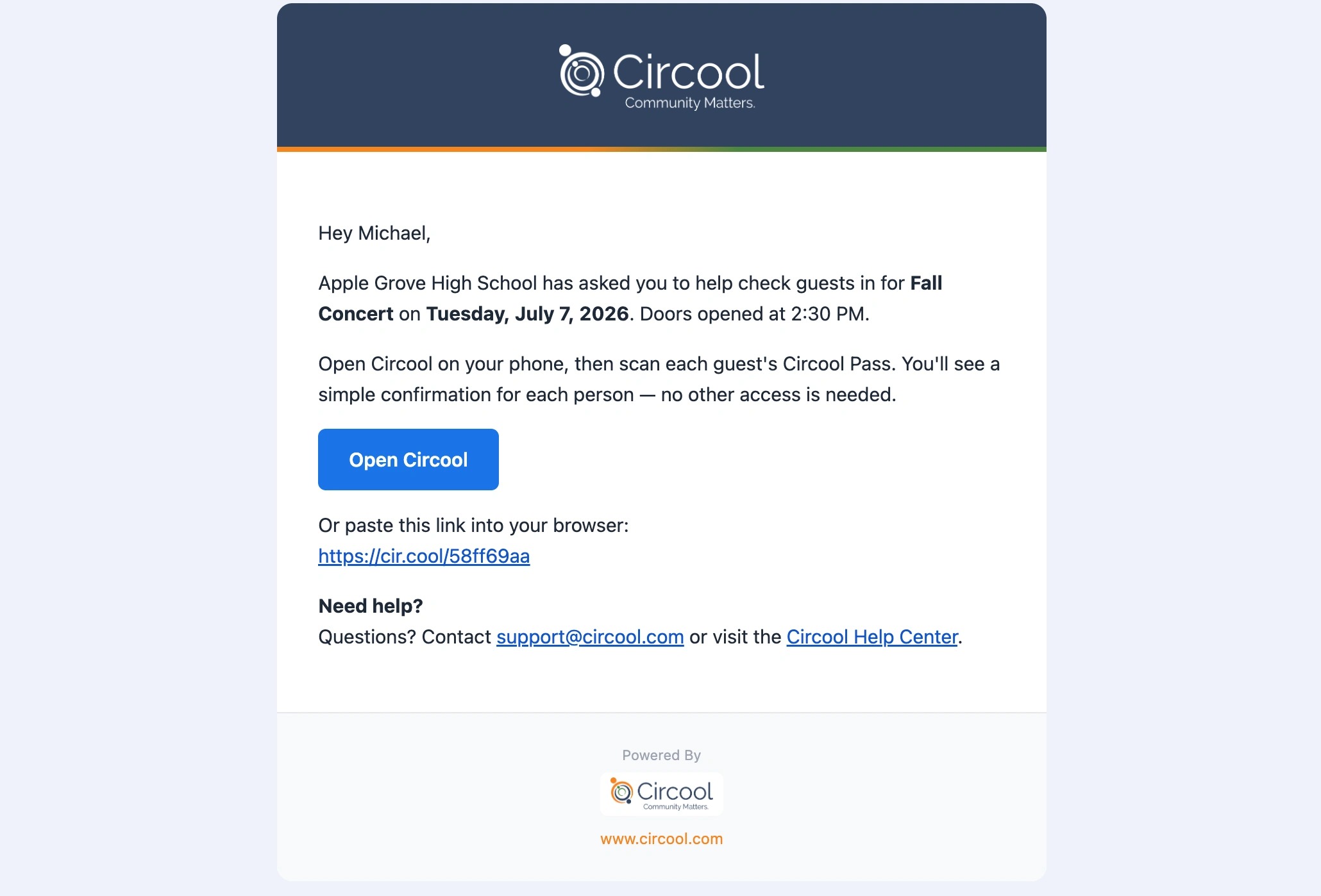
Selected staff members will receive an email and/or text message with a login link to the event scanner.
Once they open the link, they can turn their device into an event scanner. This can be a phone, tablet, laptop, or any device with internet and camera access.
Step 3: Staff opens the scanner link
Staff members who receive the check-in help message can follow the link in the email or text message to access the scanner.
Important: Check-in helpers need to be Circool Ready before they can proceed. If possible, decide who will help before the event so their Circool accounts are ready when the link is sent.

Step 4: Start scanning / Guest check-in
During event check-in, staff can scan a guest’s Circool Pass or look the guest up by name. Scanning guest can be done from a phone or tablet. Any device with a camera.
Tip: For large events, consider having two lines: one for guests with a Circool Pass and one for guests who need manual lookup. The Circool Pass line will usually move much faster.
Click Start Scanning to open the event check-in tools.
Step 5: Scan the guest’s Circool Pass
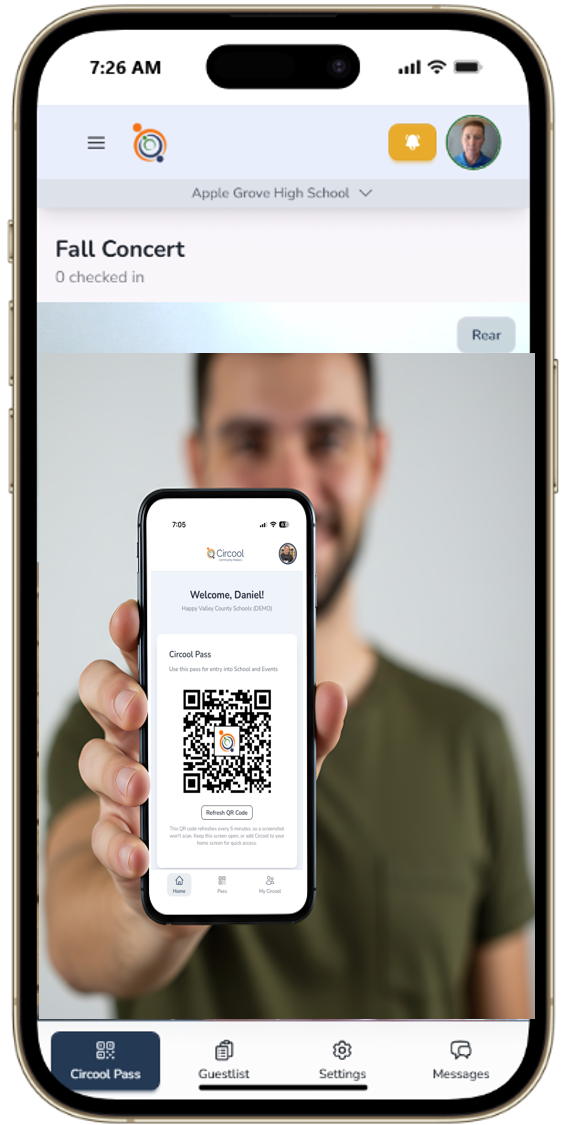
The event scanner will default to the Circool Pass scanner.
Scan the guest’s Circool Pass to check them in. No event-specific ticket is required.
Fastest option: Scanning a Circool Pass is the quickest way to check guests into an event.
Step 6: Use Guest List to look someone up by name
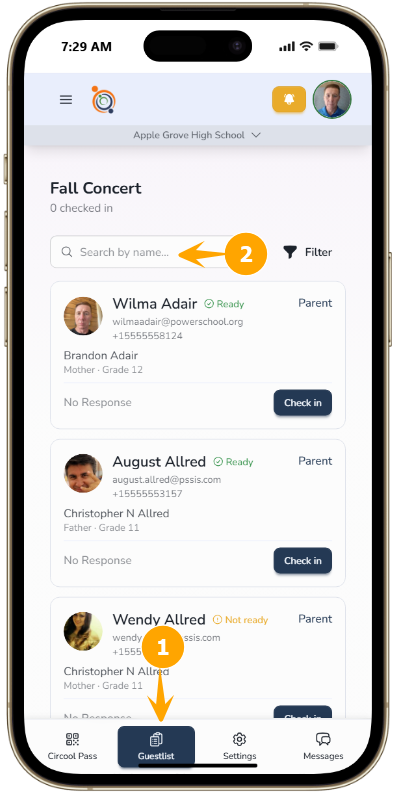
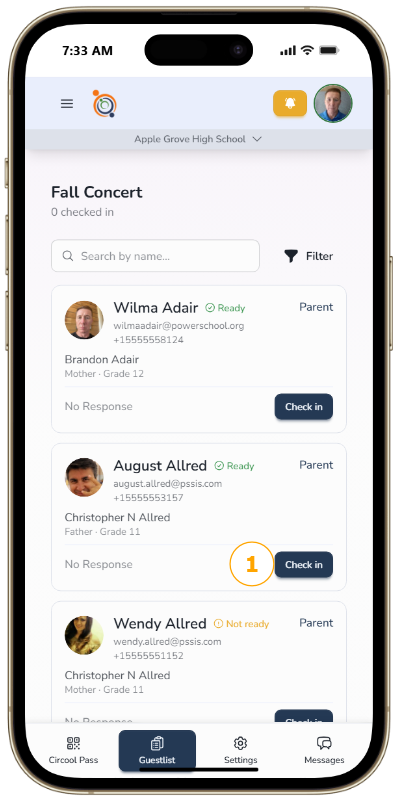
If the guest does not have their Circool Pass ready, use the Guest List to look them up by name.
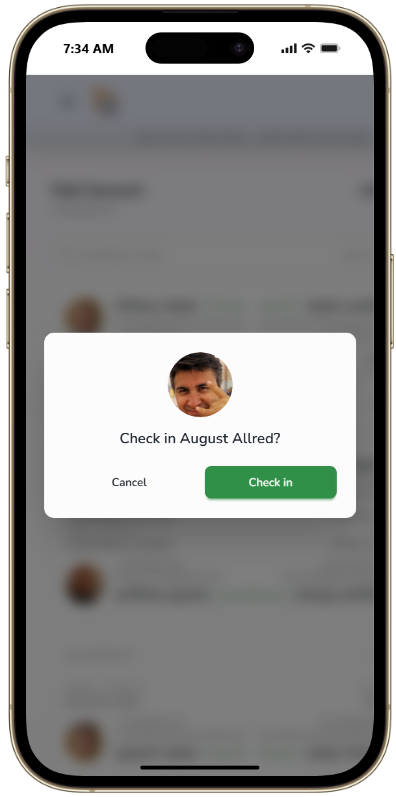
Step 7: Check in a Circool Ready guest
If the guest is Circool Ready, click Check In and allow them into the event.
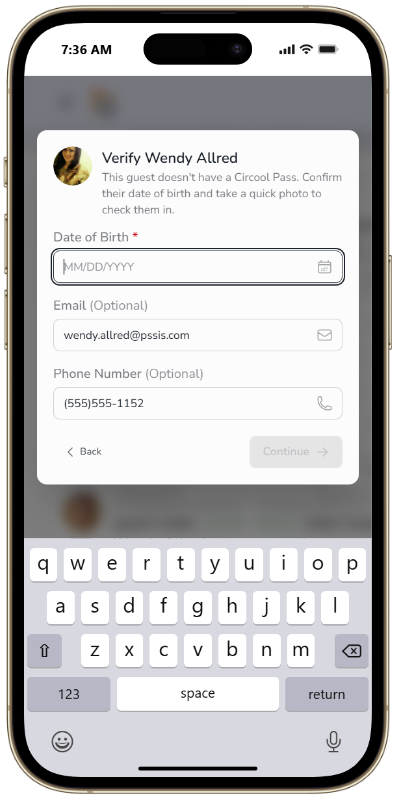
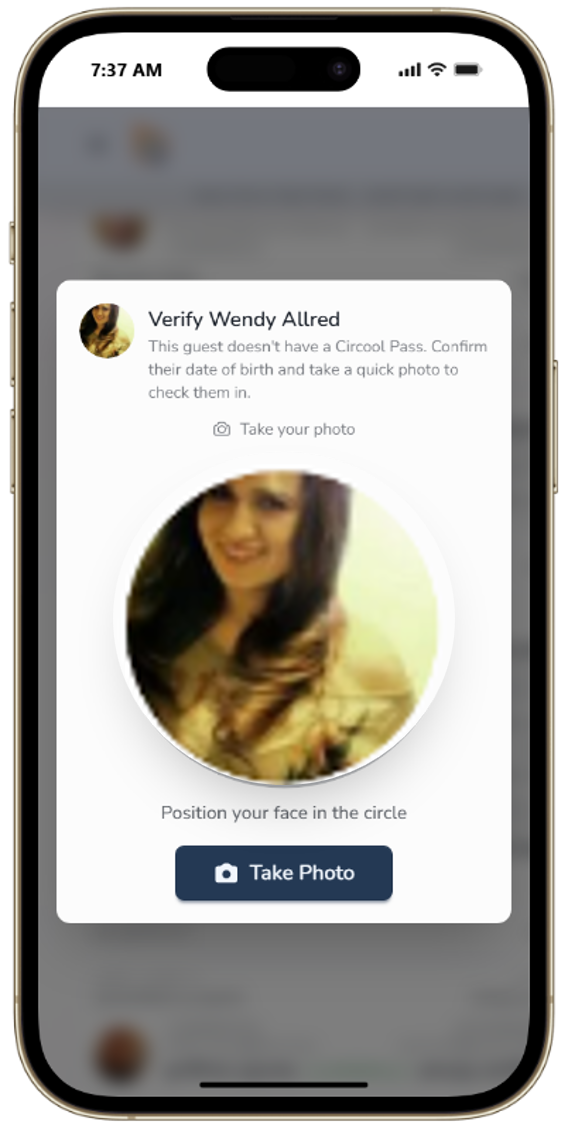
Step 8: Help a guest become Circool Ready
If the guest is not Circool Ready, staff will need to verify the guest’s date of birth and take a quick photo to help complete their Circool profile.
Step 9: Review the screening result
Circool will run the appropriate safety checks, including a Sex Offender Registry check when required.
If no results are returned, staff can check the guest into the event and allow them through.
Important: If there is a possible match, concern, or issue during check-in, have the check-in assistant direct the individual to the front office for help. This keeps the event line moving while office staff, school administrators, and the School Resource Officer can review the situation according to school procedures.
Step 10: Return to the Circool Pass scanner
If you are in the Guest List view, use the scanner button to return directly to the Circool Pass scanner.
Helpful tips
- Use multiple scanners: For large events, ask several staff members to help scan guests from phones, tablets, or laptops.
- Create a Circool Pass lane: Guests with a Circool Pass can usually move through check-in much faster.
- Use Guest List for manual lookup: If someone does not have their Circool Pass ready, look them up by name.
- Keep the line moving: If a guest needs extra review, direct them to the front office instead of holding up the event line.
- Prepare helpers early: Make sure check-in helpers are Circool Ready before the event begins.
What happens next
As guests are checked in, Circool updates the event guest list so your team can see who has arrived.
Staff can continue scanning Circool Passes, looking guests up by name, and routing any guests who need extra review to the front office.
That’s it. Circool Events helps your school move guests through check-in quickly while still giving staff the tools to review anyone who needs extra attention.
Need help?
Circool support is here to help.
If you need help with event scanning, staff check-in help, or guest lookup during an event, contact Circool support by phone at 205.202.1124 or email support@circool.com.
Was this article helpful?
That’s Great!
Thank you for your feedback
Sorry! We couldn't be helpful
Thank you for your feedback
Feedback sent
We appreciate your effort and will try to fix the article