Kiosk: Guest Check-In and Check-Out
Use this guide when guests are checking in or checking out using a Circool self-service kiosk.
Guests can use the kiosk with their Circool Pass, by phone number, or as a first-time guest. Once a guest checks in, they will appear on your Guest Management dashboard.
Before you start
The kiosk gives guests a simple way to start or complete check-in without the front desk handling every step.
Guests may use the kiosk to:
- Check in with their Circool Pass
- Find their Circool account using their phone number
- Complete first-time guest verification
- Check out when leaving the building
Good to know: There is nothing the front desk needs to do when a Circool Ready guest checks in successfully, unless the guest is flagged for review or appears on a Watchlist.
Guest has their Circool Pass
When guests have their Circool Pass ready on their mobile device, they can walk up to the kiosk and check themselves in.
Once checked in, the guest will appear on your Guest Management Dashboard, and a name badge will print if badge printing is enabled.
Note: The screenshots below show the guest’s view from the kiosk.
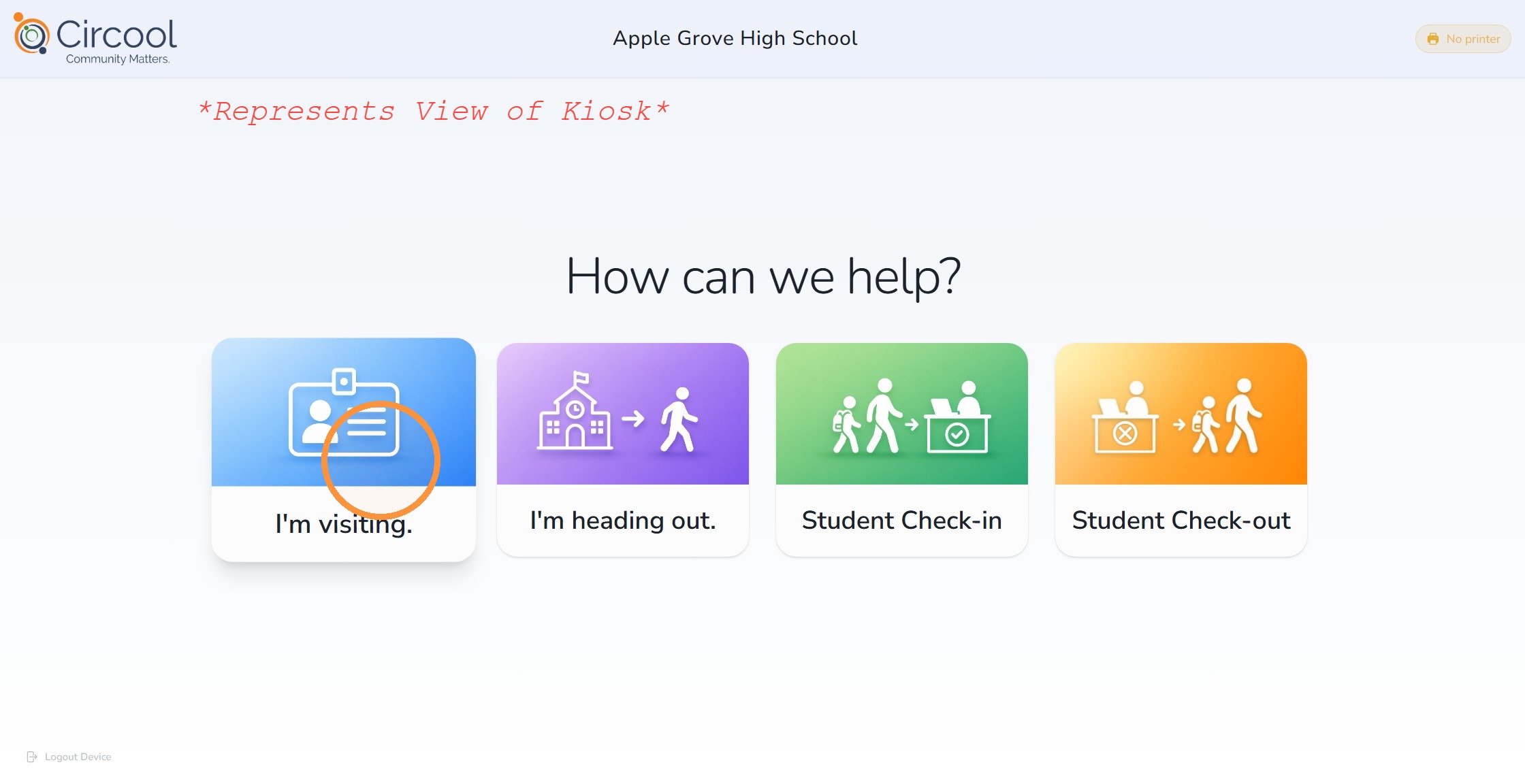
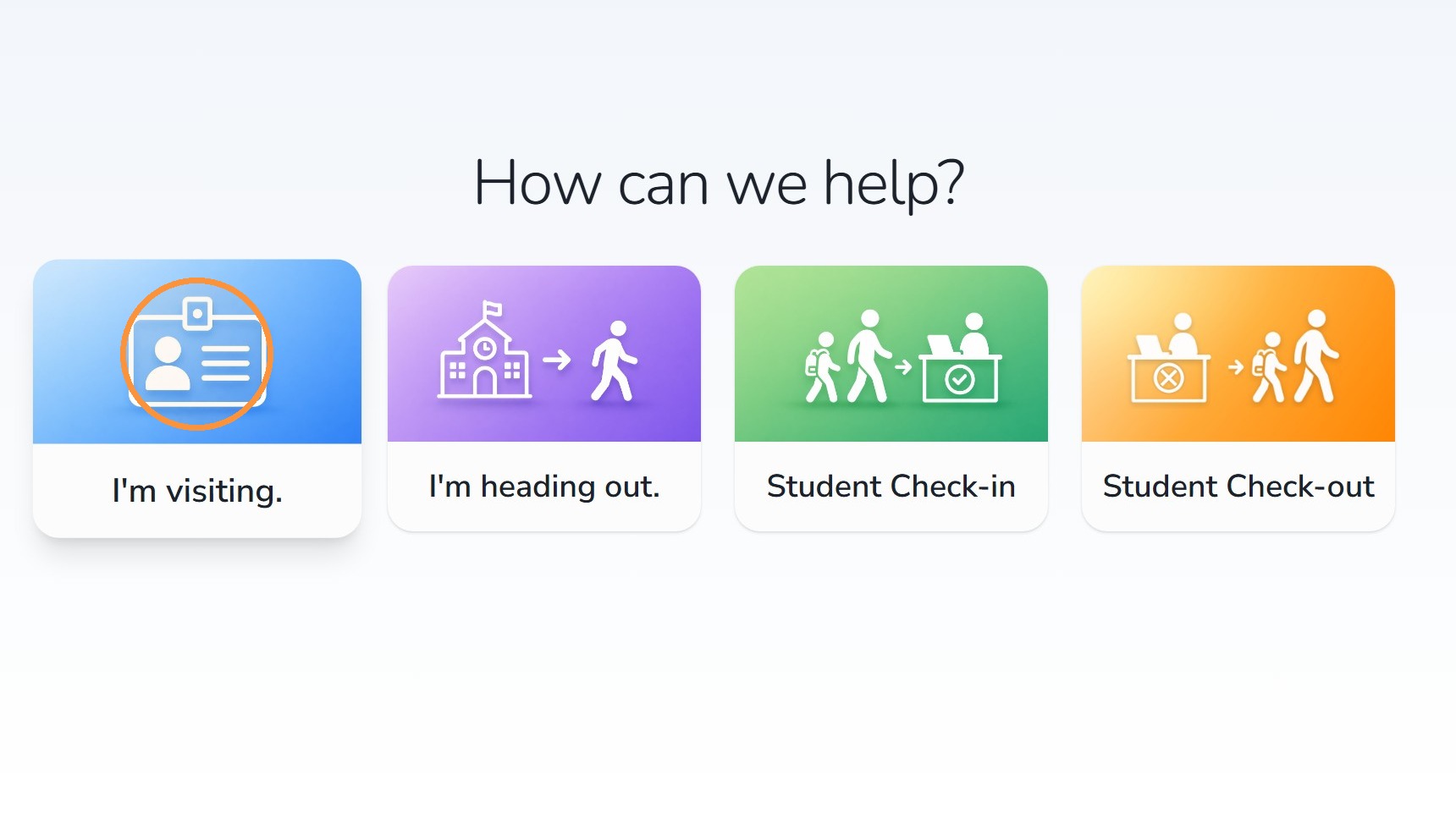
Step 1: Guest selects “I’m visiting”
The guest begins by selecting I’m visiting on the kiosk.
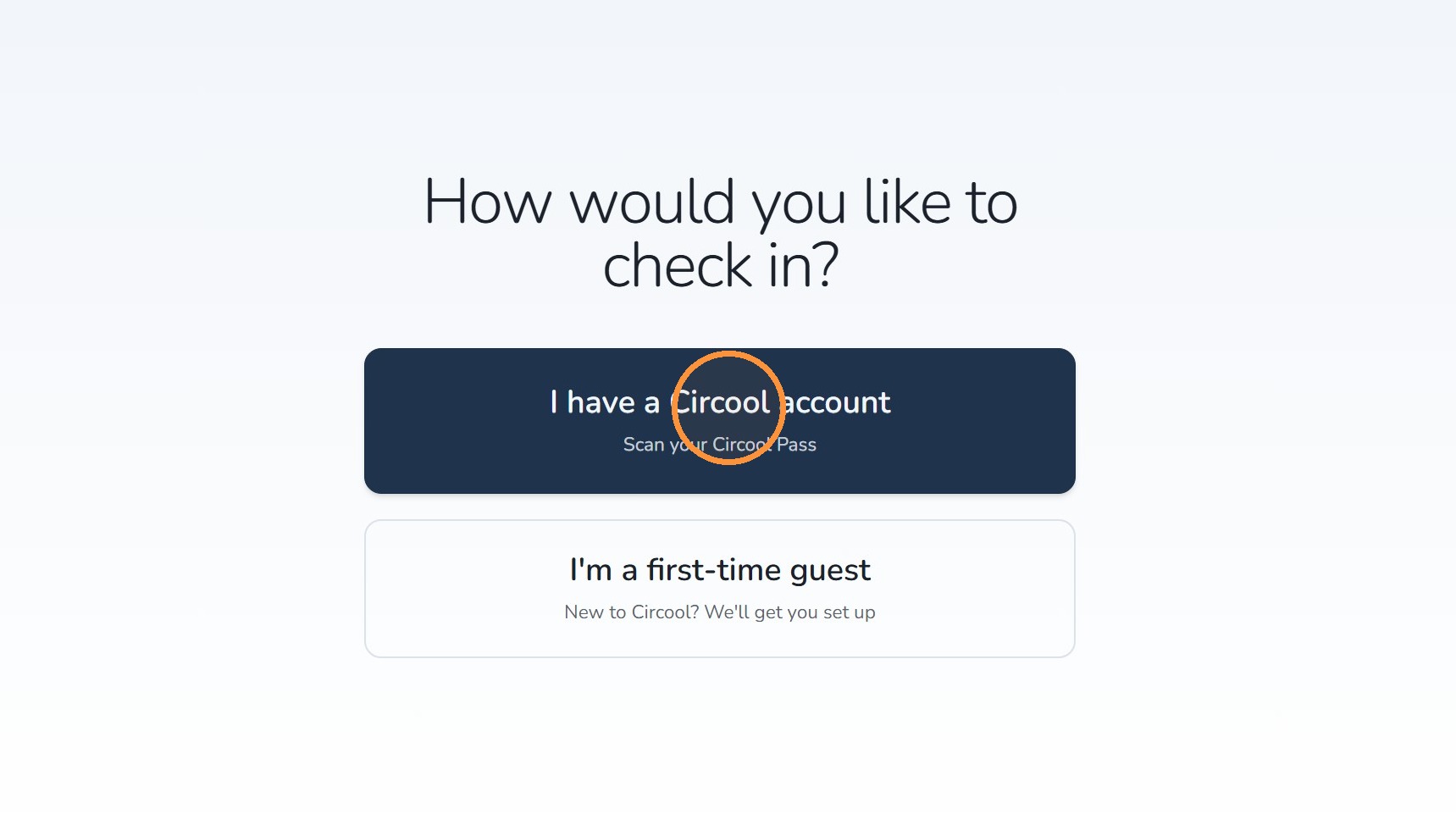
Step 2: Guest selects “I have a Circool account”
The guest selects I have a Circool account.
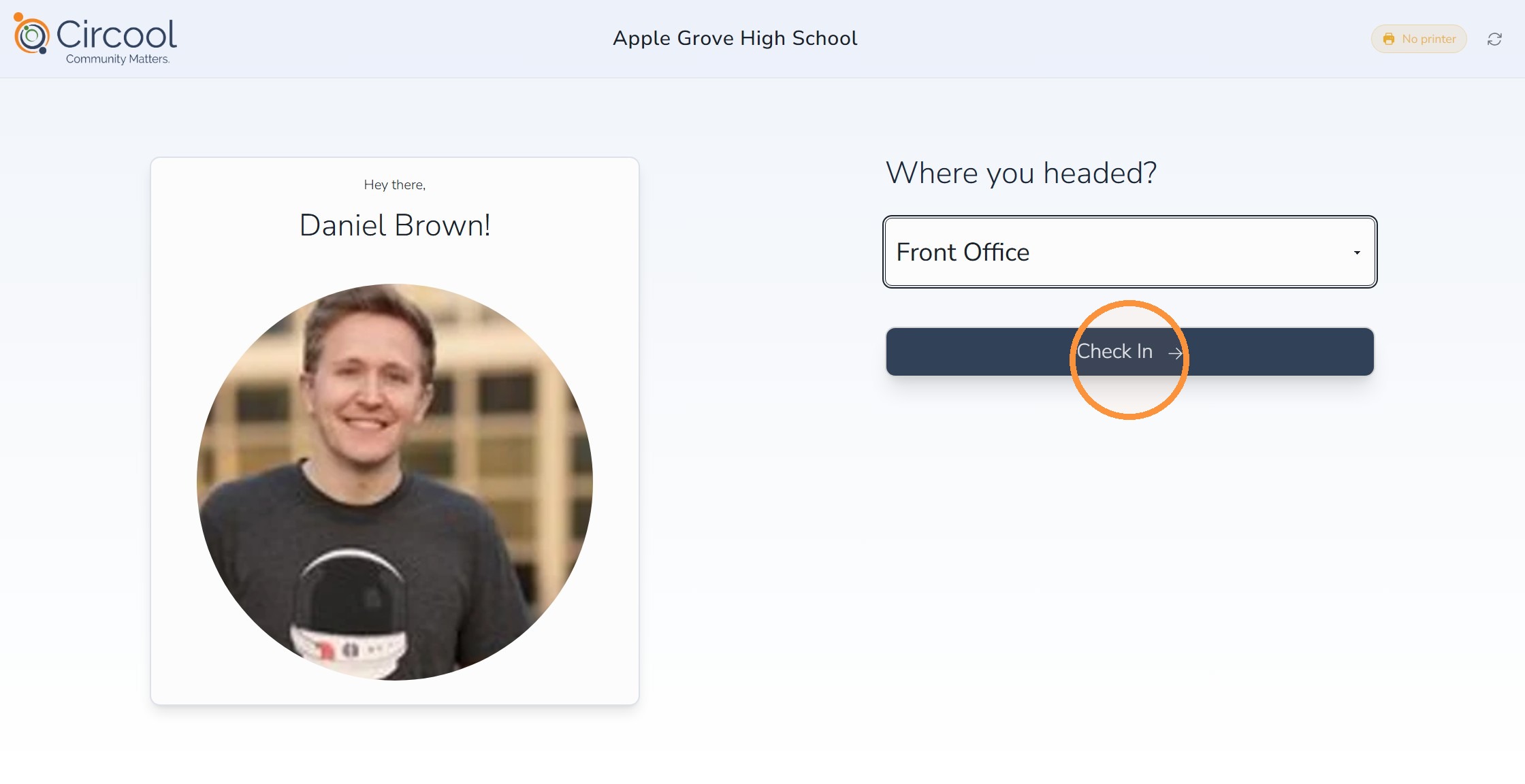
Step 3: Guest scans their Circool Pass
- The guest shows their Circool Pass to the kiosk camera.
- The guest selects a Destination from the dropdown.
- The guest clicks Check In.
Tip: If the guest cannot locate their Circool account, they can use their phone number. Circool will send the guest a link to log in and show their Circool Pass.
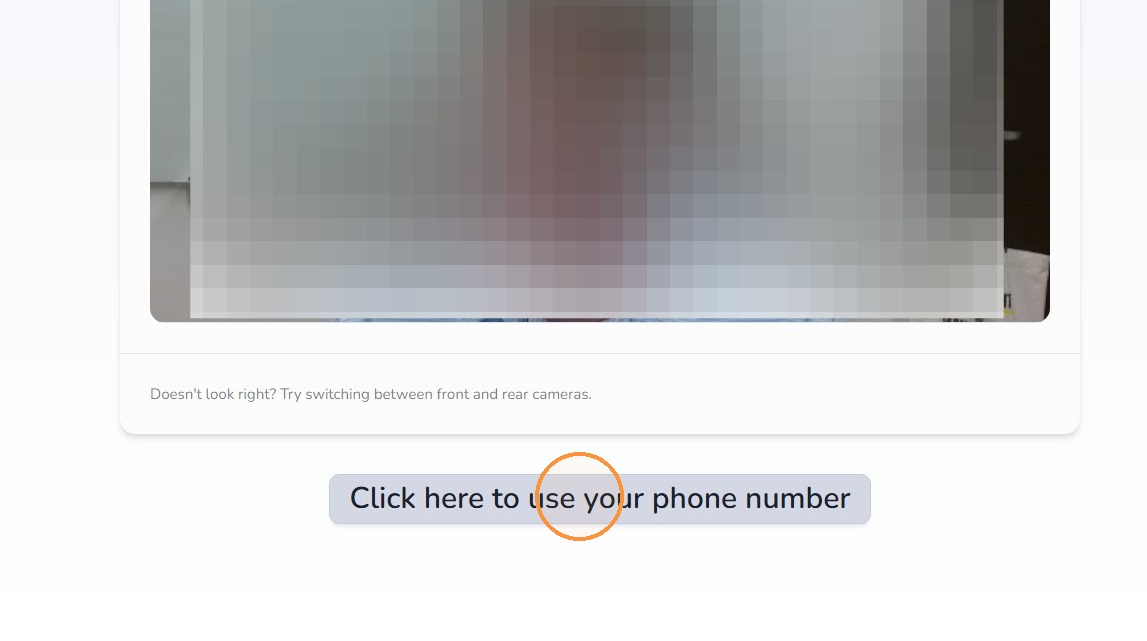
Step 4: Guest uses phone number if needed
If needed, the guest clicks Click here to use your phone number.
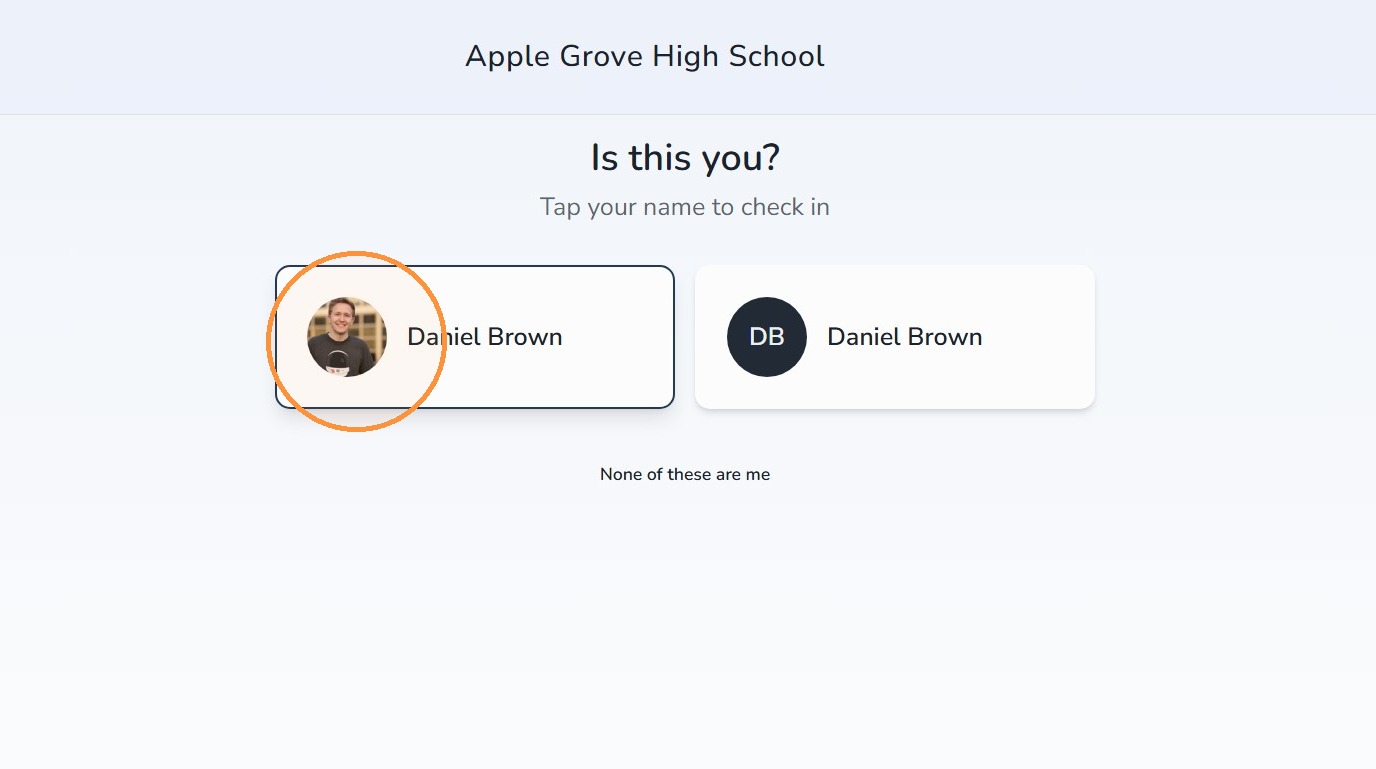
Step 5: Guest selects their name
The guest selects their name from the search results to continue check-in.
Step 6: Guest appears on the dashboard
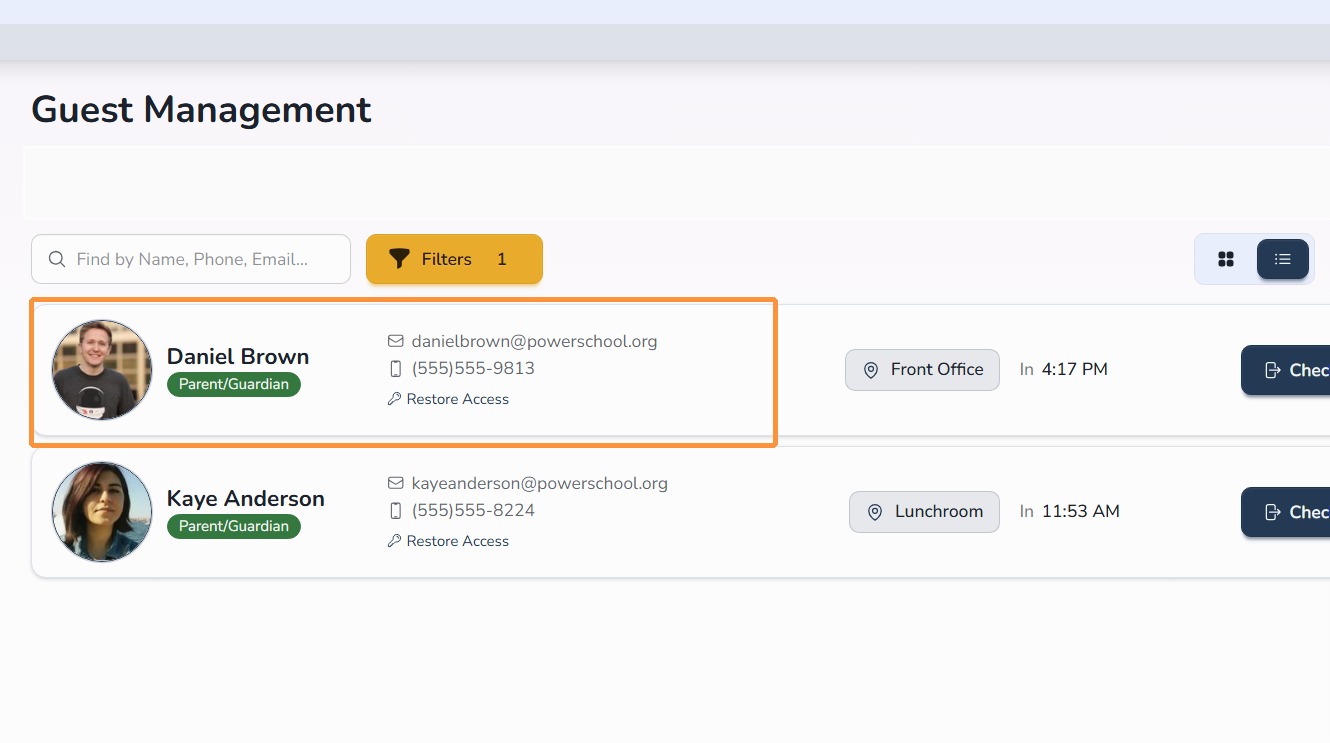
Back on your Guest Management Dashboard, the guest will appear as checked in. Their name badge will print if badge printing is enabled.
First-time guests
First-time guests can also use the kiosk by scanning their ID and taking a quick profile photo during check-in.
This is an alternative to having the guest scan the posted QR code in your atrium or front office area.
Good to know: Once a first-time guest completes the kiosk steps, the request will appear on your Guest Management Dashboard for staff review. See Step 7 Below.
Step 1: The guest begins by selecting I’m visiting on the kiosk.
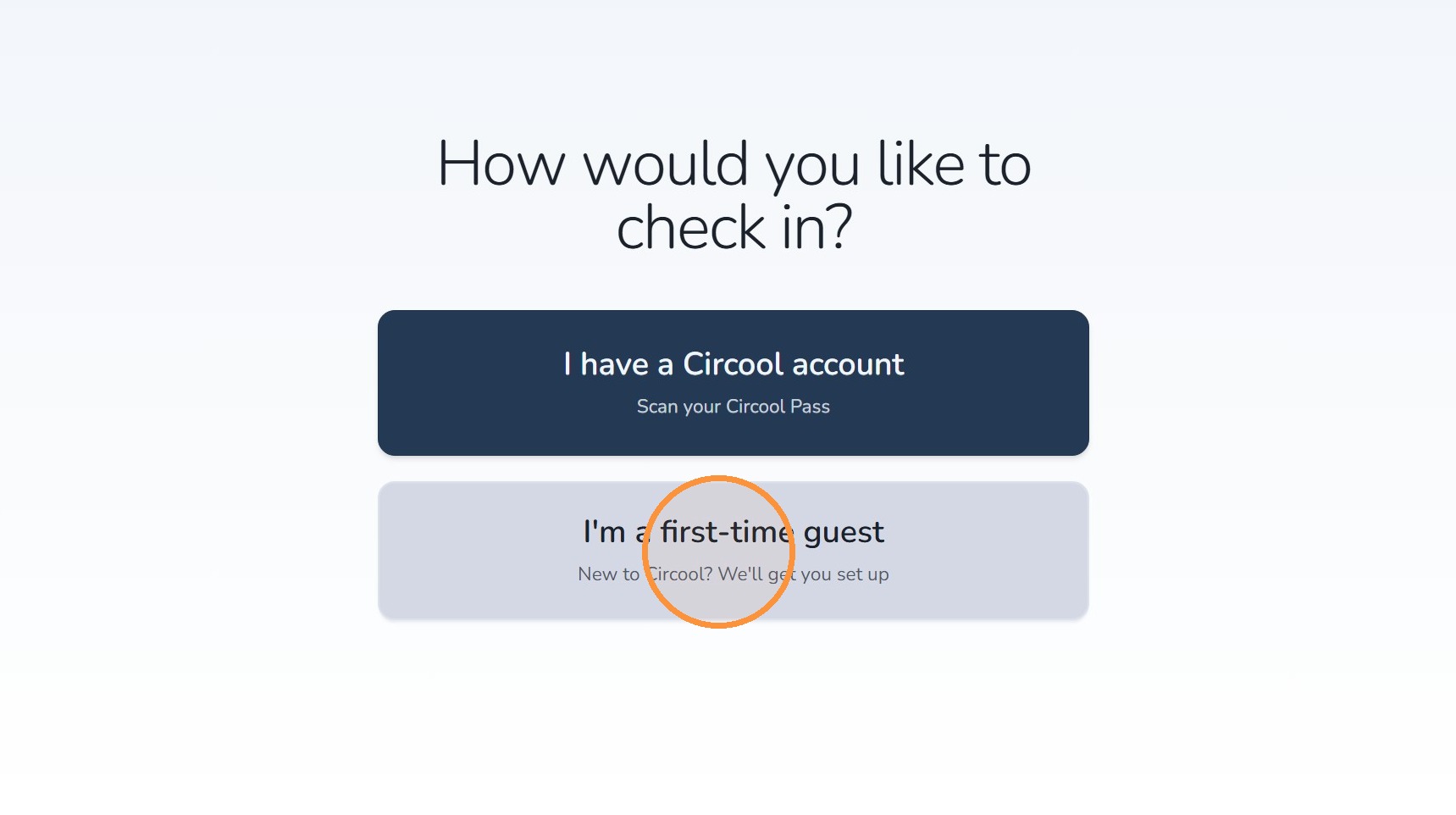
Step 2: The guest selects I’m a first-time guest.
Step 3: The guest clicks Start Verification.
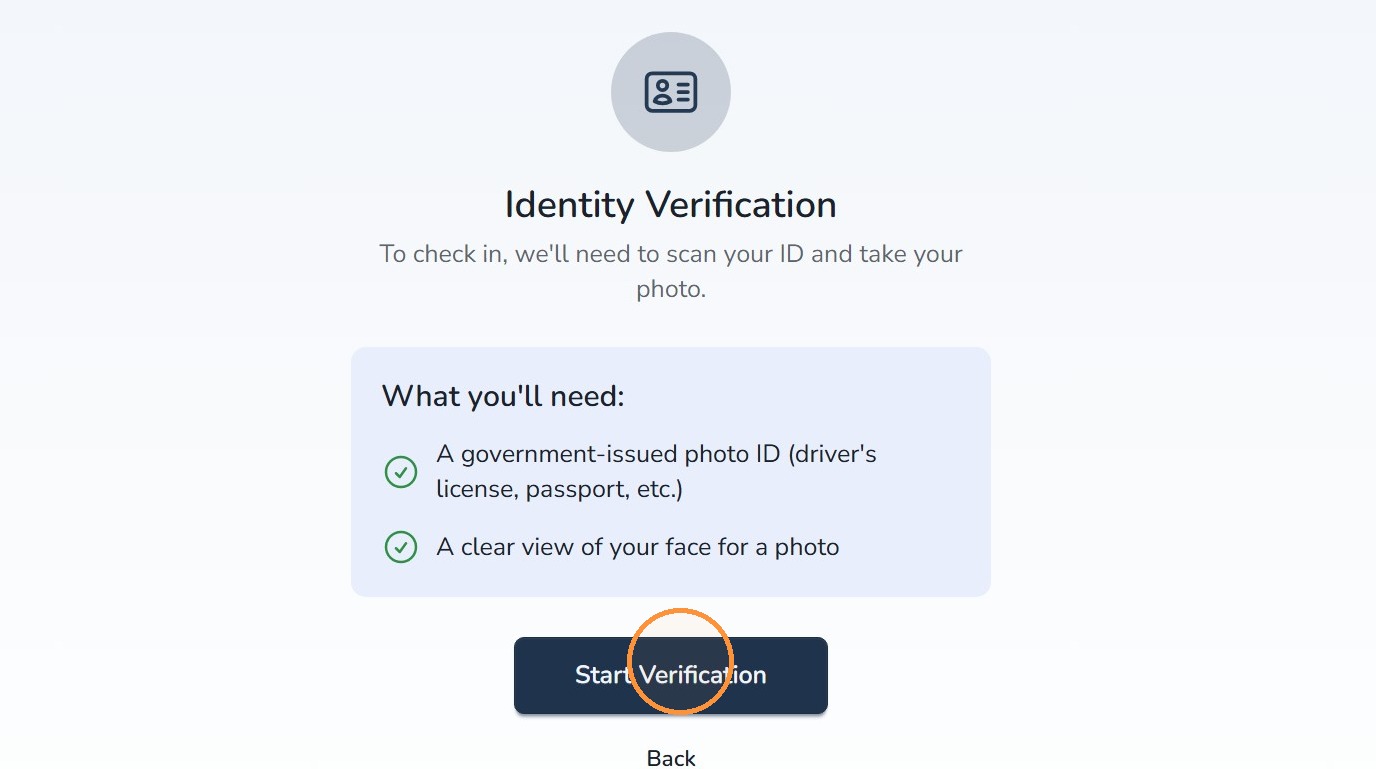
Step 4: Guest captures ID photo
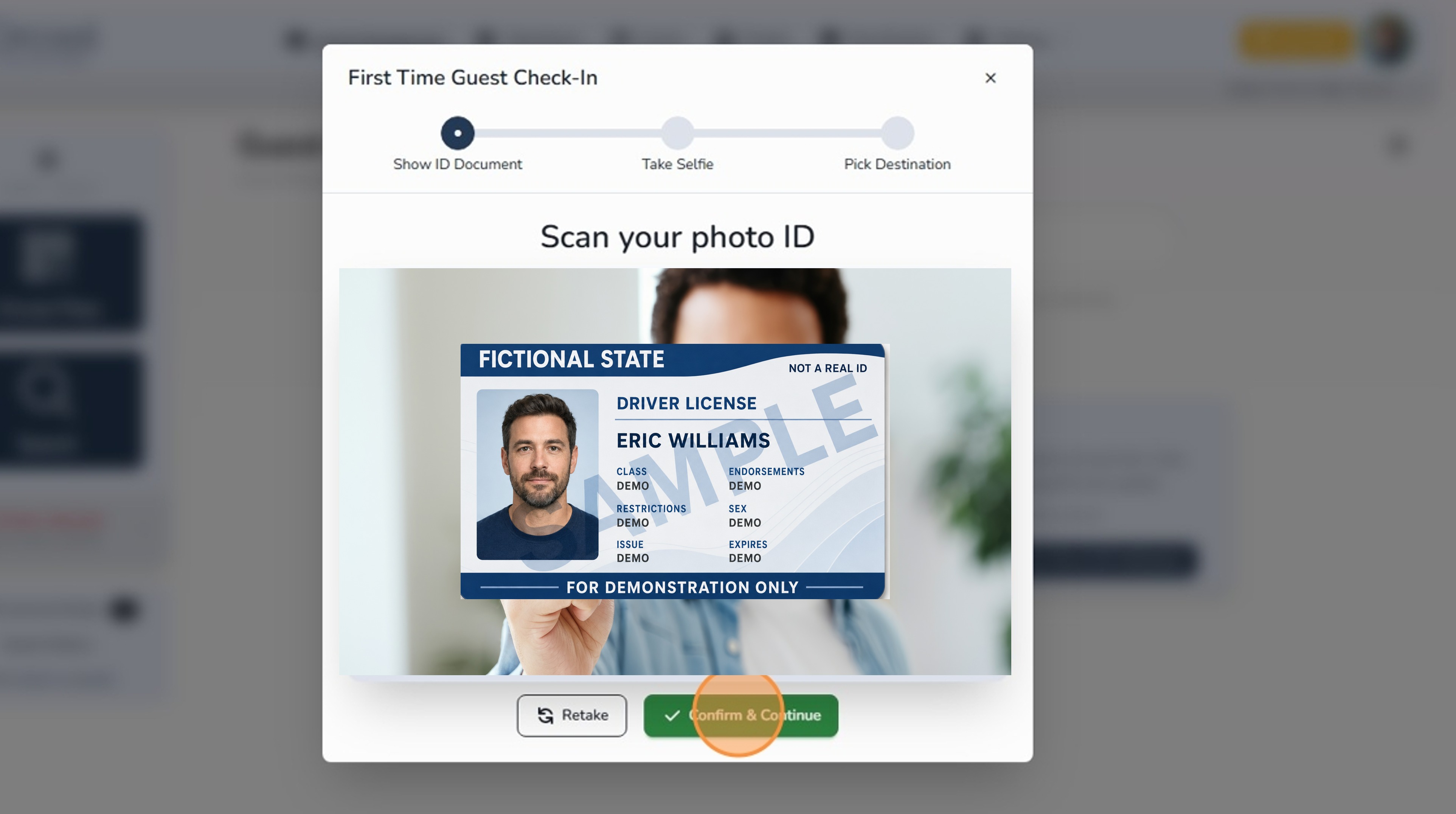
Step 5: Guest captures profile photo
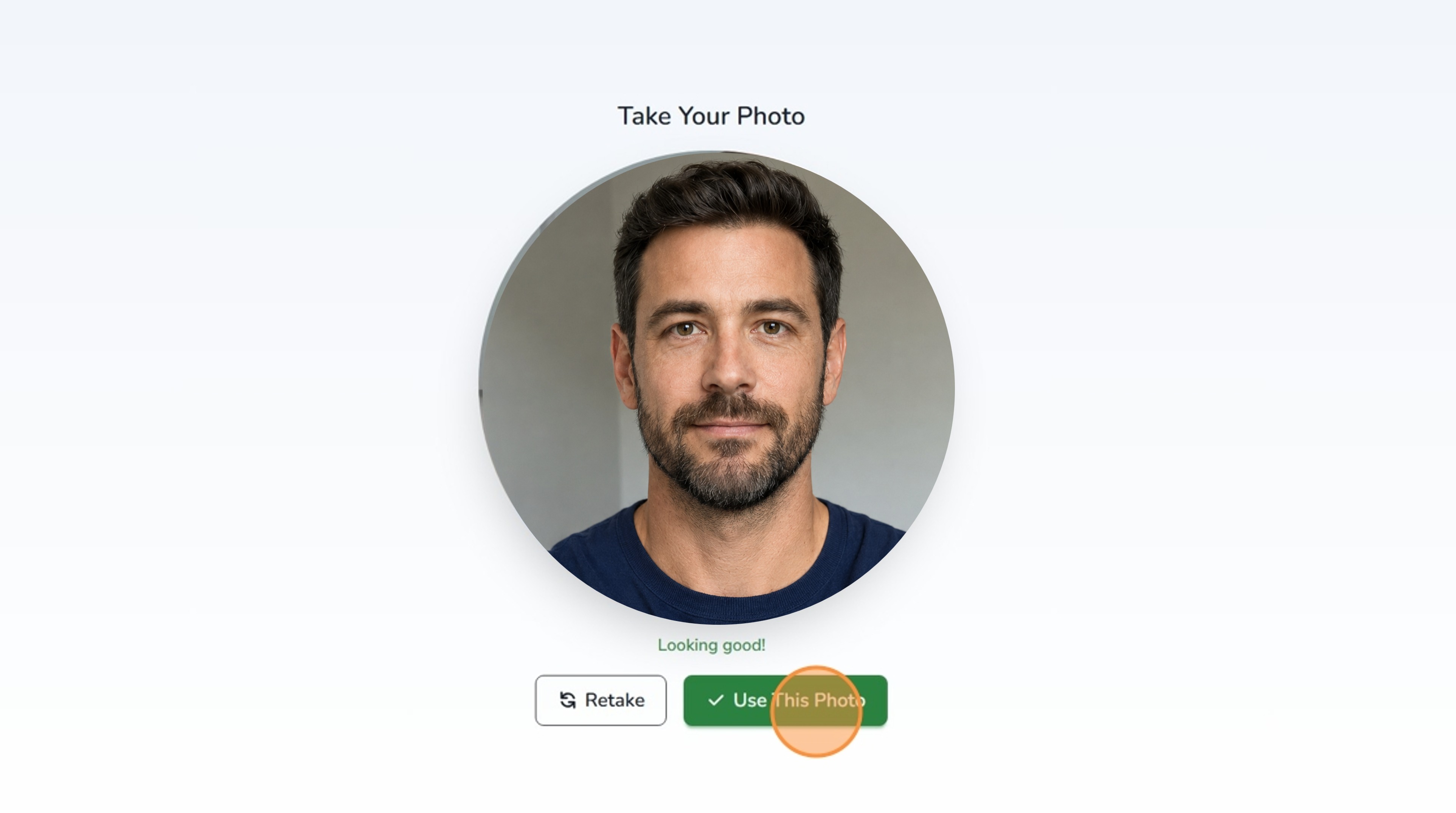
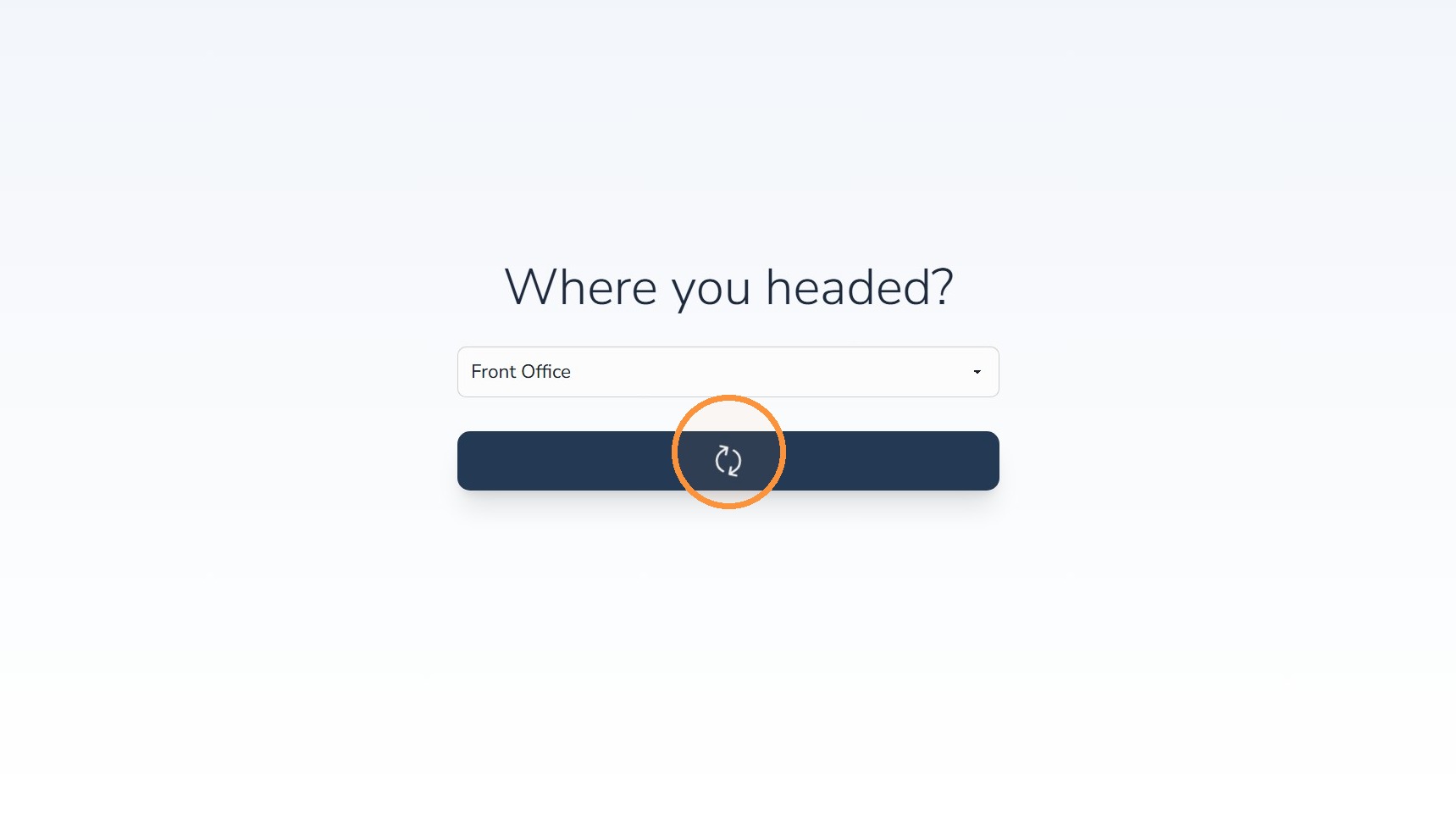
Step 6: Guest selects destination
Step 7: Front desk reviews the request
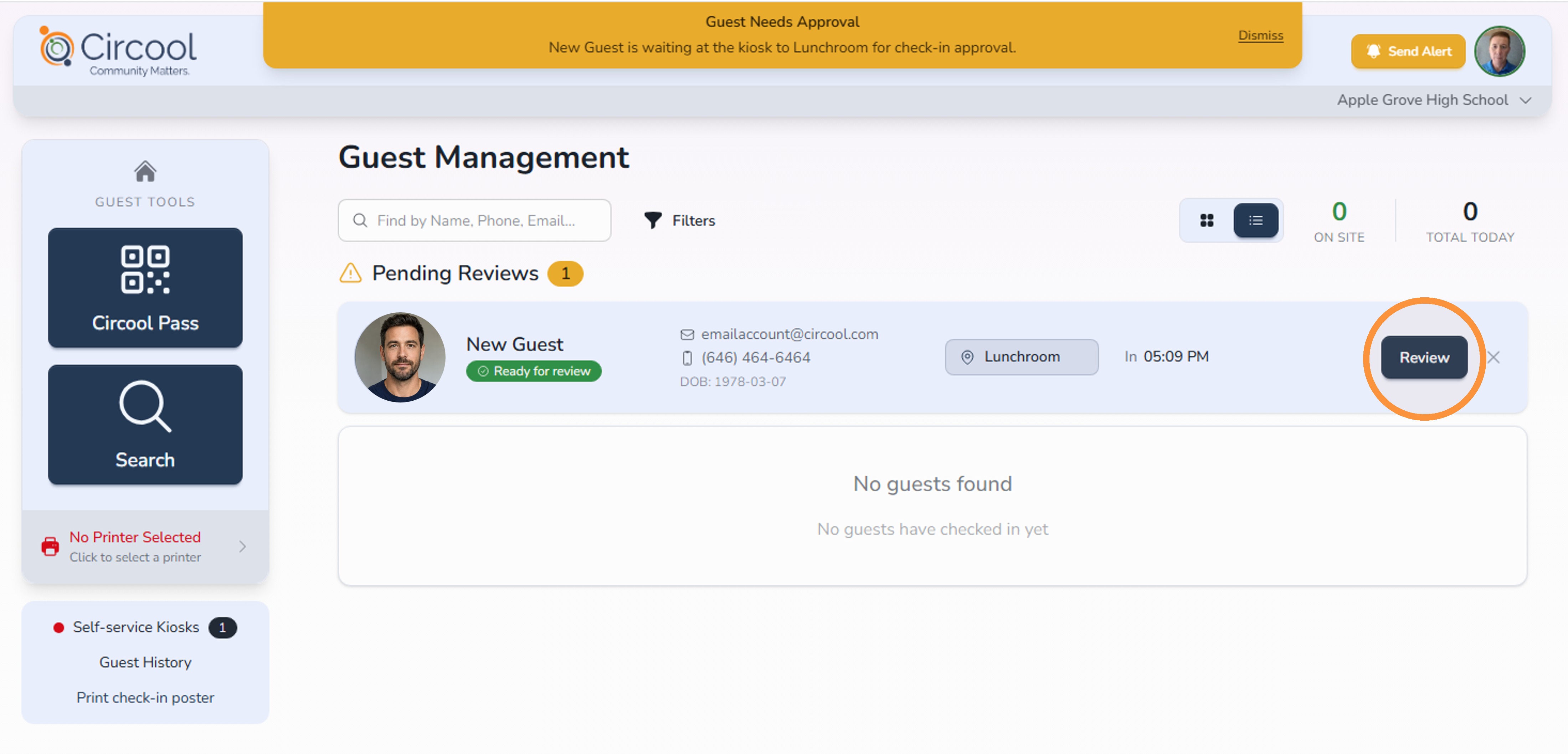
Back on your Guest Management Dashboard, the first-time guest request will appear as Pending Review.
You will also see a banner that says Guest Needs Approval.
Click Review. This completes the security checks so your team can review the request, approve or deny entry, and print the guest’s name badge if approved.
Guest check-out
Guests can also check out from the kiosk when they leave the school.
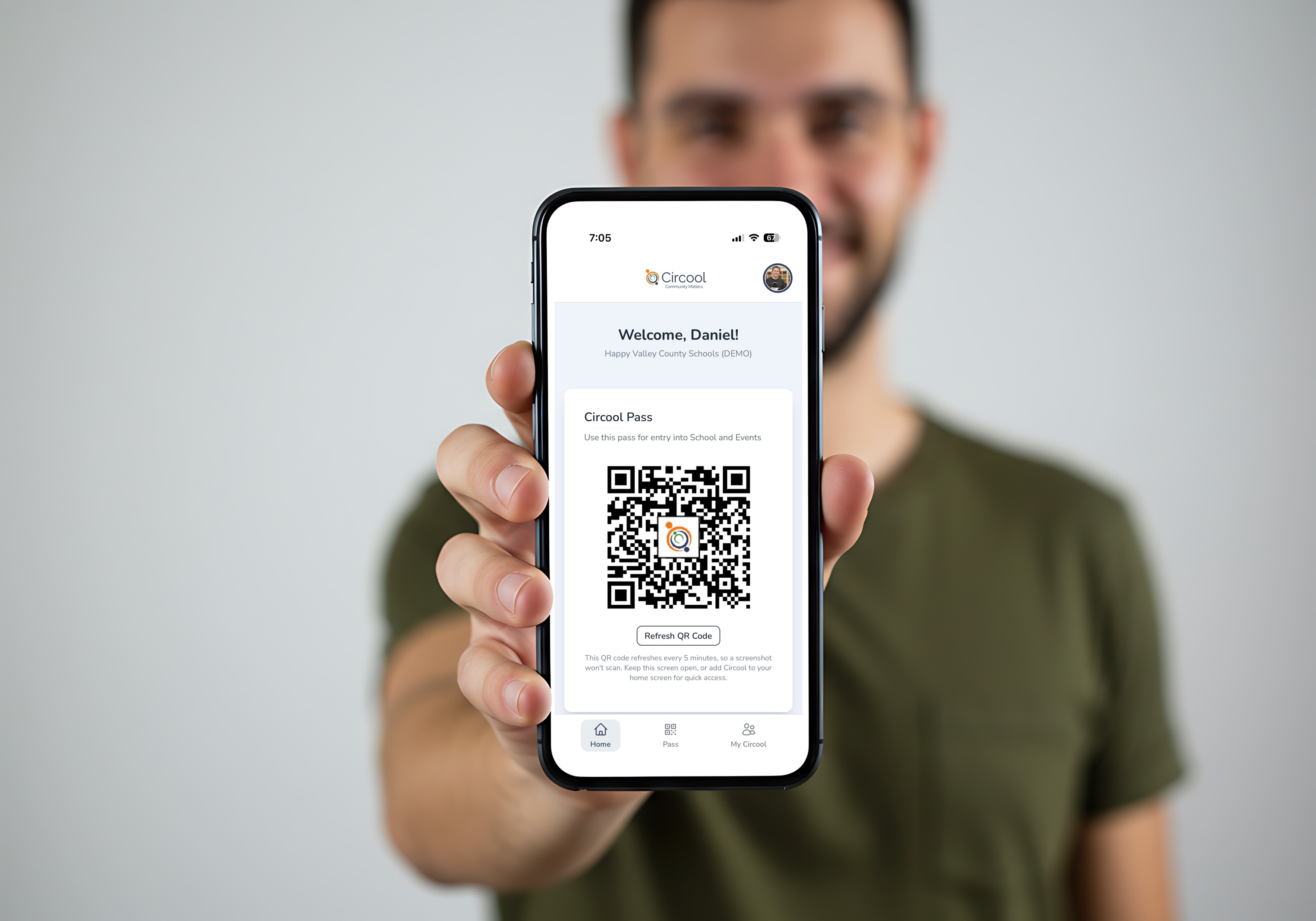
Tip: Guests can check out by showing their Circool Pass from their phone or the QR code printed on their guest badge.
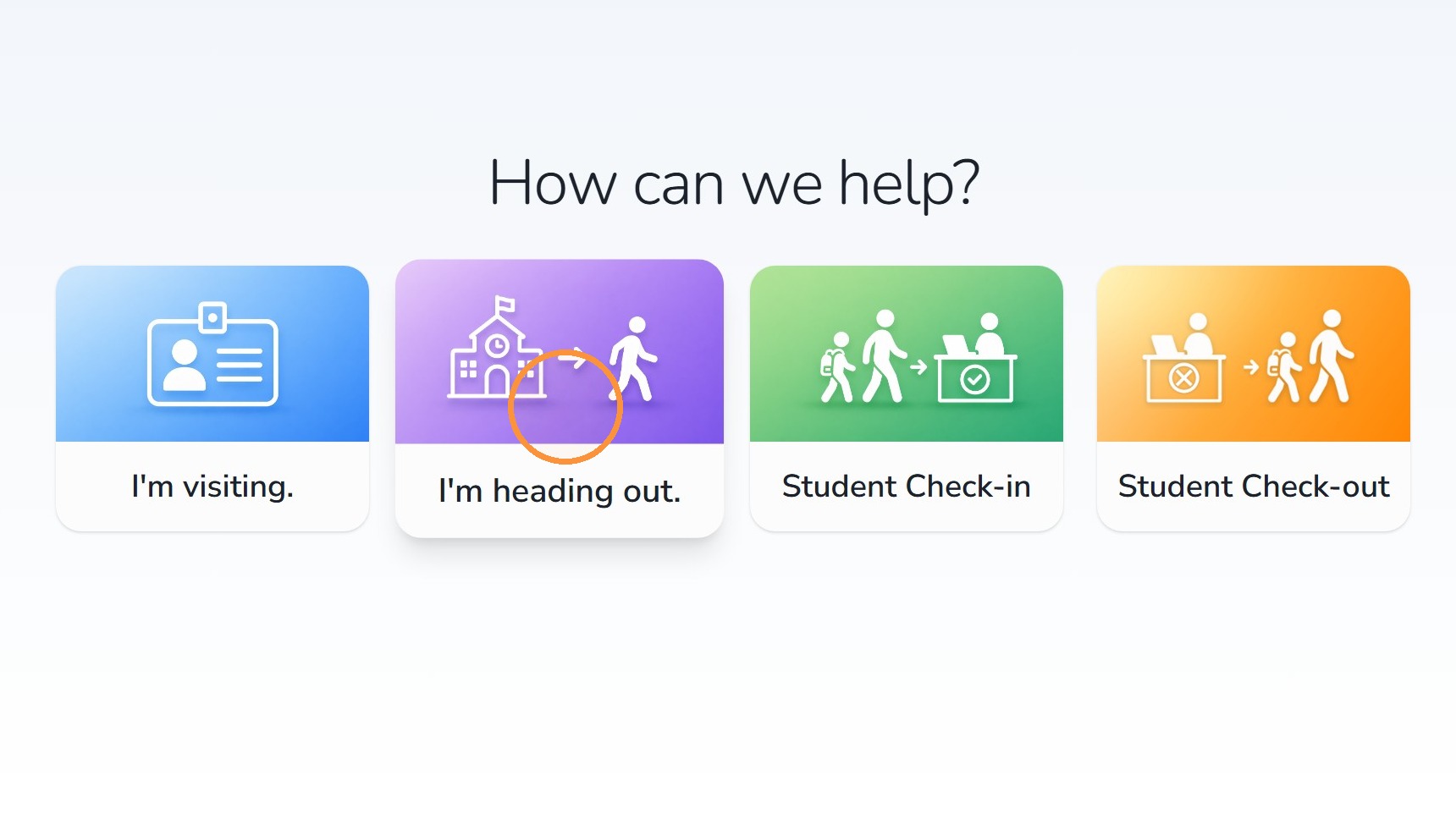
Step 1: Guest selects “I’m heading out”
Step 2: Guest scans their Circool pass or badge QR code
Helpful tips
- Let Circool Ready guests use the kiosk: If they have their Circool Pass, they can usually complete check-in without front desk help.
- Watch the dashboard: First-time guests and flagged guests may appear as Pending Review.
- Review before printing a badge: Staff should review any request that needs approval before allowing entry.
- Use kiosk check-out: Guests can scan their Circool Pass or badge QR code when leaving so your dashboard stays accurate.
What happens next
When a guest completes kiosk check-in, Circool updates the Guest Management dashboard and prints a badge if the guest is approved and badge printing is enabled.
If the guest needs review, the front desk will see the request on the dashboard and can follow the school’s normal approval process.
That’s it. The kiosk helps guests move through check-in and check-out quickly while keeping the front desk in control of anything that needs review.
Need help?
Circool support is here to help.
If you need help with kiosk guest check-in, first-time guest review, or guest check-out, contact Circool support by phone at 205.202.1124 or email support@circool.com.
Was this article helpful?
That’s Great!
Thank you for your feedback
Sorry! We couldn't be helpful
Thank you for your feedback
Feedback sent
We appreciate your effort and will try to fix the article