How to Manage Event Guest List Helpers
Use this guide to invite other school staff members to help scan or search guests into a Circool event.
For larger events, Circool allows multiple staff members to open the event scanner from their phone, tablet, laptop, or other device with internet access. This helps your school move guests through check-in faster and keep the line organized.
Before you start
Guest list helpers are staff members who can help check guests into an event using Circool.
Helpers can:
- Scan a guest’s Circool Pass
- Search for a guest by name
- Help move guests through the event check-in line
- Use their own phone or school device as an event scanner
Good to know: Helpers should be Circool Ready before the event begins. If you know who will help with check-in, invite them early so they are ready when guests arrive.
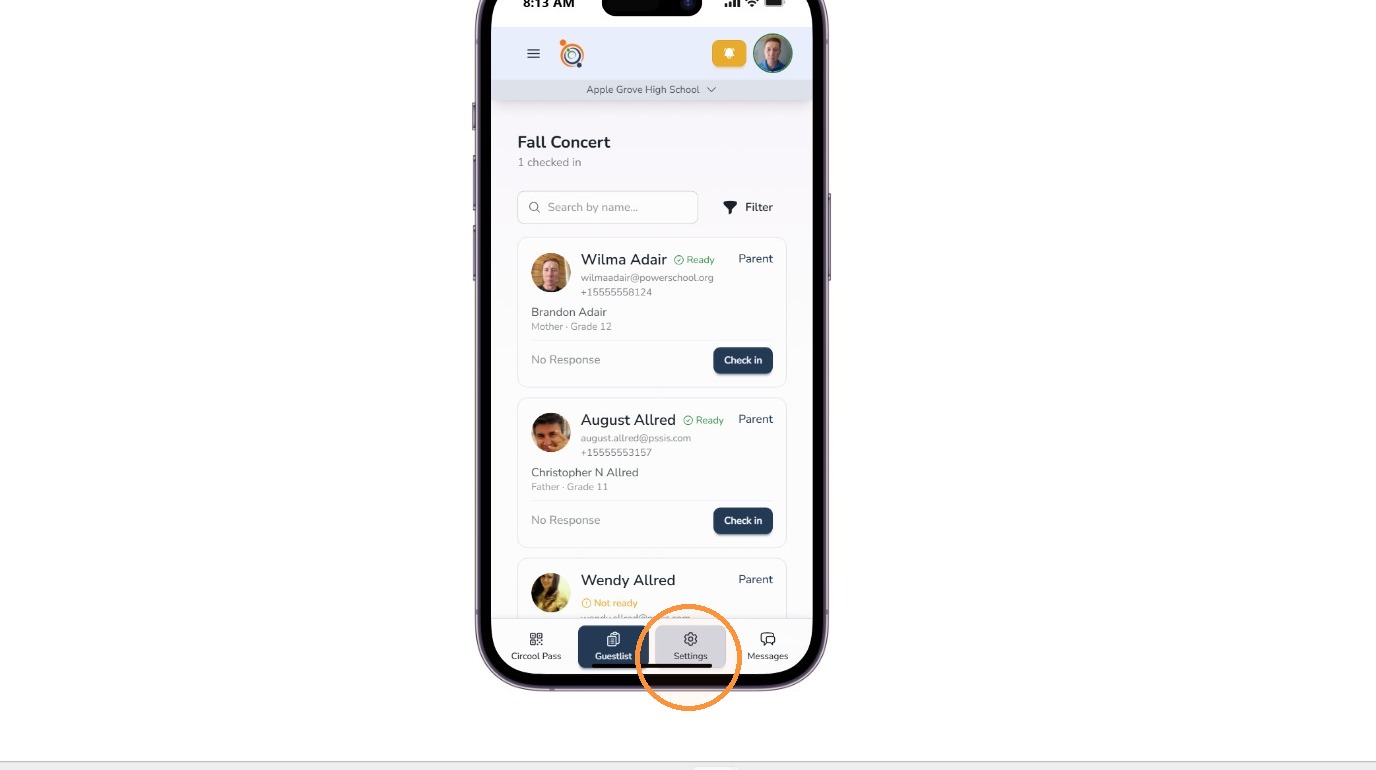
Step 1: From the Event, open Settings
Click Settings.
This is where you can manage helper access for the event.
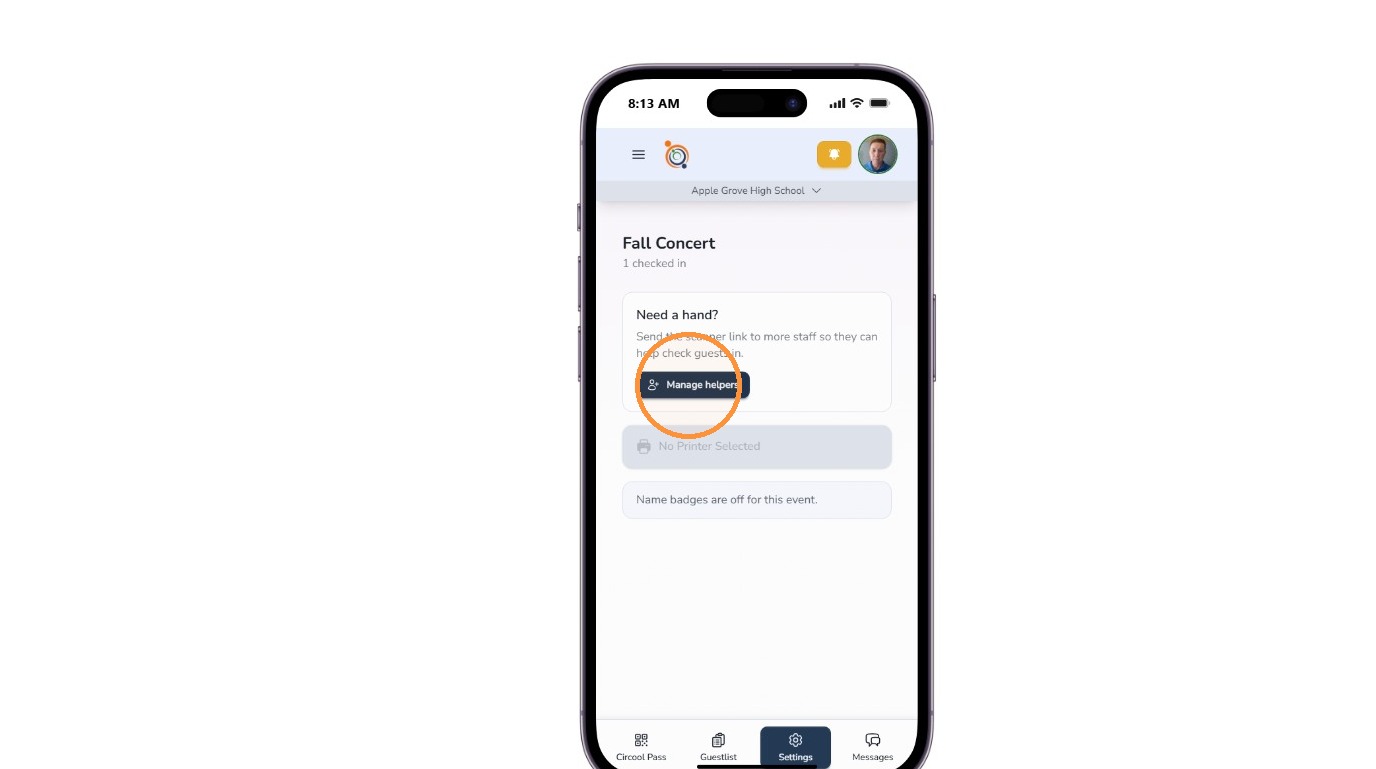
Step 2: Manage helpers
Click Manage Helpers.
This opens the helper list so you can choose which staff members should receive access to the event scanner.
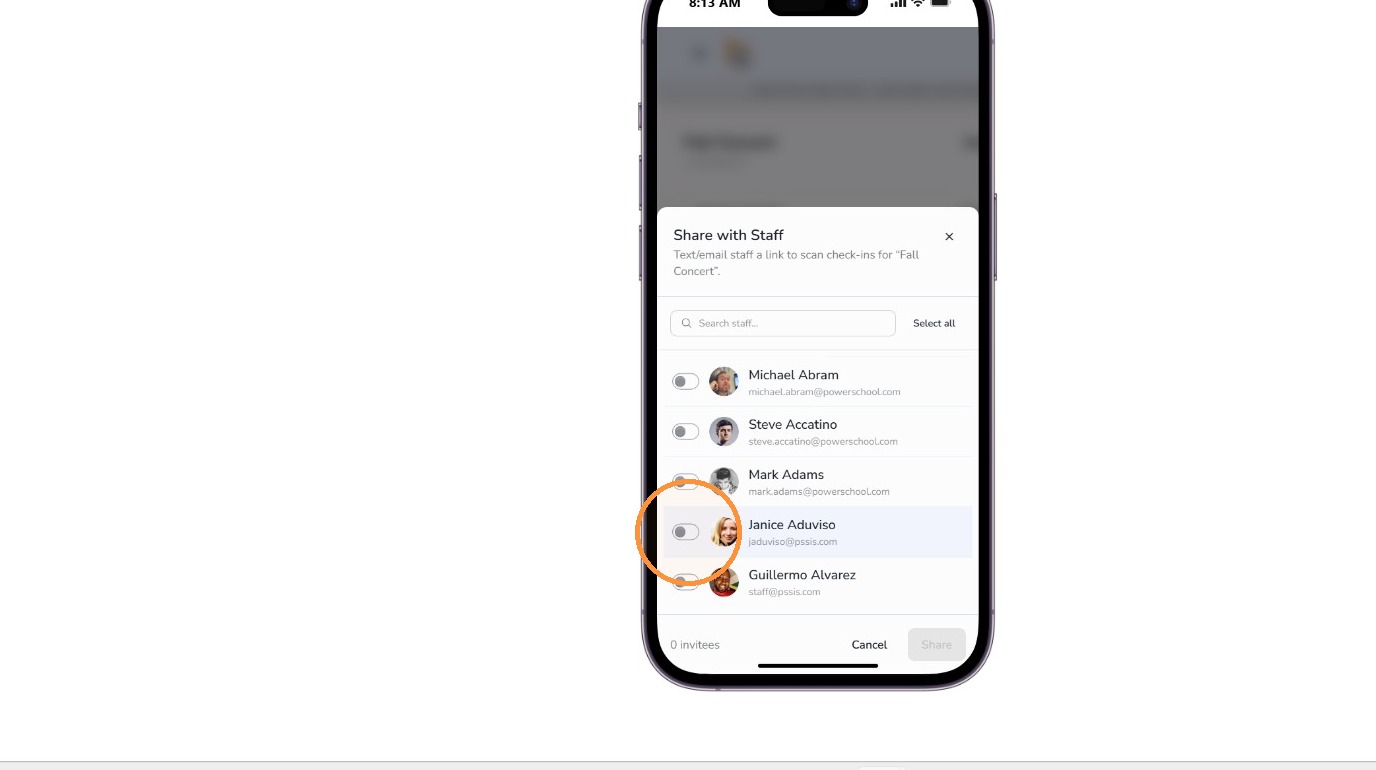
Step 3: Select staff members
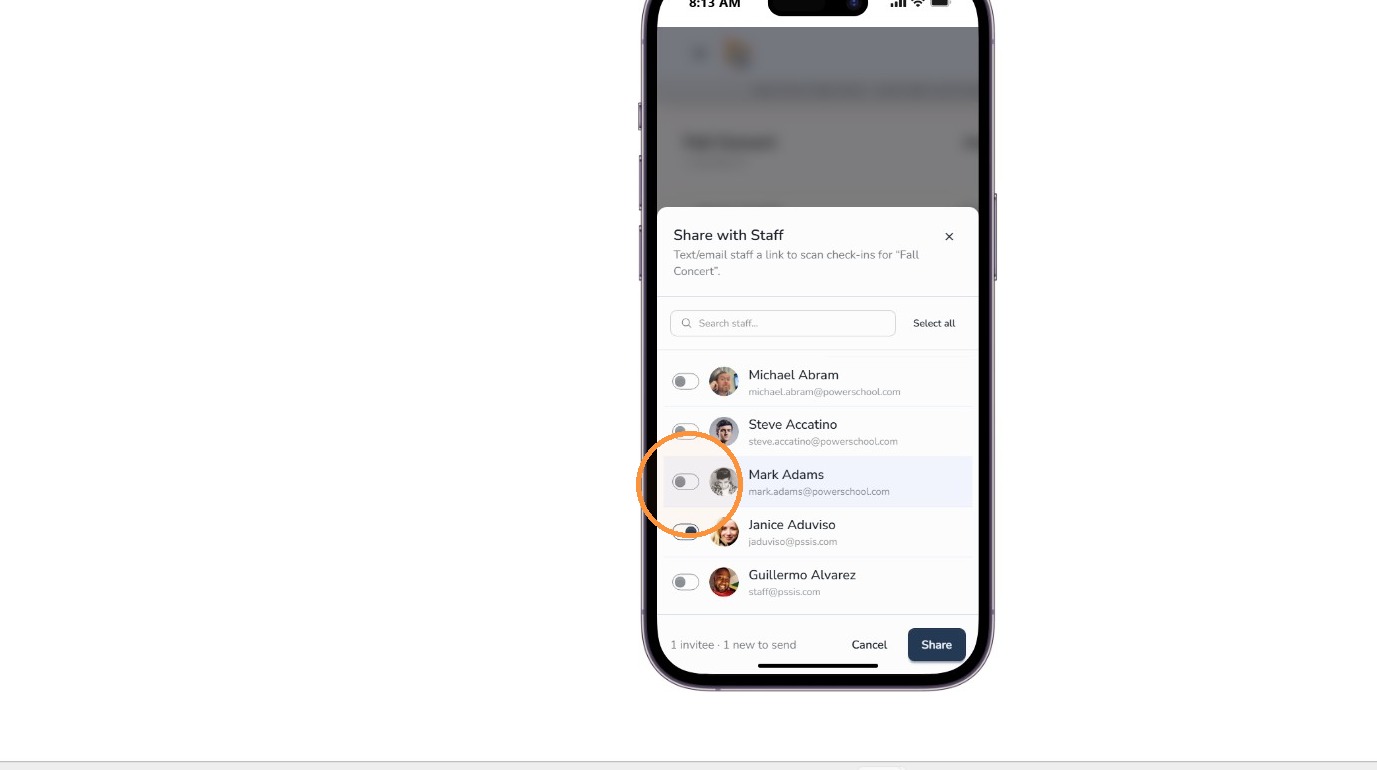
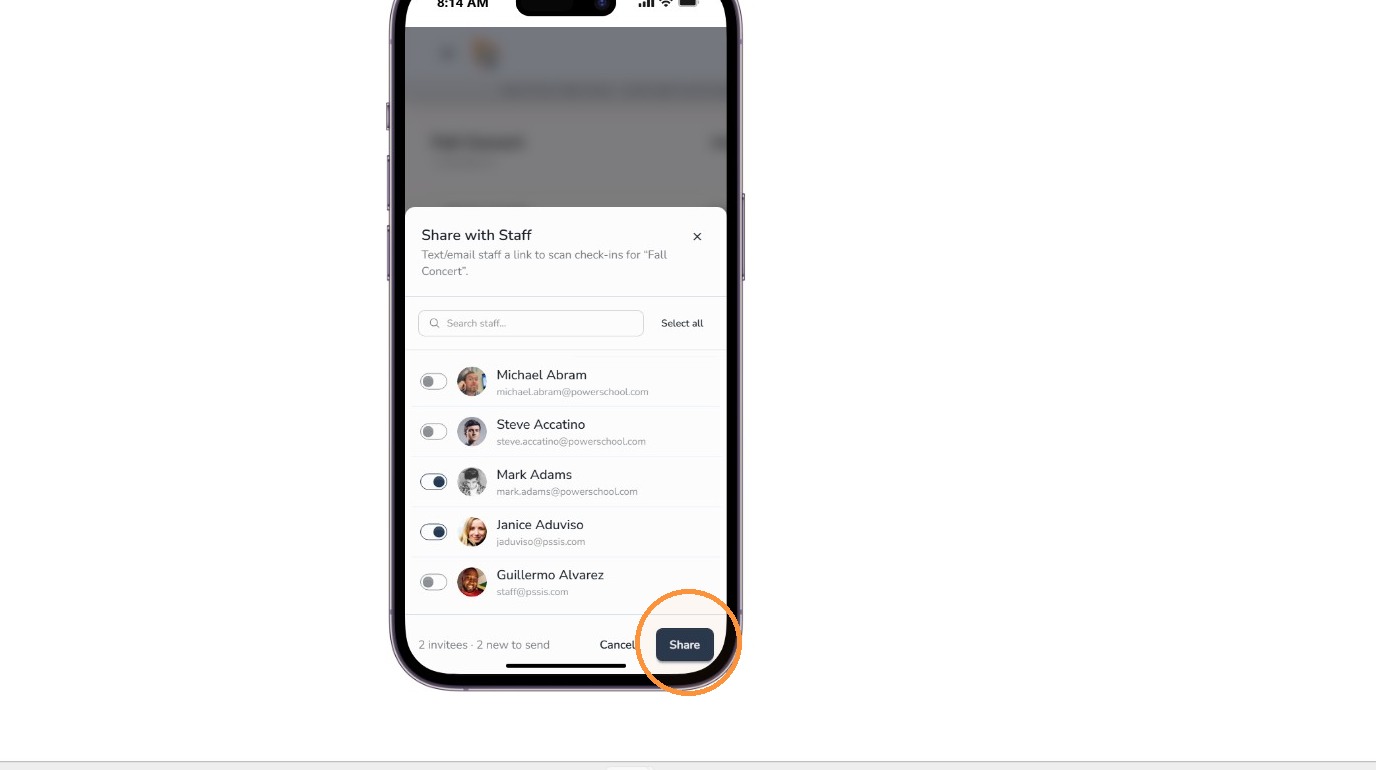
Select the staff members who should help scan or search guests into the event.
You can select one helper or multiple helpers, depending on how many check-in stations or scanning lanes your school needs.
Tip: For large events, assign enough helpers to keep check-in moving. A good setup is usually one Circool Pass scanning lane and one manual lookup lane.
Step 4: Share the scanner link
After selecting the staff members, click Share.
Circool will send the selected staff members a text and email link to open the event scanner. They can use that link to begin scanning Circool Passes or searching for guests by name.
What helpers can do: Once they open the scanner link, helpers can use their phone or device to scan Circool Passes or search for guests by name during the event.
Helpful tips
- Invite helpers early: This gives staff time to open the link and be ready before guests arrive.
- Use multiple helpers: Large events move faster when more than one person can scan or search guests.
- Use phones when possible: A phone is usually the easiest device for scanning Circool Passes at a door or check-in table.
- Keep one person available for questions: If a guest needs extra help, route them to a staff member who can review without slowing down the check-in line.
What happens next
Selected helpers will receive a link to access the event scanner.
Once they open the link, they can begin helping your school scan or search guests into the event.
That’s it. Circool makes it easy to add extra event check-in helpers so your school can keep the guest line moving.
Need help?
Circool support is here to help.
If you need help adding event helpers, sharing scanner links, or checking guests into a Circool event, contact Circool support by phone at 205.202.1124 or email support@circool.com.
Was this article helpful?
That’s Great!
Thank you for your feedback
Sorry! We couldn't be helpful
Thank you for your feedback
Feedback sent
We appreciate your effort and will try to fix the article