How to Create and Manage Events in Circool
Use this guide to create a school event, invite the right families, set event details, and manage the event after it is published.
Circool Events helps your school invite guardians, manage RSVPs, support guest entry, and prepare your check-in team before the event begins.
Before you start
Tip: Good to Know. If you do not see the Events menu item, that means this feature has not been enabled for your school.
When you create an event in Circool, you are selecting the students who should be included in the event. Circool then sends the invitation to the guardians connected to those students.
You can invite families by:
- Whole school
- Grade level
- Homeroom
- Individual student
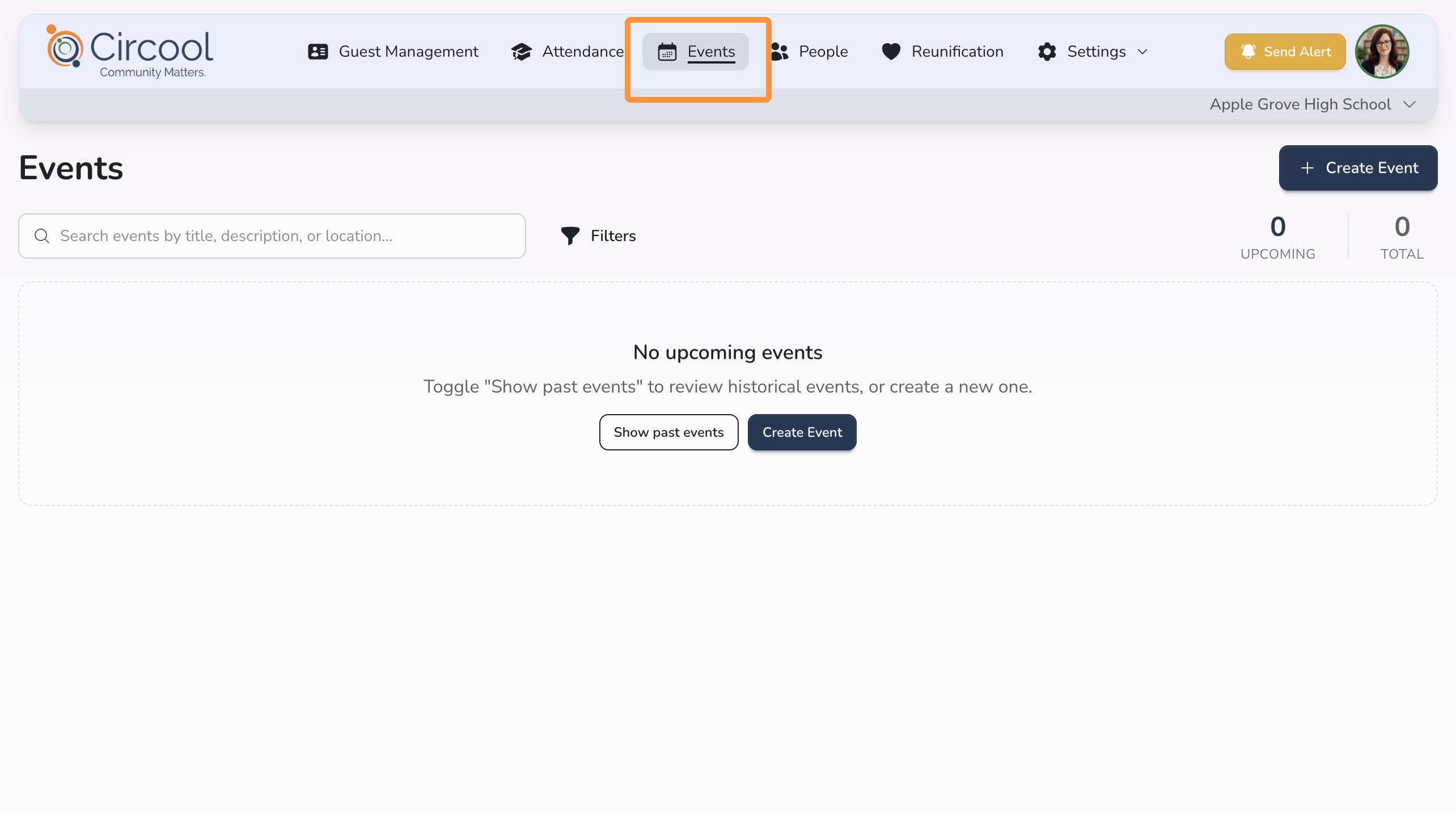
Open Events
Navigate to the Events page. Any existing with a future date will be displayed on this page.
Creating a New Event
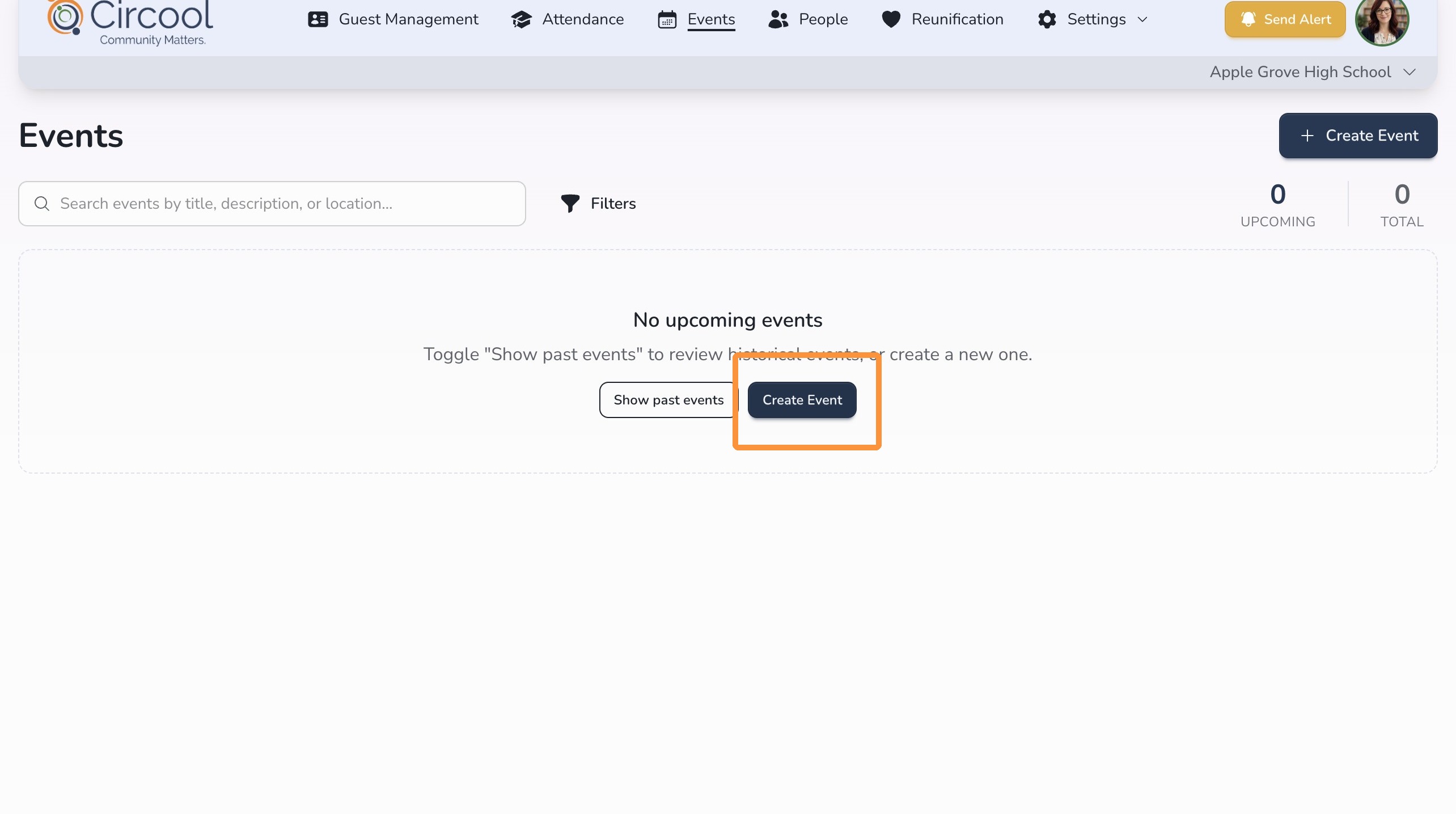
Click Create Event to begin.
Step 1: Event details
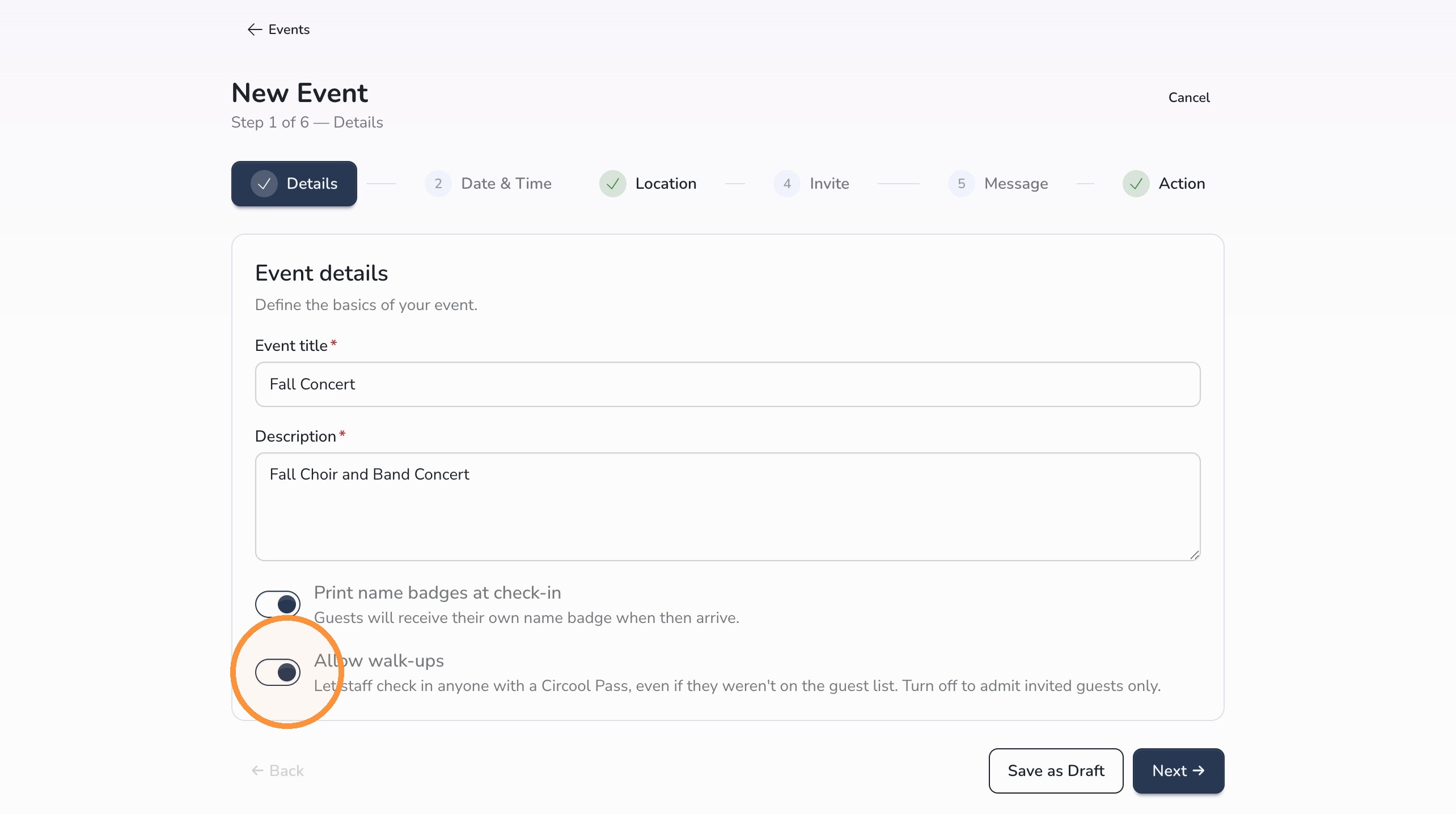
Enter the event title and a short description of the event. This is the basic information families will see about the event.
You will have space later to add extra instructions, such as entrance, parking, arrival, or check-in details.
Print name badges: Enable this setting to decide whether Circool should print name badges for the event.
Allow walk-ups: Enable this setting if anyone with a Circool Pass should be able to check in to the event, even if they were not specifically invited. This is helpful for open events where friends and family may attend.
Step 2: Event Date, time, and location
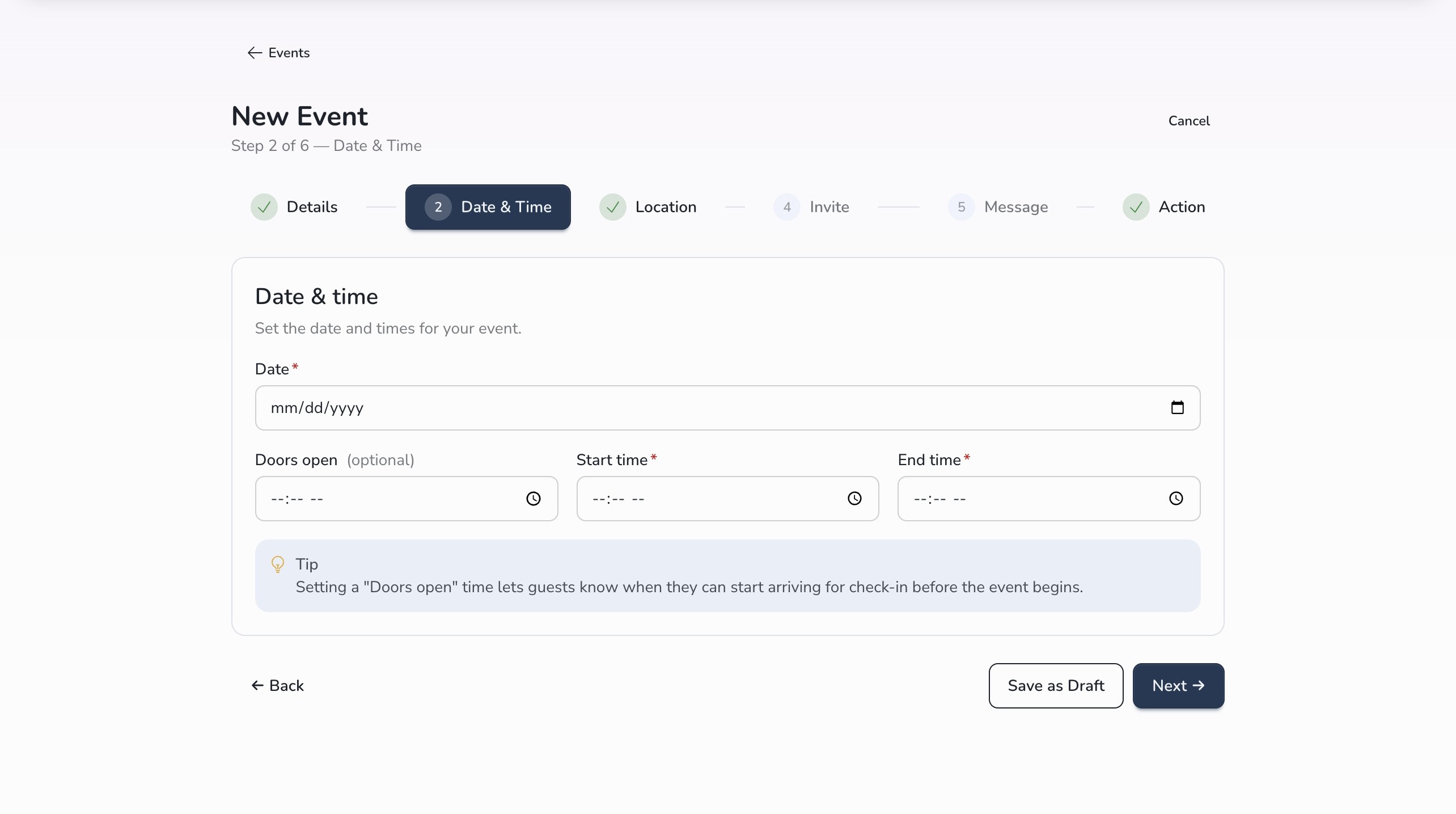
Enter the event date, start time, and end time.
Tip: Doors Open lets families know when they can begin arriving for check-in.
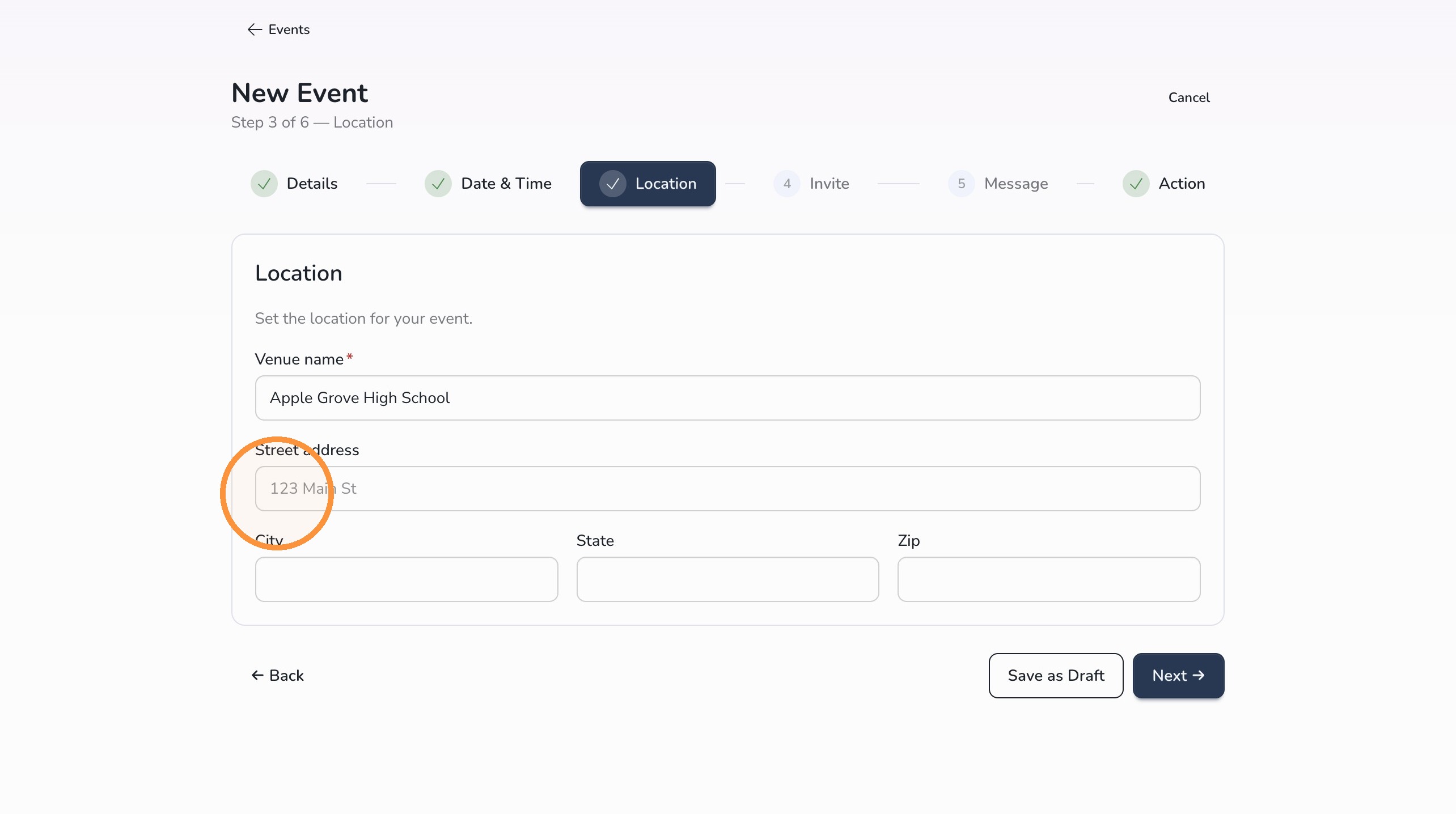
Step 3: Select the Event location
The venue name will default to your school. You can also enter a specific location and address if the event is being held somewhere else.
Step 4: Choose your invitation list
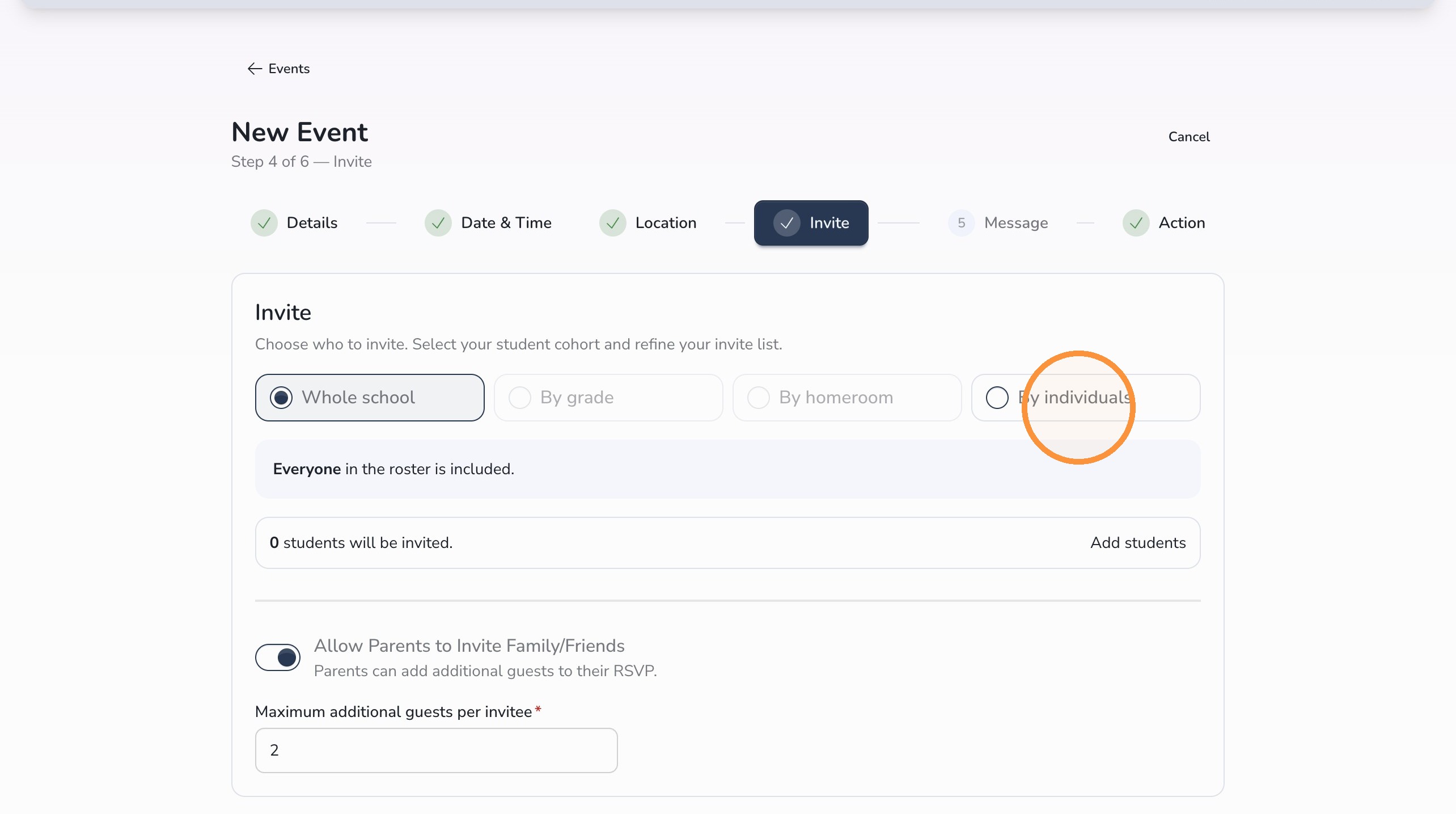
Important: In this step, you are selecting the students who should be included in the event. Circool then sends invitations to the guardians associated with those students.
Use the prebuilt filters to build your invitation list:
- Whole school: Invites everyone in the school.
- By grade: Selects students from one grade level, such as all 5th graders.
- By homeroom: Selects students by homeroom teacher.
- By individuals: Selects specific students by name. This is helpful for clubs, awards programs, or smaller event groups.
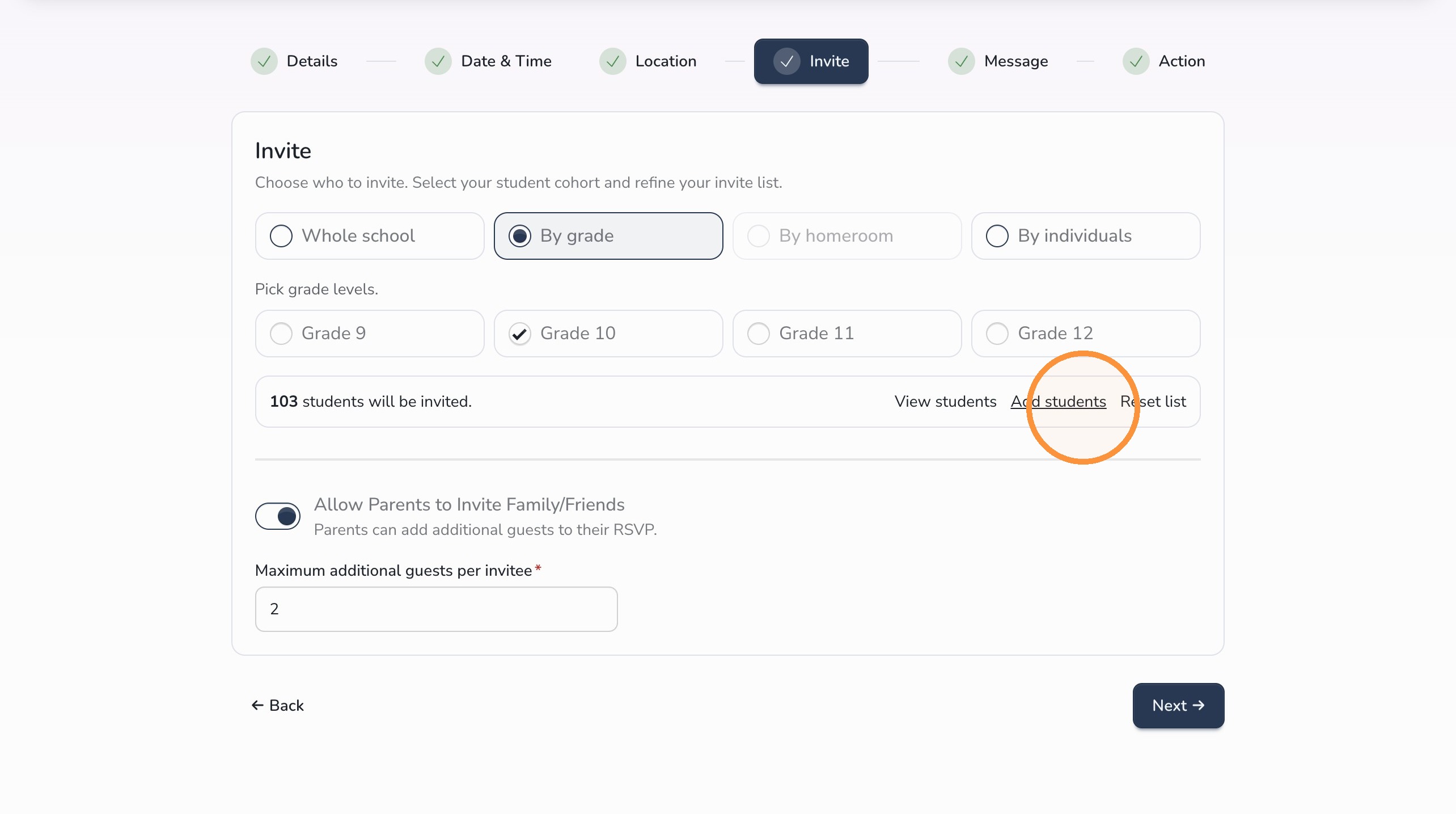
Remove specific students if needed
Click View Students to review the students included in the selected group.
To exclude a specific student from the list, turn off the Included toggle for that student.
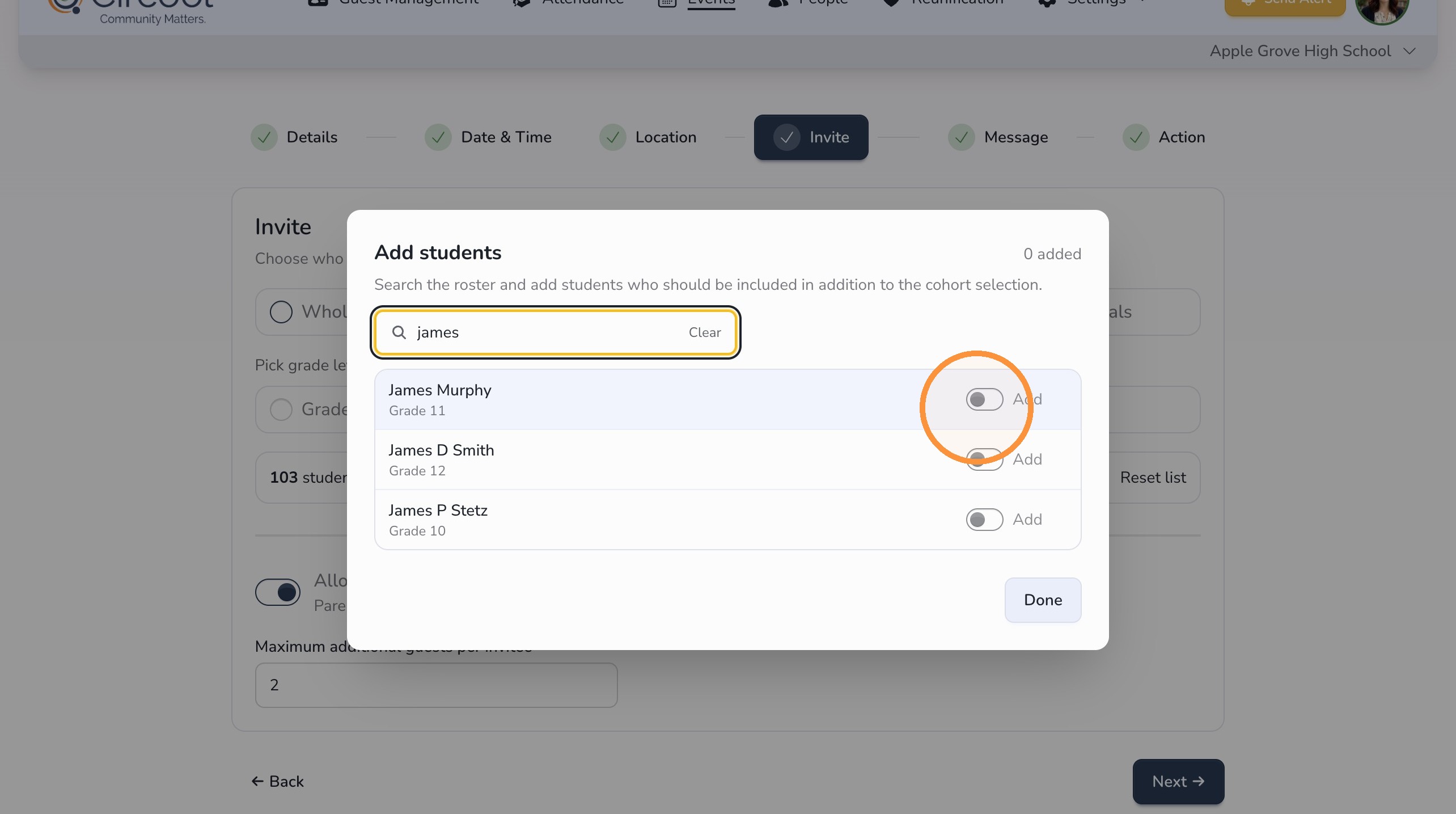
Add students by name
To add a specific student by name, click Add Students. Search for the student by name, then use the toggle to add them to the event.
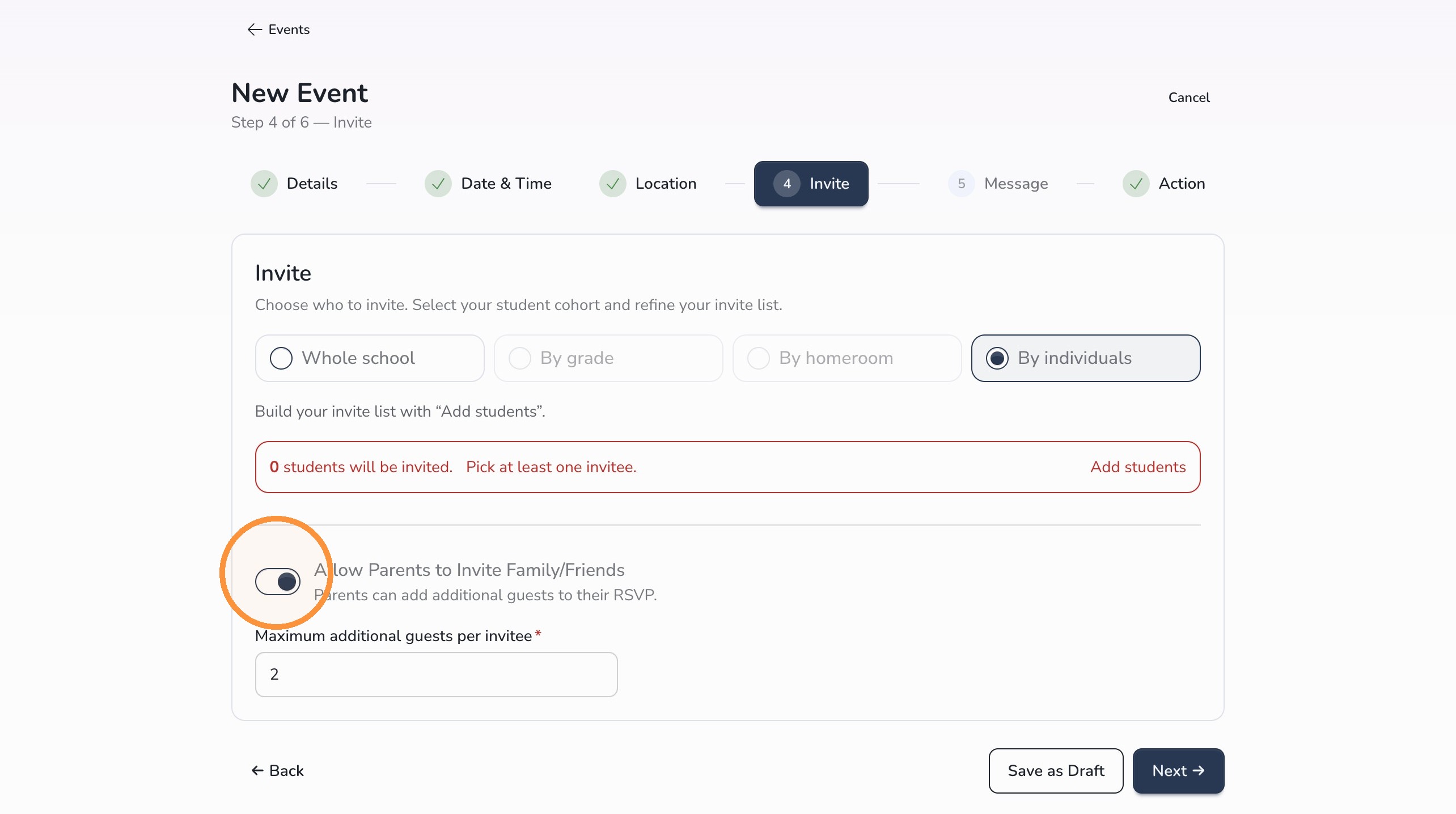
Allow guardians to invite guests
Turn this option on if guardians should be able to invite friends or family members to the event.
You can also set a limit for how many people each guardian can invite per student.
Step 5: Add event message details
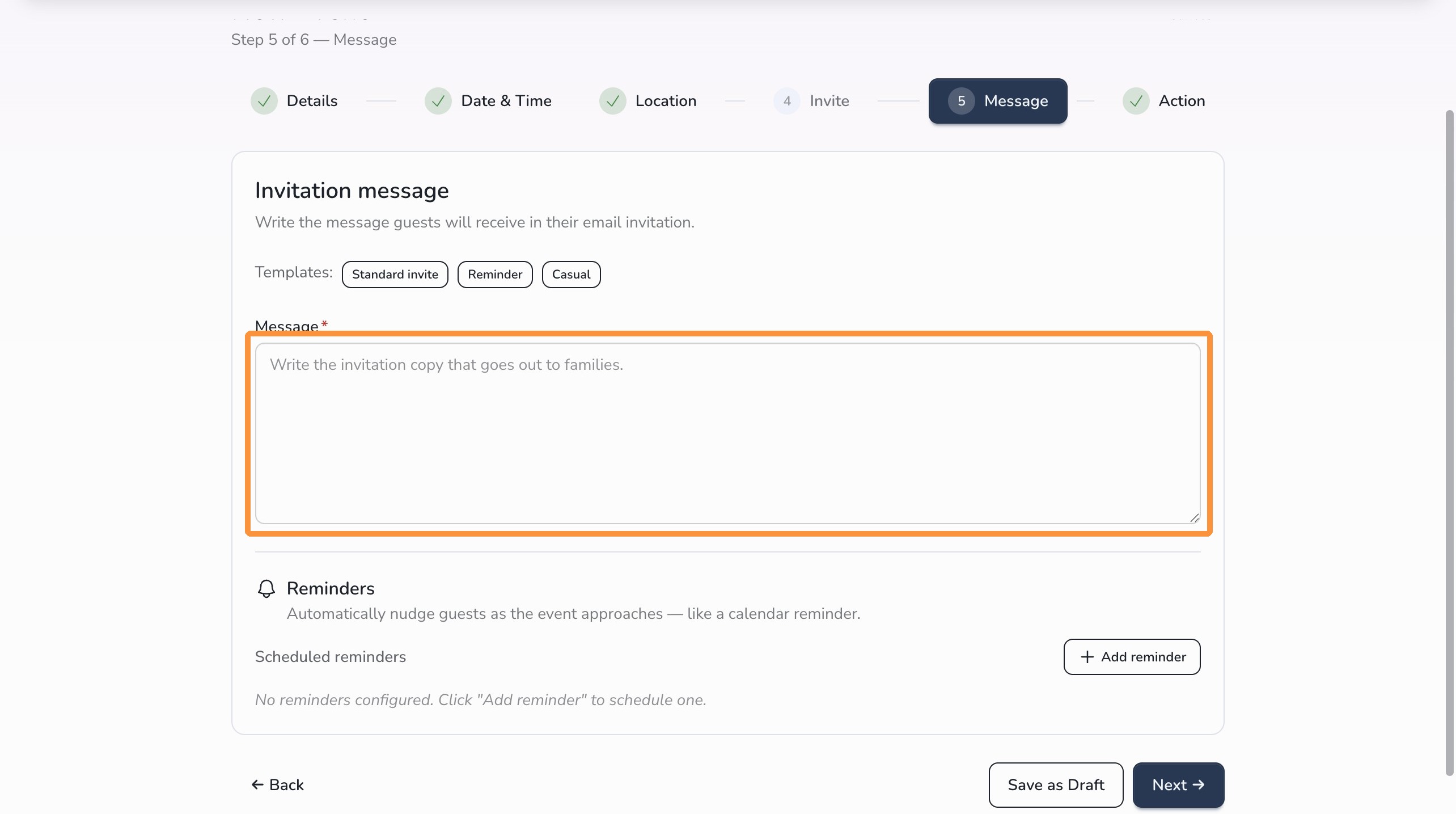
In the Message step, add any details families need before they arrive.
This is a good place to include:
- Which entrance to use
- Where to park
- Any special instructions for check-in
Set reminders
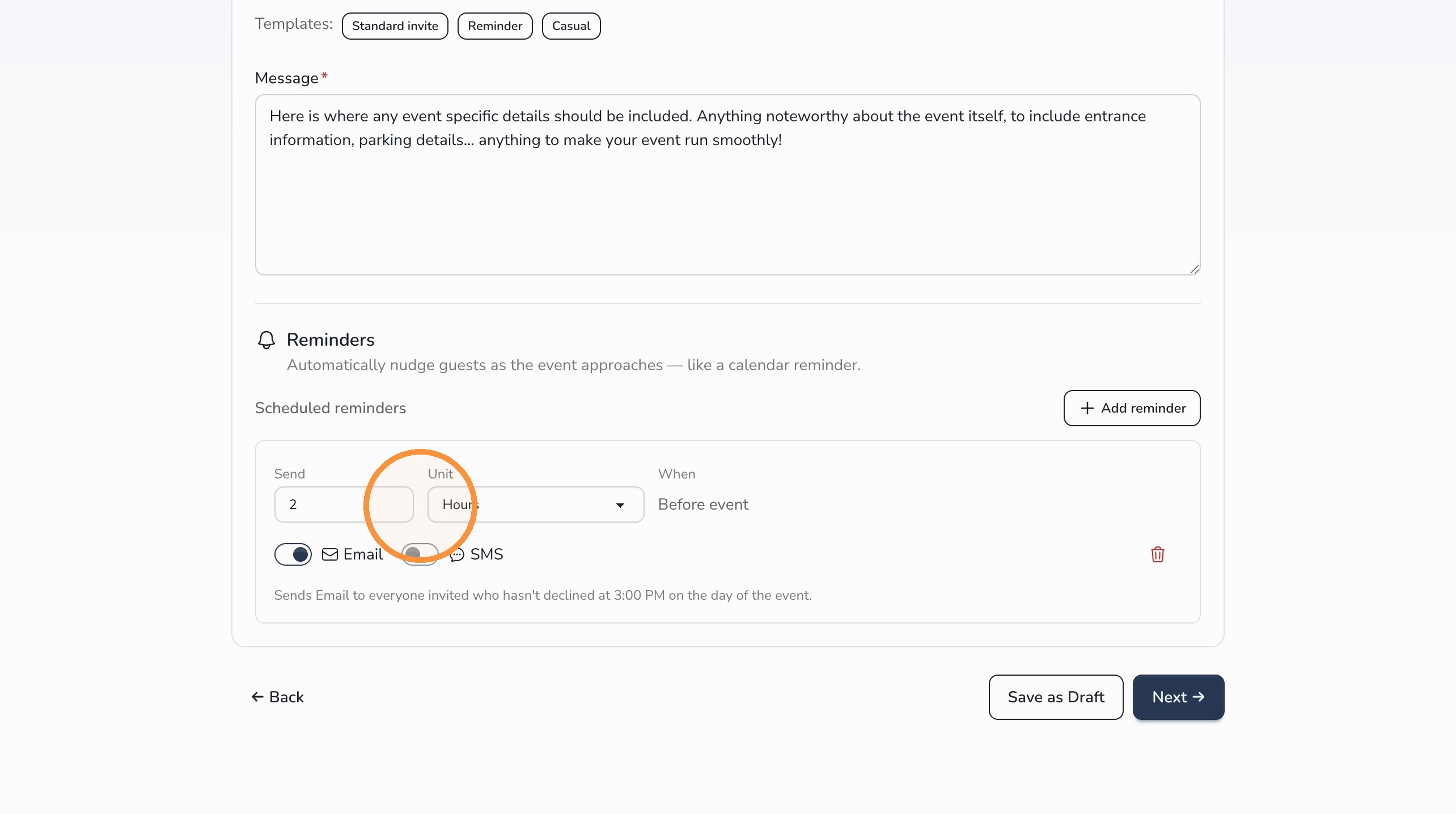
We suggest that you set automatic reminders to help families remember the event.
Reminders can be sent by email, text message, or both.
Step 6: Review the event
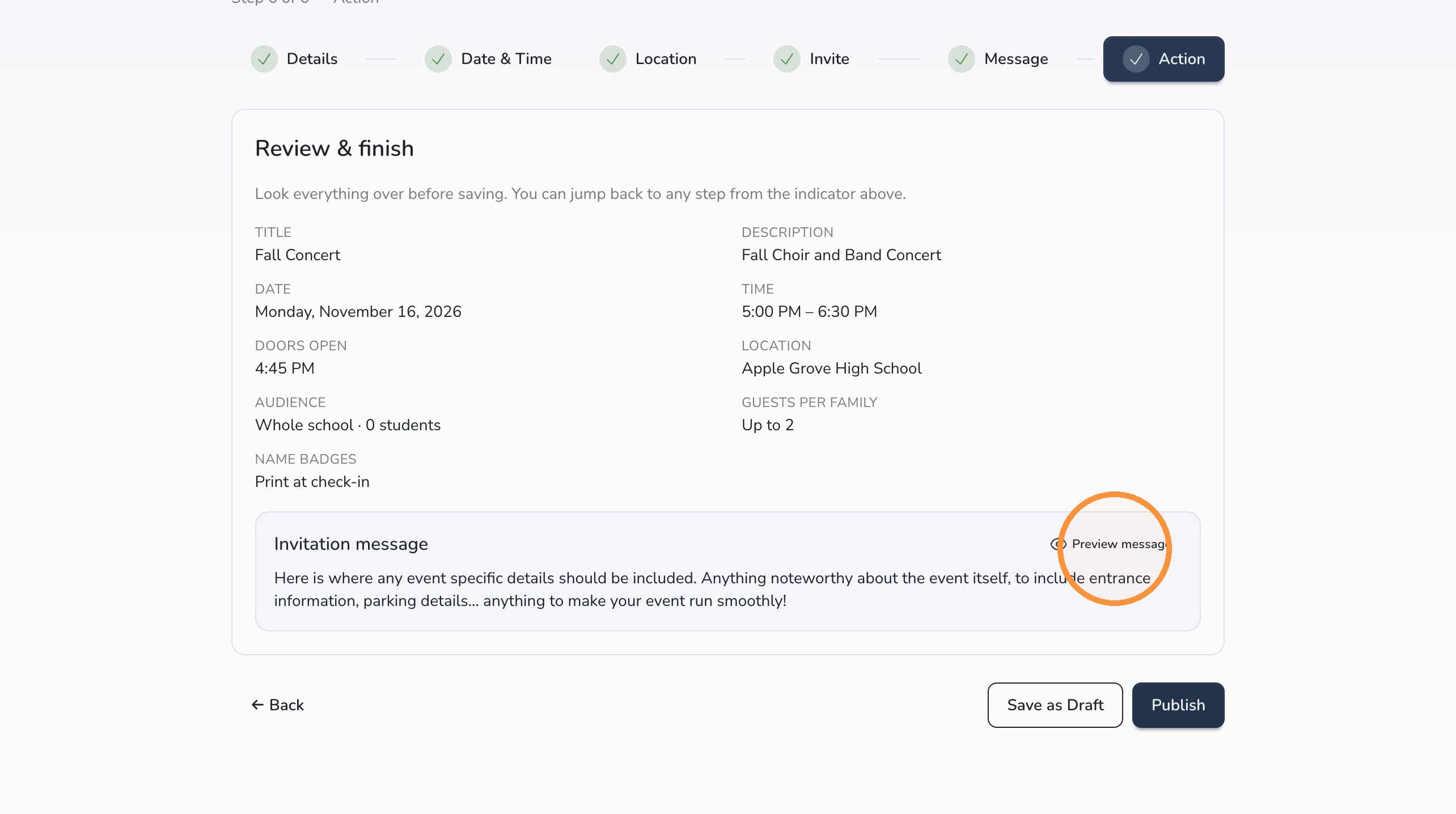
The Action tab is your final review screen. It shows the information from the previous setup steps in one place.
If you need to correct anything, click the numbered tab at the top to return to that section.
Save as Draft
Saves the event information but does not send the invitation to guardians.
Publish
Makes the event live and sends invitations to guardians.
Tip: To see the invitation before it is sent, click Preview Message.
Event management
View a published or draft event
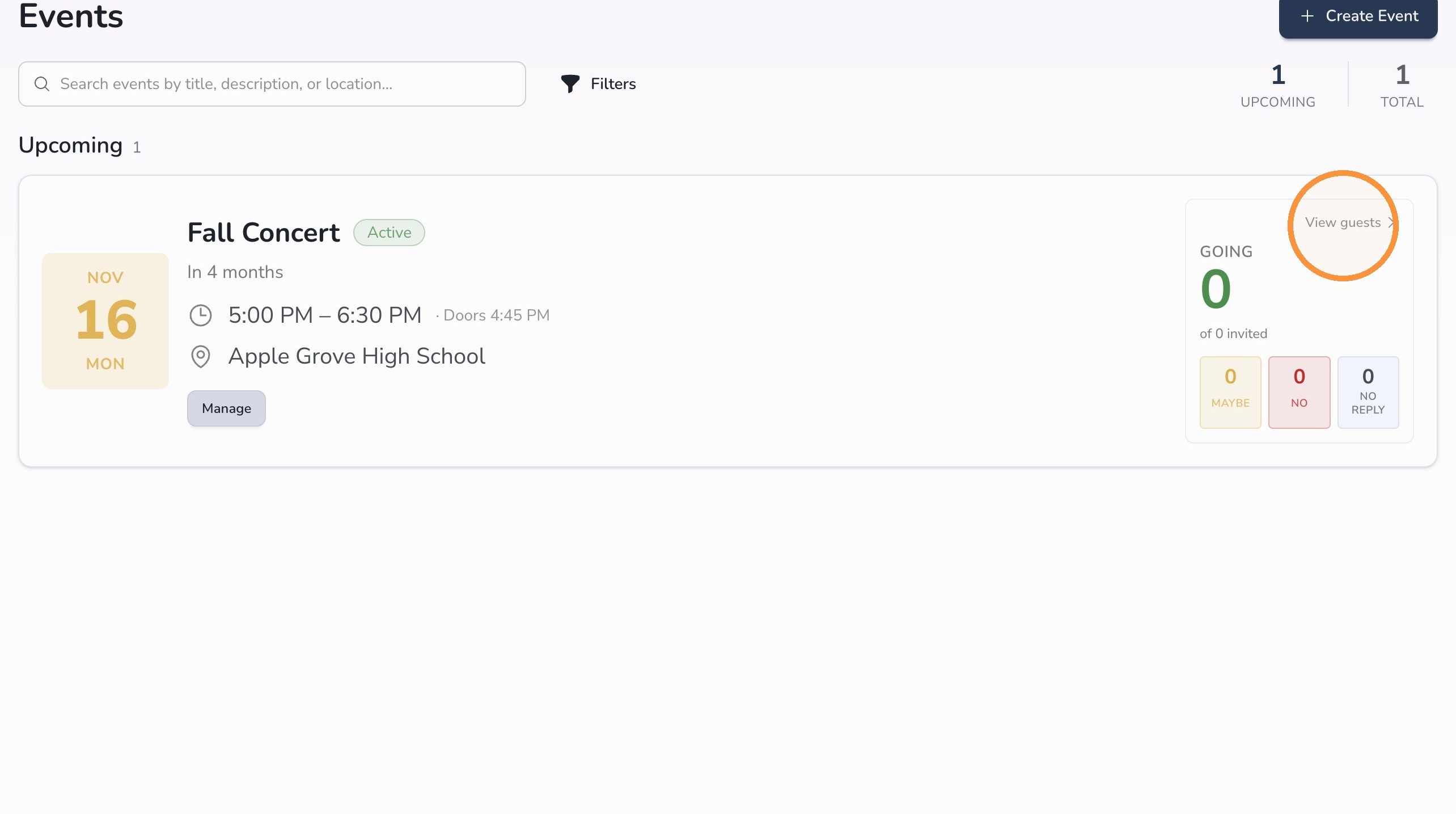
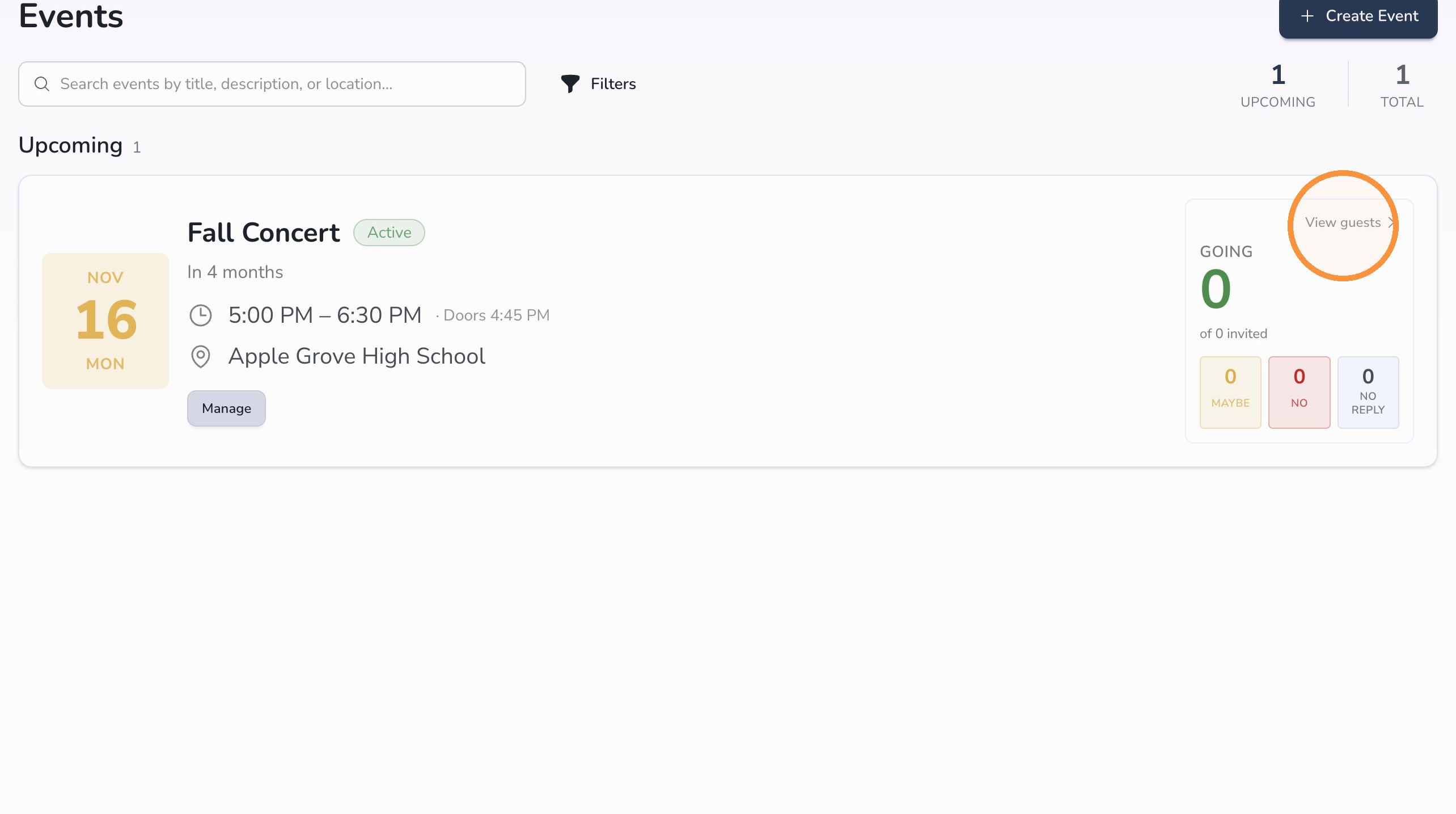
Once published, your event card will appear on the main Events page.
View Event Guests
You will see a quick view of RSVPs on the right side of the screen. To review the invitation list, click View Guests.
Edit an Event
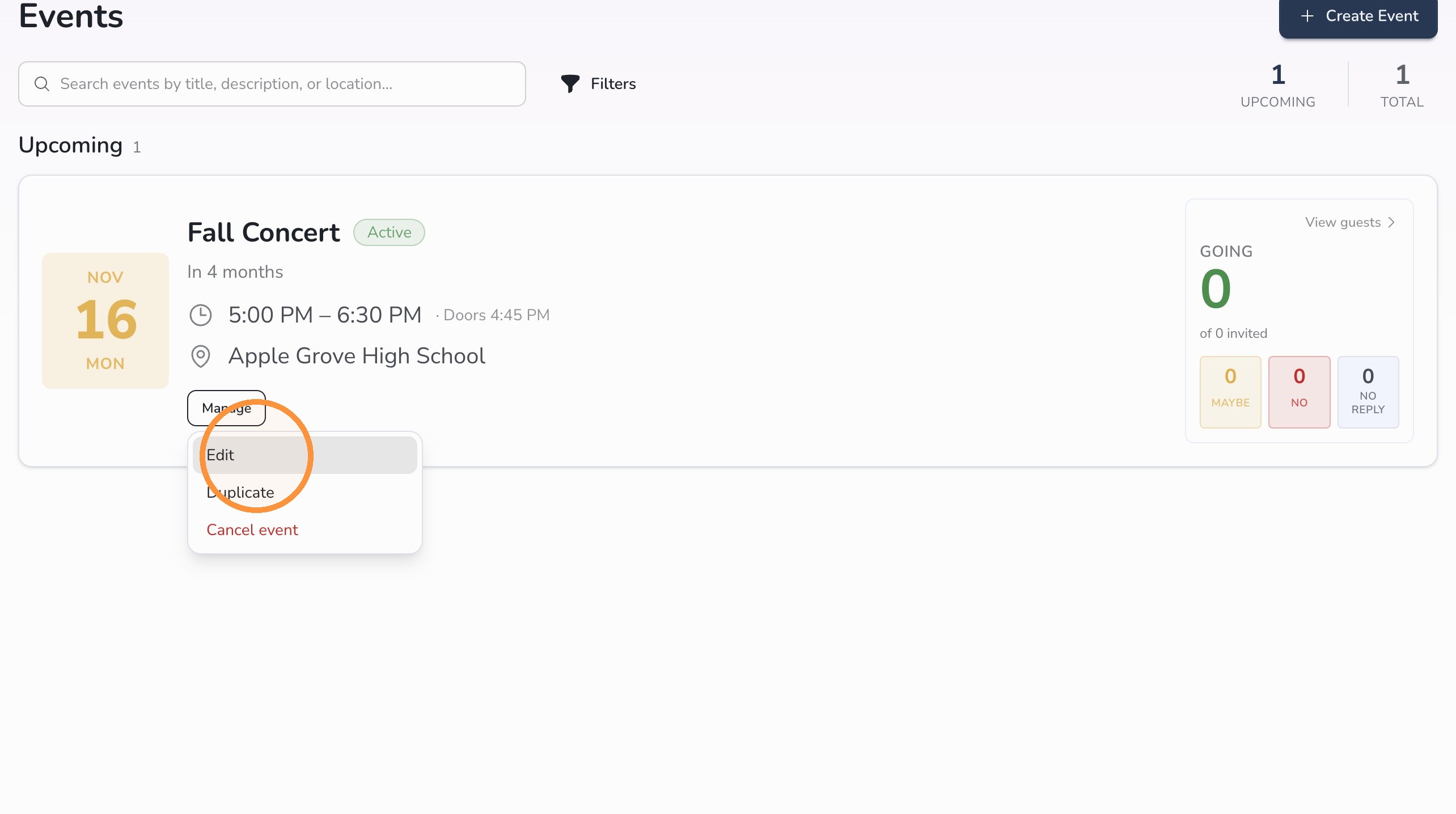
To modify an event, click Manage, then Edit.
Circool will take you back to the event setup wizard, where you can update the event details.
Step 17: Duplicate an event
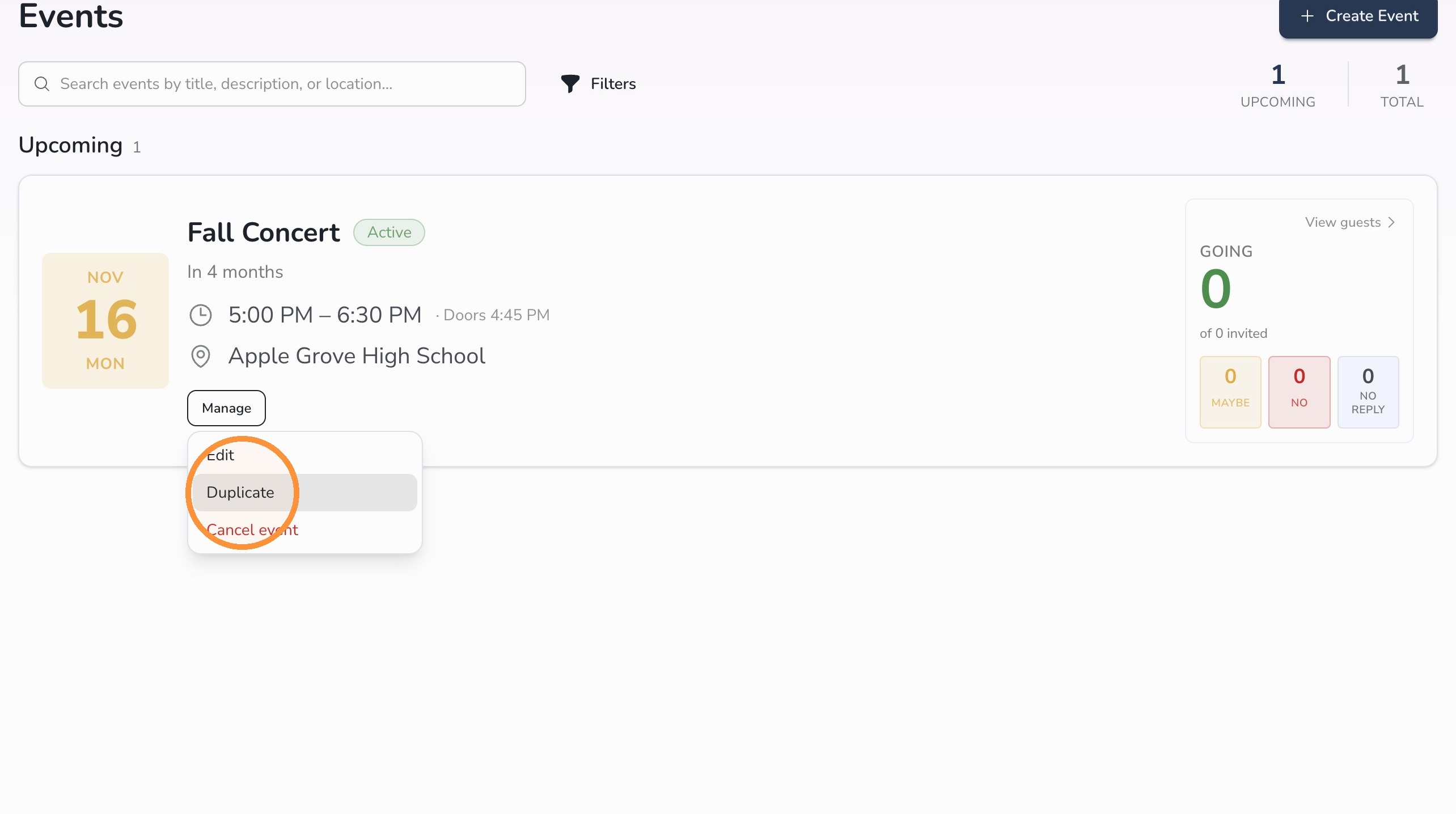
You can also click Duplicate to create a copy of an event. Then update any details that need to change.
Tip: Duplicating an event is helpful when you are hosting the same event for different groups with different start times. Duplicate the first event, then update the start time and invitation list on the copy.
Helpful tips
- Use clear event names: Choose a title families and staff will recognize quickly.
- Double-check your invitation list: Make sure the correct students are included before publishing.
- Add arrival details: Include parking, entrance, and check-in instructions in the event message.
- Use drafts when needed: Save as draft if the event details are not final.
- Preview before publishing: Use Preview Message to review the invitation before it goes out.
What happens next
After the event is published, guardians will receive the event invitation. They can RSVP and, if allowed, invite additional family members or friends.
Your event will appear on the Events page, where your team can manage the event, view guests, track RSVPs, edit details, or duplicate the event if needed.
That’s it. Circool Events helps your school invite the right families, share important arrival details, and keep event check-in organized.
Need help?
Circool support is here to help.
If you need help creating, publishing, editing, or managing events in Circool, contact Circool support by phone at 205.202.1124 or email support@circool.com.
Was this article helpful?
That’s Great!
Thank you for your feedback
Sorry! We couldn't be helpful
Thank you for your feedback
Feedback sent
We appreciate your effort and will try to fix the article