Guest Management Dashboard Overview
This guide gives your front office team a quick overview of the Guest Management dashboard.
You’ll learn how to log in, select the correct school, choose a badge printer, print check-in posters, and review today’s guests and visitor history.
What you’ll learn
Welcome to Circool! This overview walks through the basics so your team knows where to start before guests begin arriving.
- Log in to Circool
- Understand the main Guest Management dashboard
- Select the correct school
- Choose your badge printer
- View today’s guests and visitor history
Tip: Once these basics are in place, your team will be ready to manage guest check-ins with confidence.
Log in to Circool
There are two common ways to log in to Circool.
Option 1: Use your activation email
- Check your email for a message that says “[School District] invites you to Circool.”
- Open the email and click Open Circool.
Option 2: Go directly to Circool
- Go to https://my.circool.com.
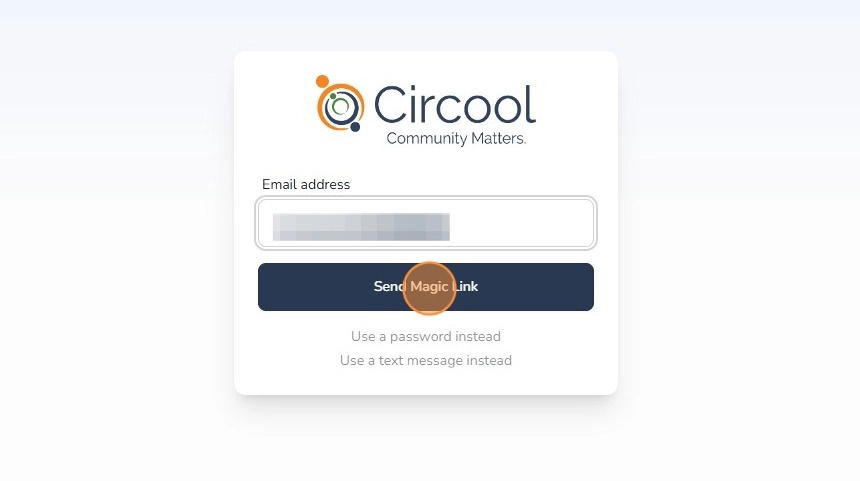
- Log in with your district email address.
- If you forgot your password, enter your email address and click Send Magic Link. Circool will email you a secure link to log in.
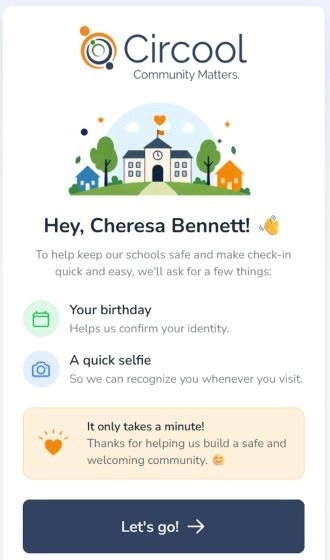
Good to know: If your Circool profile is incomplete, you may be asked to confirm your birthday and add a profile picture.
Make sure you are viewing the correct school
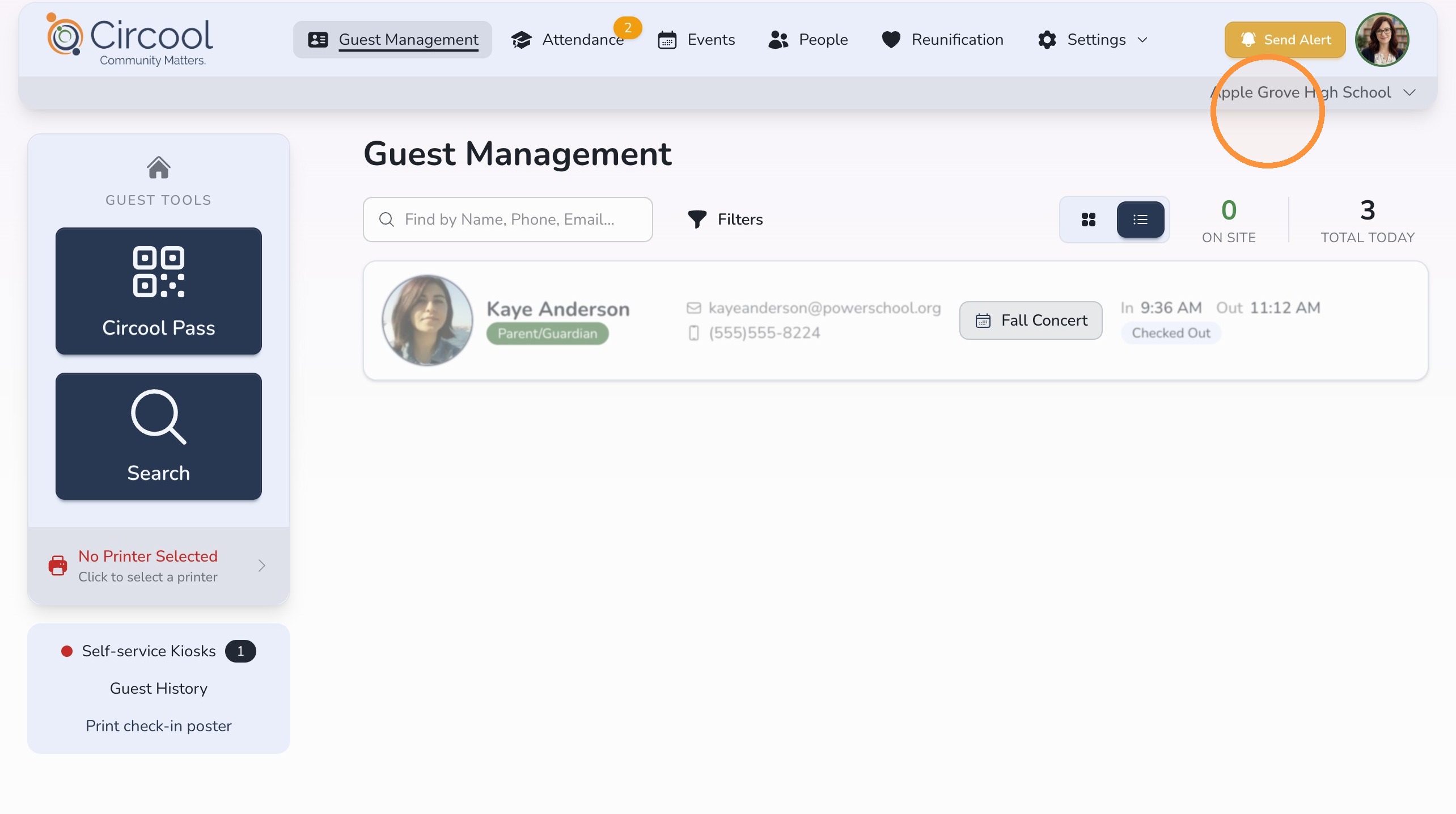
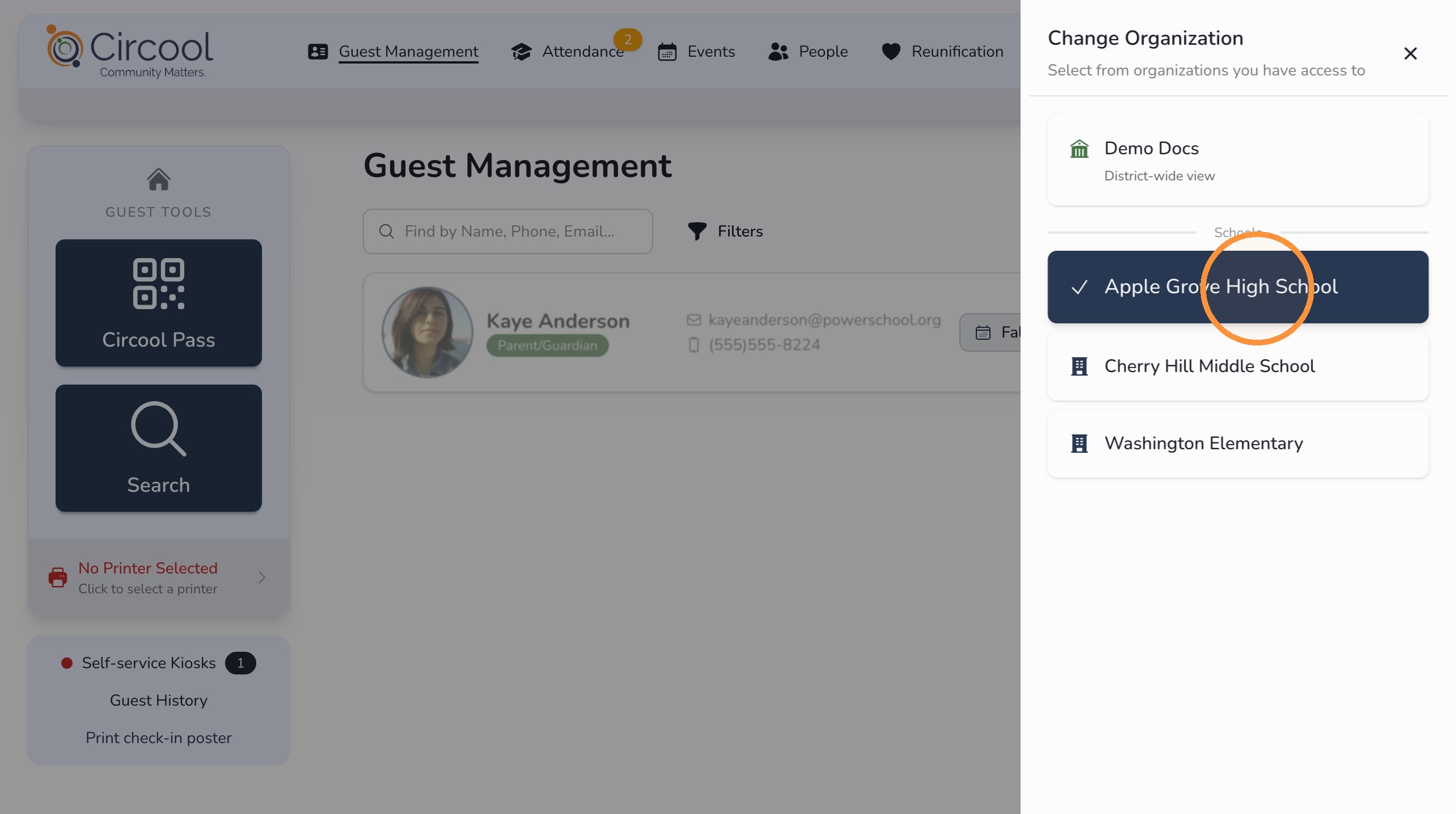
First, make sure you are managing the correct school.
- Click the school name listed in the top-right corner.
- Find and select the school you want to manage.
Use the Guest Management dashboard
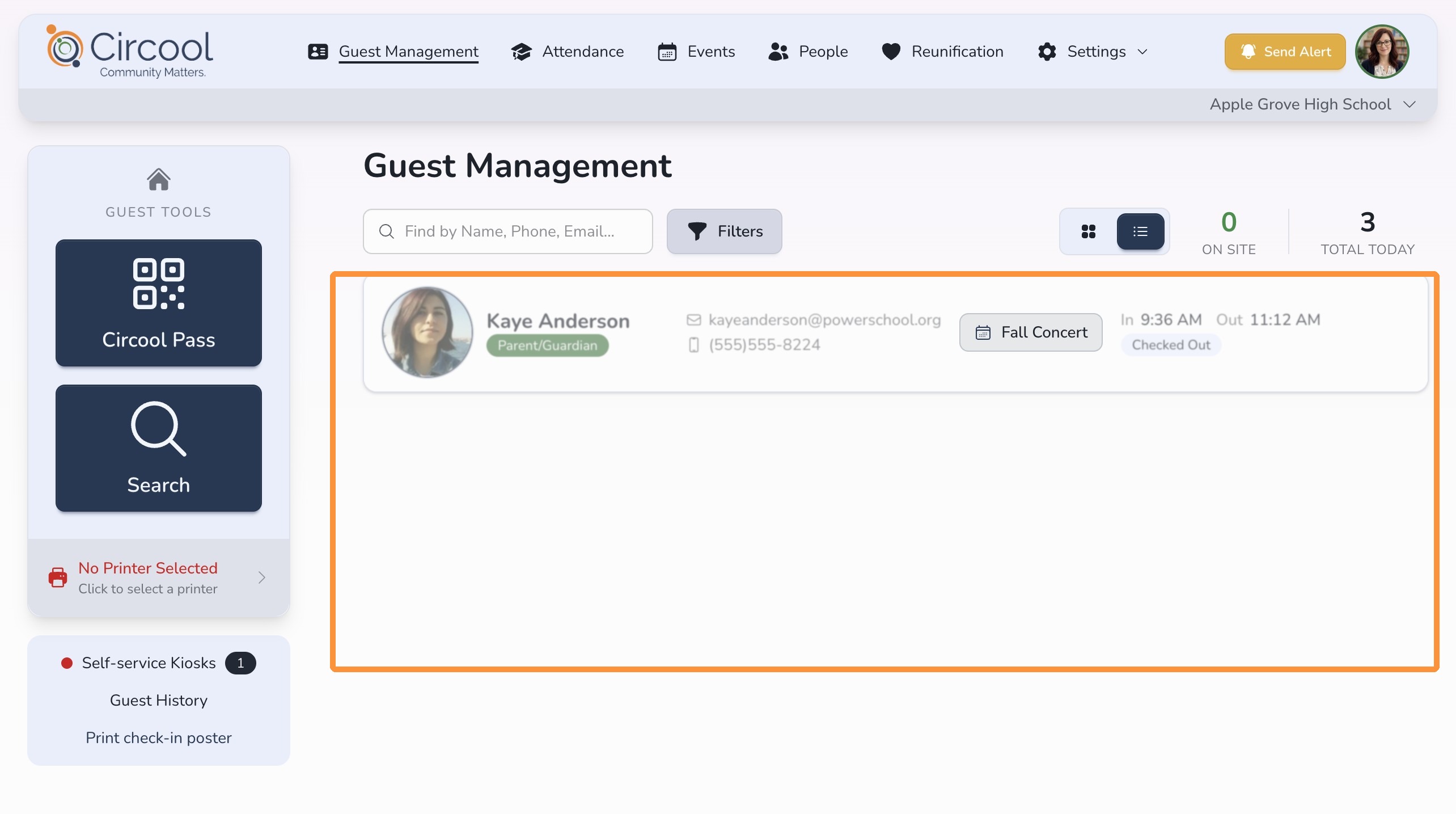
Think of Guest Management as your front office home base for seeing who is in your school, who needs review, and what actions need to happen next.
You can also use Filters to change which guests appear on the dashboard.
Select your name badge printer
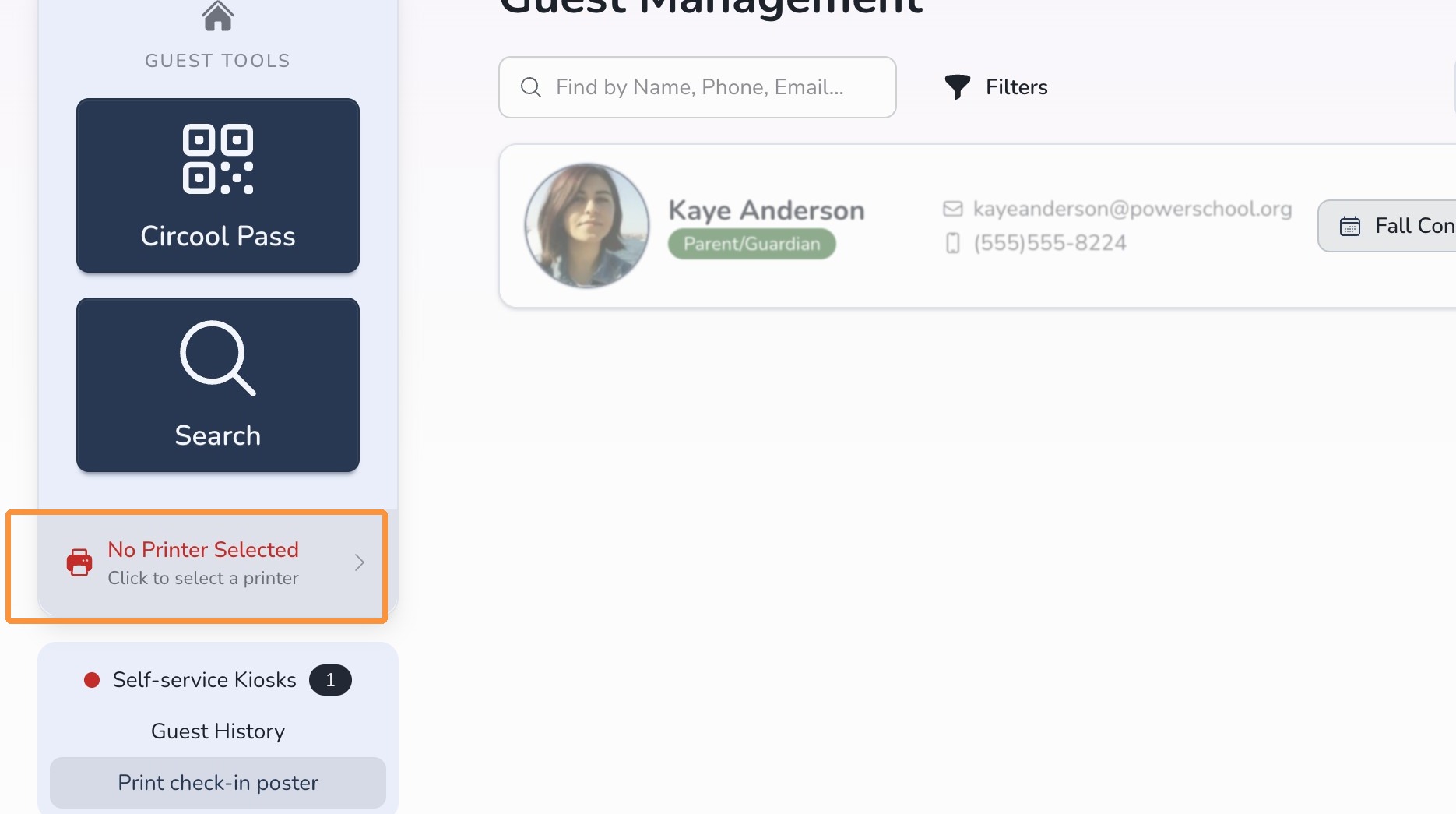
Set your default Name Badge Printer before checking in guests.
- From the left panel, click No Printer Selected.
- Select the name badge printer you want to use.
Tip: If you are unsure which printer to select, check the serial number on the underside of the printer.
Print mobile check-in posters
Check-in posters can be printed and placed in your front office or atrium so guests can start check-in from their own phone.
These posters can help:
- First-time guests start check-in from their phone.
- Returning guests connect to their Circool account.
- Parents who are not Circool-Ready activate their accounts.
- From the bottom left corner, click Print Check-In Poster.
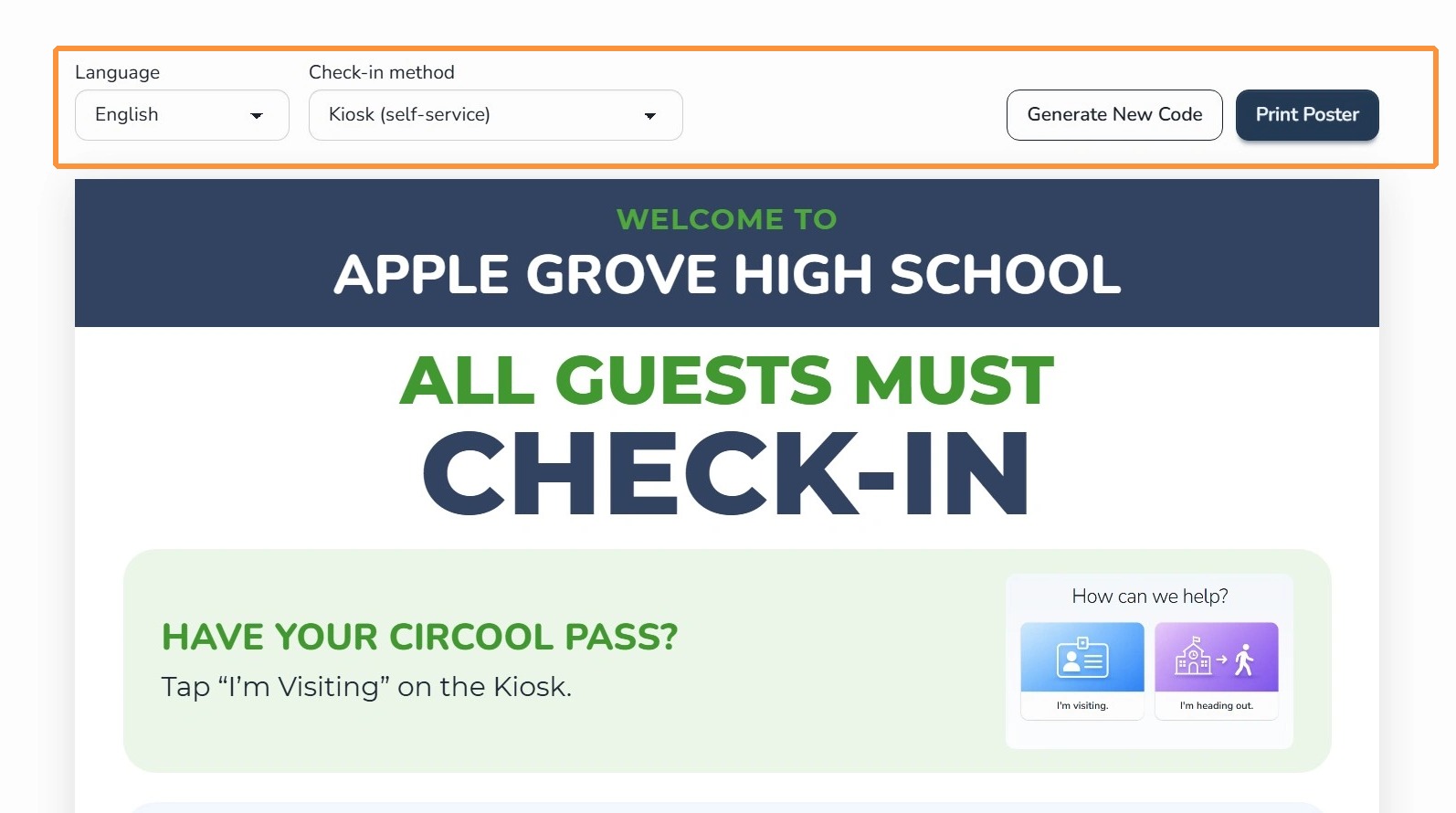
- Choose to print in English or Spanish.
- Under Check-In Method, choose the option that fits your setup.
- Choose Kiosk (Self-Service) if you have a self-service station, such as an iPad or Chromebook.
- Choose Front Desk (Staffed) if your team checks guests in from the front desk with a webcam.
- Click Print Poster and place the poster where guests can easily scan it.
Know your main check-in buttons
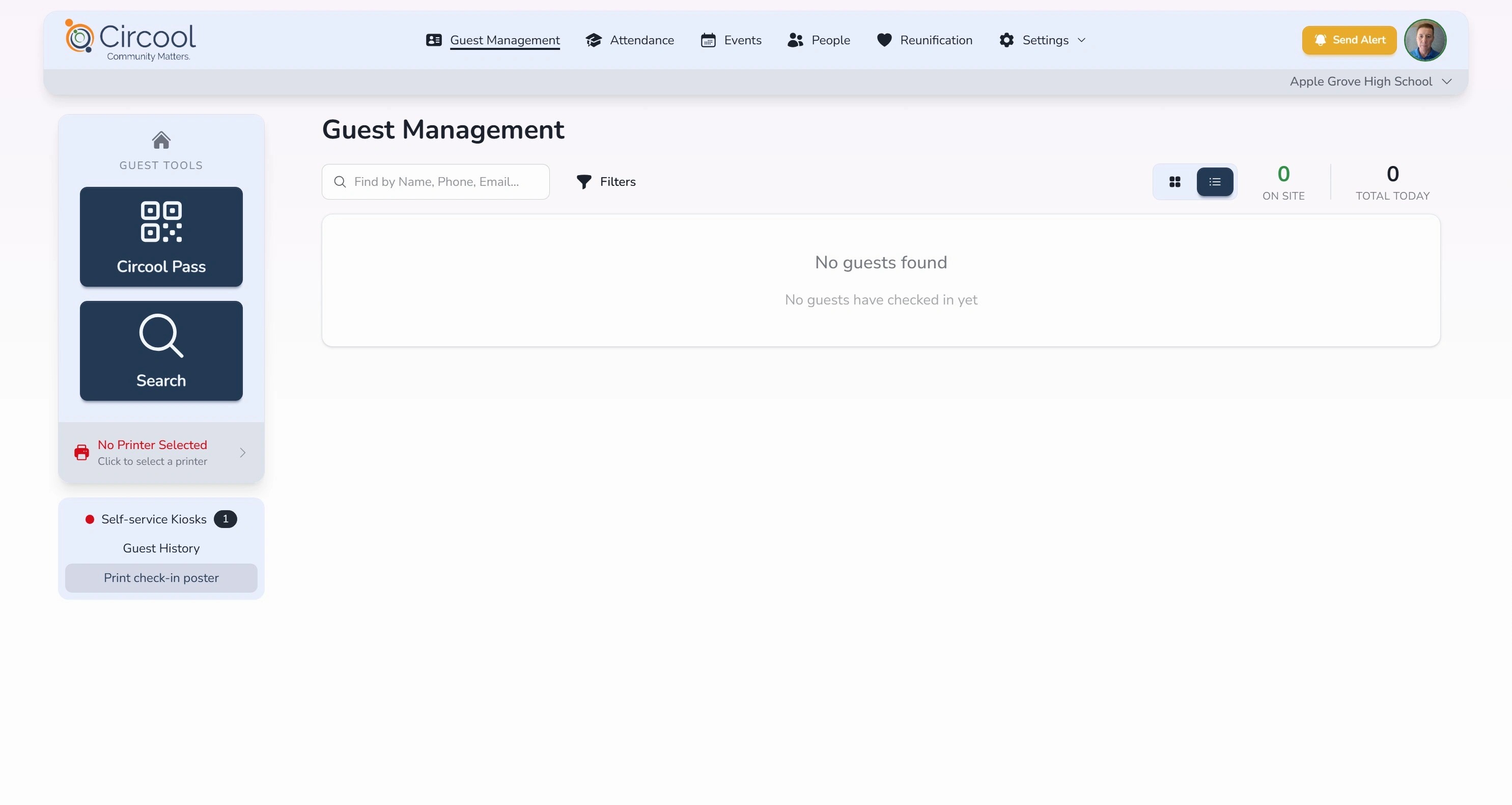
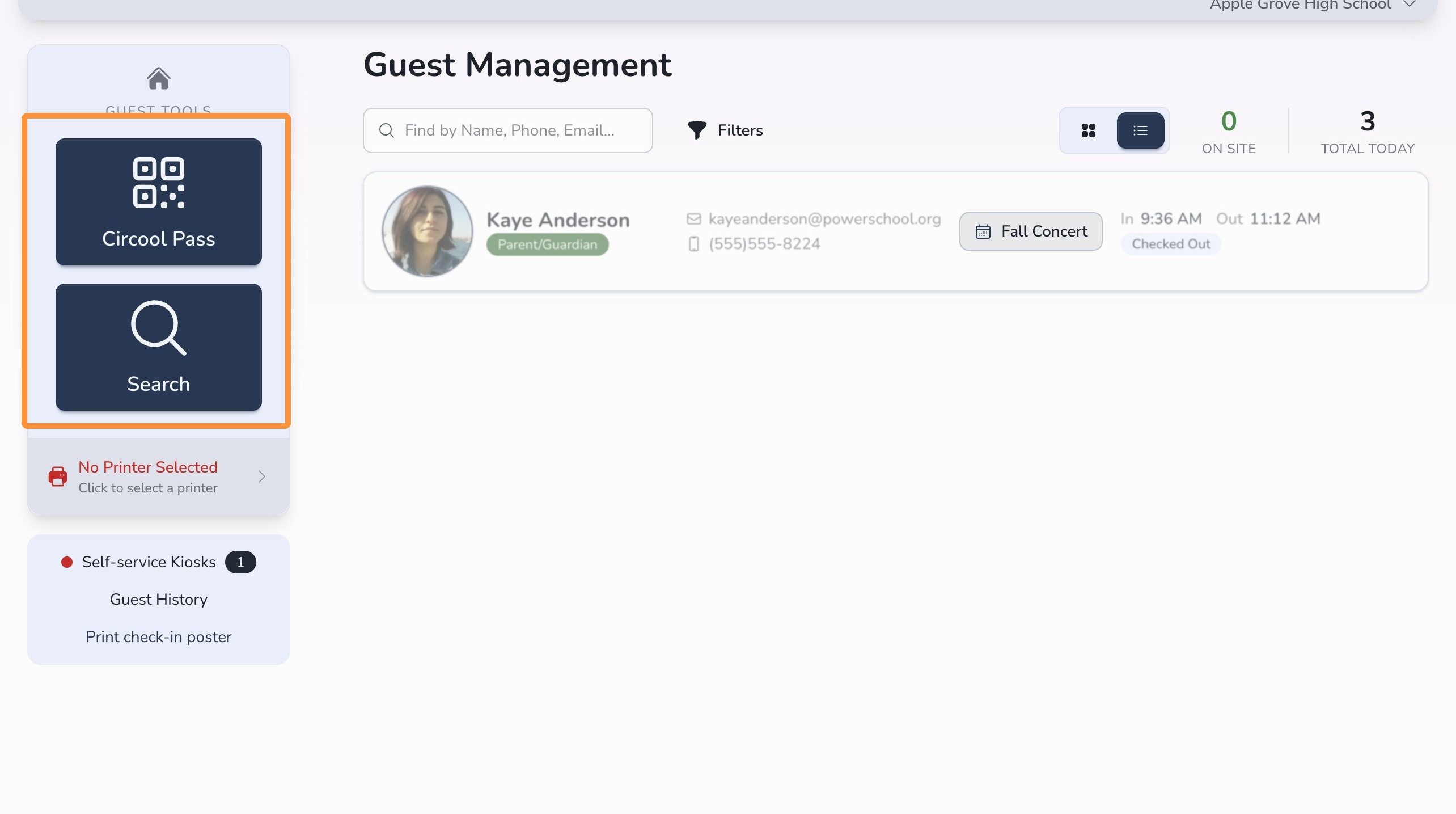
Your main guest check-in options appear on the left side of the dashboard for quick access.
- Circool Pass: Use this when the guest has their Circool QR code ready to scan.
- Search: Use this to look up a guest by name, phone number, or email address.
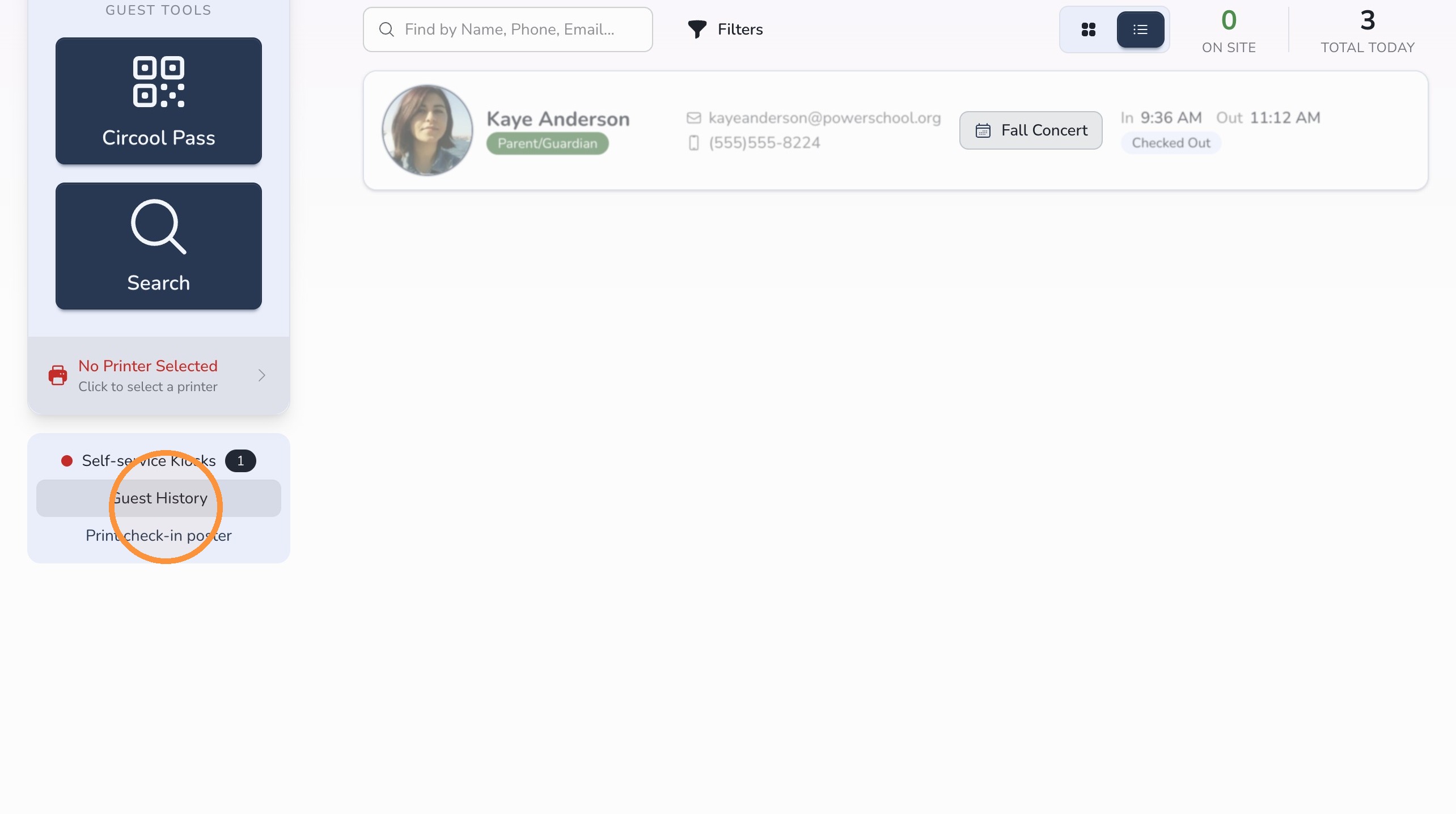
Review guest history
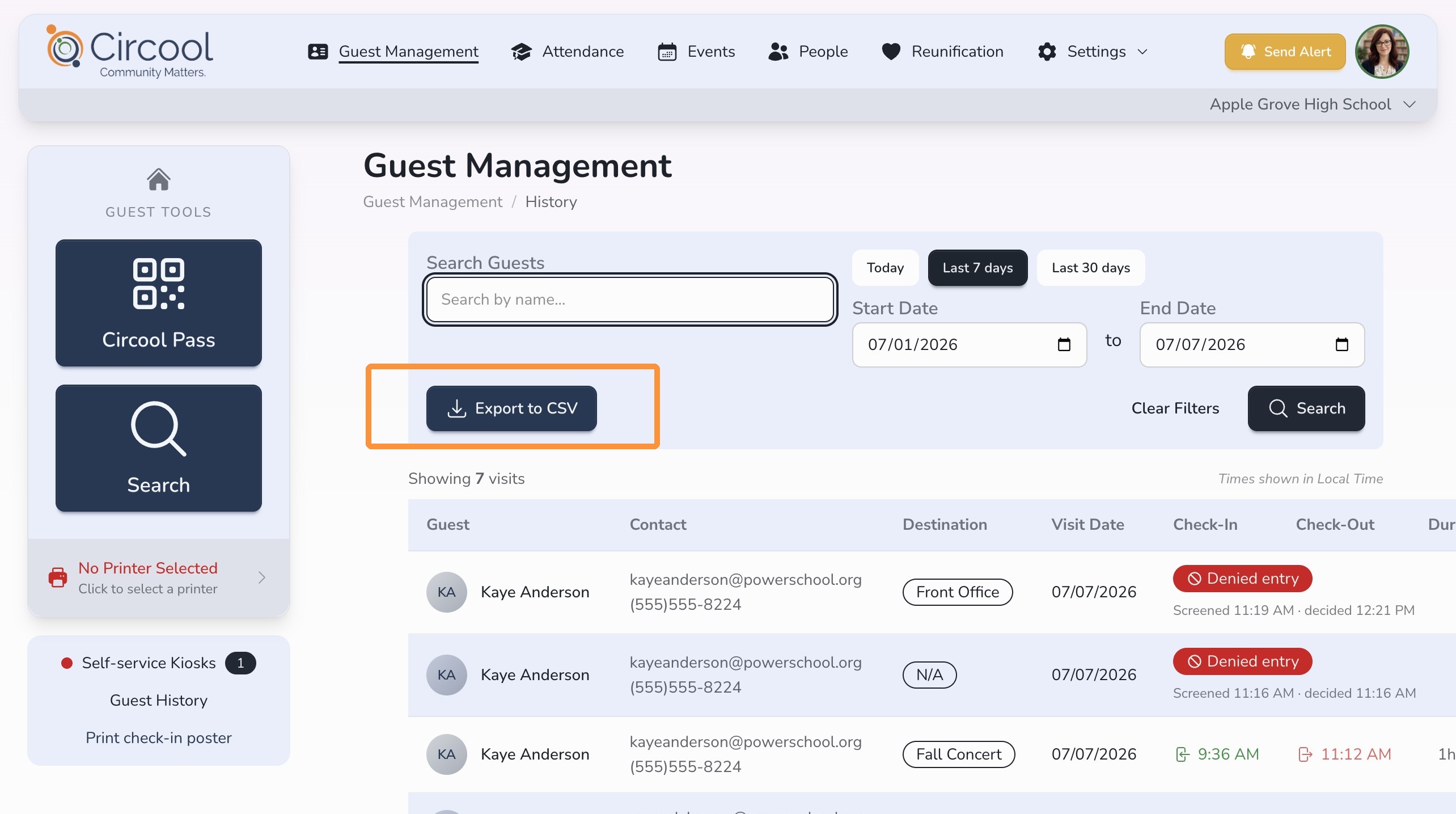
The Guest History section lets you review previous guest activity for your school.
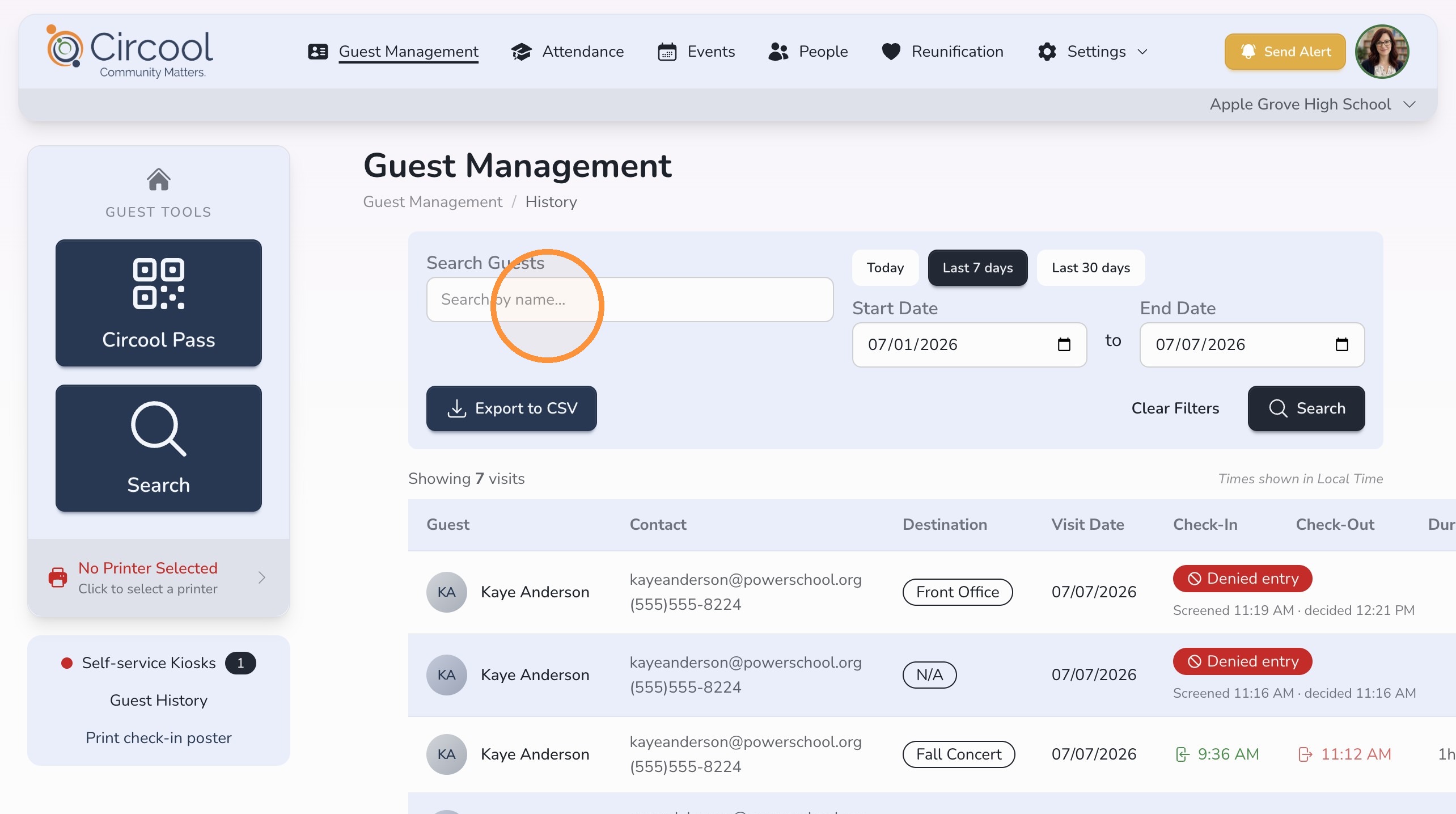
Search by name
Search for a specific person by name to view their visit history.
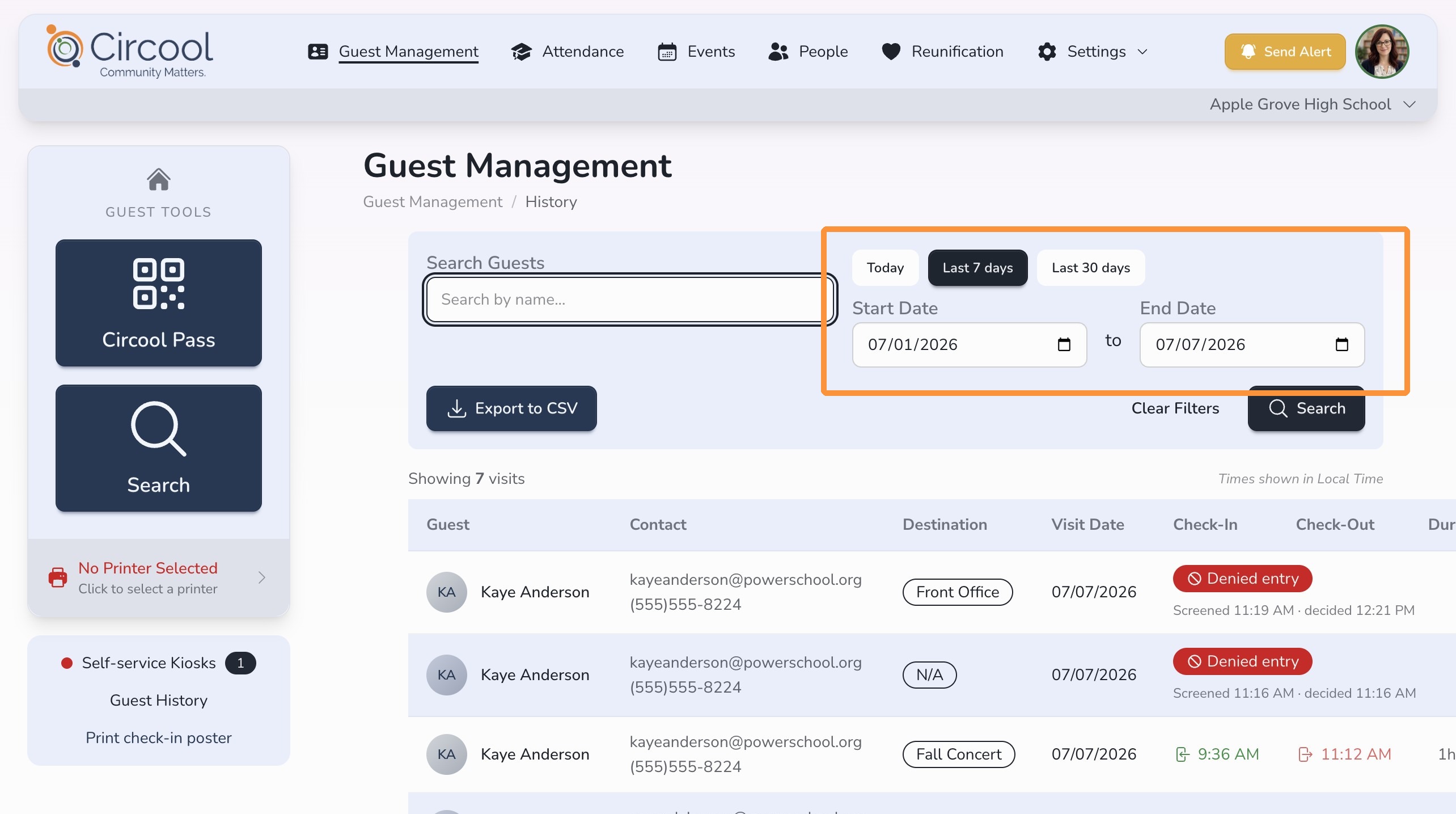
Filter by date
Use a prebuilt filter or select a custom date range when you need to review visits from a specific time period.
Export guest history
You can export guest history to a CSV file if you need to sort, filter, or review the data outside of Circool.
What happens next
After your school, printer, dashboard view, and check-in posters are ready, your front desk team can begin managing guest check-ins.
Use the additional Guest Management guides for detailed steps on checking in guests, checking out guests, using kiosks, and handling special situations.
That’s it. Your dashboard basics are ready, and your team can move through the school day with more confidence.
Need help?
Circool support is here to help.
If you need help using the Guest Management dashboard, contact Circool support by phone at 205.202.1124 or email support@circool.com.
Was this article helpful?
That’s Great!
Thank you for your feedback
Sorry! We couldn't be helpful
Thank you for your feedback
Feedback sent
We appreciate your effort and will try to fix the article